

This article explains how to open an InPrivate browsing window in Microsoft Edge.
Microsoft Edge is the default browser in Windows 11. However, users can switch to their preferred or favorite browser anytime. Edge is based on Chromium, similar to Google Chrome and other Chromium-based browsers today.
InPrivate browsing allows you to surf the web without leaving a trail of cookies, temporary files, or browsing history on your computer. In this mode, Edge won’t save your browsing history, search history, or any information you enter in forms.
Although Edge won’t remember your browsing sessions in the InPrivate mode, you’re still not safe from malicious websites. Websites can still personalize content during your InPrivate browsing session because cookies and other site permissions are only deleted once you close all InPrivate windows.
You can restrict personalizing content and ads in Edge by turning on the strict mode in “Tracking prevention.”
Open InPrivate browsing windows in Microsoft Edge
As mentioned above, users can use InPrivate browsing windows to browse without leaving a trail of cookies and other browser data.
Here’s how to do it.
First, open the Microsoft Edge browser.
Then, press the keyboard shortcut to open an InPrivate browser window (CTRL + SHIFT + N).
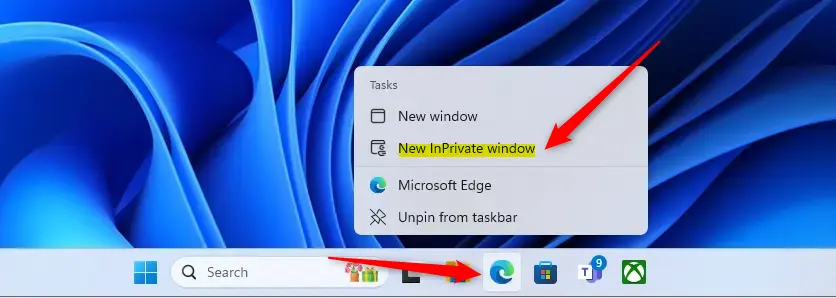
Another way to open the InPrivate browsing window is to select and hold (right-click) the Microsoft Edge logo in the taskbar and choose “New InPrivate window.”
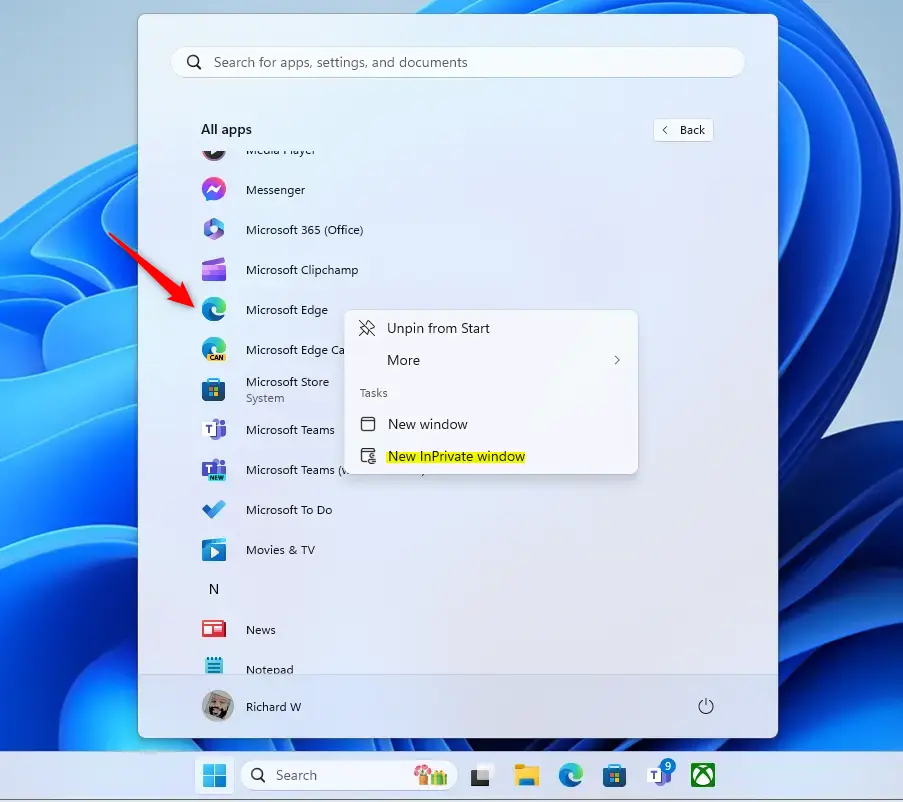
Alternatively, click the Start menu and select “All apps” button. On the All apps list, right-click on the Microsoft Edge icon and then “New InPrivate window.”
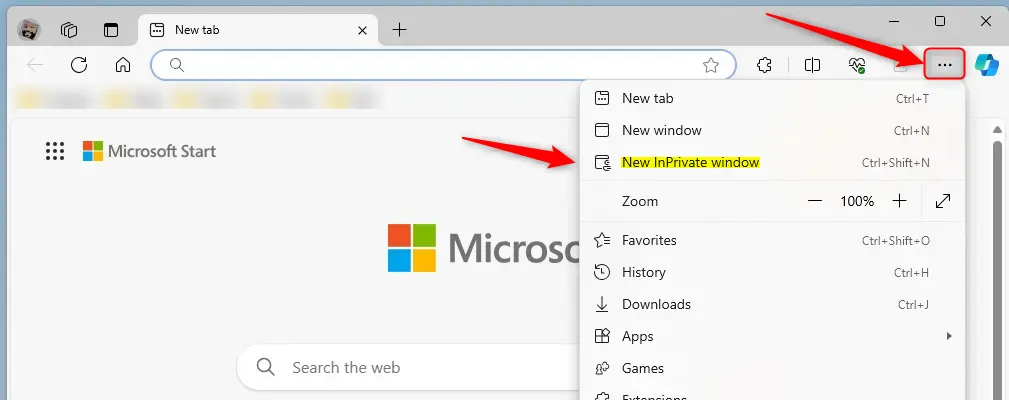
Yet another way to open Edge’s InPrivate browsing windows is to select the Setting and more (Alt+F) 3 horizontal dots button and then “New InPrivate window.”
Open InPrivate Browsing Window in Microsoft Edge using Shortcut or Command
Using the command line or shortcut, you can open Edge InPrivate browsing window. Below are the commands to do that.
"C:Program Files (x86)MicrosoftEdgeApplicationmsedge.exe" -inprivate
OR
"C:Program Files (x86)MicrosoftEdgeApplicationmsedge.exe" -inprivate -new-window
You can open a particular URL by specifying it after the command. Example:
"C:Program Files (x86)MicrosoftEdgeApplicationmsedge.exe" -inprivate https://geekrewind.com
That should do it!
Conclusion:
- Opening an InPrivate browsing window in Microsoft Edge allows you to surf the web without leaving a trail of cookies, temporary files, or browsing history on your computer.
- This mode ensures that Edge won’t save your browsing history, search history, or any information you enter in forms during the session.
- While InPrivate browsing provides privacy during the session, it’s important to note that websites can still personalize content based on cookies and site permissions until all InPrivate windows are closed.
- Users can further enhance their privacy by turning on the strict mode in Tracking prevention to restrict personalized content and ads in Edge.



Leave a Reply