How to Access Power User Tasks Menu in Windows 11

The Power User Tasks menu is a hidden tool in Windows 11. It gives you fast access to advanced settings that you cannot find in the regular Start menu. This menu is hidden so that new users do not accidentally change important settings.
Why use the Power User menu?
You should use this menu if you need to manage your computer, check system health, or fix common errors. It saves time by putting the most important tools in one simple list.
What happens when you are done?
Once you finish your tasks, you will have more control over your system, better management of your files, and a faster way to reach settings like the Command Prompt or Disk Management.
How to open the Power User menu
There are two easy ways to open this menu.
- Keyboard Shortcut: Press the Windows key + X at the same time.
- Mouse Method: Right-click on the Start button on your taskbar.
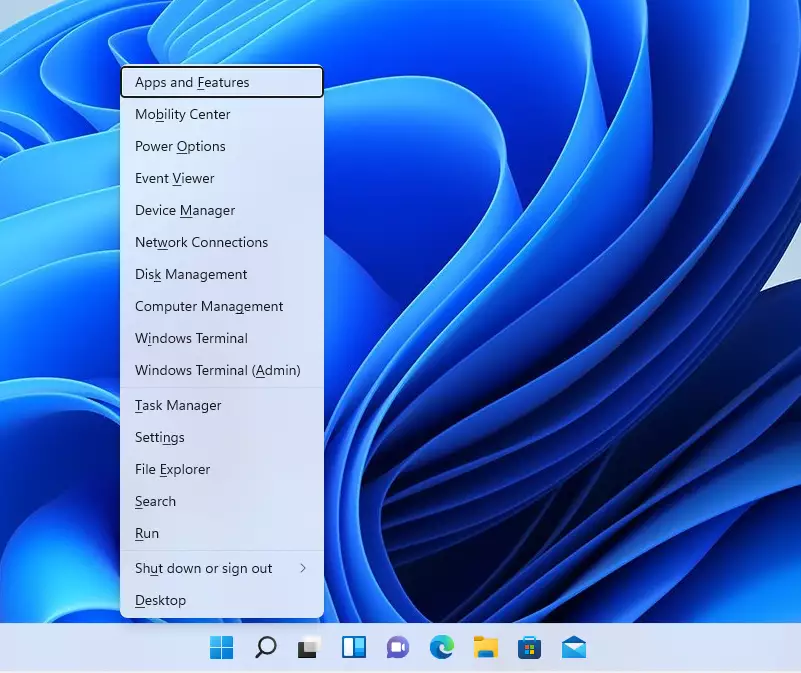
Using keyboard shortcuts
Once the menu is open, you can press specific letters on your keyboard to jump directly to a tool. Here are the most common shortcuts:
- F – Apps & Features
- V – Event Viewer
- K – Disk Management
- T – Task Manager
- P – Control Panel
- E – File Explorer
- R – Run command box
- D – Show Desktop
Note: Some items require Admin Privileges to function correctly. If you select an option like Command Prompt (Admin), a window will appear asking for permission to make changes to your computer. You must have an administrator account to proceed.
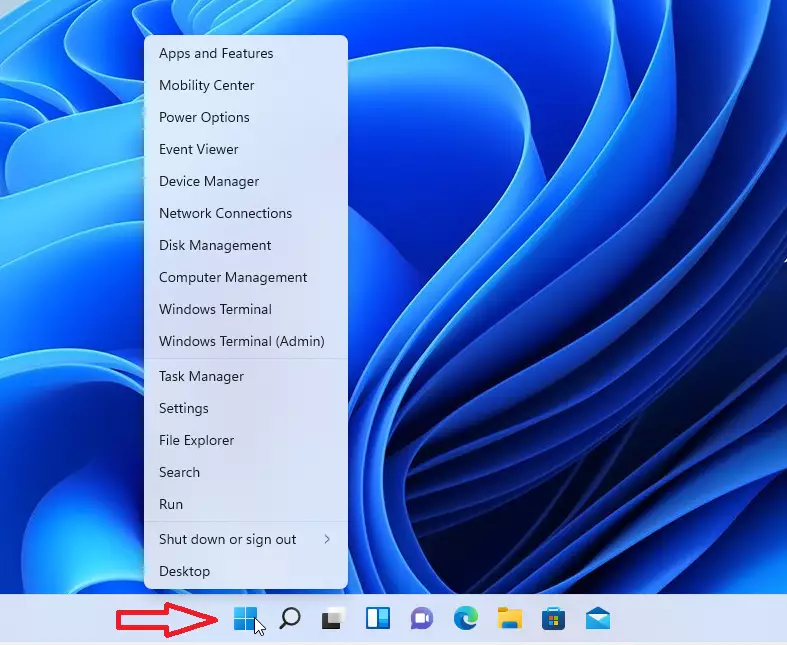
For example, to quickly put your computer to sleep, press Windows key + X, then press U, and then S.
Summary
The Power User Tasks menu is a shortcut for advanced settings. You can open it by pressing Windows key + X or by right-clicking the Start button. Using this menu allows you to manage your computer faster without digging through deep menus. Always be careful when changing advanced settings, as they can change how your system works.
Was this guide helpful?




[…] Right-click the Start button and select System on the Power User menu. […]
[…] Right-click on the Start button to launch the Power User menu. […]
[…] first open Windows Task Manager. You can do that by right-clicking on the Start menu to launch the Power User Menu, which is the Task Manager […]
[…] First, you must launch or open the Windows Terminal app as administrator. Or press the Windows key + X to open the Power User Menu. […]
[…] way to access the Settings app in Windows 11 is to use the Power User menu. To do that, right-click on the Start button and select […]
[…] more method in Windows 11 is through the Power User Menu. First, press the keyboard short: Windows key + X or right-click on the Start menu to launch the […]
[…] do so, select and hold (or right-click) the Start button to launch the Power Users task Menu, and then select Disk […]
[…] use the Power User menu to put a computer to sleep, right-click on the Start button or press the Win + X keys on your […]
[…] CTRL + X > to open Power User Tasks menu, then select Task […]
[…] use the Power User menu to hibernate a Windows computer, right-click the Start button or press the Win + X keys on your […]
[…] File Explorer, Power User Menu […]