How to Install LAMP on Ubuntu Linux

A LAMP stack on Ubuntu Linux is a bundle of four free programs that let you host websites and run web apps on your PC. LAMP stands for Linux, Apache (the web server), MySQL (the database), and PHP (the programming language).
Building this setup requires Ubuntu 22.04 LTS or newer, Apache 2.4, MySQL 8.0, and PHP 8.1. You can install all four parts on your machine to start testing and running your own PHP projects locally.
Install LAMP on Ubuntu by updating packages and installing Apache, MariaDB, and PHP. Use `sudo apt update` and `sudo apt install apache2 mariadb-server php libapache2-mod-php php-mysql`.
How to install Ubuntu Linux
Ubuntu Linux installation gives you the operating system foundation needed to set up LAMP. You need a working Ubuntu computer or virtual machine before you can add your web server, database, and programming language. Once your setup finishes, you run a few update commands in your terminal to prepare the system for the next installation steps.
Ubuntu Linux installation is the first task for LAMP configuration. Users new to Ubuntu can follow a linked guide to learn how to install the Ubuntu operating system.
Once Ubuntu is installed, run the commands below to update it.
sudo apt update
sudo apt dist-upgrade
sudo apt autoremove
There are lots of other settings and configurations to apply that apply to Ubuntu. However, the post is only concerned with installing LAMP.
How to install Apache on Ubuntu Linux
Apache is the web server that displays your website files to visitors when you install LAMP Ubuntu. You add the web server by opening your terminal and running the apt package manager commands to download and set up the software. After the installation completes, you can manage the service to make sure it starts automatically whenever your computer boots up.
sudo apt update
sudo apt install apache2
sudo systemctl stop apache2
sudo systemctl start apache2
sudo systemctl enable apache2
To see if Apache is installed, open a web browser and browse to the server hostname or IP address.
http://localhost
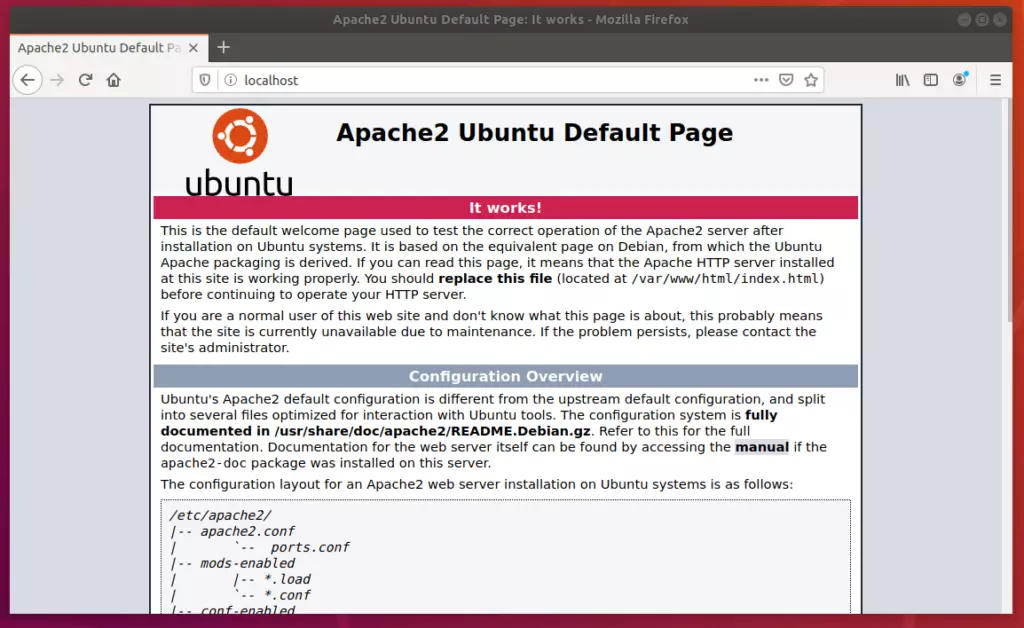
If you see the above Apache welcome page, it means Apache is installed and functioning.
How to install MariaDB on Ubuntu Linux
MariaDB is the database server that stores all your website information when you install MariaDB Ubuntu. You use this popular database alternative to MySQL to handle user accounts, posts, and settings for your web applications. Running a few short terminal commands downloads the database software and secures your installation so it is ready for use.
For this post, we will install MariaDB instead of MySQL.
To install MariaDB, run the commands below.
sudo apt update
sudo apt install mariadb-server
After installing, you can run the commands below to view the MariaDB service status.
sudo systemctl status mariadb
After running the command above, it should output similar lines.
mariadb.service - MariaDB 10.3.31 database server
     Loaded: loaded (/lib/systemd/system/mariadb.service; enabled; vendor preset: enabled)
     Active: active (running) since Wed 2021-09-15 16:40:20 CDT; 22s ago
       Docs: man:mysqld(8)
             https://mariadb.com/kb/en/library/systemd/
   Main PID: 3007 (mysqld)
     Status: "Taking your SQL requests now..."
      Tasks: 31 (limit: 4651)
     Memory: 65.6M
     CGroup: /system.slice/mariadb.service
             └─3007 /usr/sbin/mysqld

Sep 15 16:40:20 ubuntu2004 /etc/mysql/debian-start[3045]: mysql
Sep 15 16:40:20 ubuntu2004 /etc/mysql/debian-start[3045]: performance_schema
MariaDB and MySQL have a script allowing you to perform security operations.
Run the commands below to invoke the script and perform some recommended tasks to secure the database.
sudo mysql_secure_installation
MariaDB and MySQL servers have the root user set to use the auth_socket authentication method by default.
You can't authenticate as a root by providing a password.
Simply run the command below to log on to MariaDB and MySQL servers as root. You don't need a password since it's using the auth_socket method.
To log on to MariaDB, run the commands below.
sudo mysql
The server console should come up.
Welcome to the MySQL monitor.  Commands end with ; or g.
Your MySQL connection id is 8
Server version: 8.0.26-0ubuntu0.20.04.2 (Ubuntu)

Copyright (c) 2000, 2021, Oracle and/or its affiliates.

Oracle is a registered trademark of Oracle Corporation and/or its
affiliates. Other names may be trademarks of their respective
owners.

Type 'help;' or 'h' for help. Type 'c' to clear the current input statement.

mysql>
How to install PHP on Ubuntu Linux
PHP is the programming language that makes your website dynamic when you install PHP Ubuntu. You connect PHP to your web server by installing the language packages along with the required Apache module through your terminal. This setup lets your server process code, run contact forms, and handle login systems for your web visitors.
sudo apt update
sudo apt install php libapache2-mod-php
To install the latest PHP versions unavailable in the Ubuntu repository, run the commands below to install a third-party PPA repository that includes multiple versions of PHP.
At the time of this writing, the latest version of PHP is 8.0.
sudo apt install software-properties-common
sudo add-apt-repository ppa:ondrej/php
After adding the repository above, you can then install another PHP version.
sudo apt install php8.0 php8.0-common php8.0-cli php8.0-gd php8.0-curl php8.0-mysql
That should do it!
For more on LAMP, read individual posts on the LAMP components
- How to install Ubuntu Linux
- How to install Apache
- How to install l MariaDB or MySQL
- How to install PHP
Conclusion:
The LAMP stack installation guide provides instructions for installing the LAMP stack on Ubuntu Linux. You can submit errors or suggested additions to the LAMP stack installation guide using the comment form located below.
Was this guide helpful?

About the Author
Richard
Tech Writer, IT Professional
Richard is a writer at Geek Rewind who turns complex IT tasks into clear, step-by-step guides. He draws on years of hands-on experience in system administration and enterprise IT operations, focusing on Windows, Linux and WordPress: the problems people actually run into, and the fixes that work. His server and WordPress guides come from systems he runs himself. Richard builds and maintains the platform behind Geek Rewind, from its Ubuntu servers and Nginx configuration to its custom WordPress plugins. Many new tutorials start with readers' questions, and he's always glad to answer them in the comments.

[…] ready to connect to our Google Cloud server and install any CMS based on LAMP or LEMP by tying software and packages installed in our previous […]
[…] How to install LAMP on Ubuntu Linux […]