How to Install FileRun with Apache on Ubuntu 24.04


FileRun on Ubuntu 24.04 with Apache creates a private cloud storage server for managing and sharing files from any device. This self-hosted platform works just like Dropbox or Google Drive, but keeps all your files on your own server for full privacy control.
Apache acts as the web server that lets your web browser load FileRun, and this setup supports sharing with up to 50 people.
Install Apache and PHP, then create a database for FileRun. Configure Apache virtual hosts to point to your FileRun installation directory.
Install Apache HTTP server on Ubuntu
To install Apache HTTP server on Ubuntu, open your terminal and run the commands sudo apt update and sudo apt install apache2. This sets up the web server required to host FileRun on your system. Apache will start working automatically as soon as the installation finishes.
To do that, open the Ubuntu terminal and run the commands below to install the Apache web server.
sudo apt update
sudo apt install apache2
Once Apache is installed, the commands below can start, stop, and enable the Apache web server to start automatically when your server boots up.
sudo systemctl stop apache2
sudo systemctl start apache2
sudo systemctl enable apache2
You can test that the Apache web server is running by opening your web browser and browsing to the server’s localhost or IP address.
http://localhost
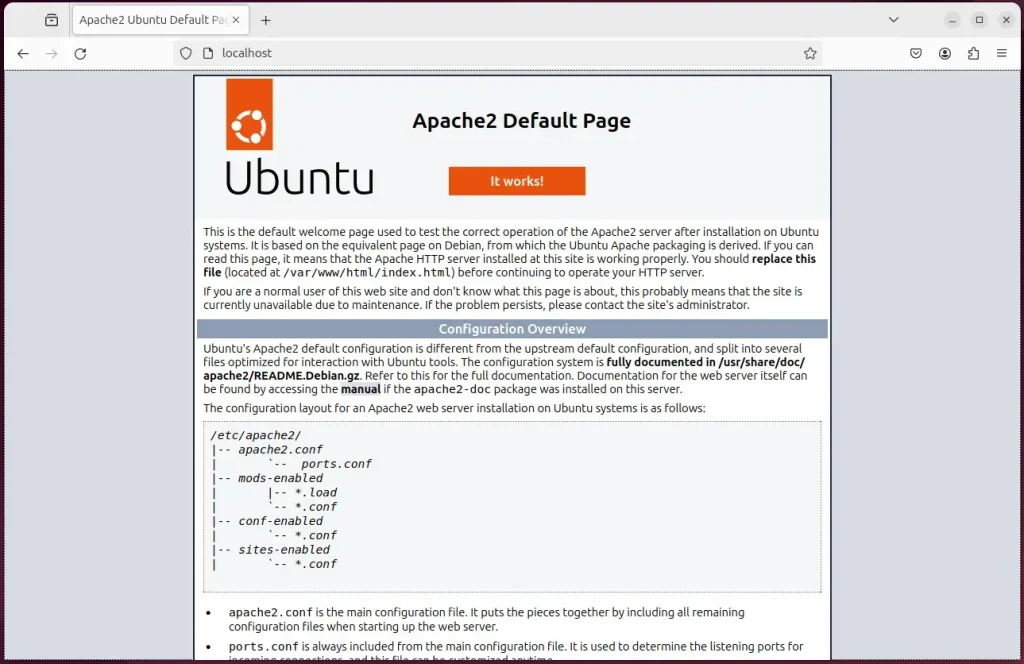
When you see the Apache2 Default Page, it means the Apache HTTP server is successfully installed.
Additional help on installing Apache on Ubuntu is in the link below.
Install the MariaDB database server on Ubuntu
To install the MariaDB database server on Ubuntu for your FileRun setup, open your terminal and run the commands sudo apt update and sudo apt install mariadb-server. This installs the database system required to store all your application data securely on your server.
To install and use the MariaDB database server, use the instructions below.
Open the Ubuntu terminal and run the commands below to install the MariaDB database server.
sudo apt update
sudo apt install mariadb-server
Once the MariaDB database server is installed, use the commands below to stop, start, and enable the MariaDB server to start automatically when the server boots.
sudo systemctl stop mariadb
sudo systemctl start mariadb
sudo systemctl enable mariadb
Run the following commands to validate and test if the MariaDB database server is installed successfully.
sudo mariadb
Once you run the commands above, it will log you onto the MariaDB console and display a message similar to the one below.
Welcome to the MariaDB monitor.  Commands end with ; or g.
Your MariaDB connection id is 32
Server version: 10.11.2-MariaDB-1 Ubuntu 23.04

Copyright (c) 2000, 2018, Oracle, MariaDB Corporation Ab and others.

Type 'help;' or 'h' for help. Type 'c' to clear the current input statement.

MariaDB [(none)]>
The message tells you that the server is installed successfully.
Additional help on installing MariaDB.
- How to install MariaDB on Ubuntu Linux
- MariaDB without password prompt
Create a FileRun database
To create a FileRun database, log into your MariaDB shell and run the commands to set up a dedicated database named filerundb and a user called filerundbuser with full permissions. This gives FileRun the clean, organized storage space it needs to save your files and settings.
As part of the setup, we will create a filerundb database and a user account called filerundbuser.
Finally, we’ll grant the filerundbuser full access to the filerundb database.
All the database steps above can be done using the commands below:
But first, log on to the MariaDB database server:
sudo mariadb
Then run the commands below to complete the steps:
CREATE DATABASE filerundb CHARACTER SET utf8mb4 COLLATE utf8mb4_general_ci;
CREATE USER filerundbuser@localhost IDENTIFIED BY 'type_your_password_here';
GRANT ALL ON filerundb.* TO filerundbuser@localhost WITH GRANT OPTION;
FLUSH PRIVILEGES;
exit
Install PHP on Ubuntu Linux
To install PHP on Ubuntu Linux for FileRun, open your terminal and run the required apt install command with all necessary Apache modules like php-mysql, php-intl, and php-gd. Having the correct PHP modules installed ensures the application runs smoothly without missing core features.
Then, run the commands below to install the latest PHP version.
sudo apt install php libapache2-mod-php php-intl php-mysql php-curl php-cli php-zip php-xml php-gd php-common php-mbstring php-xmlrpc php-bcmath php-json php-sqlite3 php-soap php-zip php-imagick php-ldap imagemagick ffmpeg
Additional help on installing PHP
How to install PHP on Ubuntu Linux
FileRun uses PHP configuration settings that you need to change. Run the commands below to create a new PHP configuration file for FileRun.
sudo nano /etc/php/8.3/apache2/conf.d/filerun.ini
Then, copy the lines below and paste them into the file above. Adjust as you wish.
expose_php              = Off
error_reporting         = E_ALL & ~E_NOTICE
display_errors          = Off
display_startup_errors  = Off
log_errors              = On
ignore_repeated_errors  = Off
allow_url_fopen         = On
allow_url_include       = Off
variables_order         = "GPCS"
allow_webdav_methods    = On
memory_limit            = 128M
max_execution_time      = 300
output_buffering        = Off
output_handler          = ""
zlib.output_compression = Off
zlib.output_handler     = ""
safe_mode               = Off
register_globals        = Off
magic_quotes_gpc        = Off
upload_max_filesize     = 20M
post_max_size           = 20M
enable_dl               = Off
disable_functions       = ""
disable_classes         = ""
session.save_handler     = files
session.use_cookies      = 1
session.use_only_cookies = 1
session.auto_start       = 0
session.cookie_lifetime  = 0
session.cookie_httponly  = 1
date.timezone            = "UTC"
Save your changes and exit.
One last module that is required is ionCube. Run the steps below to install it and add it to PHP configurations.
Download the package for Ubuntu 64-bit.
sudo wget https://downloads.ioncube.com/loader_downloads/ioncube_loaders_lin_x86-64.tar.gz
Next, run the commands below to extract it into the /usr/lib/php directory.
sudo tar -xzf ioncube_loaders_lin_x86-64.tar.gz -C /usr/lib/php
Then, run the commands below to create an ioncube config file.
sudo nano /etc/php/8.3/apache2/conf.d/00-ioncube.ini
Paste the following line into the file and save.
zend_extension = /usr/lib/php/ioncube/ioncube_loader_lin_8.3.so
Save the file and exit.
Download FileRun files
To download FileRun files, log into your account at the official client area website and save the application zip archive to your computer. You need an active account on the website to access and download these required installation files.
Download the installation zip archive from the FileRun client area: https://filerun.com/client-area/client-area-orders. There's no zip archive file available for public download at the moment.
After downloading, extract the file to the Apache root directory.
cd /tmp
sudo unzip FileRun.zip -d /var/www/filerun
Next, run the command below to make the Apache user owner of the directory.
sudo chown -R www-data:www-data /var/www/filerun/
Once you have completed all the above steps, continue configuring the Apache web server below to serve the FileRun content.
Run the commands below to create an Apache virtual host file for FileRun.
sudo nano /etc/apache2/sites-available/filerun.conf
Then, copy and paste the content block below into the Apache server block.
<VirtualHost *:80>
  ServerName filerun.example.com
  ServerAlias www.filerun.example.com
  ServerAdmin admin@example.com
  DocumentRoot /var/www/filerun

  <Directory /var/www/filerun/>
       Options FollowSymlinks
       AllowOverride All
       Require all granted
  </Directory>

       ErrorLog ${APACHE_LOG_DIR}/error.log
       CustomLog ${APACHE_LOG_DIR}/access.log combined
</VirtualHost>
Save the file.
You enable the Apache virtual host by running specific commands, which then reloads the Apache server. This action ensures that your FileRun installation is correctly recognized and accessible through the web.
sudo a2ensite filerun.conf
sudo a2enmod rewrite
sudo systemctl restart apache2
Setup Let’s Encrypt SSL/TLS for FileRun
To setup Let's Encrypt SSL/TLS for FileRun, install the Certbot tool on your Ubuntu server and configure it to generate a free security certificate for your Apache web server. Enabling HTTPS encrypts your traffic and keeps your login details and files safe from prying eyes.
Please read the post below for additional resources on installing and creating Let’s Encrypt SSL certificates for Apache.
How to set up Let’s Encrypt SSL certificate for Apache on Ubuntu Linux
Once you have restarted the Apache web server, open your browser and browse to the server hostname or IP address defined in the Apache server block.
http://filerun.example.com
A FileRun setup wizard should appear. Follow the wizard to complete the setup.

Make sure all requirements are met.

You will need to know the following items before proceeding. Use the database connection info you created above.
- Database name
- Database username
- Database password
- Database host
Then, type in the database connection info and click Next

Take notes of the super admin account password.

Log in and begin setting up your environment.

FileRun should be installed and ready to use.
That should do it!
Conclusion:
In summary, installing FileRun with Apache on Ubuntu provides a robust file management and collaboration solution. Here are the key points to consider:
- User-Friendly Interface: FileRun offers an intuitive interface that enhances user experience.
- Collaboration Features: Built-in tools facilitate real-time collaboration and file sharing.
- Integration Capabilities: Easily integrates with third-party applications like Google Docs.
- Flexible Setup: Apache and MariaDB enable a secure and customizable environment.
- SSL/TLS Security: Implementing Let's Encrypt ensures secure access to your FileRun installation.
- Comprehensive Documentation: Plenty of resources and guides are available for installation and configuration.
FileRun offers significant advantages, making FileRun an excellent choice for individuals and organizations seeking efficient file management solutions. FileRun improves team collaboration and data security, which are crucial for modern businesses.
Was this guide helpful?

About the Author
Richard
Tech Writer, IT Professional
Richard is a writer at Geek Rewind who turns complex IT tasks into clear, step-by-step guides. He draws on years of hands-on experience in system administration and enterprise IT operations, focusing on Windows, Linux and WordPress: the problems people actually run into, and the fixes that work. His server and WordPress guides come from systems he runs himself. Richard builds and maintains the platform behind Geek Rewind, from its Ubuntu servers and Nginx configuration to its custom WordPress plugins. Many new tutorials start with readers' questions, and he's always glad to answer them in the comments.



No comments yet — be the first to share your thoughts!