How to Enable Media Sharing in Ubuntu Linux


Media sharing in Ubuntu Linux lets you stream music, photos, and videos from your computer directly to other devices on your home network, such as a smart TV or game console. This feature uses a free tool called Rygel (a media server that sends files over your local network) to turn your PC into a personal streaming hub.
You can install Rygel with a single command in the terminal or through the Ubuntu Software Center. Once set up, it runs in the background so you can watch movies and play songs stored on your computer on any screen in your house.
Open System Settings, then click Sharing. Toggle the main Sharing switch ON, then click Media Sharing. Toggle the Media Sharing switch ON to stream your music, photos, and videos to other devices on your network.
How to turn on or off media sharing in Ubuntu Linux
Ubuntu media sharing lets you stream music, videos, and photos from your computer to other devices on your home network. You can turn this feature on or off by opening the main Settings panel, selecting the Sharing menu, and toggling the media sharing switch to your preferred state.
Configuring this setup takes only a few moments.
Most configurations live inside the System Settings panel. Open this area by clicking the System menu in the top-right corner of the desktop and selecting Settings.

Or, select Settings from the top-right system menu.
On the System menu, select Settings, as highlighted below.

In the Settings app, click on the Sharing tile to open the panel.
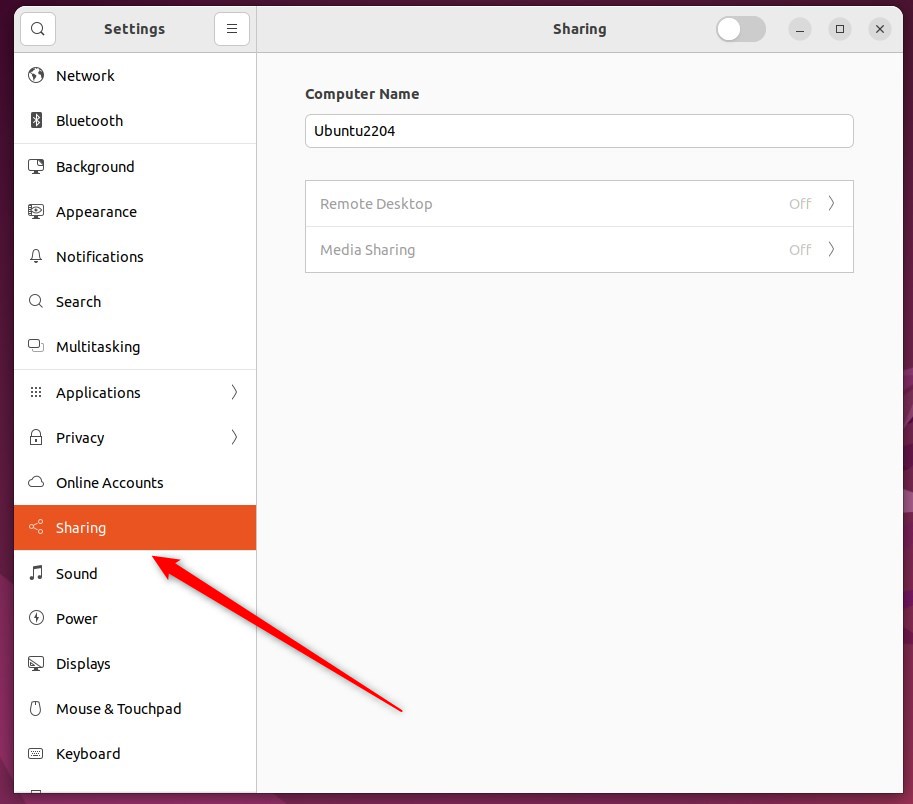
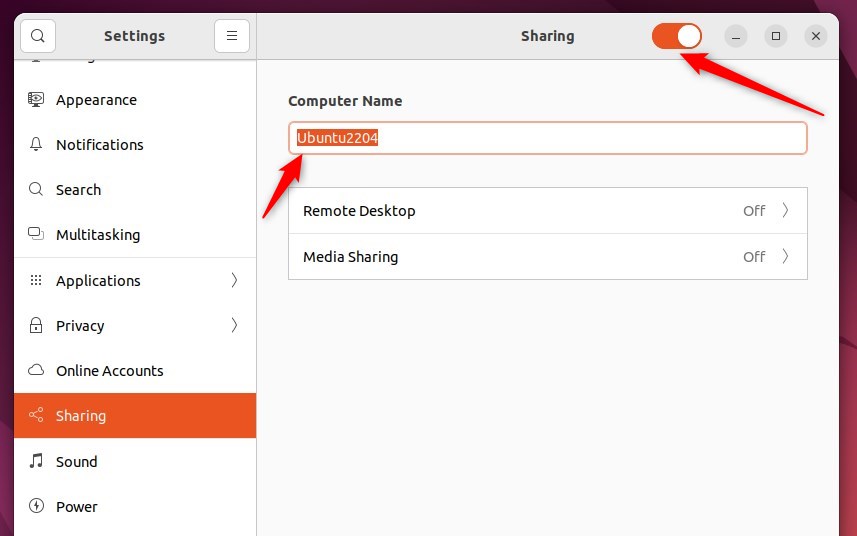
The Sharing switch at the top of the Sharing window controls media sharing. When turned on, the computer's media files become visible to other devices on the network, allowing them to access music, videos, and pictures. Sharing remains disabled when the switch is set to Off.
The name displayed on the network updates here if the text below Computer Name allows editing.
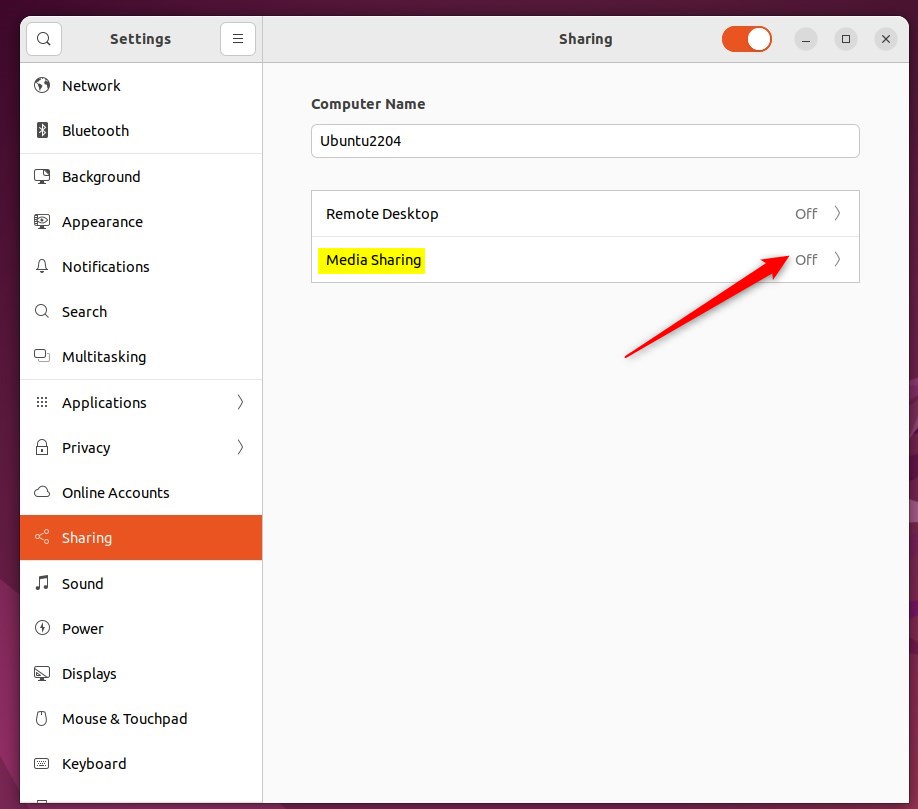
In the System Settings - Sharing panel, select Media Sharing as highlighted below.
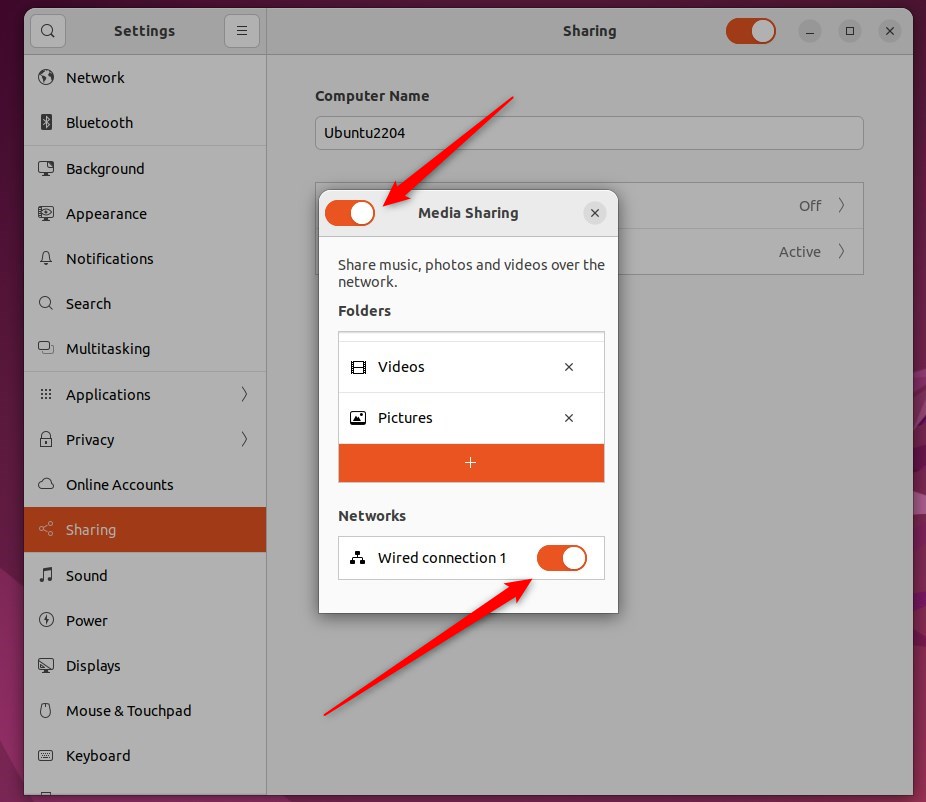
On the Media Sharing window, toggle the Media Sharing switch to On.
Switching it back to the Off position disables the feature.
By default, Music, Pictures, and Videos share automatically. Click the × next to a folder's name to remove it.
Selecting the desired network connection for sharing happens next, ensuring other devices connect to the same network.
Availability of a Wi-Fi network provides the best connection option to reach other devices.
Then, navigate to the desired folder and click Open.
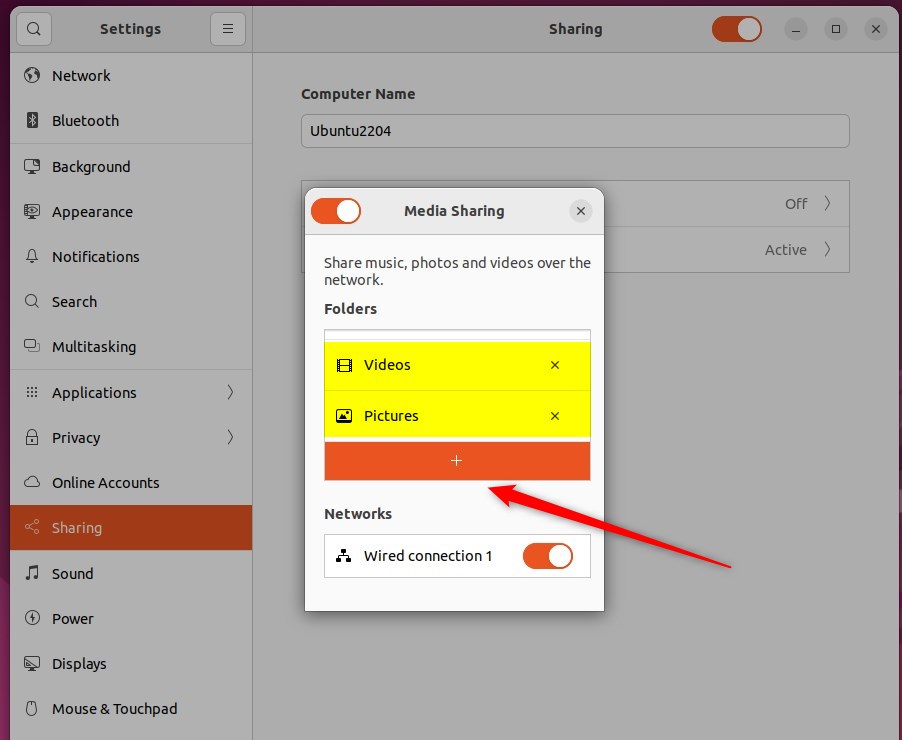
Click X on the Media Sharing window to close. Using the external device, browsing or playing media in the selected folders works immediately.
Everything is now ready for use.
Conclusion:
- Media Sharing in Ubuntu Linux can be easily enabled or disabled using the Sharing panel in System Settings.
- Following the simple steps outlined in this post, you can share music, photos, and videos with UPnP or DLNA-enabled devices across the same network.
- Select the appropriate network connection for seamless sharing with other connected devices.
- After configuring Media Sharing, you can access and enjoy your media on various external devices such as phones, TVs, or game consoles.
Was this guide helpful?

About the Author
Richard
Tech Writer, IT Professional
Richard is a writer at Geek Rewind who turns complex IT tasks into clear, step-by-step guides. He draws on years of hands-on experience in system administration and enterprise IT operations, focusing on Windows, Linux and WordPress: the problems people actually run into, and the fixes that work. His server and WordPress guides come from systems he runs himself. Richard builds and maintains the platform behind Geek Rewind, from its Ubuntu servers and Nginx configuration to its custom WordPress plugins. Many new tutorials start with readers' questions, and he's always glad to answer them in the comments.




Even if i turn off the media sharing, the non-default folders are still being shared.
[…] you turn on DLNA media sharing in Windows, your system will begin scanning your network for DLNA-enabled devices. If a device is […]