Remove DLNA Devices in Windows 11: Step-by-Step Guide


- 8 steps
- Includes a restart or sign-out
Removing DLNA (Digital Living Network Alliance, a built-in sharing standard that connects smart TVs and game consoles to your PC) devices in Windows 11 stops unwanted hardware from streaming music, videos, and pictures from your computer. Clearing out old or unwanted devices from your media sharing list keeps your personal files private and tidies up your network settings.
The steps below work the same on Windows 11 Home and Pro. You don’t need to restart the PC when you finish.
To remove a DLNA device in Windows 11, open Control Panel, go to Network and Internet Network and Sharing Center, and click Media streaming options. Select the device in the list, click Remove the device, then confirm. Turn the device off first if it’s online, because Windows won’t remove an active one.
How to remove DLNA media sharing devices in 🪟 Windows 11
You can remove DLNA devices in Windows 11 by using the legacy Network and Sharing Center in the Control Panel. Open the Control Panel, go to Network and Internet, and click Media streaming options to manage and clear unwanted media servers from your computer.
Windows 11 handles this process through legacy networking tools. The Settings app has no page for it, so you need the Control Panel. You may be asked for administrator approval along the way.
- Open the Control Panel app.
- Go to Network and Internet Network and Sharing Center.
- Click Media streaming options. If you can’t find it, type “media streaming” into the Control Panel search box at the top right of the window.
The Media streaming options page should now be on screen, as in the image below.
Control Panel -> Network and Internet -> Network and Sharing Center -> Media streaming options
If media streaming is off, the page shows a Turn on media streaming button. Click it in the Control Panel app to enable DLNA media streaming. The button is highlighted in the image below. You need streaming turned on to see and manage the device list.
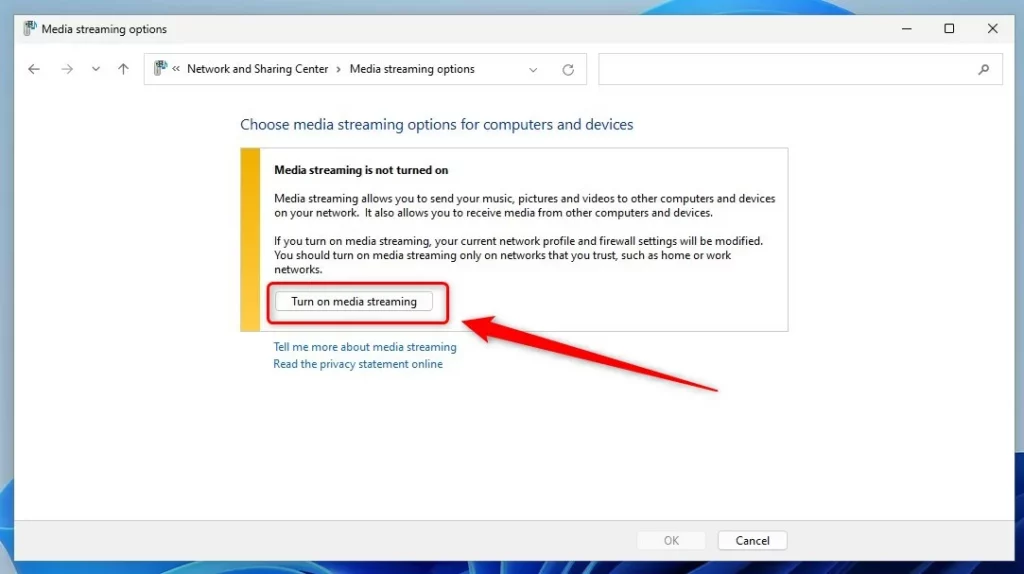
Run this feature exclusively on trusted networks, such as a home setup. Never use it on public Wi-Fi.
Check this before you leave streaming turned on, because any device you allow can see all of those libraries.
Remove DLNA device
To clear a device from your Windows 11 media streaming list, open the streaming options menu, find the device in your allowed list, and click remove. If the device is currently turned on and in use, you need to turn it off before Windows lets you delete it.
- Find the device in the list on the Media streaming options page.
- Highlight the device.
- Select Remove the device.
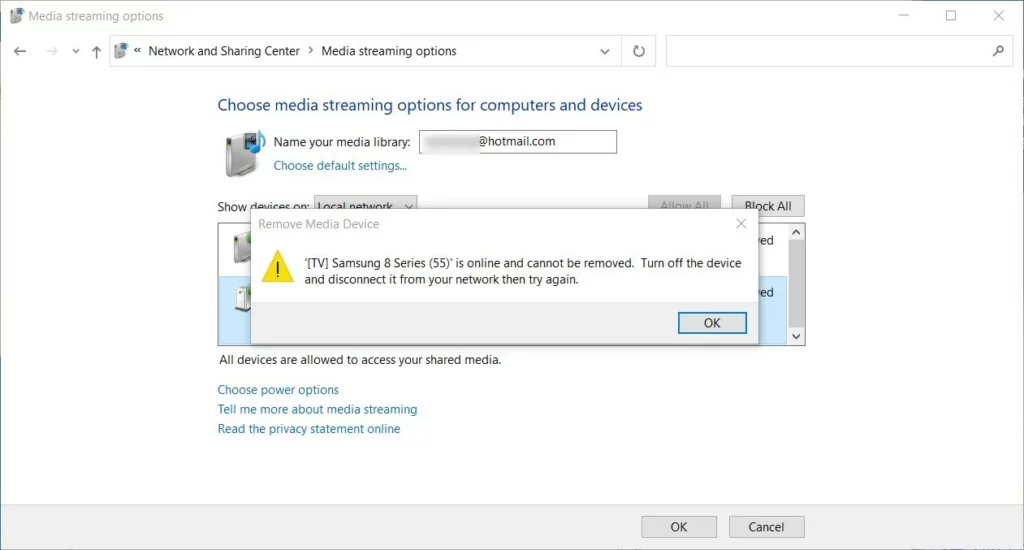
If the device is online, a warning message appears. The next image shows an example.
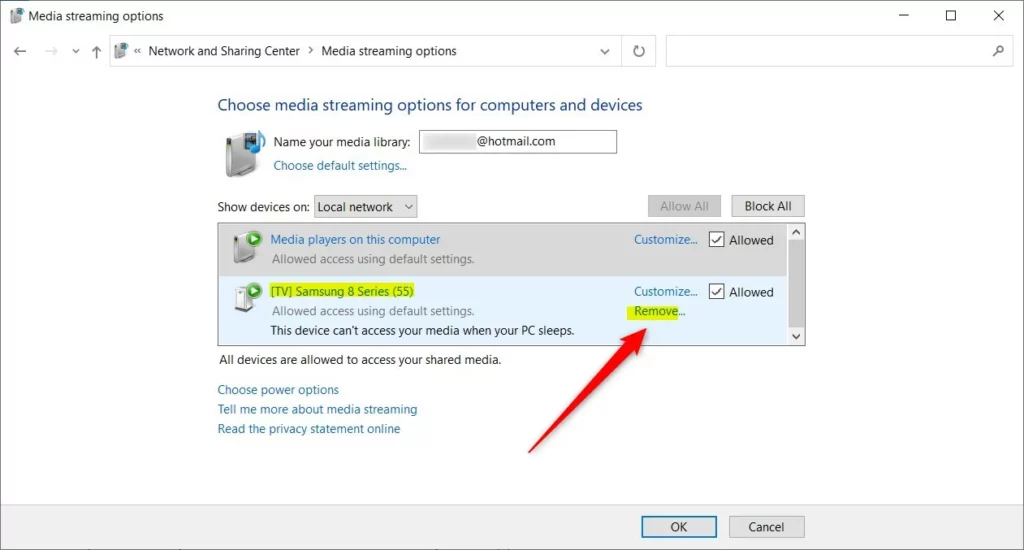
If the hardware is currently active, Windows shows a warning message during removal. Power down the hardware and retry the deletion. Switching off the TV, console, or media player is enough. You don’t have to unplug it.
Offline hardware accepts the deletion command immediately. Windows prompts for confirmation before wiping the record.
- Confirm the choice by clicking Remove the device.
- Check that the device is gone from the list, then close the Control Panel window.
The process finishes here. A removed device can show up again if it is still on your network and looks for media servers later. If that happens, repeat the steps with the device turned off. You can also check the device's entry in the list for a Blocked option, which keeps it from accessing your media. To undo the removal, open Media streaming options again and allow the device when it reappears.
Conclusion:
- This article covered the detailed steps to remove DLNA media-sharing devices in Windows 11, ensuring better control over shared resources.
- Following the instructions, you can selectively remove devices from the list, effectively managing access to your shared media.
- It's important to consider the network profile and firewall settings before enabling DLNA media streaming, ensuring it's used only on trusted networks.
- Feel free to provide feedback or ask questions in the comments section if you have any additional insights or suggestions.
Have a question about this guide?
Answered by AI from this guide. Good questions may be added to this page — please don't include personal details.
Did this guide fix your problem?

About the Author
Richard
Tech Writer, IT Professional
Richard is a writer at Geek Rewind who turns complex IT tasks into clear, step-by-step guides. He draws on years of hands-on experience in system administration and enterprise IT operations, focusing on Windows, Linux and WordPress: the problems people actually run into, and the fixes that work. His server and WordPress guides come from systems he runs himself. Richard builds and maintains the platform behind Geek Rewind, from its Ubuntu servers and Nginx configuration to its custom WordPress plugins. Many new tutorials start with readers' questions, and he's always glad to answer them in the comments.
No comments yet — be the first to share your thoughts!