How to Manage Logout Prompt on Ubuntu Linux


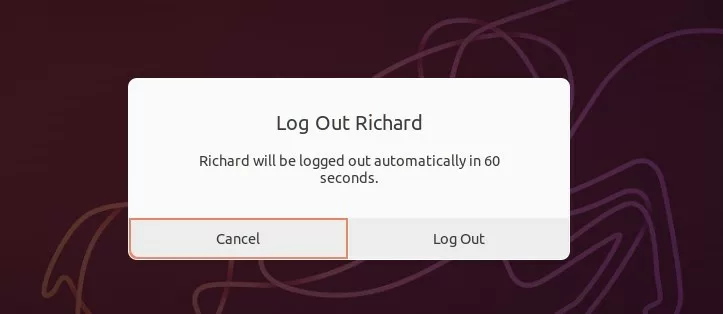
The logout prompt in Ubuntu is a confirmation box that appears when you choose to log out of your desktop session. It gives you a chance to back out before you close open apps and lose unsaved work. It also shows a countdown and logs you out on its own if you don’t answer.
Ubuntu 22.04 LTS and 24.04 LTS let you turn this confirmation off, so you can log out in one click. The setting is a single preference. You can change it from the terminal or with a graphical tool, and you can switch it back at any time.
Open a terminal with Ctrl+Alt+T and run gsettings set org.gnome.SessionManager logout-prompt false to turn off the Ubuntu logout prompt. The change applies immediately, with no restart. Run the command as your normal user, not root. To bring the prompt back, run gsettings reset org.gnome.SessionManager logout-prompt.
Turn on or off log out prompt on Ubuntu Linux
The terminal is the fastest way to change this setting. One gsettings command turns the confirmation screen off, so your desktop logs out immediately. A second command turns the warning back on whenever you want the extra safety. You don’t need sudo, because the setting belongs to your own user account.
Run the commands below as your normal user, not as root. Otherwise you will change the setting for the wrong account.
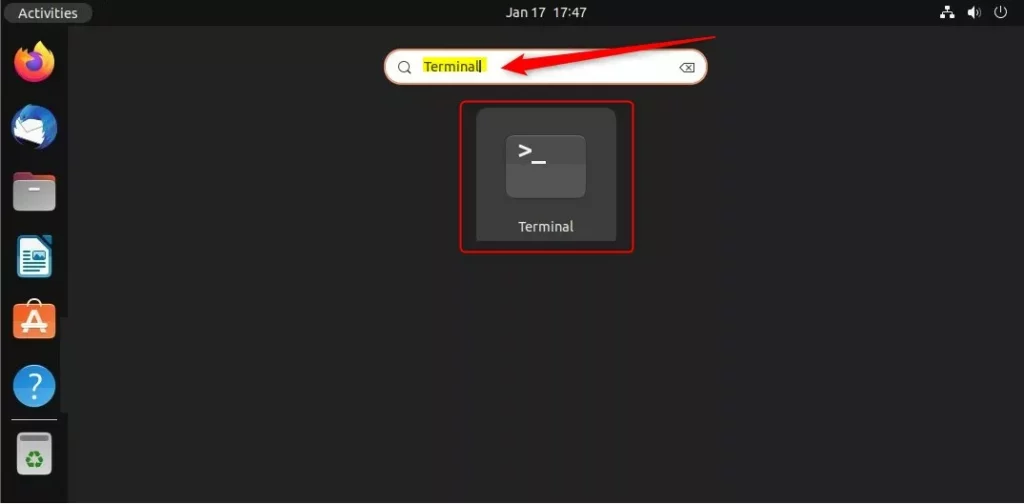
To turn off the logout prompt, type this command and press Enter:
gsettings set org.gnome.SessionManager logout-prompt false
The command prints nothing when it works. That is normal. The change applies straight away and you don't need to restart. The next time you choose to log out from the system menu, Ubuntu should end the session without asking.
To turn the prompt back on, type this command and press Enter:
gsettings reset org.gnome.SessionManager logout-prompt
Again, there is no output and no restart is needed. This command is also the way to undo the change if you disabled the prompt and later regret it.
Disable or enable the logout prompt using the Dconf Editor
If you prefer a visual menu over the terminal, use Dconf Editor. It is a tool for changing hidden desktop settings that don't appear in the normal Settings app. Once it is installed, you can control the logout warning with one switch and no typed commands.
It exposes many low-level settings, and changing the wrong one can alter how your desktop behaves. Only touch the setting described below.
Install the application first. Open the terminal and run this command:
sudo apt install dconf-editor
If the command asks for a password, enter your own account password. Nothing shows on screen while you type it, which is normal. Your account also needs administrator rights to install software.
If you would rather not use the terminal, open the App Center and search for "Dconf Editor," then click Install. On Ubuntu 22.04 LTS the app store is called Ubuntu Software instead of App Center, but the search works the same way.
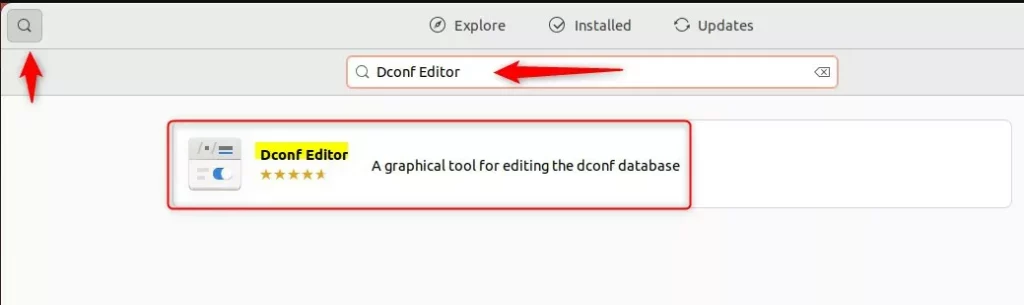
Open Dconf Editor from the Activities overview. On the first launch it shows a warning that changing settings can be risky. Click I'll be careful to continue. Then follow these steps:
- Navigate to:
org->gnome->SessionManager - Find the
logout-promptsetting in the list. - Toggle the switch to On to enable the prompt.
- Toggle the switch to Off to disable the prompt.
If the switch is greyed out and won't move, the Use default value option on that setting is probably turned on. Turn it off first, then flip the switch. To go back to Ubuntu's original behavior, turn Use default value back on.
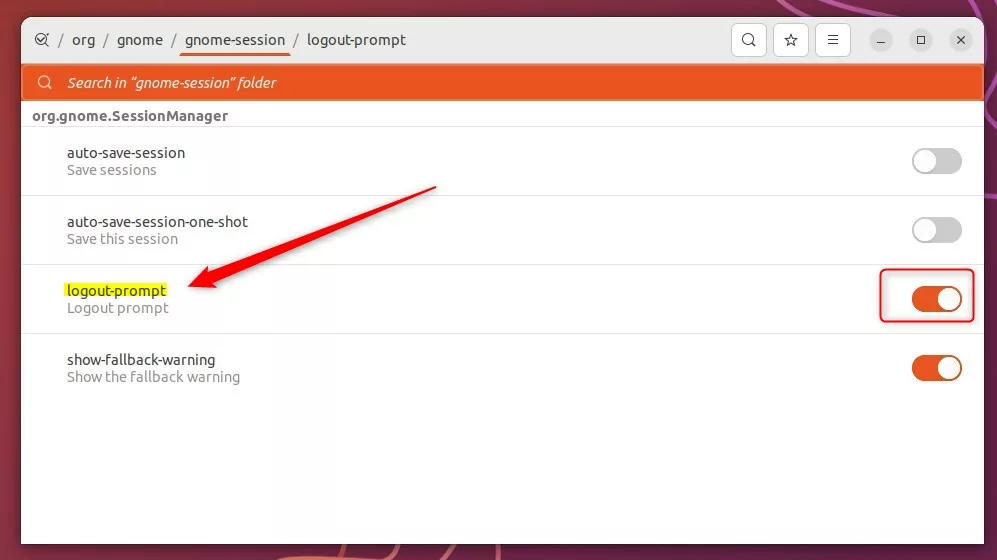
Once you have changed the setting, the system applies it the next time you try to sign out. No restart is needed. If the prompt still appears, check that you changed the setting for your own user account. Then log out once and back in to be sure the session has picked it up.
Conclusion
Managing the Ubuntu logout prompt helps you avoid accidental data loss when you sign out by mistake. Turn the prompt off if you log out often and always save your work first. Leave it on if you share a machine or tend to keep many unsaved documents open.
This setting only guards against accidents. It is not a security barrier, and it does not stop other people from using your computer. To protect your session from others, lock the screen when you step away. For more information on managing the system, see How to add or remove software on Ubuntu Linux.
Was this guide helpful?
100% of readers found this helpful (1 votes)

About the Author
Richard
Tech Writer, IT Professional
Richard is a writer at Geek Rewind who turns complex IT tasks into clear, step-by-step guides. He draws on years of hands-on experience in system administration and enterprise IT operations, focusing on Windows, Linux and WordPress: the problems people actually run into, and the fixes that work. His server and WordPress guides come from systems he runs himself. Richard builds and maintains the platform behind Geek Rewind, from its Ubuntu servers and Nginx configuration to its custom WordPress plugins. Many new tutorials start with readers' questions, and he's always glad to answer them in the comments.




No comments yet — be the first to share your thoughts!