How to Enable Keep Printed Documents in Print Queue on Windows 11

This article explains how to turn on or off the “Keep printed documents” feature in your print queue on Windows 11.
Enable “Keep printed documents” by opening your printer’s Properties, going to the Advanced tab, and checking the “Keep printed documents” box. This keeps a copy of your printed jobs in the queue for reprinting or record-keeping. You can also use Print Management for this setting.
Why You Might Want This Feature
You might want to keep printed documents in the Windows 11 print queue so you can easily print them again later or have a record of what you’ve sent to the printer. Normally, Windows removes jobs once they’re done, but a simple setting change lets you keep them handy if you often need to reprint the same file.
When you enable “Keep printed documents,” a copy of each printed document stays in your print queue. This is helpful if you need to reprint documents often or if you want to keep records of what you’ve printed.
Method 1Use the Settings App
Using the Settings app is the simplest way to keep printed documents in your Windows 11 print queue. This method involves just a few clicks to adjust the setting for your printer, and you can open Settings by clicking the Start menu and selecting Settings, or by pressing Win+I.
- Open the Settings app . Click the Start menu and select Settings, or press Win+I.
- On the left side, click Bluetooth & devices.
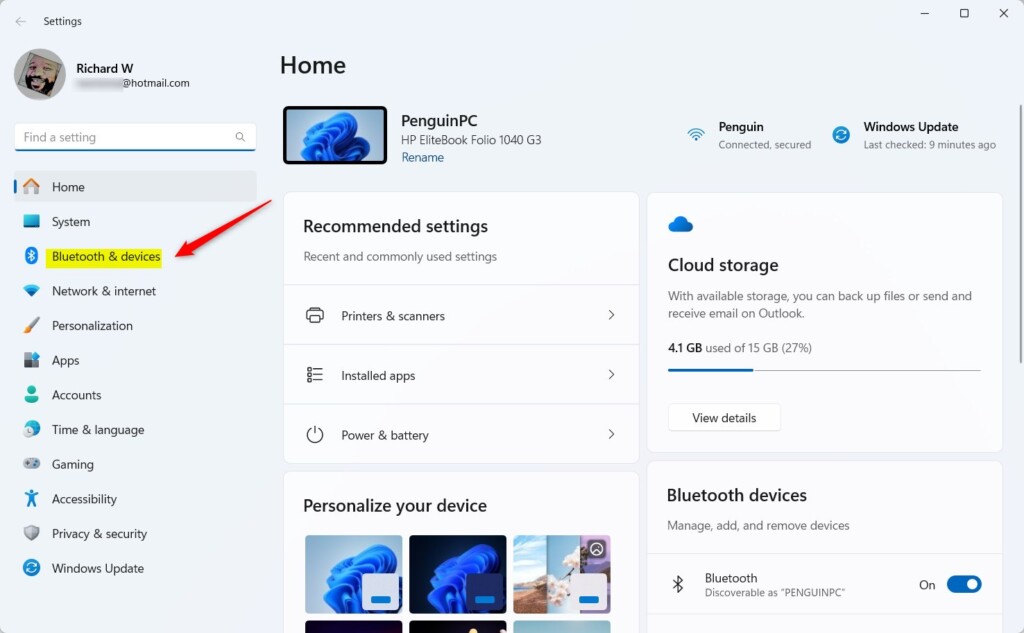
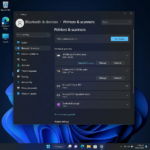
Windows 11 Bluetooth & devices settings page showing connected hardware. - On the right side, select Printer & scanners to expand it.
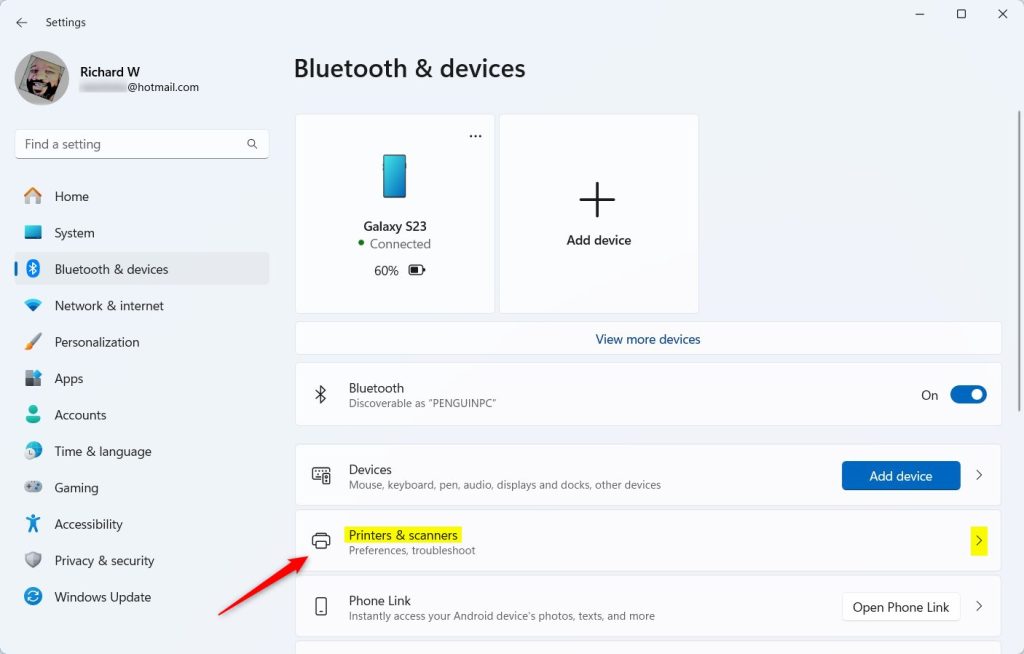
Printers and scanners tile in Windows 11 Settings app - Find and select the printer you want to configure.
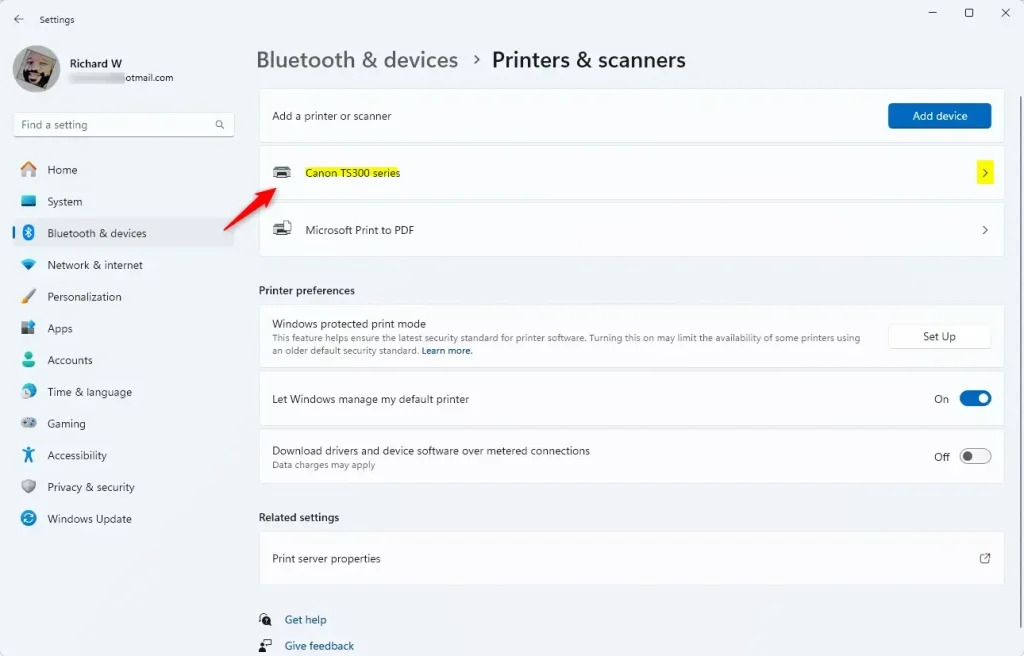
Printer tile in the Settings app - Click Printer properties.
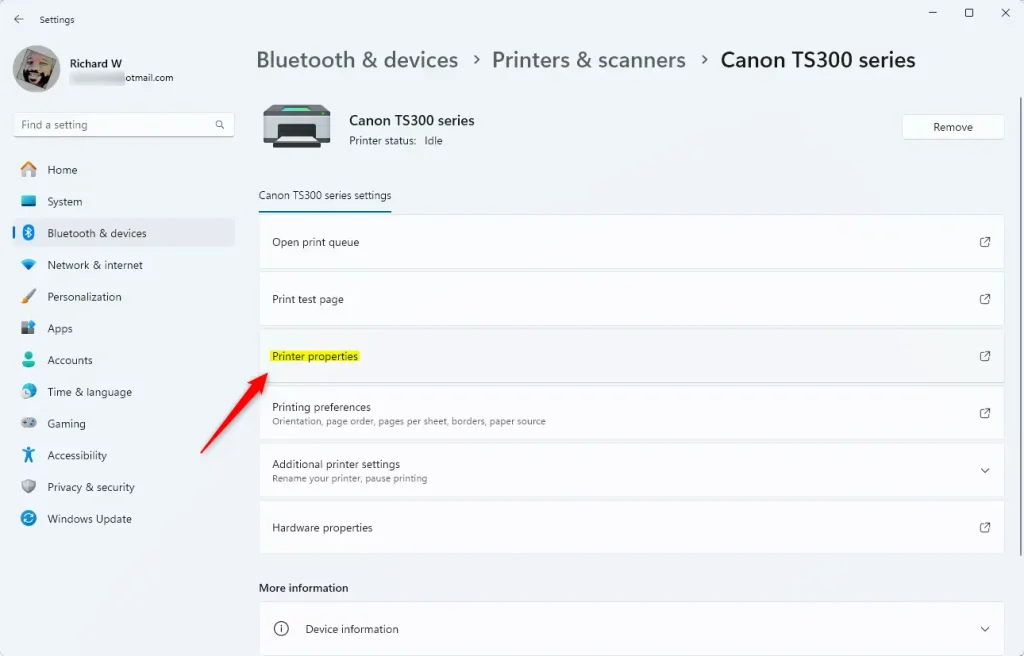
Printer properties tile - A new window will open. Click the Advanced tab at the top.
- Look for the box next to Keep printed documents. Check the box to turn it on, or uncheck it to turn it off.
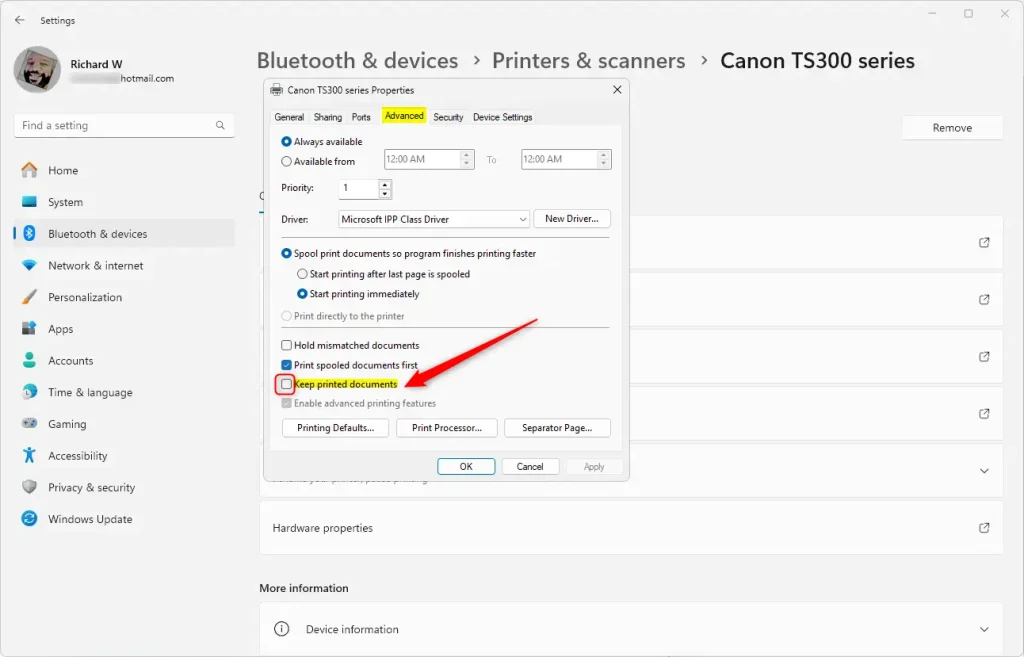
keep printed documents settings - Close the Settings app when finished.
Method 2Use Print Management
For those comfortable with more advanced settings, the Print Management tool offers another way to keep printed documents in the Windows 11 print queue. This built-in Windows feature gives you more control over your printers, but it does require administrator rights and a few extra steps.
- [Requires Admin Privileges] Open Print Management by typing
printmanagement.mscin the Windows search box and pressing Enter. - On the left side, expand Custom Filters and select All Printers.
- Right-click the printer you want to configure and select Properties.
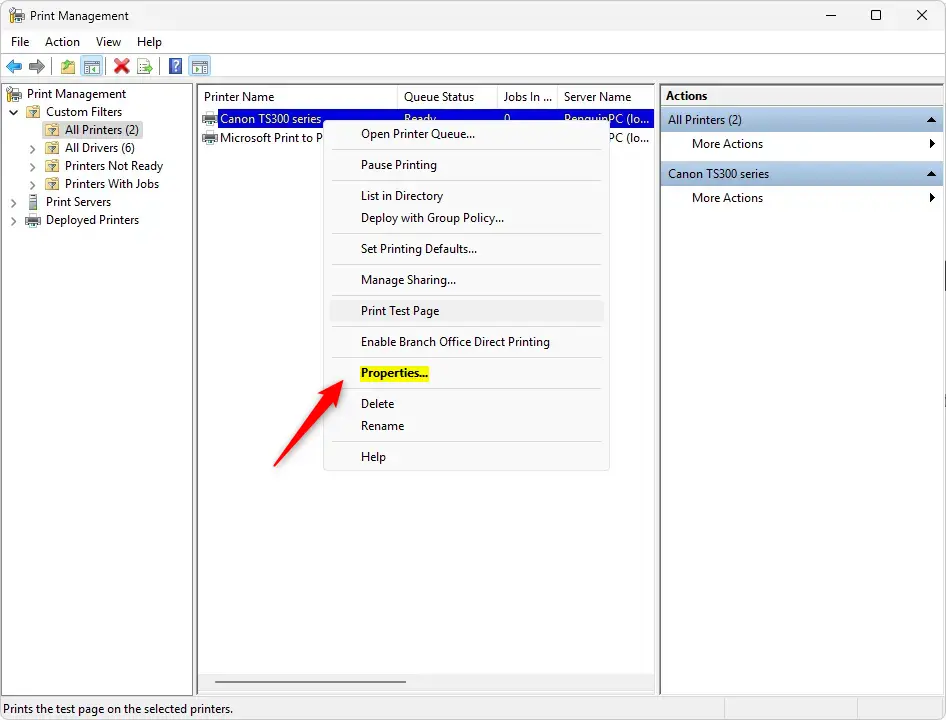
Printer properties in print management - Click the Advanced tab.
- Check the box next to Keep printed documents to turn it on, or uncheck it to turn it off.
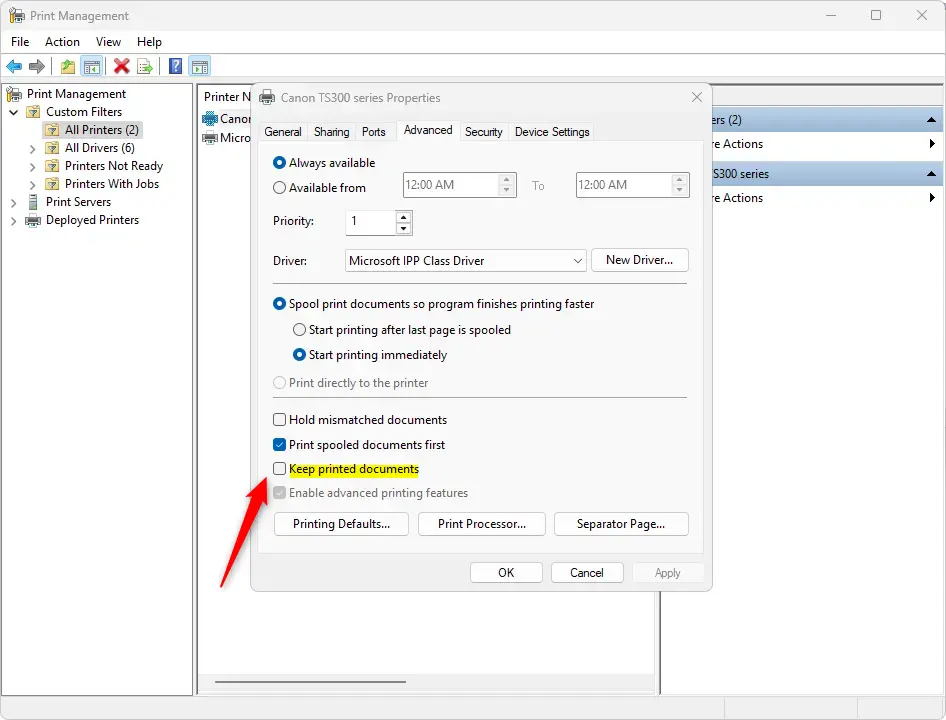
Keep printed documents settings from print managment - Close Print Management when finished.
What Happens When You Enable This Feature
After you enable “Keep printed documents,” each time you print something, a copy will stay in your print queue even after the document finishes printing. You can see these documents in your print queue and reprint them if needed without having to send the print job again.
Summary
- The “Keep printed documents” feature lets you keep copies of printed documents in your print queue.
- By default, Windows 11 removes printed documents from the queue automatically.
- This feature is useful if you frequently need to reprint the same documents or keep records of what you’ve printed.
- You can enable or disable this feature in two ways: through the Settings app or through Print Management.
- To use either method, go to your printer’s Advanced properties and check or uncheck the “Keep printed documents” box.
- Using Print Management requires admin privileges on your computer.
The ‘Keep printed documents’ feature in Windows 11 allows you to save copies of your printed files in the print queue. By default, Windows deletes these jobs once printing is complete, but enabling this setting is useful for reprinting or record-keeping. You can turn this feature on or off using either the Settings app or the Print Management tool.
Was this guide helpful?

About the Author
Richard
Tech Writer, IT Professional
Richard is a writer at Geek Rewind who turns complex IT tasks into clear, step-by-step guides. He draws on years of hands-on experience in system administration and enterprise IT operations, focusing on Windows, Linux and WordPress: the problems people actually run into, and the fixes that work. His server and WordPress guides come from systems he runs himself. Richard builds and maintains the platform behind Geek Rewind, from its Ubuntu servers and Nginx configuration to its custom WordPress plugins. Many new tutorials start with readers' questions, and he's always glad to answer them in the comments.


No comments yet — be the first to share your thoughts!