How to Disable Audio Output on Windows 11

Disabling audio output in Windows 11 stops sound from playing through specific speakers, headphones, or monitors without requiring you to physically unplug cables. Windows 11 includes dedicated sound settings to turn off individual playback devices directly from the taskbar .
You can disable audio output on Windows 11 through Sound settings by preventing apps from using the device, or by using the Sound Control Panel to right-click and select Disable. This stops sound from playing through unwanted speakers or headphones.
Why disable audio output?
Disabling a sound device stops Windows from sending audio to the specific hardware. This method keeps the sound device connected while temporarily silencing its sound output. This approach provides a quick change to your audio setup without unplugging cables.
What happens when done?
Once a device is disabled, it disappears from the list of available sound output options. Reactivate it later by following the same steps.
How to turn off a sound device via Settings
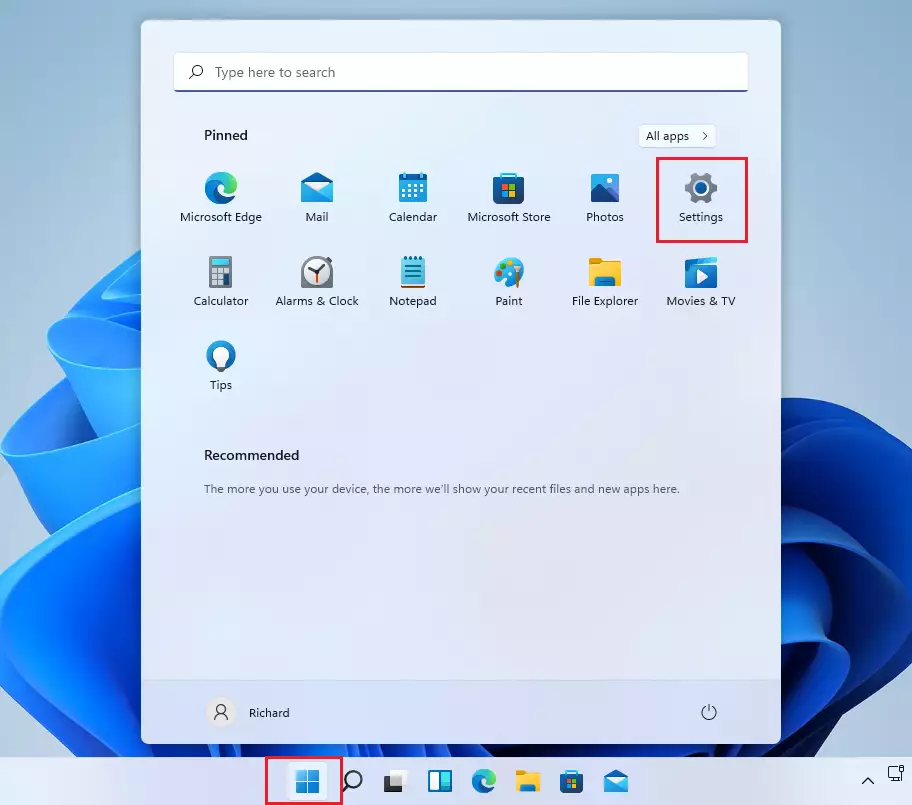
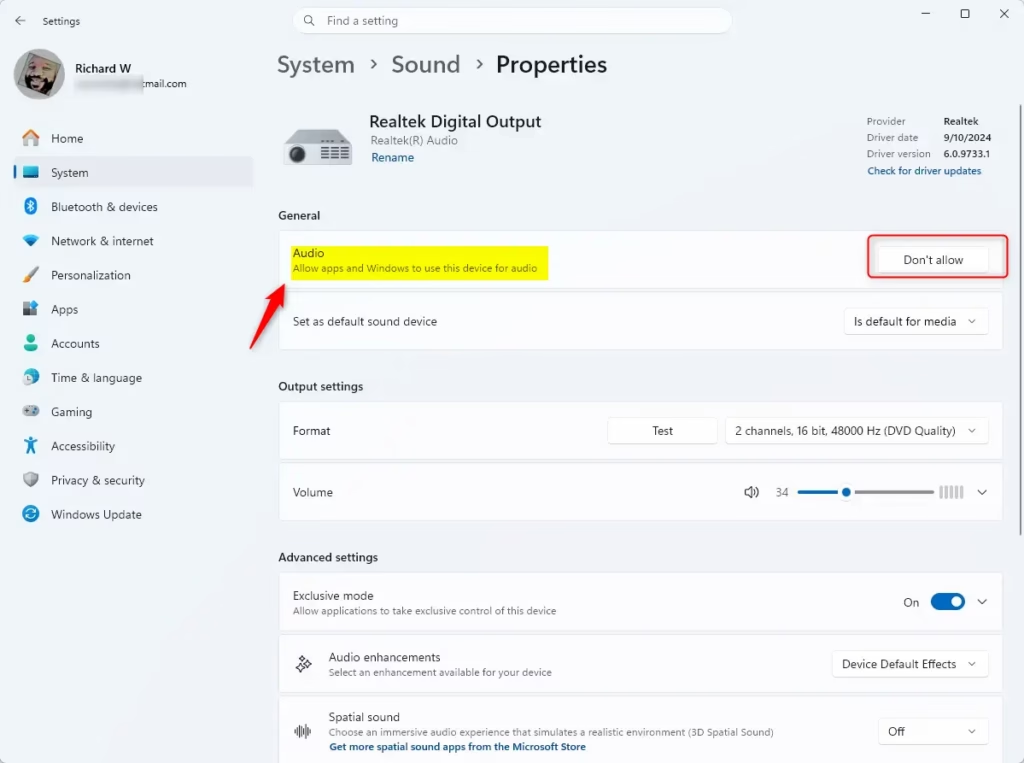
You can disable audio output Windows 11 devices directly through the main Settings app to stop sound from playing through specific speakers or headphones. Open Settings by pressing the Win+I, go to System, and choose Sound to find the specific device you want to turn off.
- Open the Settings app. You can press the Win+I on your keyboard to open it quickly. Official Microsoft Support
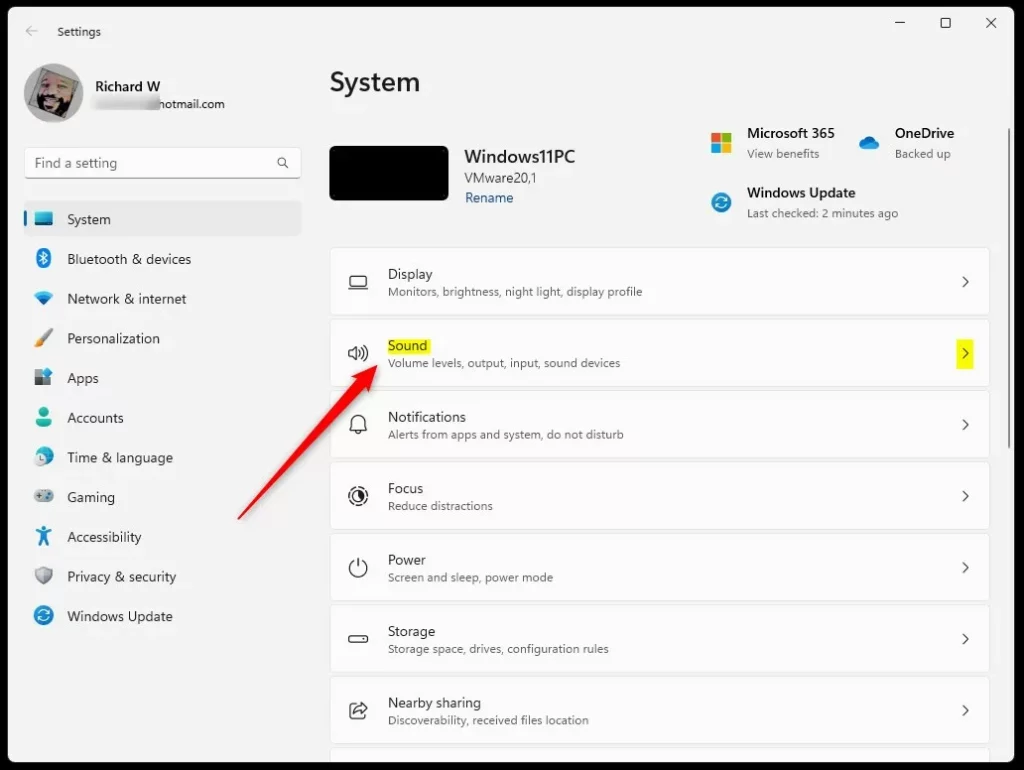
- Click on System in the left menu.
- Select Sound on the right side of the screen.
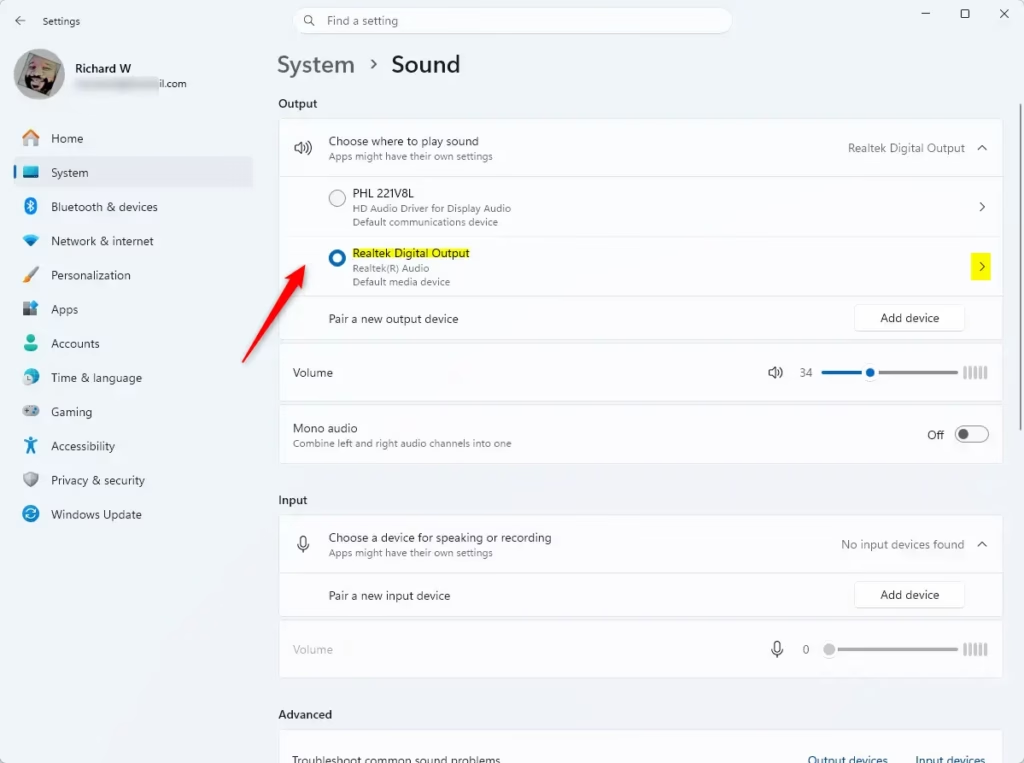
Next, find the device you want to stop.
- Under the Output section, click the small arrow next to the device name.
Now, look for the General settings for that device.
- Find the option that says Allow apps and Windows to use this device for audio.
- Click the Don't allow button.
Advanced Method: Using the Sound Control Panel
You can disable audio output Windows 11 options permanently using the classic Sound Control Panel when the main settings app does not work. Press the Windows key + R, type mmsys.cpl, and press Enter to open the sound settings window where you can right-click any device and turn it off completely.
- Press Windows key + R, type mmsys.cpl, and press Enter.
- Right-click the device you wish to disable.
- Select Disable.
Stick to disabling secondary output devices.
Advanced Management: PowerShell and Registry
You can disable audio output Windows 11 hardware using PowerShell and command-line tools if you need to script changes or handle stubborn drivers. This advanced method requires an administrator command prompt to target specific device paths using the pnputil tool and force them into an inactive state.
pnputil /disable-device "DeviceInstancePath"
You can also tweak registry keys to force device states, though this is risky. Registry paths like HKEY_LOCAL_MACHINE\SOFTWARE\Microsoft\Windows\CurrentVersion\MMDevices control these settings.
How to disable audio output for specific applications
If you only want to mute sound for a single app, don't disable the hardware. Use the Volume Mixer instead.
- Right-click the speaker icon in the taskbar.
- Select Open volume mixer.
- Adjust the slider for the specific app to zero or mute it.
Summary
You can manage your sound devices in Windows 11 without unplugging hardware. This allows you to disable audio output through the Settings menu or Sound Control Panel when needed.
Why do my disabled audio devices turn back on after a Windows update?
Major updates occasionally reset audio driver configurations, which can flip disabled devices back on.
Is there a difference between 'Don't Allow' and 'Disable' in 🪟 Windows 11?
Yes. 'Don't Allow' in the Settings app is a user-level toggle that prevents apps from routing audio to that device. 'Disable' in the Device Manager or Sound Control Panel stops the hardware driver from communicating with the OS entirely, which is a more permanent and system-wide restriction.
Was this guide helpful?

About the Author
Richard
Tech Writer, IT Professional
Richard, a writer for Geek Rewind, is a tech enthusiast who loves breaking down complex IT topics into simple, easy-to-understand ideas. With years of hands-on experience in system administration and enterprise IT operations, he’s developed a knack for offering practical tips and solutions. Richard aims to make technology more accessible and actionable. He's deeply committed to the Geek Rewind community, always ready to answer questions and engage in discussions.

My audio divices dissapear from the list when i disable them so i cant turn them back on …
I had the same issue, you can find them here:
System > Sound > Advanced > All sound devices
I cant allow my soundbar and it also shows disconnected in Sound Options under Control Panel even though its paired on my Bluetooth devices