How to Control App Communication with Unpaired Devices in Windows 11

App communication with unpaired devices is a Windows 11 privacy setting, available in version 22H2 and later. It controls whether programs can find and talk to nearby hardware that you have not linked to your PC. If you do not see it, check your version under Settings System About. Earlier builds do not have it.
Blocking this kind of unassociated hardware keeps your computer safer. Only software you have approved can reach out to external gadgets around you.
Open Settings , go to Privacy & security, click Other devices, then toggle Communicate with unpaired devices on or off. The change applies immediately. If the switch is greyed out, a Group Policy setting is controlling it.
What Happens When You Change This Setting?
When you turn this setting off, apps can no longer talk to nearby gadgets that are not paired to your computer. That adds privacy and stops random software from finding and connecting to Bluetooth gear around you. Devices you have already paired are not affected.
When you leave the switch on, apps can discover and link to nearby hardware without pairing first. That is convenient for some tools, such as apps that work with beacons or nearby sensors. It also means more software can reach out to things around you, so turn it off if you do not need it.
How to Control This Using Windows Settings (Easiest Method)
- Press
Windows key + Ion your keyboard to open Settings . Or click the Start button and select Settings. The Settings window opens. - Click Privacy & security in the menu on the left side. The privacy options appear on the right.
- Scroll down on the right side to the app permissions list. Then click Other devices.
- Look for the option called Communicate with unpaired devices. If you do not see it, your PC is probably older than version 22H2.
- Toggle the switch to On to let apps communicate with unpaired devices. Toggle it to Off to block this. The change applies right away, and you do not need to restart.
If the switch is greyed out, or the page says some settings are managed by your organization, a Group Policy setting is controlling it. See the Local Group Policy Editor steps below.
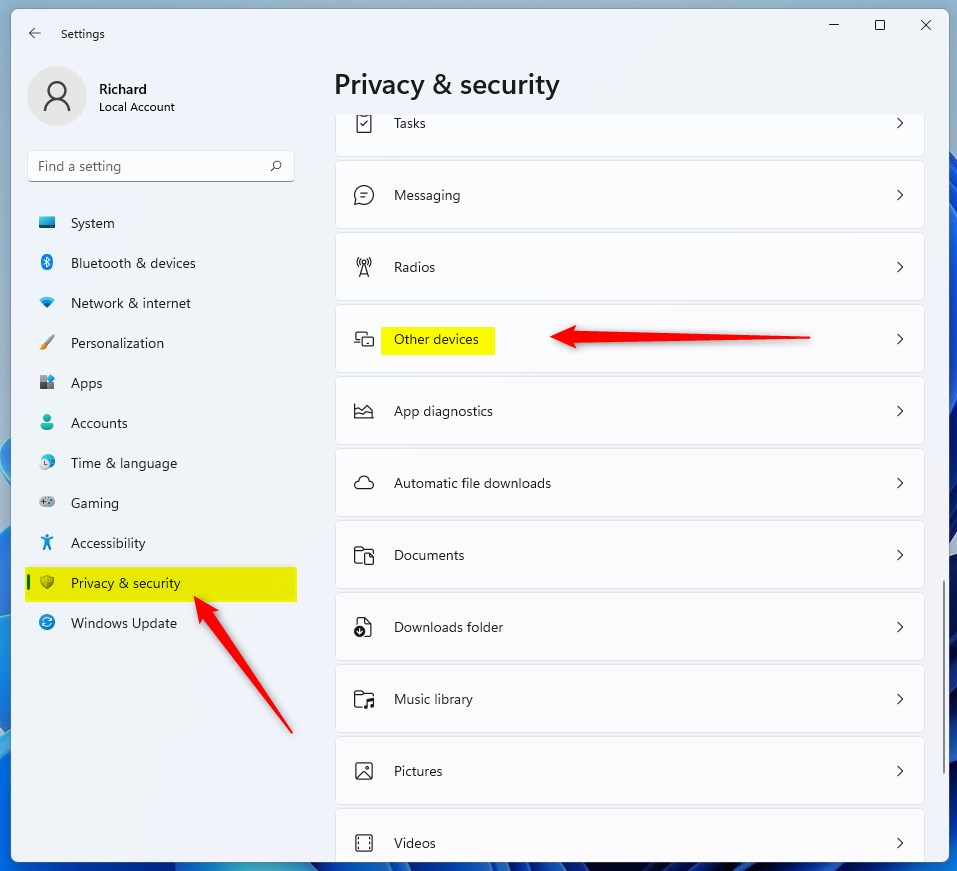
Managing unpaired devices in Windows 11 through the Settings app takes just a few clicks. Open the Settings app, go to Privacy & security, and click Other devices to find the toggle switch. From there, you can turn the feature on or off depending on whether you want apps to connect to nearby unpaired gadgets.
This method works on both Windows 11 Home and Pro. It applies to your own user account and needs no extra tools.
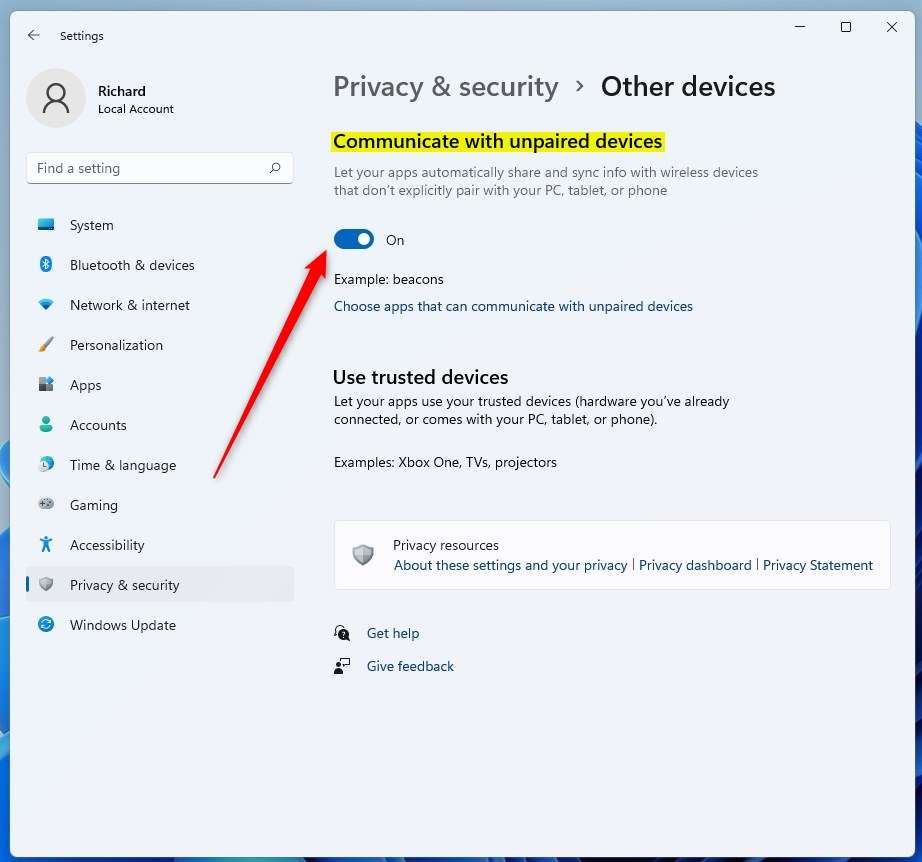
The Settings app is the quickest way to check the current state of this feature. Go to Privacy & security Other devices and look at the Communicate with unpaired devices switch. Do this after any change to confirm it took effect. It is also worth a look if an app that relies on nearby devices stops finding them, because the switch may have been turned off earlier.
How to Control This Using Local Group Policy Editor (Advanced Users)
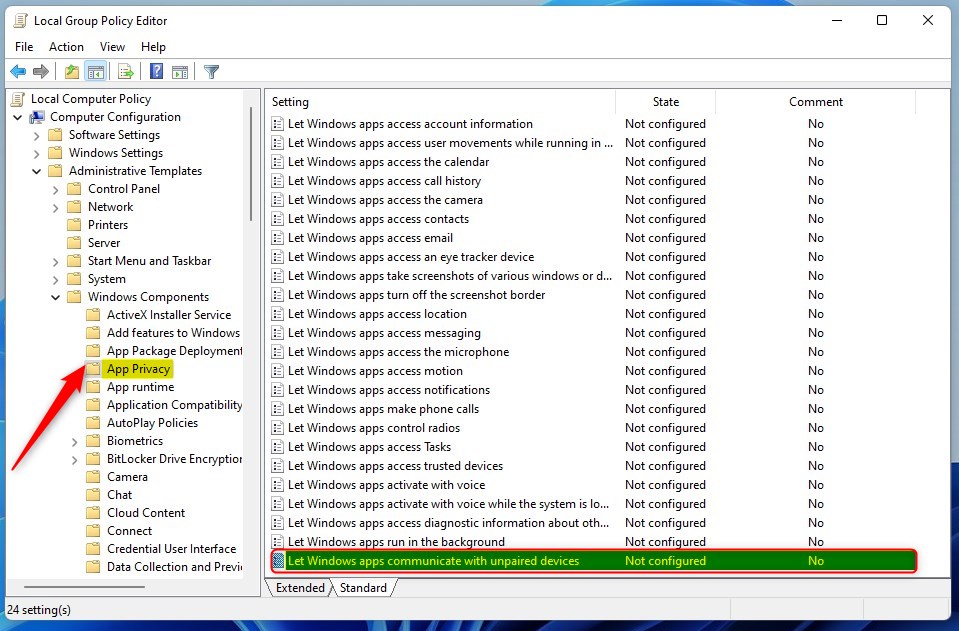
The Local Group Policy Editor is a built-in tool for managing system settings. It lets you lock down this permission across the whole PC, so it applies to every user. Open the editor from the Start menu and go to Computer Configuration Administrative Templates Windows Components App Privacy to change the policy.
The Local Group Policy Editor is included with Windows 11 Pro, Enterprise and Education. It is not available on Windows 11 Home, so Home users should stick with the Settings app.
- Click the Start button. Type
Edit group policyand press Enter. The Local Group Policy Editor opens. If nothing is found, you are likely on Windows 11 Home. - In the Local Group Policy Editor window, follow this path in the tree on the left side:
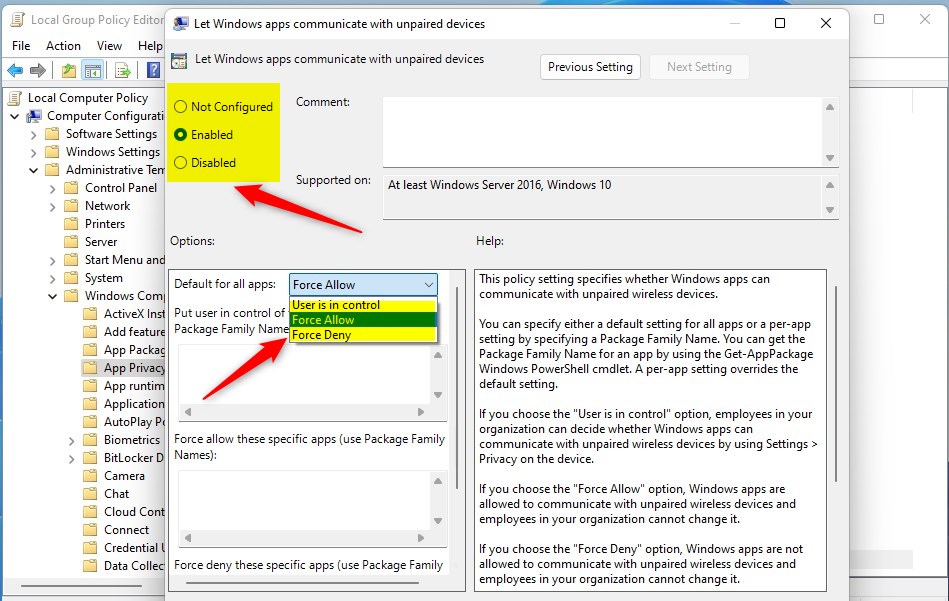
Computer Configuration > Administrative Templates > Windows Components > App Privacy - On the right side, find and double-click Let Windows apps communicate with unpaired devices. A settings window for the policy opens.
- Choose one of these options:
- Not Configured – This is the default setting. The policy does nothing, and each user controls the option in Settings.
- Enabled – Allows apps to communicate with unpaired devices.
- Disabled – Blocks apps from communicating with unpaired devices.
- If you select Enabled, go to the "Options" section. Choose Force Allow to let all apps communicate with unpaired devices. If you select Disabled, choose Force Deny to block all apps.
- Click OK to save your changes.
- Close the Local Group Policy Editor.
If the switch in Settings does not change right away, restart the PC or sign out and back in. A policy set to Enabled or Disabled can leave the Settings switch greyed out. To undo it, open the same policy again and set it back to Not Configured.

Summary
Managing app communication with unpaired devices matters for maintaining system security. Windows Settings handles standard configurations on every edition. The Local Group Policy Editor provides granular, system-wide control on Windows 11 Pro systems.
Have a question about this guide?
Answered by AI from this guide. Good questions may be added to this page — please don't include personal details.
Did this guide fix your problem?

About the Author
Richard
Tech Writer, IT Professional
Richard is a writer at Geek Rewind who turns complex IT tasks into clear, step-by-step guides. He draws on years of hands-on experience in system administration and enterprise IT operations, focusing on Windows, Linux and WordPress: the problems people actually run into, and the fixes that work. His server and WordPress guides come from systems he runs himself. Richard builds and maintains the platform behind Geek Rewind, from its Ubuntu servers and Nginx configuration to its custom WordPress plugins. Many new tutorials start with readers' questions, and he's always glad to answer them in the comments.
No comments yet — be the first to share your thoughts!