How to Customize Edge Split Screen for Better Multitasking

Split screen in Microsoft Edge lets you view two web pages side by side inside a single tab on Windows 11 and later versions. This built-in feature gives you an easy way to compare online stores, check notes, or type emails without needing extra apps or extensions.
You can drag the middle divider to resize either side and give more room to whichever page you need to focus on most.
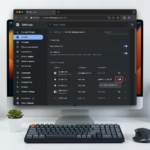
Customize Edge Split Screen by going to Settings Accessibility Shortcut section and typing your desired shortcut keys in the “Shortcut for split window” box. Your changes save automatically, but restart the browser to ensure the new shortcut works.
Why use Split Screen?
Running two pages side by side turns research into a seamless experience. Read an article on the left while taking notes on the right without constant tab switching.
What happens when you are done?
Completing these steps creates a custom keyboard shortcut. Opening side-by-side view instantly speeds up daily browsing.
How to Enable Split Screen
Before customizing the shortcut, verify the feature is active. Click the Split Screen icon in the top toolbar of Microsoft Edge. If you don’t see the icon, go to Settings > Appearance and make sure the Split screen button is turned on.
How to Customize Edge Split Screen Shortcuts
You can customize Edge split screen shortcuts by assigning your own keyboard combinations in the browser settings. Setting up these custom keys lets you open two web pages side by side instantly without reaching for your mouse, which speeds up your workflow when you are comparing websites or working across multiple tabs at the same time.
- Open the Microsoft Edge browser.
- Click the Settings and more button (the three horizontal dots) in the top right corner.
- Select Settings from the menu.

- Click on Accessibility in the menu on the left side of your screen.
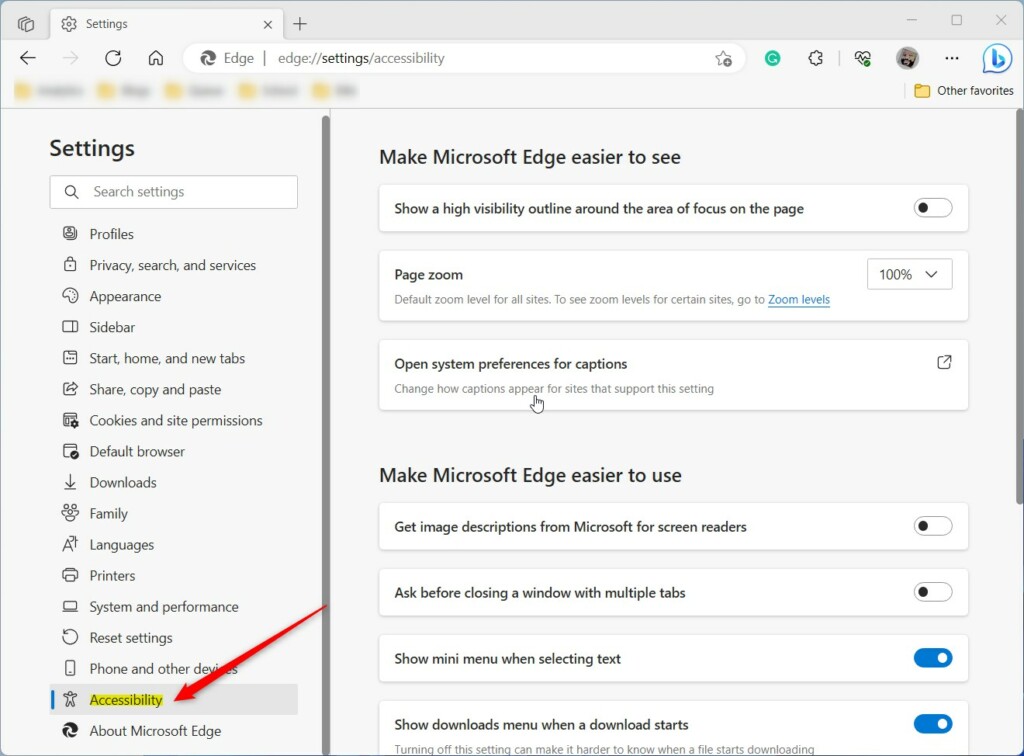
- Look for the Shortcut section. Find the box labeled Shortcut for split window.
- Type the new keys you want to use. You must include either the CTRL or ALT key in your combination.
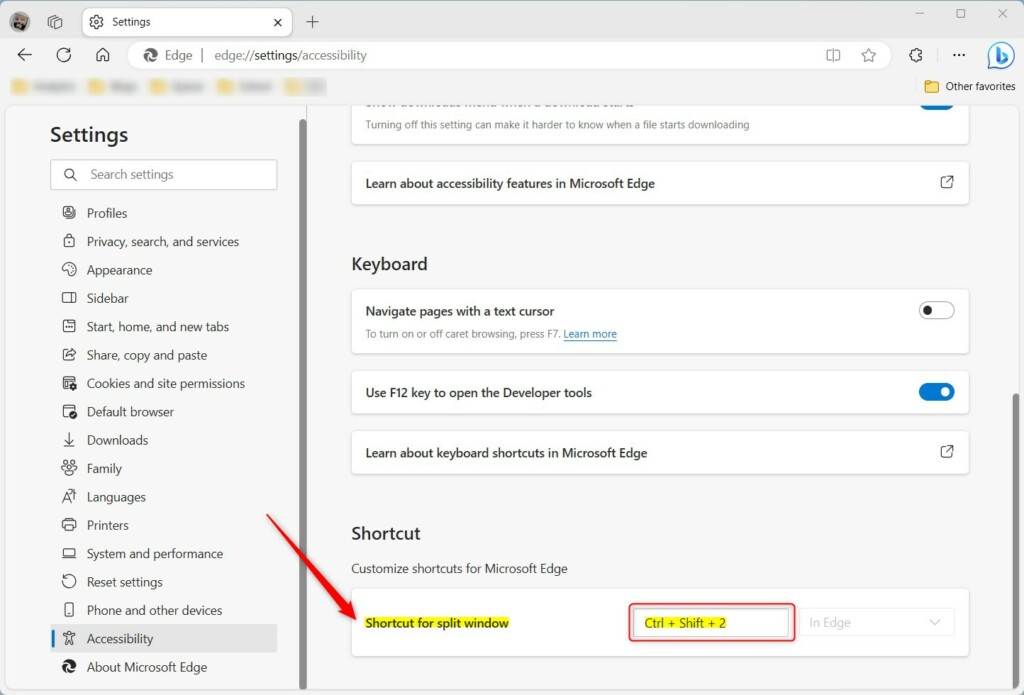
Changes save automatically. Restarting the browser ensures the new shortcut works. Note: These settings apply only to the active user profile, and admin privileges remain unnecessary for changing these browser settings.
Managing and Resizing Windows
Drag the middle divider to resize either window to fit your needs.
Summary
Customizing the split screen shortcut in Microsoft Edge provides a smart way to make the computer work faster and better.
How do I exit split screen mode?
Does split screen work on mobile devices?
No, the split screen feature remains unavailable for mobile versions of Microsoft Edge. Mobile devices offer limited screen space, preventing the browser from supporting side-by-side views. Managing multiple websites on a phone or tablet requires standard tab switching.
Can I open more than two websites in one tab?
Microsoft Edge currently supports a maximum of two websites in a single split screen view. One website sits on the left while another appears on the right. Viewing additional sites simultaneously requires opening separate browser windows or utilizing extra tabs.
Was this guide helpful?

About the Author
Richard
Tech Writer, IT Professional
Richard, a writer for Geek Rewind, is a tech enthusiast who loves breaking down complex IT topics into simple, easy-to-understand ideas. With years of hands-on experience in system administration and enterprise IT operations, he’s developed a knack for offering practical tips and solutions. Richard aims to make technology more accessible and actionable. He's deeply committed to the Geek Rewind community, always ready to answer questions and engage in discussions.

do not have this option