How to Change the Registered Owner Name in Windows 11

The registered owner name in Windows 11 is the personal name and company name saved in the Windows Registry (a central database for system settings) when you first set up your PC. Older software still shows this text, even though most modern apps ignore it. Windows itself rarely uses it, so changing it is mostly a matter of tidiness and accurate records.
Change your registered owner name by opening the Registry Editor and editing the RegisteredOwner value under the 🗝️HKLM\
Open the Registry Editor, navigate to 🗝️HKEY_LOCAL_MACHINE\
Step-by-Step: Change Owner and Organization Name
Be careful and follow the steps exactly. It’s a good idea to back up your registry before you start. If you are signed in with a standard account, you will be asked for an administrator’s password when the Registry Editor opens. Without one, you can look at the values but not save changes.
Open the Registry Editor:
- Click the Start button or press the Win. The Start menu opens with the search box ready for typing.
- Type
regeditand press Enter. The Registry Editor should appear at the top of the search results, and pressing Enter launches it. - If a security box pops up, click Yes. This is the User Account Control prompt. If it asks for a password instead, enter an administrator’s credentials. The Registry Editor window then opens, with a folder tree on the left and values on the right.
Go to the Registry folder:
- Find this folder inside the Registry Editor:
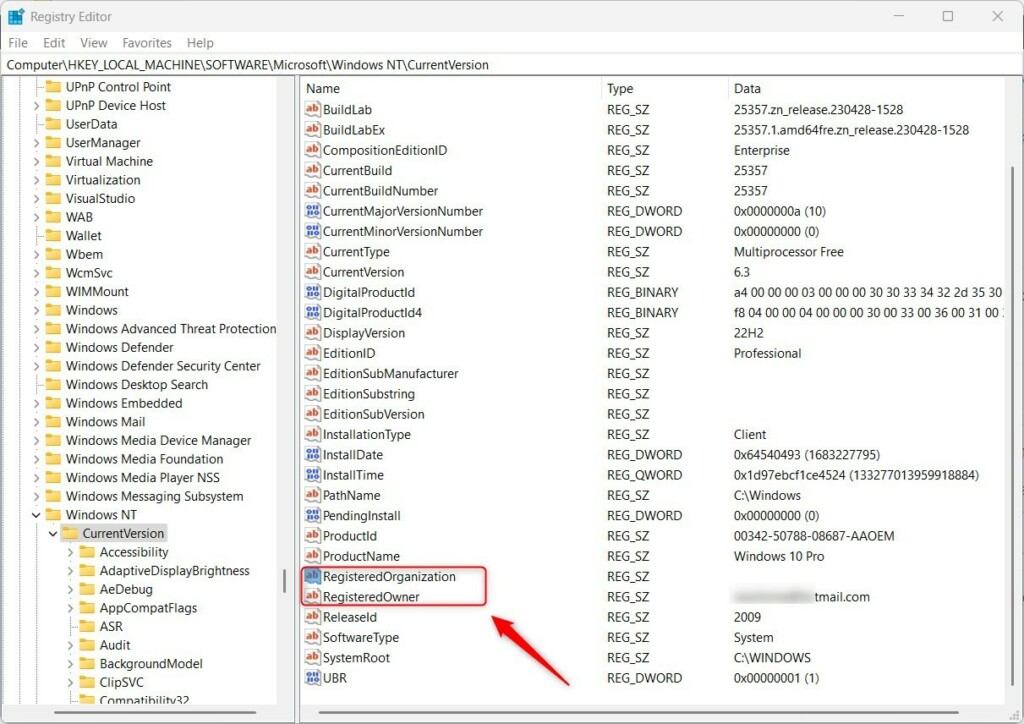
HKEY_LOCAL_MACHINE\SOFTWARE\Microsoft\Windows NT\CurrentVersion. You can expand each folder in the left pane by clicking the arrow beside it. Or click the address bar just under the menu bar, paste the path, and press Enter, which jumps straight there. When you arrive, the right-hand pane lists the values stored in that key.
Be sure you are under 🗝️HKEY_LOCAL_MACHINE and not 🗝️HKEY_CURRENT_USER. The two look alike, but the owner name is only read from the machine-wide location.
Find the owner and organization names:
- In the right-hand pane, look for
RegisteredOwnerandRegisteredOrganization. They are listed in the Name column with the type REG_SZ, which means a plain text value. If both are there, skip ahead to the next section. - If you don’t see
RegisteredOrganization, right-click on an empty space on the right. Choose New String Value. Name itRegisteredOrganization. Type the name exactly, with no spaces, and press Enter. The new entry appears in the list with the text type already set. - Do the same for
RegisteredOwnerif it’s missing.
A missing value is common on PCs set up with a Microsoft account or through a work or school enrollment. Creating it by hand is harmless.
Change the names:
- Double-click on
RegisteredOwner. In the Value data box, enter the new owner name you want. Click OK. Before you overwrite it, note the old text so you can restore it later. The new name now shows in the Data column. - Double-click on
RegisteredOrganization. Enter the organization name or leave it blank. Click OK. A blank organization is fine on a home PC. - Close the Registry Editor. There is no Save button because registry edits apply the moment you click OK. You don’t normally need to restart.
To undo the change, open the same key again and type the old name back into the same value.
Check your changes:
- Press Windows + R to open the Run box.
- Type
winverand press Enter. - A window will pop up showing the Windows version. You'll see the registered owner and organization names in the licensing line. If you still see the old name, close the window and open it again. If it is still wrong, recheck that you edited the value under HKEY_LOCAL_MACHINE and that the name is spelled correctly. As a last resort, sign out and back in, or restart the PC.
Note that the About page in Settings does not show this name, so don't use it to check your work.
Why Change This Information?
- Some apps use this info to show who owns the PC. Older installers and some legacy programs fill in their "registered to" fields from it.
- It helps keep your computer details accurate. This is especially helpful if you're using it at work or in a company, or if you bought a used PC that still carries the previous owner's name.
- It can be useful when troubleshooting or managing licenses for software. A correct name makes it easier to match a machine to your inventory records.
Changing the registered owner name in Windows 11 helps you update your PC details if you bought a used computer or need to fix license info. Some software checks this name to show who owns the machine. Keeping it correct also makes it easier to manage software licenses or track your computer at work. The change is small and easy to reverse, and it does not affect your user account, your sign-in or your Windows activation.
Making changes to the wrong settings can cause problems with your PC. Edit only the two values described here, and keep a backup so you can roll back if something goes wrong.
Summary
You can update the registered owner name in Windows 11 by editing the Windows Registry, which is helpful for keeping your PC details accurate. Open the Registry Editor as an administrator, go to the right key, edit the owner and organization values, and check the result in the version window.
Have a question about this guide?
Answered by AI from this guide. Good questions may be added to this page — please don't include personal details.
Did this guide fix your problem?

About the Author
Richard
Tech Writer, IT Professional
Richard is a writer at Geek Rewind who turns complex IT tasks into clear, step-by-step guides. He draws on years of hands-on experience in system administration and enterprise IT operations, focusing on Windows, Linux and WordPress: the problems people actually run into, and the fixes that work. His server and WordPress guides come from systems he runs himself. Richard builds and maintains the platform behind Geek Rewind, from its Ubuntu servers and Nginx configuration to its custom WordPress plugins. Many new tutorials start with readers' questions, and he's always glad to answer them in the comments.
No comments yet — be the first to share your thoughts!