How to Change Font Size in Windows 11 Handwriting Panel


Make the handwriting panel easier to read on your touchscreen device by changing the font size of the recognized text.
Change the font size in Windows 11 Handwriting Panel by opening Settings, navigating to Bluetooth & devices, then Pen & Windows Ink. Under Handwriting, expand “Use your handwriting to enter text” and select Small, Medium, or Large. This adjusts the size of recognized text in the panel.
Change the font size via Settings
You can change the font size in the handwriting panel by opening the Windows Settings app and going to the Pen & Windows Ink menu. This built-in option lets you make your handwritten text larger or smaller so it is easier to read while you type on your screen.
- Open the Windows Settings app by clicking the Start menu or pressing Win+I.
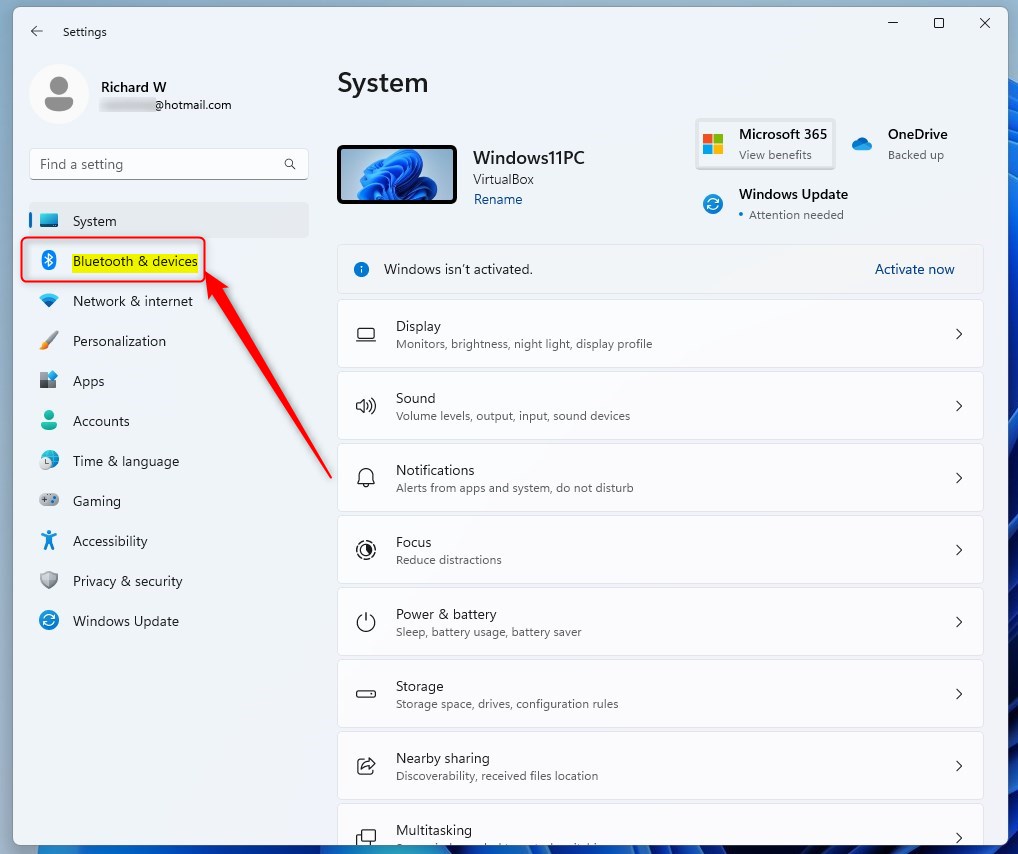
- Click Bluetooth & devices on the left side.
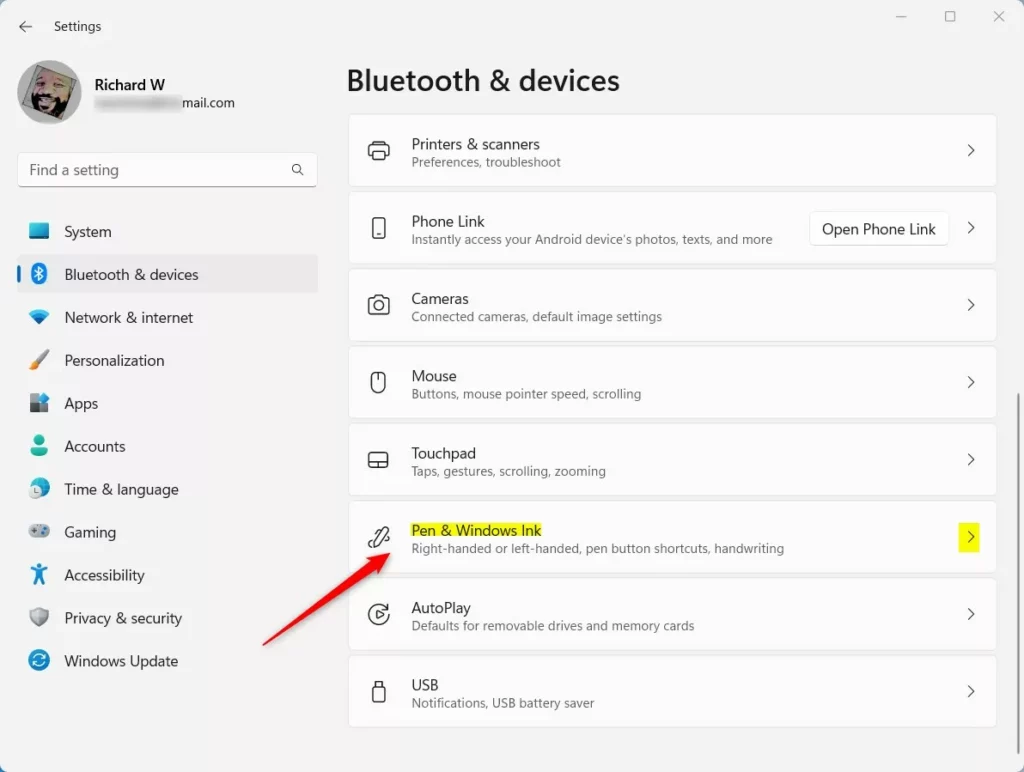
- Click the Pen & Windows Ink tile on the right.
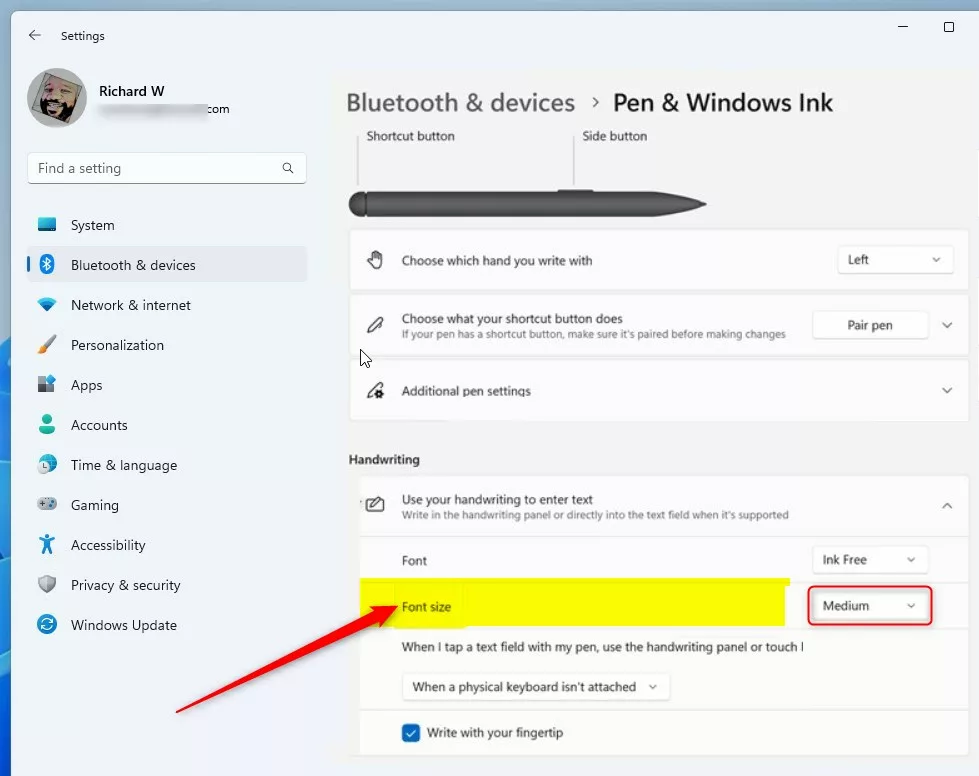
- Under the Handwriting section, click Use your handwriting to enter text to expand the menu.
- Select your preferred font size: Small, Medium (default), or Large.
Close the Settings app when you finish.
Troubleshooting: Missing Settings and OS Discrepancies
If you cannot find the handwriting panel font size option, check for pending operating system updates or check text input settings.
Change the font size via Registry Editor
You can change the handwriting panel font size using Registry Editor by editing specific system values when the main settings do not work. This advanced method requires you to open the Windows registry and adjust the text size settings manually.
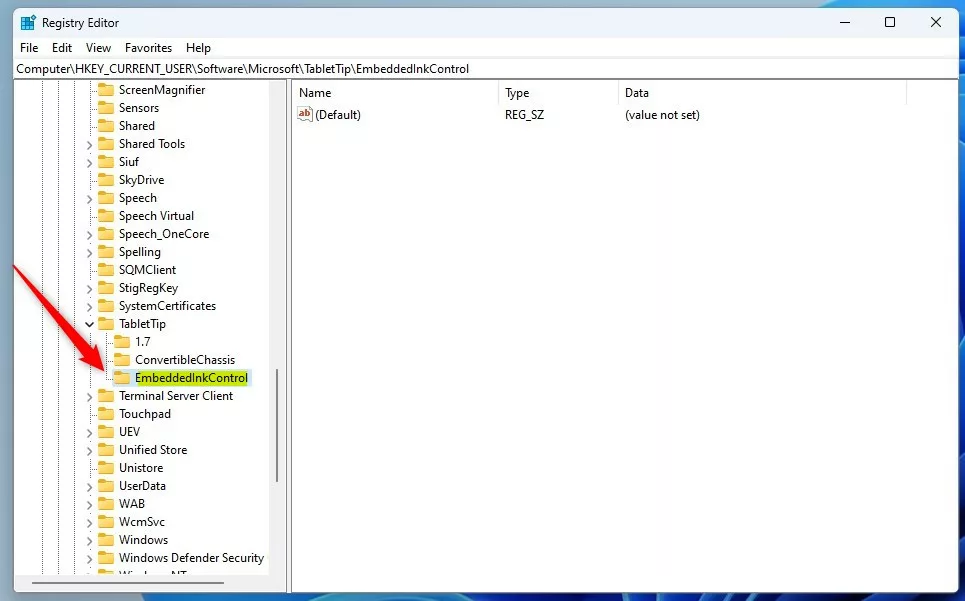
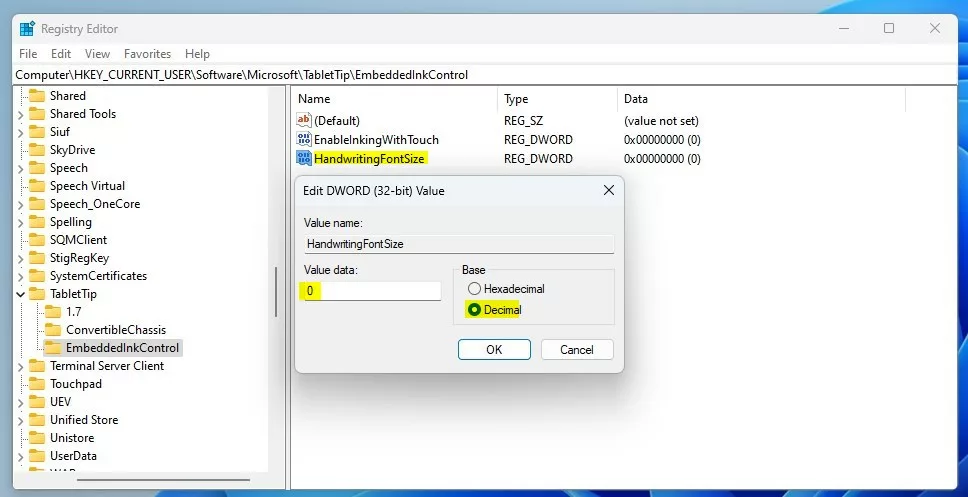
Open the Windows Registry Editor and navigate to this location:
HKEY_CURRENT_USER\Software\Microsoft\TabletTip\EmbeddedInkControl
If the EmbeddedInkControl folder is missing, right-click TabletTip, select New, click Key, and name the key EmbeddedInkControl.
- Right-click in the empty space on the right side and select New > DWORD (32-bit) Value.
- Name the new value
HandwritingFontSize. - Double-click
HandwritingFontSizeand set the Base to Decimal. - Change the Value data to one of the following:
- Small:
0 - Medium:
1 - Large:
2
- Small:
Save changes and restart your computer.
Summary
Adjust the handwriting panel text size to small, medium, or large using Settings or Registry Editor.
Was this guide helpful?

About the Author
Richard
Tech Writer, IT Professional
Richard is a writer at Geek Rewind who turns complex IT tasks into clear, step-by-step guides. He draws on years of hands-on experience in system administration and enterprise IT operations, focusing on Windows, Linux and WordPress: the problems people actually run into, and the fixes that work. His server and WordPress guides come from systems he runs himself. Richard builds and maintains the platform behind Geek Rewind, from its Ubuntu servers and Nginx configuration to its custom WordPress plugins. Many new tutorials start with readers' questions, and he's always glad to answer them in the comments.



No comments yet — be the first to share your thoughts!