How to Block Third-Party Cookies in Microsoft Edge

- 16 steps
- Needs administrator rights
Blocking third-party cookies in Microsoft Edge stops external tracking files from following you across different websites. Third-party cookies are small data files placed on your computer by advertisers and outside domains rather than the site you are visiting. Ad networks use them to recognize you on one site and then again on the next.
Edge has a built-in privacy setting for this in Windows 11. Tracking prevention is on by default, and you can make it stricter or switch on a dedicated third-party cookie block. Turning off third-party cookies keeps advertisers from building a detailed profile of your browsing habits. A few websites may need exceptions if login screens, embedded videos or shopping carts stop working. This guide covers the settings page first, then the registry method for managing the setting by policy.
Open Microsoft Edge, click the three dots, select Settings, then Privacy, search, and services. Under Tracking prevention, choose Balanced or Strict to block most third-party cookies.
Allow or block third-party cookies in Edge
The quickest way to block third-party cookies in Edge is through the browser’s own settings. You change the tracking prevention level, and you can also use the separate cookie switch described later. No restart is needed, and you can undo any change the same way you made it. To get to the settings:
- Open Microsoft Edge.
- Click the Settings and more button (the three dots) in the top-right corner of the window.
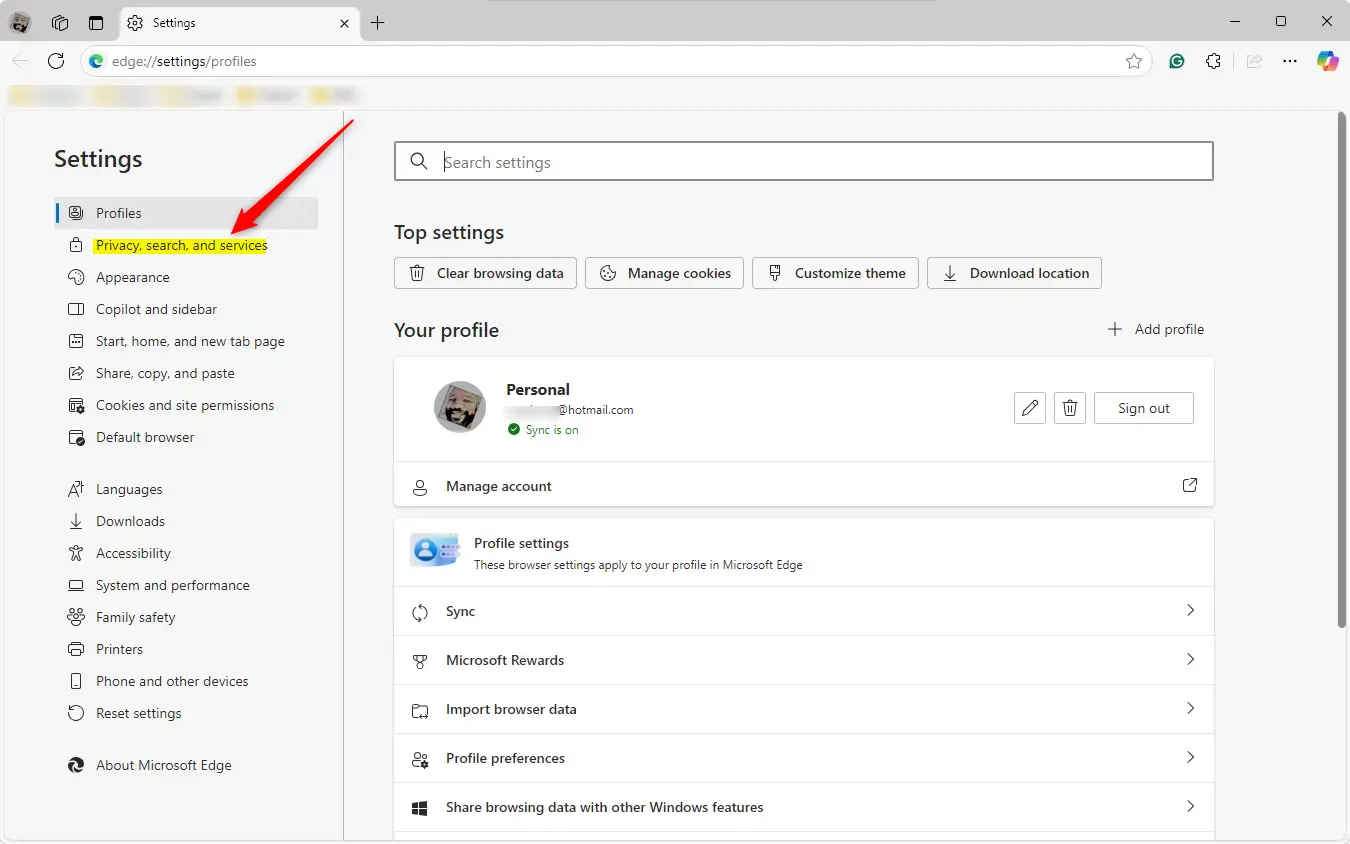
- Click Settings. A Settings page opens in a new tab with a menu on the left.

- On the left menu, select Privacy, search, and services. The page on the right changes to show the privacy options. If you don’t see the left menu, the window may be too narrow. Widen it, or click the menu icon at the top left of the Settings page.
- Scroll down to the Tracking prevention section. You should see a switch at the top and three level boxes below it.
Make sure the Tracking prevention switch is on. If it is off, none of the levels below it apply.
Here are the three modes you can choose from. Click the box for the one you want. The selection applies right away, and open tabs pick it up when you reload them.
- BasicBlocks known harmful trackers but allows most cookies. Sites are the least likely to break, but you get the least protection.
- BalancedThe default setting. It blocks trackers from sites you have not visited. For most people this is the right trade-off between privacy and working websites.
- StrictBlocks most trackers across all sites. This provides the most privacy but is the most likely to break website features, such as sign-in forms, embedded videos and comment boxes.
If a site stops working after you pick Strict, drop back to Balanced, or add an exception for that one site as described below. If you want a hard block on third-party cookies regardless of the tracking level, use the cookie switch in the section below.
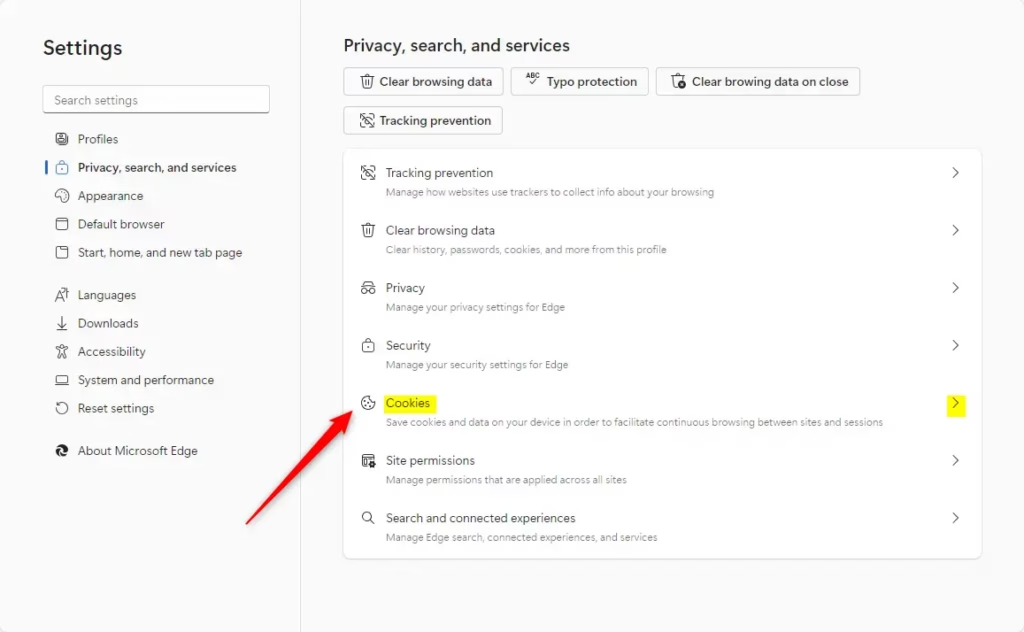
Edge also has a dedicated cookie switch. It lives with the site permissions, along with the place to set exceptions. Follow these steps:
- In Settings, go to Cookies and site permissions > Manage and delete cookies and site data. The cookie options appear on the page.
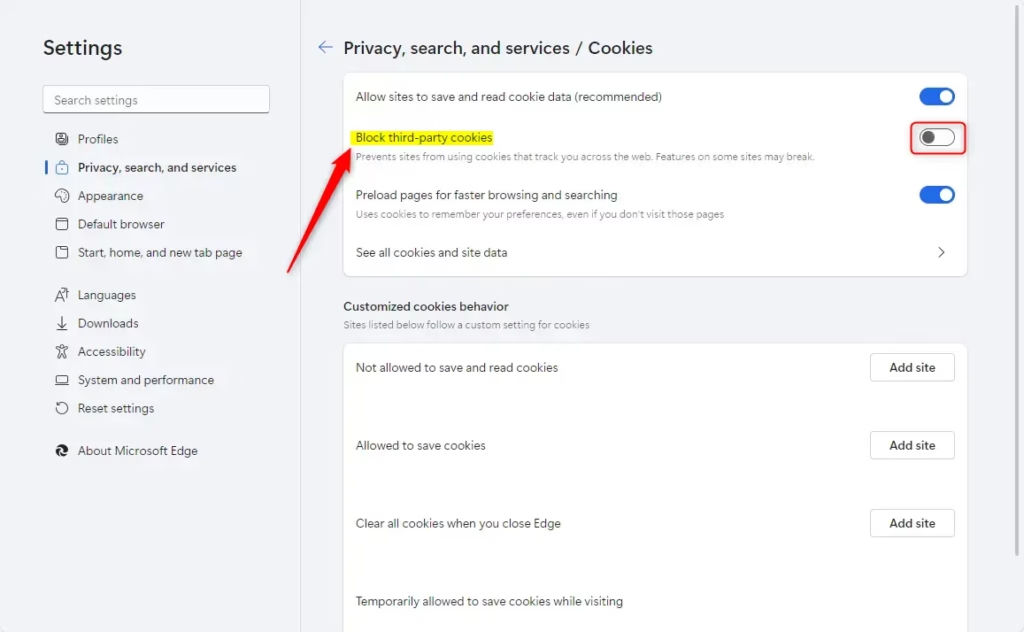
- Turn on Block third-party cookies if you want a firm block on cookies from outside domains.
- To exempt a site, find the Allow section and click Add.
- Type the URL of the website you want to exempt from your blocking rules, then click Add again. The site now shows up in the Allow list.
To undo an exception, click the three dots next to the site in the list and remove it. If the options on this page are greyed out, or you see a message that your browser is managed by your organization, a policy is controlling the setting. That includes any registry policy you set in the next section. You’ll need to change or remove that policy first.
Allow or block third-party cookies in Edge via Registry
A registry policy lets you set the cookie behavior once and have Edge enforce it, instead of relying on each user’s own settings. It works on both Windows 11 Home and Pro, because the Registry Editor is included in both editions. Open the Registry Editor and go to 🗝️HKEY_CURRENT_USER\
- Press the Windows key, type Registry Editor, and open it. Click Yes if User Account Control asks for permission.
- In the left pane, go to 🗝️HKEY_CURRENT_USER\
Software\ . The Edge key may not exist yet on a computer with no Edge policies. If a key is missing, right-click its parent key, select New Key, and give it the missing name.Policies\ Microsoft\ Edge
Changing the values here gives you finer control over how Edge treats cookies than the Settings page does.
Computer\🗝️HKEY_LOCAL_MACHINE\
This is the machine-wide location. A policy placed here applies to every user who signs in to the computer, while one under 🗝️HKEY_CURRENT_USER applies only to the current account.
Remember to back up your registry before making any changes, or create a System Restore point as a safety step. A wrong edit in the registry can cause problems that are hard to trace, and a backup lets you put things back in a minute.
- Right-click the Edge folder (key) in the left pane.
- Select New DWORD (32-bit) Value. A new entry appears in the right pane with its name highlighted.
- Name the entry BlockThirdPartyCookies and press Enter.
- Double-click the new entry. In the Value data box, enter 1 to block third-party cookies, or 0 to allow them.
- Click OK. The entry now shows your value in the right pane.
To undo the policy, delete the BlockThirdPartyCookies entry, or set it back to 0. Deleting it hands control back to the user's own settings in Edge.
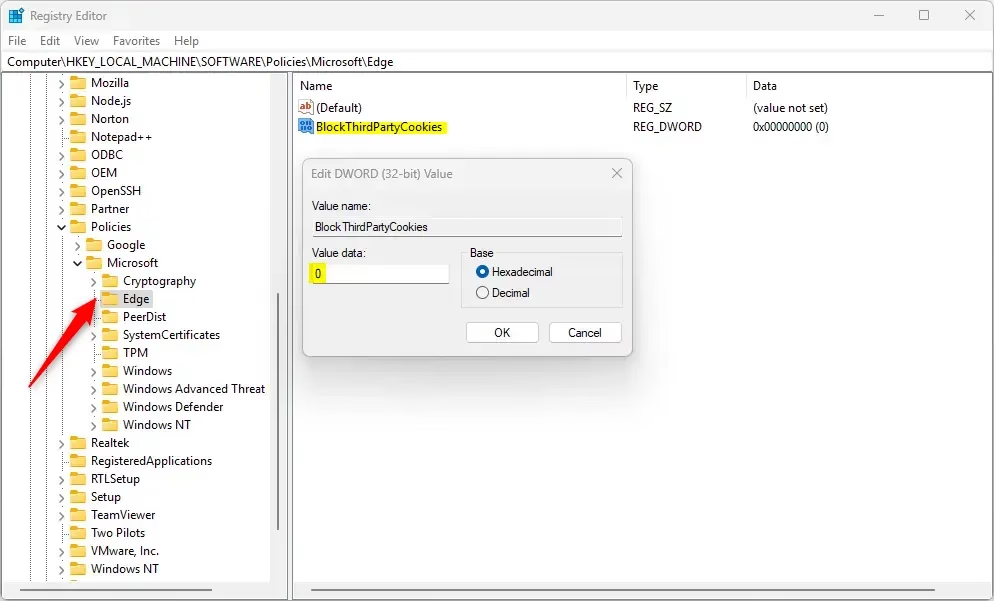
Close and reopen Edge so it reads the new policy. A computer restart may be needed to see the changes, so restart if Edge still shows the old behavior. Check the official documentation for more details: Microsoft.
To check that the policy took effect, open Settings in Edge. The affected cookie option should now be greyed out, with a note that your browser is managed by your organization.
Choose the setting that balances your need for privacy with a smooth browsing experience. For most people, Balanced tracking prevention plus the Block third-party cookies switch is enough, with exceptions added only for the few sites that need them. Use the registry policy when you want the same setting enforced across accounts on one computer.
Have a question about this guide?
Answered by AI from this guide. Good questions may be added to this page — please don't include personal details.
Did this guide fix your problem?

About the Author
Richard
Tech Writer, IT Professional
Richard is a writer at Geek Rewind who turns complex IT tasks into clear, step-by-step guides. He draws on years of hands-on experience in system administration and enterprise IT operations, focusing on Windows, Linux and WordPress: the problems people actually run into, and the fixes that work. His server and WordPress guides come from systems he runs himself. Richard builds and maintains the platform behind Geek Rewind, from its Ubuntu servers and Nginx configuration to its custom WordPress plugins. Many new tutorials start with readers' questions, and he's always glad to answer them in the comments.
No comments yet — be the first to share your thoughts!