How to Enable or Disable Using Bluetooth in Windows 11


Bluetooth in Windows 11 lets you connect wireless accessories like headphones, keyboards, and mice to your PC without cables. This built-in short-range wireless technology sends data between your computer and nearby gear over distances up to 33 feet (10 meters).
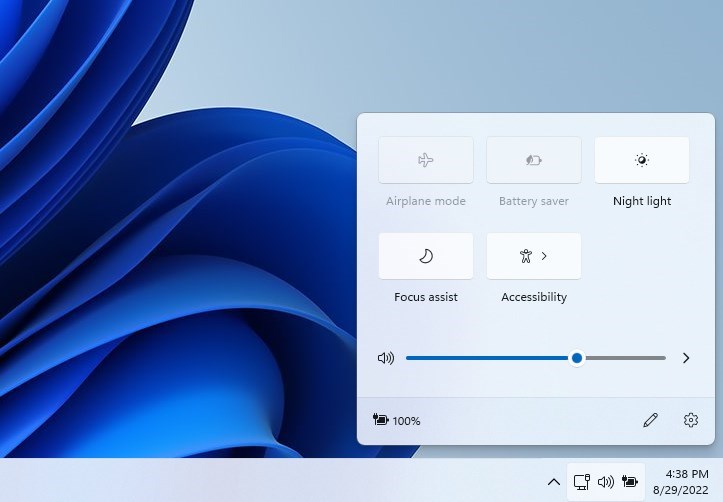
Turning off Bluetooth helps save battery life on laptops and stops unwanted device pairing when you do not need wireless connections. You can switch Bluetooth on or off in seconds using either the Quick Settings panel on the taskbar or the main Windows Settings app.
You can toggle Bluetooth on or off in Windows 11 via the Settings app under “Bluetooth & devices.” Alternatively, open Quick Settings from the taskbar and click the Bluetooth tile. This controls wireless connections to devices and impacts battery life.
Check if your PC has Bluetooth
Before going any further, verify that your computer actually has Bluetooth hardware built in. Wireless mice and headphones require this physical chip to communicate with the operating system.
Comparison: Bluetooth On vs. Bluetooth Off
| State | Battery Impact | Functionality |
|---|---|---|
| Bluetooth On | Higher usage | Connects to wireless devices |
| Bluetooth Off | Lower usage | Saves power, no wireless connections |
How to Restrict Bluetooth Access (Admin Only)
Restricting Bluetooth access in Windows 11 lets administrators lock down wireless connections completely so other users cannot pair new devices. You need an administrator account and Registry Editor to change this setting. This blocks Bluetooth availability across the whole computer until you undo the change.
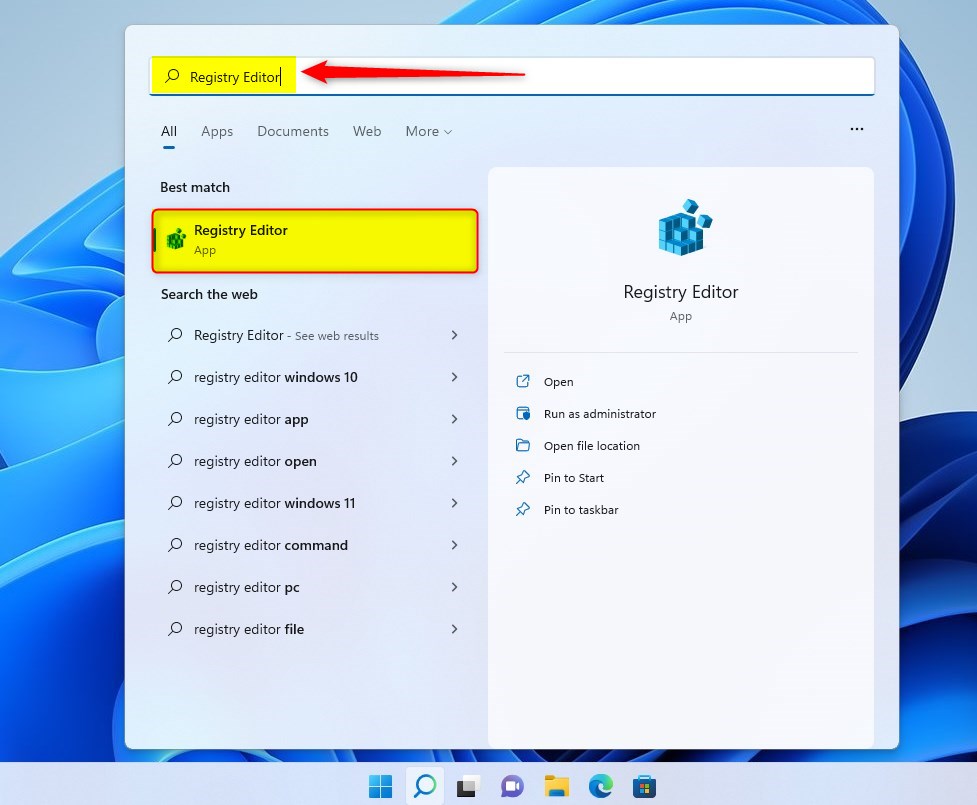
1. Click the Start Menu and type Registry Editor. Select the app to open it.
2. In the left pane, navigate to this path:HKEY_LOCAL_MACHINE\SOFTWARE\Microsoft\PolicyManager\default\Connectivity\AllowBluetooth
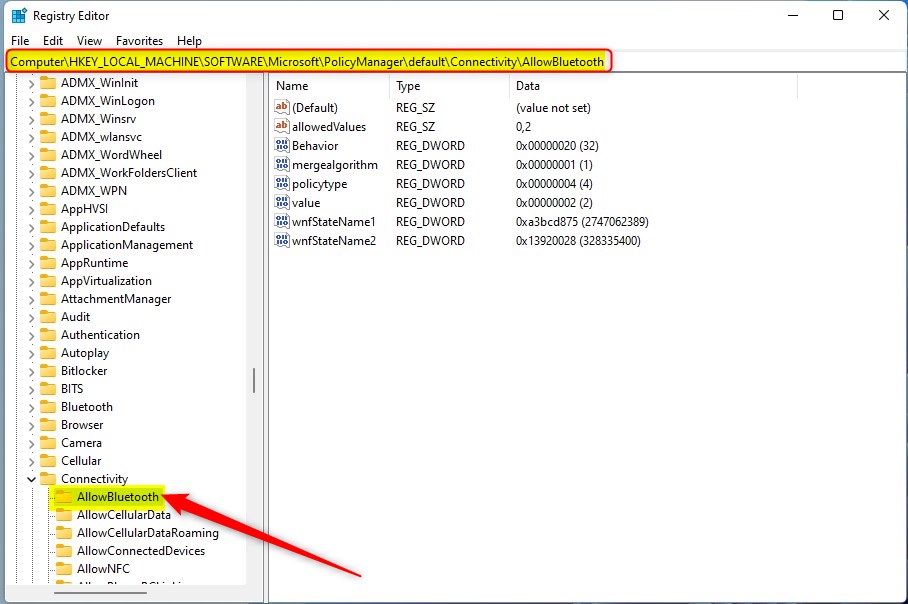
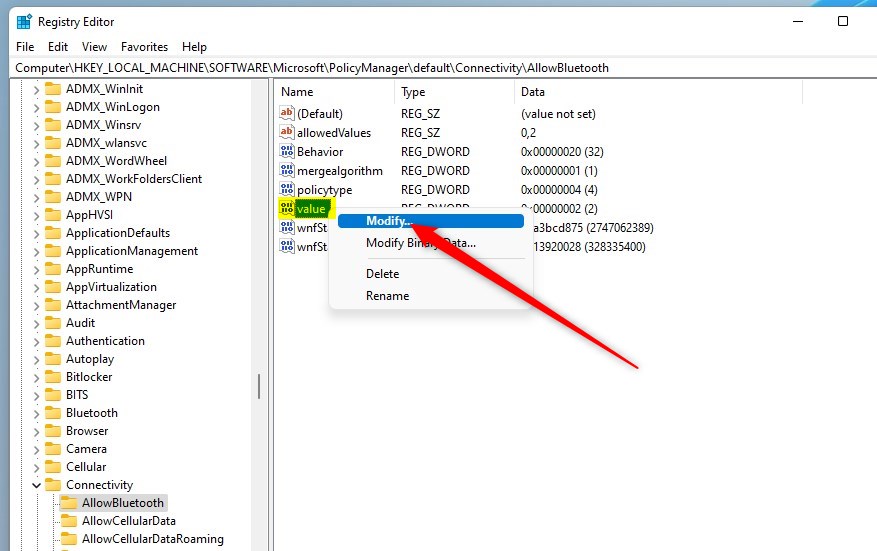
3. Look for the DWORD value named Start in the right-hand pane, then double-click it.
4. Change the 'Value data' to one of these numbers:
- 0: Disallow Bluetooth (Grayed out).
- 1: Reserved.
- 2: Allow Bluetooth (Default).
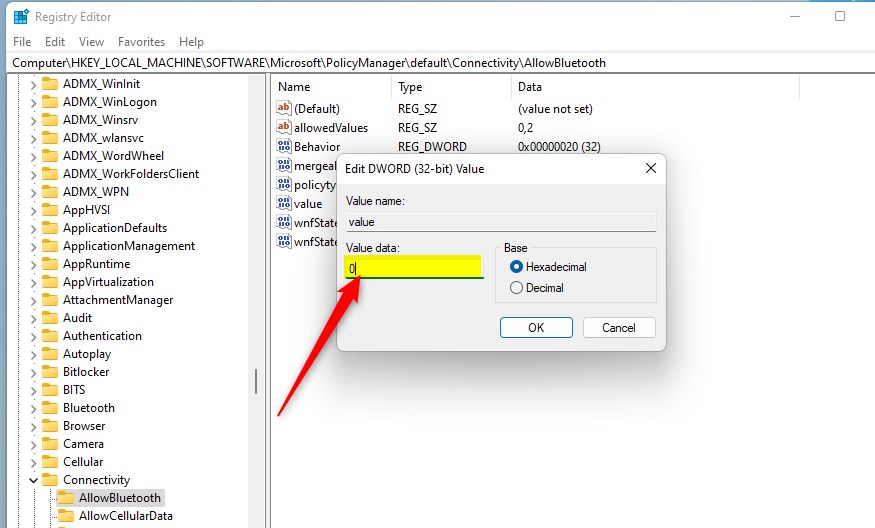
5. Click OK and close the editor.
Troubleshooting Bluetooth Issues
Driver glitches often cause missing Bluetooth toggles. Open Device Manager (a utility listing all physical hardware connected to the PC), locate the Bluetooth adapter, right-click it, and select Update driver. If driver updates fail, run the built-in troubleshooter. Open Settings System Troubleshoot Other troubleshooters and run the Bluetooth tool.
Summary
Securing your Windows 11 hardware is possible when you control Bluetooth access. Registry tweaks govern wireless features, but driver health remains paramount for daily operation. Maintaining updated system files ensures the Bluetooth adapter functions correctly with all paired peripherals.
Was this guide helpful?

About the Author
Richard
Tech Writer, IT Professional
Richard is a writer at Geek Rewind who turns complex IT tasks into clear, step-by-step guides. He draws on years of hands-on experience in system administration and enterprise IT operations, focusing on Windows, Linux and WordPress: the problems people actually run into, and the fixes that work. His server and WordPress guides come from systems he runs himself. Richard builds and maintains the platform behind Geek Rewind, from its Ubuntu servers and Nginx configuration to its custom WordPress plugins. Many new tutorials start with readers' questions, and he's always glad to answer them in the comments.

[…] A pen device (Surface pen) also uses Bluetooth to connect to Windows 11. To pair your pen with Windows 11, your PC needs to have Bluetooth turned on and enabled. […]
[…] A pen device (Surface pen) also uses Bluetooth to connect to Windows 11. To pair your pen with Windows 11, your PC needs to have Bluetooth turned on and enabled. […]