

This article explains how to add or remove apps from the Start menu on your phone when using Windows 11.
The Phone Link app (soon to be renamed to Mobile devices) is a Windows feature that allows you to link your phone and PC using Wi-Fi or Bluetooth and access your phone’s apps and data from your PC. It lets you browse, play, order, chat, and more using your PC’s larger screen and keyboard while your phone stays in your pocket or desk.
With your phone connected to your PC, you can choose how to display notifications, choose to hear audio from the PC or phone, turn allow the phone link app to sync over mobile without Wi-Fi on or off, unlink your phone from Windows, enable or disable auto startup for the phone link app, send and receive text messages from the app, add or remove Phone Link on the widgets board, turn dark mode on or off, open your phone screen in the app, turn show notifications for all my apps on or off, show notifications in the Phone Link feature feed, enable or disable using Phone Link with Windows suggestions, open Phone Link notification banners in the mobile app or Phone Link, enable or disable Phone Link to show text messages, enable or disable Phone Link to make calls from your mobile device, and more.
A recent update to the Phone Link app now lets you add or remove apps from your phone to the Start menu in Windows 11.
Why This Matters
Adding or removing apps on the Start menu in Windows 11 helps you access your most-used apps quickly. It also keeps your desktop clean and organized.
Add Phone Apps to the Start Menu in Windows 11
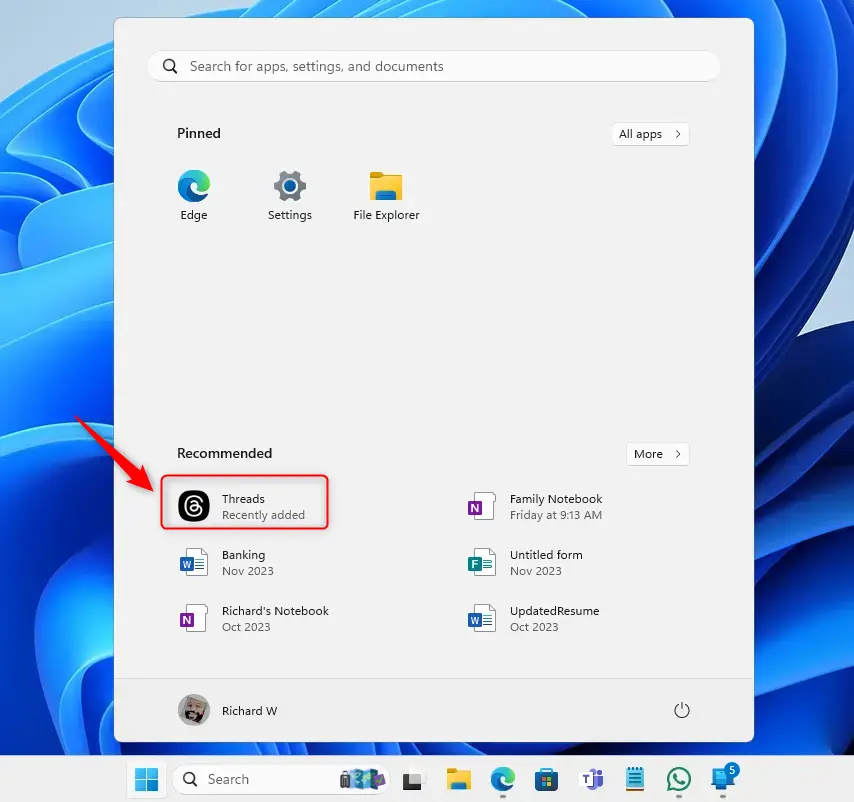
What Happens: Your phone apps will show up on your Windows Start menu so you can open them from your PC.
Here’s how to do it:
- Open the Phone Link app on your PC.
- Go to the Apps section.
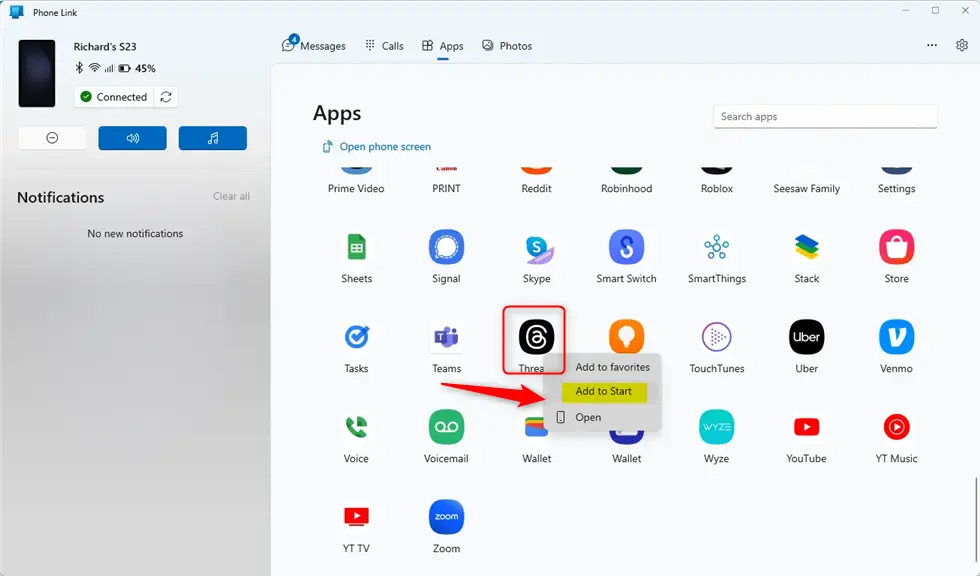
- Find the app you want to add to the Start menu.
- Right-click on the app and select “Add to Start.”
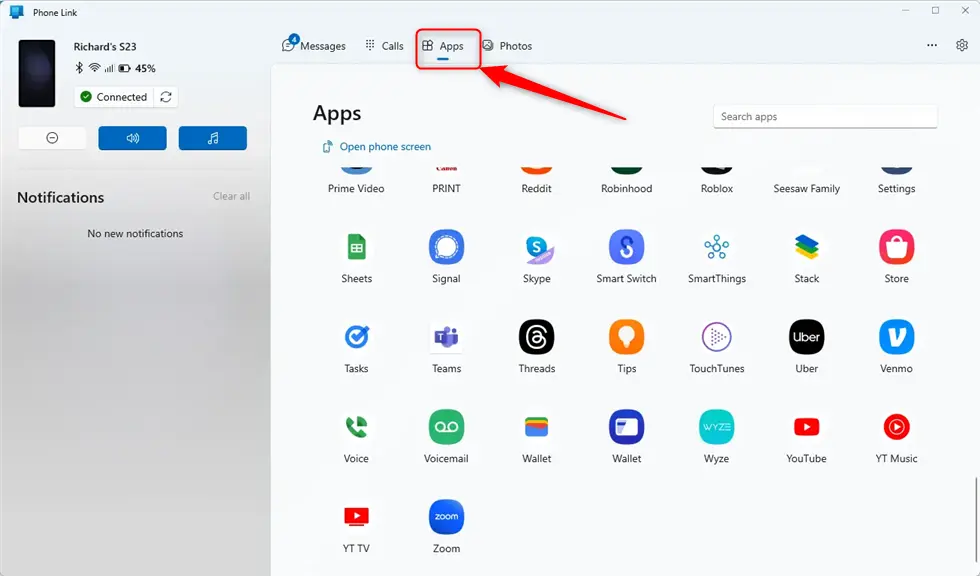
Right-click the app and select “Add to Start.”
The app will now appear on your Start menu. You can also pin it to your Taskbar. Just right-click the app on the Start menu and select “Pin to Taskbar.”
Remove Phone Apps from the Start Menu
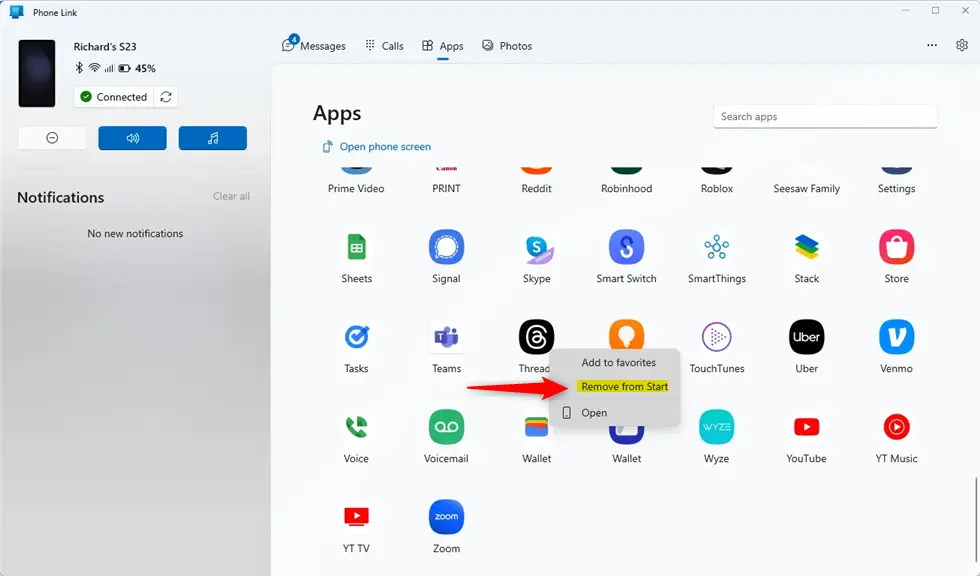
What Happens: The app will disappear from your Start menu.
If you no longer want an app to show on the Start menu, right-click it again and select “Remove from Start.”
That’s it!
Summary
Managing your phone apps on the Windows 11 Start menu is simple and helpful. By linking your phone to your PC using the Phone Link app, you can quickly add or remove apps from your phone’s Start menu. This makes it easier to access your favorite apps and keeps your desktop organized. Just right-click any app in the Phone Link app, choose “Add to Start” or “Remove from Start,” and you’re done. This feature improves your productivity and makes using Windows 11 more efficient.


Leave a Reply Cancel reply