How to Enable Separate Process for Windows 11 File Explorer

Separate processes in Windows 11 File Explorer keep each folder window running on its own so a frozen screen does not crash your whole computer. File Explorer handles your daily file management by running everything under one central `explorer.exe` task by default.
Isolating these windows stops one crashing folder from taking down your taskbar and desktop with it. You can change this setting in the folder options menu to keep your PC stable when something freezes.
Enable separate processes for File Explorer by opening Folder Options, clicking the View tab, and checking “Launch folder windows in a separate process.” This prevents one crashed window from affecting others.
Launch a File Explorer folder with a separate process
Running each folder in its own sandbox prevents a single crash from taking down the whole application. Configuration takes less than a minute through either the standard menu or the registry. Following these steps enables the Windows 11 File Explorer separate process feature for better stability.
The configuration process involves several specific actions.
- Open the File Explorer Folder Options.
- Click on the View tab.
- Check the box next to “Launch folder windows in a separate process” to enable it. To disable it, uncheck the box.
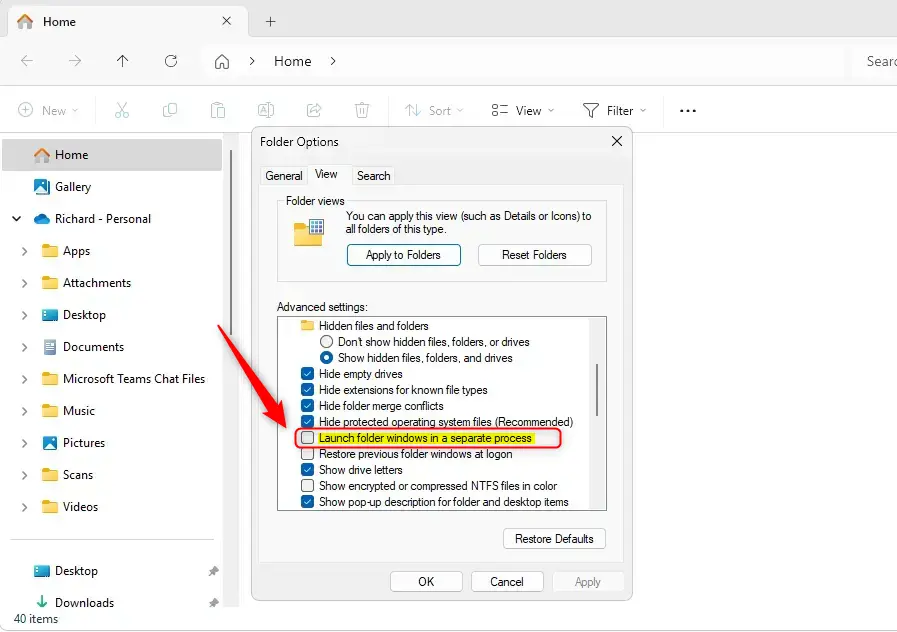
- Click OK to save your changes and exit.
Launch File Explorer window in a separate process using Windows Registry Editor
Power users can achieve the same result directly through the Windows Registry Editor database. Backing up registry settings beforehand remains a smart precaution. This method provides a technical route to achieve better File Explorer stability.
Backing up your registry or creating a System Restore point prevents potential issues before diving into the Registry Editor.
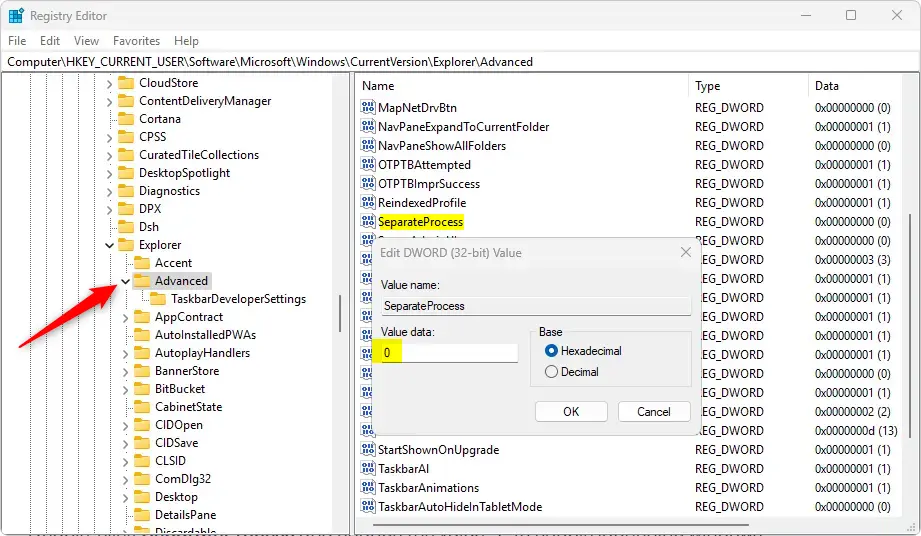
- Open the Windows Registry and navigate to the folder key path below.
Computer\HKEY_CURRENT_USER\Software\Microsoft\Windows\CurrentVersion\Explorer\Advanced - Right-click Advanced > New > DWORD (32-bit) Value and name the new DWORD SeparateProcess.
- ⚠️ ADMIN PRIVILEGES REQUIRED — Double-click SeparateProcess and change the value to 1 to enable launching windows in a separate process in File Explorer.
- Enter 0 to disable the feature.
Applying the changes correctly sometimes requires a full computer restart.
That completes the setup process.
Summary
Turning on separate processes for Windows 11 File Explorer windows means if one window freezes, the others keep working, preventing the whole application from crashing. Each File Explorer window runs on its own, which means better stability and less chance of losing your work. This setting helps ensure that a single issue won't bring down all your open File Explorer windows.
What happens when done? Once applied, every folder operates independently. An unresponsive directory no longer brings down the rest of your desktop interface.
Key points to remember:
- Process Isolation: Launching folder windows in separate processes prevents one unresponsive window from crashing others.
- Easy Configuration: You can easily change this setting through the File Explorer Folder Options or the Windows Registry Editor.
- Backup Precaution: Always back up your registry or create a System Restore point before making changes to the registry.
- Enhanced Stability: This feature can improve stability and responsiveness when navigating files and folders.
- Reboot Required: Changes may require a reboot, ensuring the settings are applied correctly.
Should I enable launch folder Windows in a separate process?
The main reason for turning this feature on involves preventing an unresponsive folder window from dragging down the main explorer.exe process upon closure. Desktop accessibility remains intact while Windows handles the affected task internally.
How to split File Explorer in 🪟 Windows 11?
Make sure to review your settings after applying the tweak to confirm everything works as expected.
Was this guide helpful?

About the Author
Richard
Tech Writer, IT Professional
Richard, a writer for Geek Rewind, is a tech enthusiast who loves breaking down complex IT topics into simple, easy-to-understand ideas. With years of hands-on experience in system administration and enterprise IT operations, he’s developed a knack for offering practical tips and solutions. Richard aims to make technology more accessible and actionable. He's deeply committed to the Geek Rewind community, always ready to answer questions and engage in discussions.



No comments yet — be the first to share your thoughts!