Enable ClickLock for Mouse Drag in Windows 11

ClickLock is a Windows mouse setting that holds down the left mouse button for you, so you can drag, select text and move windows without keeping the button pressed. Turn it on in Windows 11 from Settings Bluetooth & devices Mouse Additional mouse settings
Open the Buttons tab, then tick Turn on ClickLock. The change takes effect straight away. You do not need to restart your PC or have administrator rights.
This page covers how to turn on ClickLock, how to set the hold time, how to drag with it, and what to do if the option is missing.
To turn on ClickLock in Windows 11, open Settings , select Bluetooth & devices, then Mouse, then Additional mouse settings. On the Buttons tab of Mouse Properties, tick Turn on ClickLock and select Apply. ClickLock holds the primary mouse button for you after a short press, so you can drag or select text without keeping it pressed. No restart is needed.
What ClickLock Does and When It Helps
ClickLock keeps the primary mouse button (the left button by default) “held down” after you press and hold it briefly. You release the physical button, move the pointer, and click once more to let go. Without ClickLock, a drag only works while your finger holds the button down the whole time.
This helps in several situations:
- You drag long distances, such as moving a file between two distant folders or across several monitors.
- You select long passages of text in a document or web page and your finger tires from holding the button.
- You have a hand or wrist condition that makes holding a button while moving the mouse painful or difficult.
- You use a laptop touchpad and find it awkward to press and slide at the same time.
ClickLock is part of the classic Mouse Properties window. The newer Settings app does not have its own ClickLock switch, so you reach the option through a link on the Mouse page. The feature works the same on Windows 11 Home and Pro.
Turn On ClickLock in 🪟 Windows 11
You enable ClickLock in the Mouse Properties window. Open it first, then switch the option on and choose how long the button must be held.
Open Mouse Properties
This step opens the window that holds the ClickLock setting. You can reach it from Settings or with a shortcut.
- Press Windows + I to open Settings.

Windows 11 Start menu with Settings gear icon highlighted. - Select Bluetooth & devices in the left pane.

Windows Settings menu highlighting the Bluetooth and devices option for printers - Select Mouse in the right pane. The Mouse page shows your primary button, pointer speed and scrolling options.
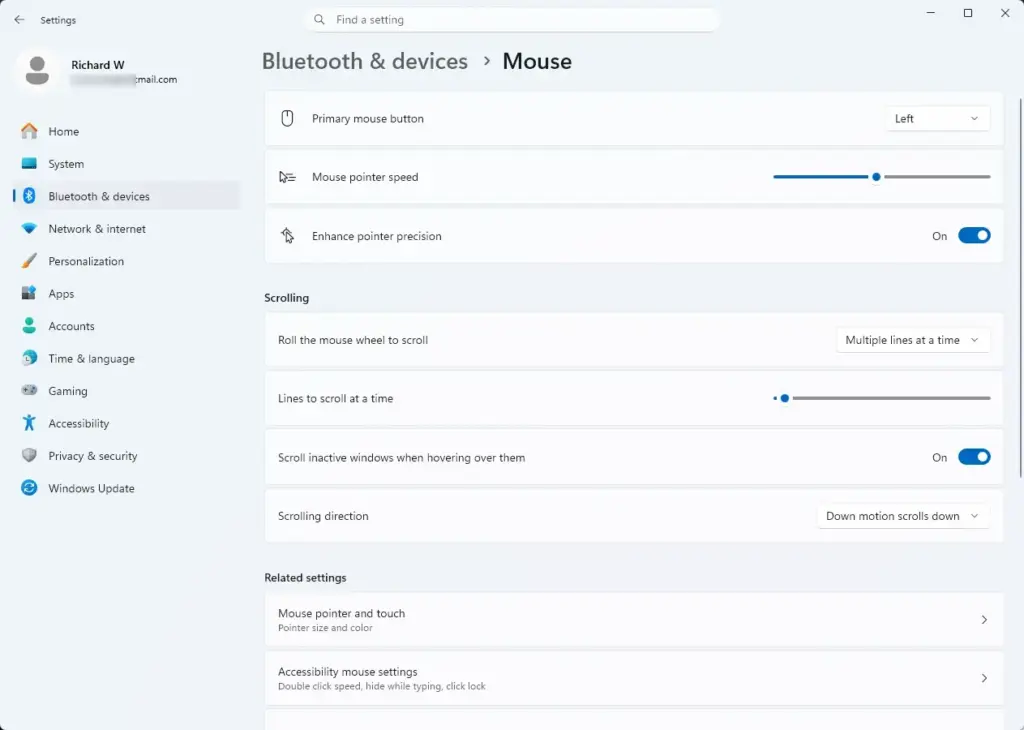
Settings › Bluetooth › Mouse - Scroll to Related settings and select Additional mouse settings. The Mouse Properties window opens.
To skip Settings, press Windows + R, type main.cpl and press Enter. This opens the same window. You can also use Control Panel Hardware and Sound Mouse
Switch On ClickLock
This step turns the feature on. It is a single checkbox on the first tab.
- Select the Buttons tab in Mouse Properties. This is the first tab and it is usually open already.
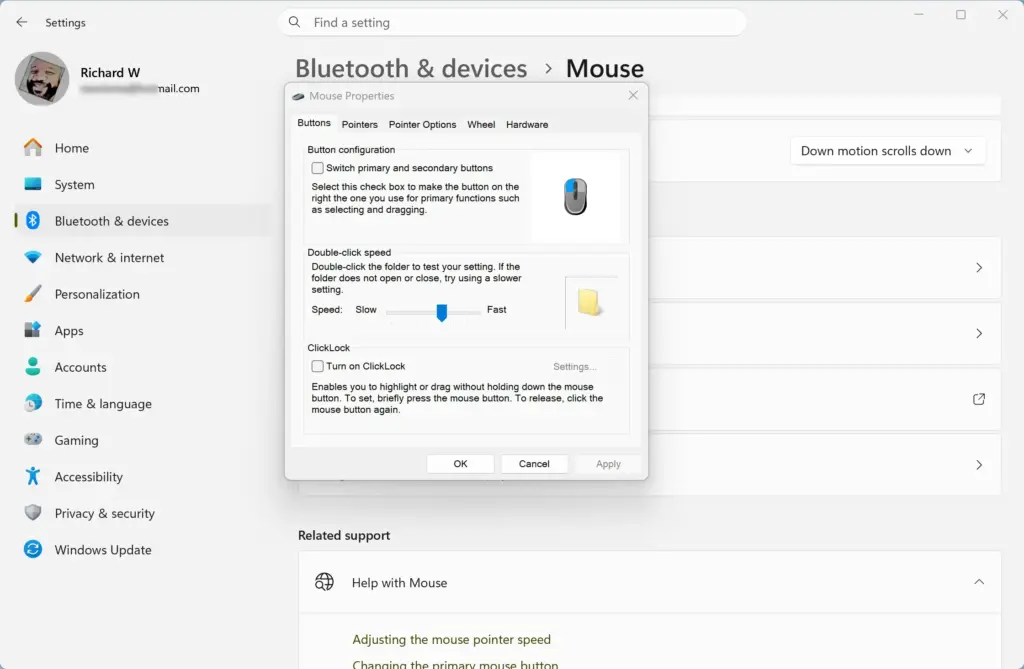
- Find the ClickLock section at the bottom of the tab.
- Tick Turn on ClickLock. The Settings... button next to it, which was greyed out, becomes available.
- Select Apply. ClickLock is now active.
If you are happy with the default hold time, select OK and go to the section on using ClickLock below. To change the hold time first, continue with the next part.
Set How Long You Hold the Button
This step controls how long you must hold the button before Windows locks the click. A shorter time locks sooner. A longer time stops accidental locks when you click and release slowly.
- Select Settings... in the ClickLock section. The Settings for ClickLock dialog opens with one slider.
- Drag the slider toward the short end if you want ClickLock to engage quickly. Drag it toward the long end if you click slowly and want to avoid accidental locks.
- Select OK to close the dialog.
- Select OK again in Mouse Properties to save and close the window.
If you are not sure where to set the slider, start near the middle and test it. You can reopen the dialog and change it at any time.
Use ClickLock to Drag and Drop
The pattern is the same everywhere: press and hold, release after the hold time, move, then click to let go. Try it first on something harmless, such as a spare file on your desktop.
- Point at a file in File Explorer or on the desktop.
- Press and hold the primary mouse button. Keep it down for the hold time you set, about a second at default settings.
- Release the button. The file is now locked to the pointer.
- Move the pointer to the destination folder. The file follows the pointer as it would in a normal drag.
- Click once. The file drops into the folder and the lock ends.
If the file does not follow the pointer, you released the button too early. Hold it a little longer and try again. If the file moved the moment you pressed, the hold time may be too short for how you click. Open Settings for ClickLock and move the slider toward the long end.
Select Text Without Holding the Button
ClickLock also works for highlighting text, which is useful for long documents and web pages.
- Place the pointer at the start of the text you want to select.
- Press and hold the primary button until the hold time passes, then release it.
- Move the pointer to the end of the passage. The selection grows as you move. Scroll with the mouse wheel if the passage runs past the screen.
- Click once to finish the selection. The text stays highlighted so you can copy or format it.
Move or Resize a Window
ClickLock works on window title bars too. This helps when you move a window across a large display or between monitors.
- Point at the window's title bar.
- Press and hold the primary button, release after the hold time, and move the pointer. The window follows.
- Click to drop the window where you want it.
Use ClickLock on a Laptop Touchpad
ClickLock is a mouse setting, but it applies to a touchpad as well because Windows treats the touchpad's button press as a mouse click. The catch is that ClickLock needs a real press-and-hold. A light tap may not register as a held button. Press down on the touchpad surface, or use its physical left button, until the hold time passes.
- Press down and hold on the touchpad (or its left button) until the hold time passes.
- Lift your finger. The item stays locked.
- Slide your finger to move the pointer and the item.
- Press the touchpad once more to drop it.
Some laptops add an extra tab to Mouse Properties from the touchpad maker, such as Synaptics or ELAN, which make touchpad software. Those tabs have their own settings for taps and touch gestures, such as swipes, and they can change how presses are read. The ClickLock checkbox stays on the Buttons tab.
If the ClickLock Option Is Missing or Does Not Work
ClickLock rarely fails, but several things can make it look broken. Work through these in order.
The Hold Time Is Wrong for How You Click
This is the most common cause. If the slider is set too long, a normal press-and-hold never reaches the lock point, so the item drops when you release. Open Settings for ClickLock and move the slider toward the short end. Test again after each change.
You Are Using the Wrong Button
ClickLock applies to the primary button. If you swapped your buttons in Settings Bluetooth & devices Mouse using the Primary mouse button option, the right button is now the primary one. Hold that button when you test, not the left.
Mouse Software From the Maker Is Taking Over
Gaming and productivity mice often come with their own software that remaps buttons. If the maker's software reassigns a button, Windows may not see a normal click. Open the maker's app and check that the primary button is set to its standard left-click action. Then test ClickLock again.
The App Ignores ClickLock
Some games and specialist apps read mouse input directly instead of using the normal Windows click. In those apps ClickLock can have no effect, even though it works in File Explorer, Notepad and your browser. Test in File Explorer first. If it works there, the problem is the app, not your setting.
The Checkbox Does Not Stay Ticked
If the box clears after you close and reopen Mouse Properties, you probably closed the window without selecting Apply or OK. Tick the box again and select OK. If it still clears, restart the PC and repeat the steps. The setting belongs to your user account, so make the change while signed in to the account you use every day.
Mouse Properties Will Not Open
If Additional mouse settings does nothing, press Windows + R, type main.cpl and press Enter. If that also fails, you may be on a work or school PC where the administrator has blocked access to the Mouse settings. Ask your IT team. This guide does not cover a workaround for this case, so ask your IT team for help.
Turn Off ClickLock
If ClickLock locks items when you do not want it to, turn it off. This reverses the change completely. Your hold-time slider setting is kept in case you turn the feature on again.
- Open Settings Bluetooth & devices Mouse, then select Additional mouse settings.
- Select the Buttons tab.
- Clear the Turn on ClickLock checkbox. The Settings... button greys out.
- Select OK. Dragging now requires you to hold the button the whole time again.
If you only need a quick way out of a locked drag, click once. That releases whatever the pointer is holding. You do not have to turn the feature off for that.
What to Do Next
Give ClickLock a few days of real use before you decide on the hold time. Most people end up nudging the slider once or twice. If pointer movement itself feels off while you drag, open the Mouse page in Settings and adjust the pointer speed next. If you find ClickLock useful for accessibility reasons, the Accessibility section in Settings has related options for mouse and pointer control that you can look through.
Was this guide helpful?

About the Author
Richard
Tech Writer, IT Professional
Richard is a writer at Geek Rewind who turns complex IT tasks into clear, step-by-step guides. He draws on years of hands-on experience in system administration and enterprise IT operations, focusing on Windows, Linux and WordPress: the problems people actually run into, and the fixes that work. His server and WordPress guides come from systems he runs himself. Richard builds and maintains the platform behind Geek Rewind, from its Ubuntu servers and Nginx configuration to its custom WordPress plugins. Many new tutorials start with readers' questions, and he's always glad to answer them in the comments.


No comments yet — be the first to share your thoughts!