Disable Autofill Payment Methods in Chrome

Disabling autofill payment methods in Chrome stops the browser from automatically filling in your credit card numbers, expiration dates, and billing addresses during online checkouts. The setting controls whether Chrome saves your financial data and suggests it on future purchases.
Turning it off is a sensible privacy step, especially on shared or public computers where someone else could reach your card details. Once you change the setting, Chrome stops asking to save new cards and hides any payment methods you already saved. This guide covers two ways to do it: the normal Chrome settings page, and a Registry policy for the whole PC.
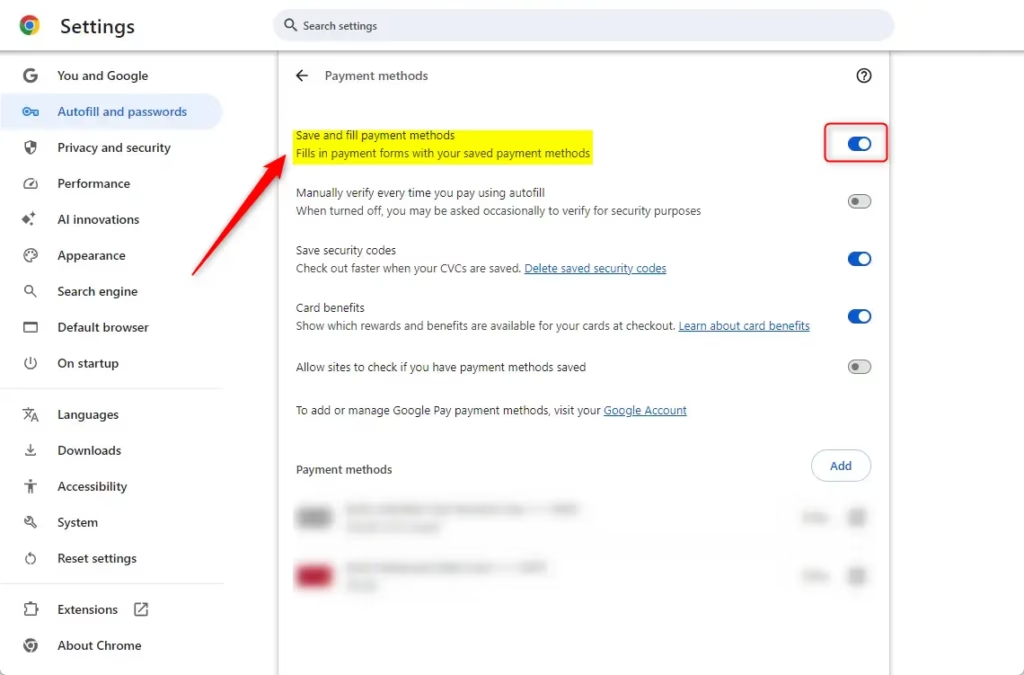
Turn off “Save and fill payment methods” in Chrome’s settings. Navigate to Settings Autofill and passwords > Payment methods, then toggle the switch. This stops Chrome from saving and suggesting your payment information during online checkouts.
Enable/Disable Saving Credit Card Payment Methods in Chrome
The simplest way to stop Chrome from saving your payment details is in the browser settings. You open the Autofill and passwords section, go to Payment methods, and turn off the option that saves and fills your cards at checkout. It takes under a minute, needs no admin rights, and applies to the Chrome profile you are signed in to.
There are two ways to reach the Payment methods page. Use whichever you prefer.
- Open Google Chrome browser.
- Type chrome://settings/payments into the address bar and press Enter to go there directly. You should land on the Payment methods page.
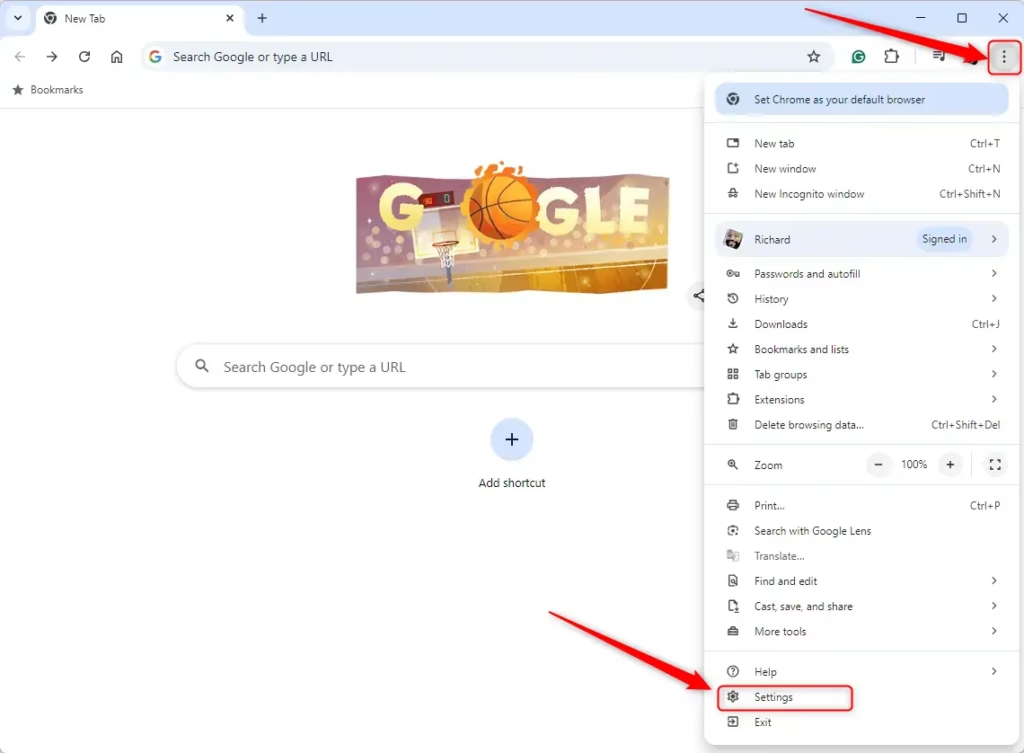
- Alternatively, click the three dots in the top right corner and select Settings. The Settings page opens in a new tab.
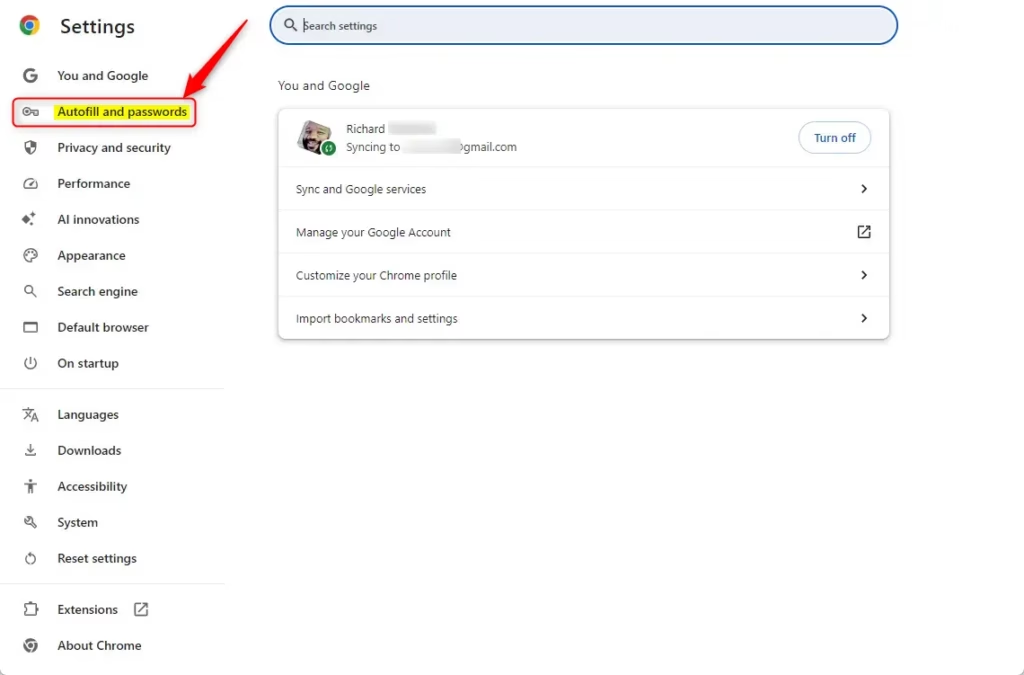
- Select Autofill and passwords from the left menu.
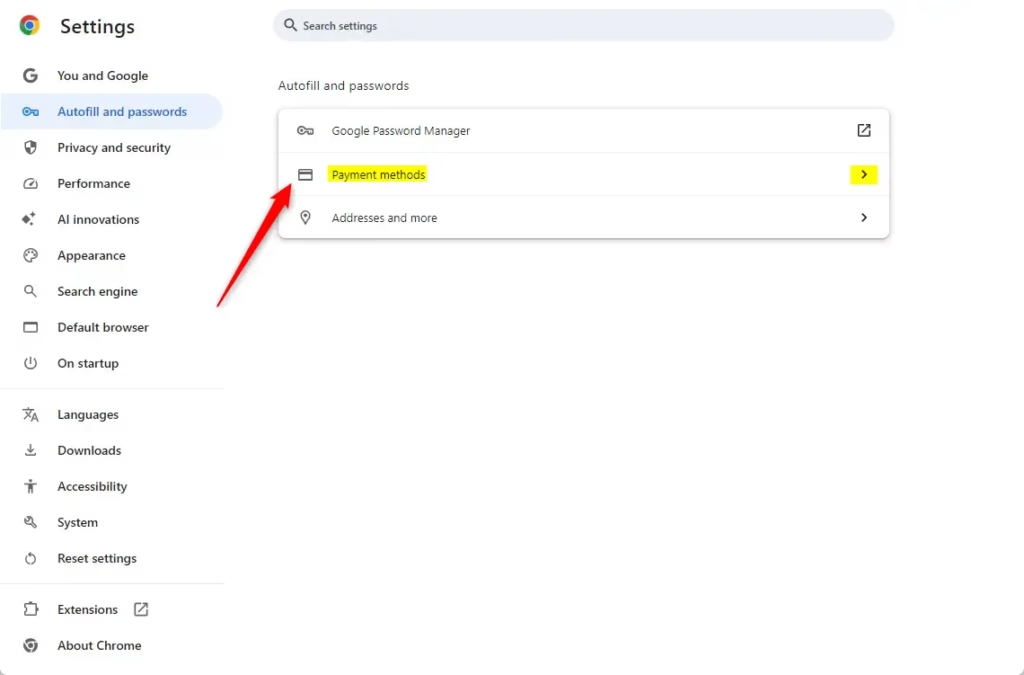
- Click on Payment methods. You should now see the payment options and any cards you saved.
If you use more than one Chrome profile, this setting belongs to the profile you are in. Repeat the steps in each profile you want to change.
Chrome’s autofill payment feature saves and fills your payment details for online checkouts. To disable it, you work from the Payment methods page you opened in the previous section.
- On the Payment methods page, find the Save and fill payment methods switch at the top.
- Click the switch to turn it off. It changes from blue to grey.
This prevents Chrome from suggesting saved credit card or bank account information. Your privacy is better protected because sensitive details are no longer filled in automatically on websites. Chrome also stops offering to save new cards when you check out.
To undo the change, return to the same page and switch it back on. If the switch is greyed out or the page says Chrome is managed by your organization, a policy is controlling the setting. The Registry method later in this guide is one way that happens, and you will need an administrator to change it.
Turning the setting off in Chrome does not necessarily remove cards that are stored in your Google account, so check there if you want them gone completely.
Enable / Disable save and fill payment methods in Chrome using the Registry
You can disable Chrome autofill using the Windows Registry Editor (a database for low-level system settings) to block the browser from saving credit card information across your entire computer. This advanced method forces the feature off through system-level settings, which is especially useful for computers managed by an employer or school.
The change is made under 🗝️HKEY_LOCAL_MACHINE, so it applies to every user on the PC and you need to be signed in as an administrator. It works on both Windows 11 Home and Pro, because you edit the Registry directly rather than using Group Policy.
Open the Windows Registry first. Search for Registry Editor in the Start menu and open it. If a User Account Control prompt appears, click Yes.
Before making any changes, back up your registry or create a System Restore point as a safety measure in case something goes wrong. A wrong edit in the Registry can cause problems, so do not skip this step.
Navigate to this path. You can click through the folders in the left pane, or paste the path into the address bar at the top of Registry Editor.
Computer\🗝️HKEY_LOCAL_MACHINE\
If the Google or Chrome folders aren’t there, you need to create them. This is normal on a PC that has never had Chrome policies applied.
- Right-click on the Policies folder, choose New, then Key.
- Name the new key Google. It appears under Policies.
- Right-click the new Google key and repeat the process to create a key named Chrome.
- Right-click in the Chrome folder, on an empty space in the right pane.
- Select New DWORD (32-bit) Value. A new entry appears with its name ready to edit.
- Name it AutofillCreditCardEnabled.
- Double-click it and set the “Value data” to 0 to disable saving cards. Click OK.
- Set it to 1 to enable it.
Leave the Base option on its default setting. The entry should now show 0x00000000 (0) in the Data column.
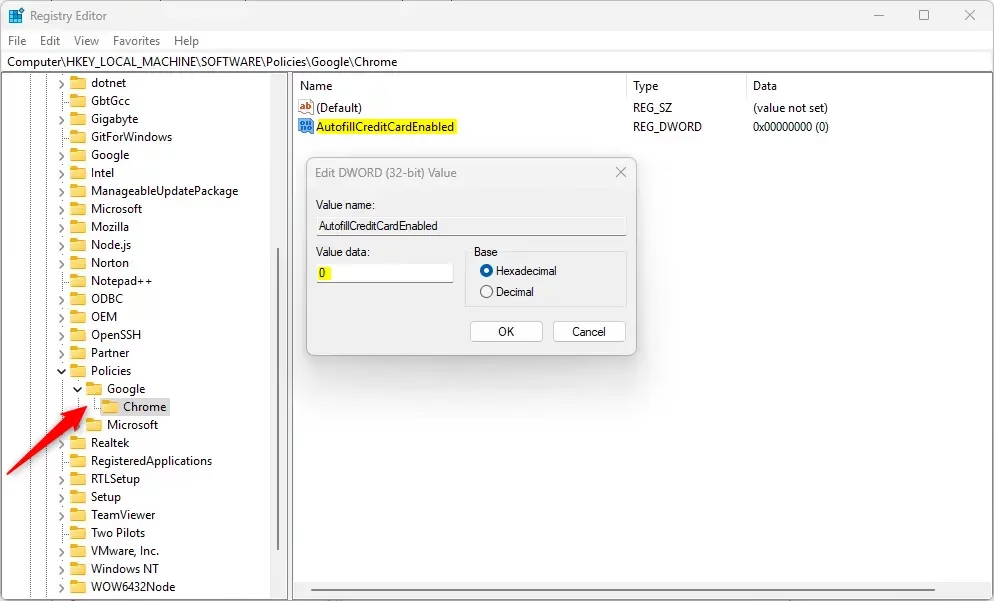
A computer restart may be needed for these changes to take effect. At minimum, close all Chrome windows and open the browser again. Then go to chrome://settings/payments. The payment switch should be off and locked, with a note that your organization manages the setting.
To revert these settings, delete the AutofillCreditCardEnabled entry. Right-click it in the Registry Editor, choose Delete, and confirm. After you restart Chrome, you can control the option from the normal settings page again.
Reference:
Have a question about this guide?
Answered by AI from this guide. Good questions may be added to this page — please don't include personal details.
Did this guide fix your problem?

About the Author
Richard
Tech Writer, IT Professional
Richard is a writer at Geek Rewind who turns complex IT tasks into clear, step-by-step guides. He draws on years of hands-on experience in system administration and enterprise IT operations, focusing on Windows, Linux and WordPress: the problems people actually run into, and the fixes that work. His server and WordPress guides come from systems he runs himself. Richard builds and maintains the platform behind Geek Rewind, from its Ubuntu servers and Nginx configuration to its custom WordPress plugins. Many new tutorials start with readers' questions, and he's always glad to answer them in the comments.
No comments yet — be the first to share your thoughts!