- Powered by
- WordPress
-
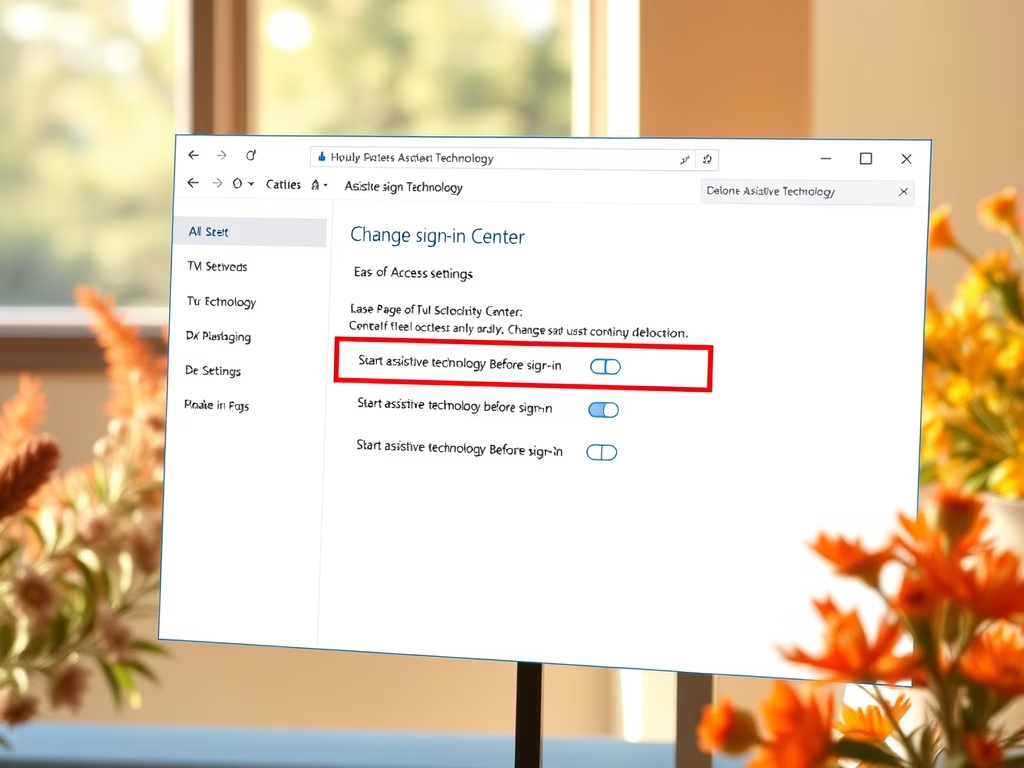
How to Change Assistive Technology Settings in Windows 11
Windows 11 offers assistive technology features designed to aid users with disabilities. Users can customize settings to activate these tools before or after signing in through the Control Panel. The guide provides simple steps for adjusting assistive feature preferences, ensuring a more accessible computer experience tailored to individual needs.
-
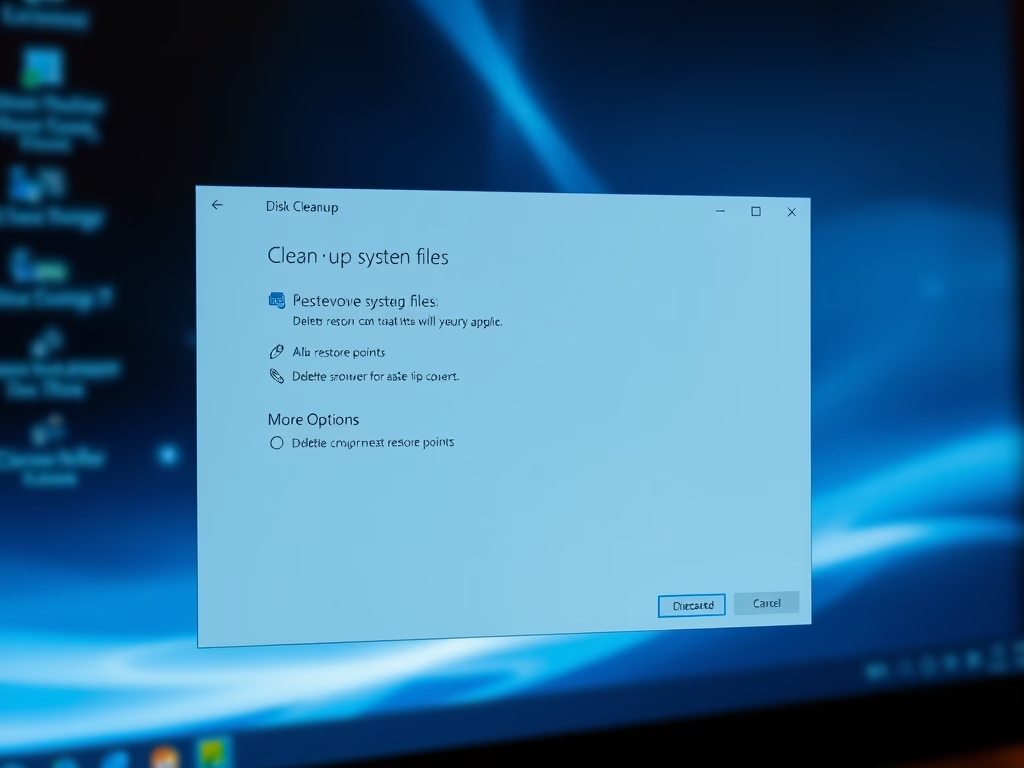
How to Delete Old Restore Points in Windows 11
This guide explains how to delete old restore points in Windows 11 to free up storage while retaining the latest one. Restore points serve as system backups, enabling users to revert changes. The process involves using the Disk Cleanup tool, ensuring your computer runs smoothly without compromising data recovery options.
-
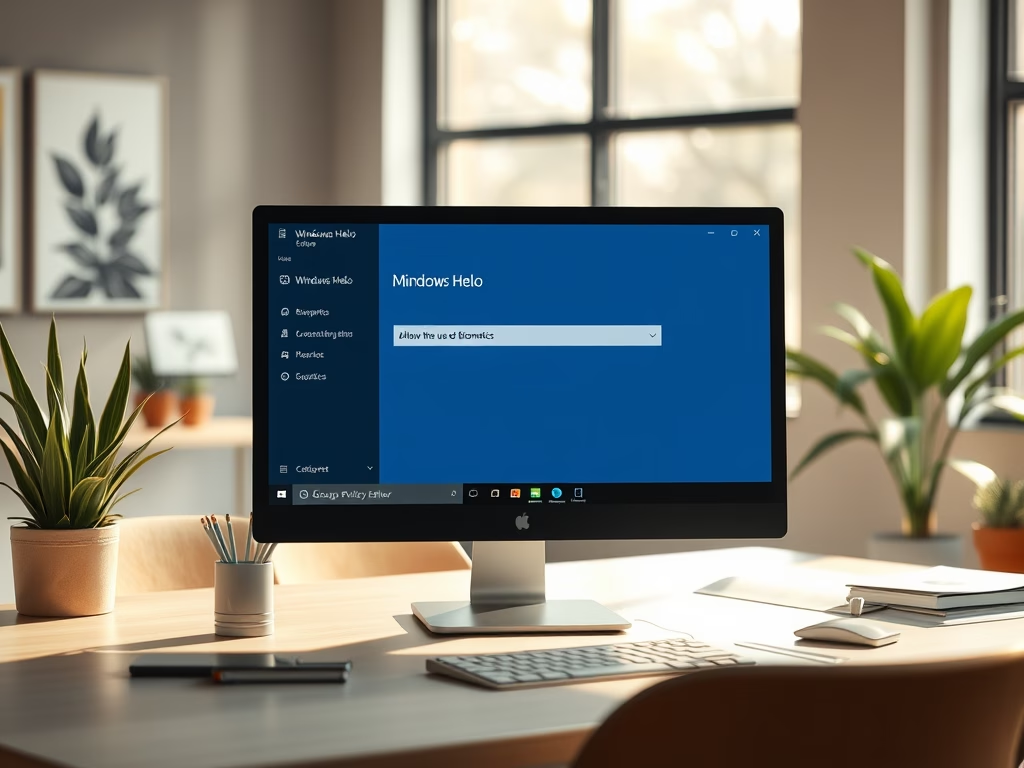
How to Enable or Disable Windows Hello Biometrics
Windows Hello on Windows 11 allows fast and secure sign-ins using a PIN, face recognition, or fingerprint. Users can enable or disable biometrics via the Local Group Policy Editor or Registry Editor. It’s important to consider the suitability of biometrics in different environments before making a choice.
-
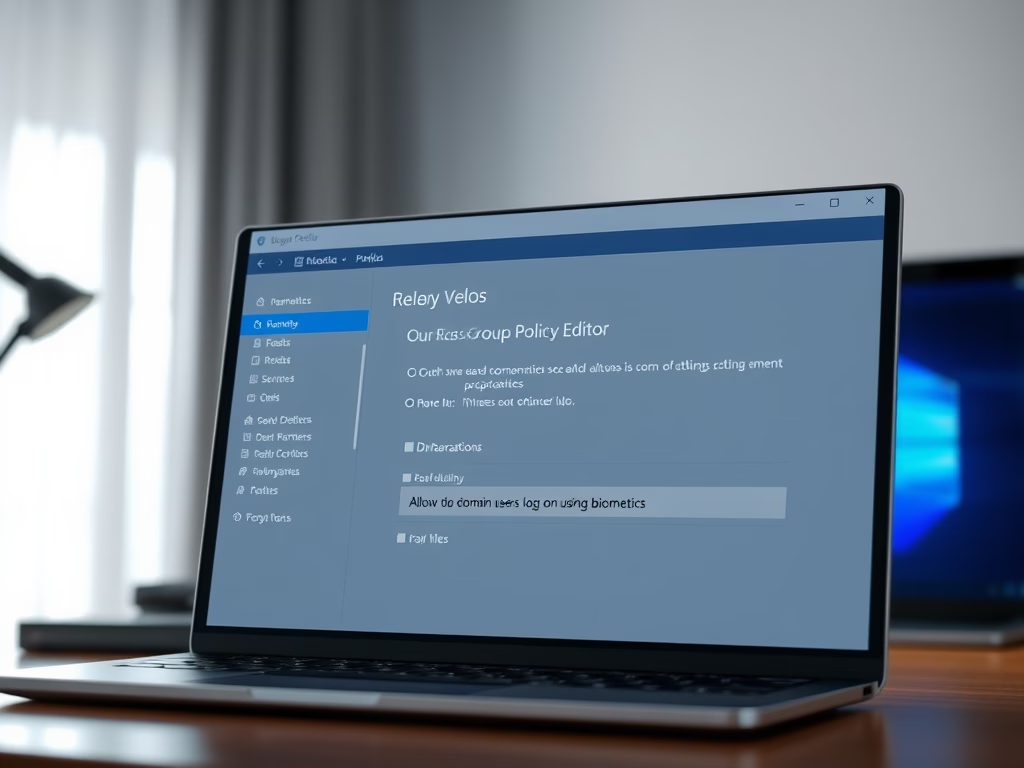
How to Enable or Disable Windows Hello Biometrics for Domain Users
Windows Hello in Windows 11 enables secure sign-ins using a PIN, face, or fingerprint. For computers within a domain, biometric sign-in might be restricted. Users can activate or deactivate this feature for domain users via the Local Group Policy Editor or Registry Editor, ensuring to restart the computer after changes.
-
How to Enable or Disable Automatically Adjust Active Hours in Windows 11
Windows 11 can automatically manage Active Hours to avoid disrupting your work with update restarts. Users can enable or disable this feature through the Settings app or Registry Editor. Proper configuration minimizes unexpected restarts, allowing updates to occur at more convenient times. Follow the provided steps to customize settings effectively.
-
How to Change the Theme in Windows 11
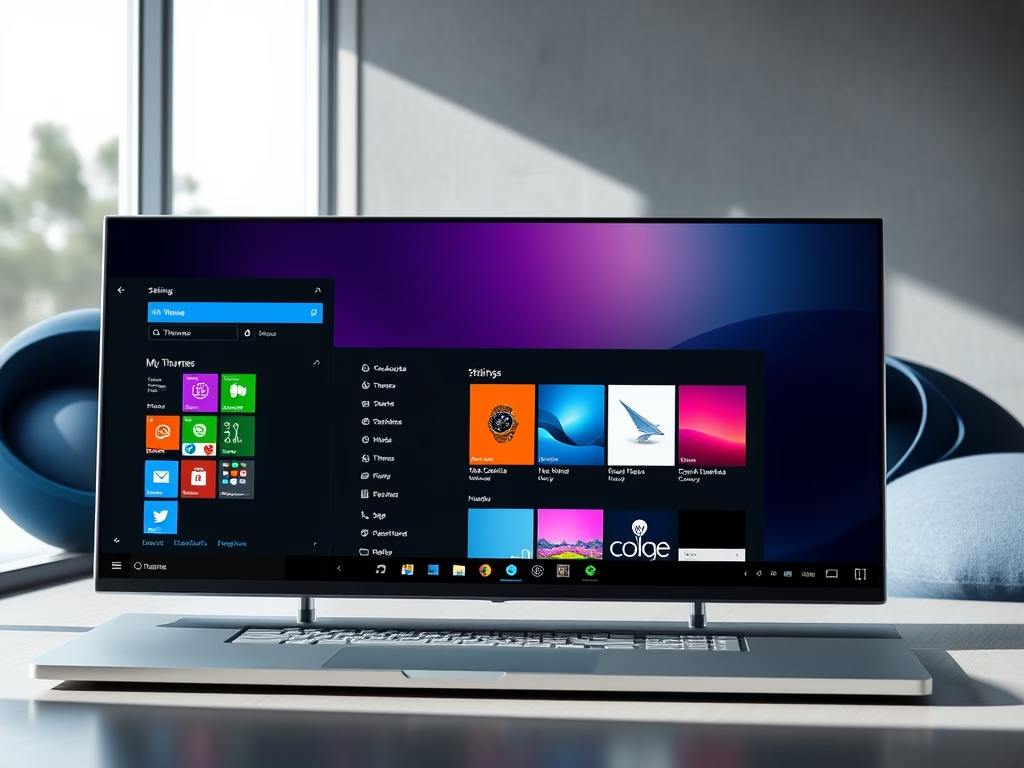
This guide explains how to change the appearance of Windows 11 using themes, which alter desktop backgrounds, colors, sounds, and mouse pointers. It covers three main theme types, including custom, default, and high contrast options. Users can switch themes via Settings or Control Panel and should ensure Windows 11 is activated beforehand.
-
How to Enable or Disable Advanced Bluetooth Discovery in Windows 11
This guide explains how to enable advanced Bluetooth discovery in Windows 11, allowing your PC to connect to a wider range of Bluetooth devices. Users can activate this feature through the Settings app or, for advanced users, via the Registry Editor. Caution is advised with the latter method to avoid potential issues.
-
How to Hide the Time and Date on Your Windows 11 Taskbar
This guide explains how to hide or show the clock and date on the Windows 11 taskbar. Users can use the Settings app for a simple method or the Registry Editor for a more advanced approach. The option is available in newer Windows 11 versions, primarily for users testing early builds.
-
How to Show or Hide Recommendations in Windows 11 Start Menu
This guide explains how to manage the Recommendations section in the Windows 11 Start Menu, which displays recently added apps, files, and tips. Users can toggle this feature on or off through Settings or the Windows Registry, with the former being safer for most. Insider Preview participants may see additional recommendations.
-
How to Enable or Disable Get the Latest Windows Updates Soon in Windows 11
Windows 11 features a new option that allows users to receive updates quicker, specifically for non-security enhancements. This can be activated or deactivated through the Settings app or the Windows Registry for advanced users. Keeping this feature enabled helps ensure your computer remains up-to-date with latest improvements.