How to Change How Often Windows 11 Makes Restore Points

You can change how often Windows 11 automatically creates system restore points.
System restore points are snapshots of your PC’s settings and essential files, allowing you to revert your system to a previous working state if something goes wrong.
By default, Windows 11 creates a new restore point only once every 24 hours. You can adjust this frequency to create them more or less often.
Change the SystemRestorePointCreationFrequency value in the Registry Editor. Navigate to 🗝️HKEY_LOCAL_MACHINESOFTWAREMicrosoftWindows NTCurrentVersionSystemRestore, create a new DWORD value, and set its data to the desired minutes between restore points. Restart your PC for the change to take effect.
What is a Restore Point?
A restore point is like taking a snapshot of your computer’s important files and settings at a certain time. If something goes wrong later — like after installing a new program — you can use a restore point to put your computer back to that earlier, working condition.
How Often Does Windows Create Restore Points?
Windows 11 automatically creates a restore point if it hasn’t made one in the last 24 hours, but only if system protection is on for your main drive.
You can change this time to make Windows create restore points more often. Or you can set it so Windows creates one every time something changes on your computer.
How to Change How Often 🪟 Windows 11 Makes Restore Points
Important: You will be changing the Windows Registry. This is a part of Windows that controls important settings. Please follow these steps carefully. It’s a good idea to back up your registry first, just in case.
Step 1Open the Registry Editor
- Press
Win + Ron your keyboard. This opens the Run box. - Type
regeditand press Enter. - [ADMIN REQUIRED] If Windows asks for permission, click Yes.
Need help? See this guide: How to Open Registry Editor in Windows 11.
Step 2Find the SystemRestore Folder
In the Registry Editor window, go to this path:
HKEY_LOCAL_MACHINE\SOFTWARE\Microsoft\Windows NT\CurrentVersion\SystemRestore
If you don’t see the SystemRestore folder, follow these steps:
- Right-click on the CurrentVersion folder.
- Select New > Key.
- Name the new folder:
SystemRestore.
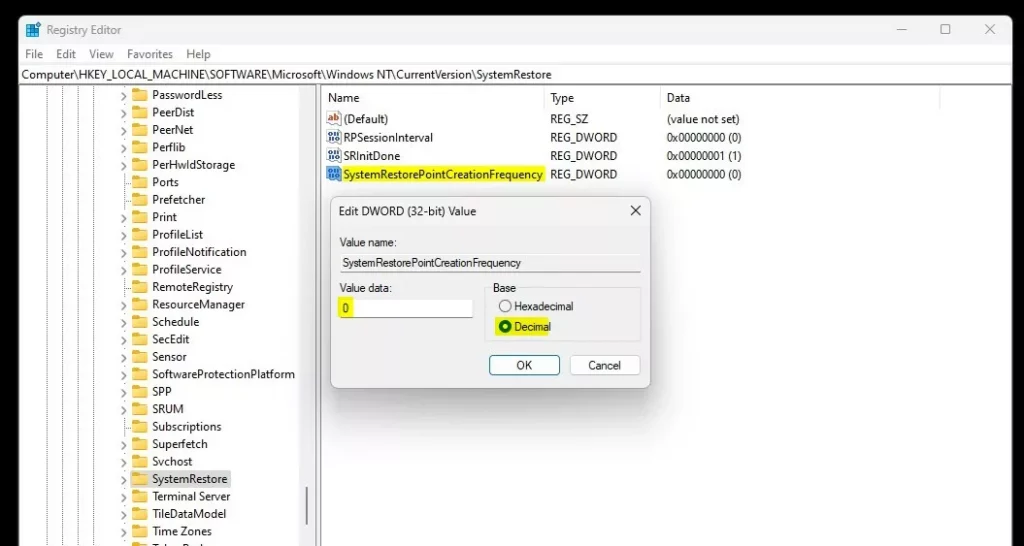
Step 3Create or Change the Frequency Setting
- Click on the SystemRestore folder.
- On the right side, right-click in the empty space and choose New > DWORD (32-bit) Value.
- Name the new value:
SystemRestorePointCreationFrequency. - Double-click the new value you just made.
- In the box for Value data, enter how many minutes you want between restore points.
To change how often Windows 11 creates restore points, you’ll need to adjust a specific setting in the Registry.
- 0 means Windows will try to create a restore point every time it can (never skip).
- 1440 means Windows will make one restore point every 24 hours (this is the default).
Step 4Save and Restart Your PC
- Click OK to save your changes.
- Close the Registry Editor.
- Restart your computer to make the new setting take effect.
Summary
You can easily control the Windows 11 restore points frequency by changing a setting called SystemRestorePointCreationFrequency in the computer’s Registry.
- Setting the value to 0 means Windows will create restore points every time it tries, without skipping.
- You can choose any number of minutes that works best for you.
Want to learn more? Check out the official Microsoft info here: Microsoft Restore Point Info.
Need Help or Want to Share?
If you have questions or want to share your experience, leave a comment below — we’re here to help!
How to change system restore point creation frequency in 🪟 Windows 10 11?
Value set the base to decimal. And the value data to the number of minutes you want to set as the minimum. Interval.
What is the frequency of system restore?
By default, a system restore point is created at a frequency of every seven days, or whenever a Windows update, driver, or program is installed. A restore point is only created automatically, on a schedule, or via a command if one hasn't been created in the last 24 hours.
How long does Windows keep restore points?
Point. So basically system restore point can revert your PC back to a PC state to a previous point in time. So if your PC was working at the time when you created a system restore.
Was this guide helpful?

About the Author
Richard
Tech Writer, IT Professional
Richard, a writer for Geek Rewind, is a tech enthusiast who loves breaking down complex IT topics into simple, easy-to-understand ideas. With years of hands-on experience in system administration and enterprise IT operations, he’s developed a knack for offering practical tips and solutions. Richard aims to make technology more accessible and actionable. He's deeply committed to the Geek Rewind community, always ready to answer questions and engage in discussions.




No comments yet — be the first to share your thoughts!