How to Delete Old Restore Points in Windows 11

You can delete old restore points in Windows 11 to free up disk space.
System Restore points are snapshots of your PC’s system files and settings, allowing you to revert your computer to a previous state if issues arise. This process is crucial for managing disk usage, as these restore points can consume a significant amount of storage.
By default, Windows 11 keeps only the most recent restore point to ensure you always have a functional recovery option. Freeing up this space is straightforward.
Open Disk Cleanup, click “Clean up system files,” then navigate to the More Options tab. Select “Clean up…” under System Restore and Shadow Copies to delete all but the most recent restore point.
What Are Restore Points?
Windows automatically saves restore points. These help you undo changes if something goes wrong. Think of a restore point like a “save” button for your computer. If a problem happens, you can return to that saved state.
Learn more about how to create restore points in Windows 11.
How to Delete Old Restore Points and Keep the Latest One
You can delete old restore points in Windows 11 using the free Disk Cleanup tool, which safely removes older system restore points while keeping the most recent one available.
- Open the Start Menu — Click the Start button. Or press the Windows key on your keyboard.
- Search for Disk Cleanup — Type
Disk Cleanupin the search box. - Open Disk Cleanup — In the search results, click on the Disk Cleanup app.
Windows Disk Cleanup app on start menu - Click “Clean up system files” — When Disk Cleanup opens, click the Clean up system files button. [REQUIRES ADMIN PRIVILEGES]
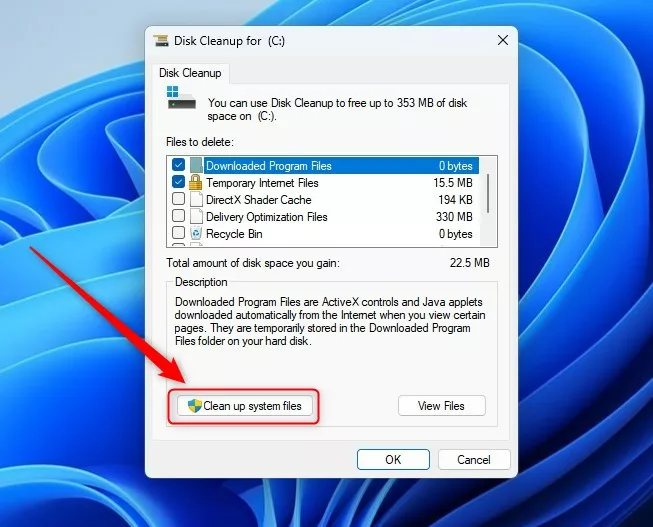
Windows Disk Cleanup clean up system files button - Go to the More Options tab — After the scan finishes, click the More Options tab at the top.
- Delete old restore points — Under System Restore and Shadow Copies, click the Clean up… button.
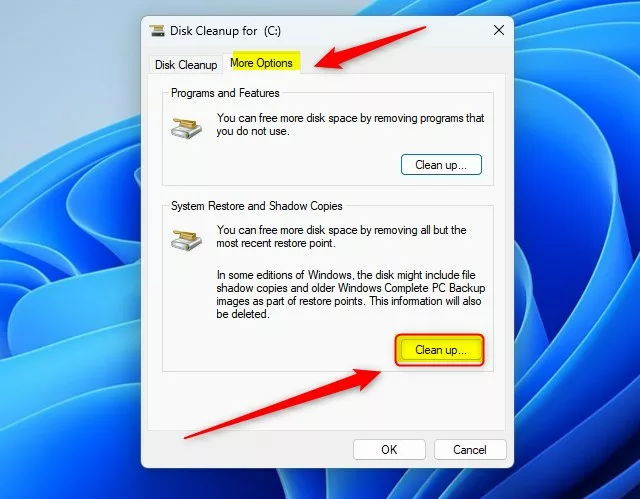
Windows Disk Cleanup clean up restore points - Confirm the deletion — A message will ask: “Are you sure you want to delete all but the most recent restore point?” Click Delete.
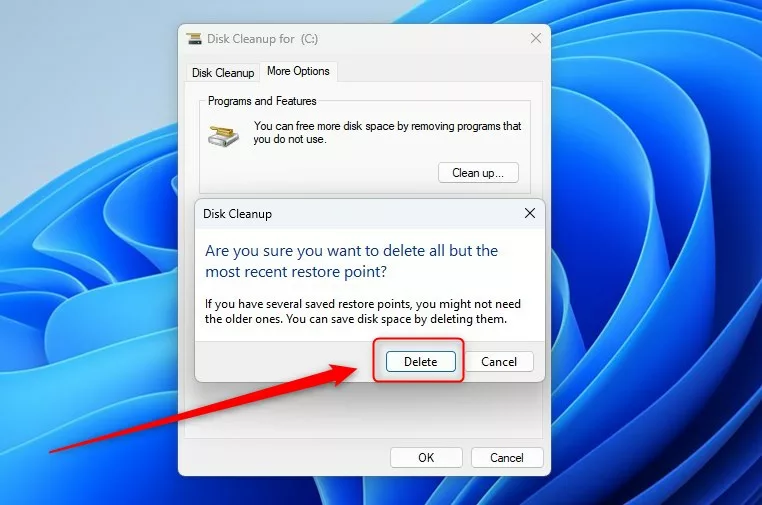
Windows Disk Cleanup clean up restore points delete button - Final confirmation — Another message will ask if you want to perform the actions. Click Yes to finish.
That’s it! You have successfully deleted all old restore points. Only the latest one remains. This will free up space on your computer.
Why Should You Do This?
- Deleting old restore points helps free up disk space.
- Keeping the latest restore point ensures you still have a backup if something goes wrong.
- It helps your system run more smoothly and prevents storage problems.
Deleting old restore points in Windows 11 is a good idea because it frees up valuable disk space, helps your computer run faster, and prevents potential storage issues.
Summary
To delete old restore points in Windows 11, use the Disk Cleanup tool to free up storage space while keeping your latest restore point as a safety net.
How do I delete old restore points on 🪟 Windows 11?
go to Control Panel then System and Security > System > System Protection. Under the System Protection tab you can manage restore points. Just select your main drive (usually C:), click Configure and you'll have the option to delete or disable old restore points.
Is it safe to delete System Restore points in 🪟 Windows 11?
Deleting system restore points in Windows 11 is a straightforward process that can help you reclaim valuable disk space and maintain system performance.
Can I delete all restore points?
Access System Restore and Shadow Copies On the main Disk Cleanup window, click the More Options tab. Under “System Restore and Shadow Copies,” click “Clean up.” This option deletes all but the most recent restore point, maximizing storage gains with minimal risk.
How do I delete an old restore point?
And click properties. In the tab. General select disk cleanup.
Was this guide helpful?

About the Author
Richard
Tech Writer, IT Professional
Richard, a writer for Geek Rewind, is a tech enthusiast who loves breaking down complex IT topics into simple, easy-to-understand ideas. With years of hands-on experience in system administration and enterprise IT operations, he’s developed a knack for offering practical tips and solutions. Richard aims to make technology more accessible and actionable. He's deeply committed to the Geek Rewind community, always ready to answer questions and engage in discussions.



No comments yet — be the first to share your thoughts!