How to Adjust Windows 11 Restore Point Frequency

Windows 11 uses a feature called System Restore to take snapshots of your computer files. If your PC crashes or an update causes errors, you can go back to a previous state. This guide explains how to change the Windows 11 restore point frequency to keep your system safer.
Why adjust restore points?
Windows usually waits 24 hours between creating restore points. This saves disk space but might not be enough if you install many apps. By changing the settings, you can force your computer to create backups more often.
What happens when you are done?
Once you finish, your computer will no longer wait for the 24-hour timer. It will be ready to create a new restore point whenever you trigger one manually or through a scheduled task.
How to check current restore point frequency
You can check your current settings using PowerShell. Note: This step requires administrator privileges. Open the Start menu, type PowerShell, right-click it, and select Run as administrator. Type the following command and press Enter:
Get-ItemProperty -Path "HKLM:\SOFTWARE\Microsoft\Windows NT\CurrentVersion\SystemRestore" -Name "SystemRestorePointCreationFrequency"
How to change the frequency via Registry Editor
Note: This step requires administrator privileges. Modifying the registry can be risky if done incorrectly. Follow these steps carefully.
- Press Win + R, type
regedit, and hit Enter. - Navigate to:
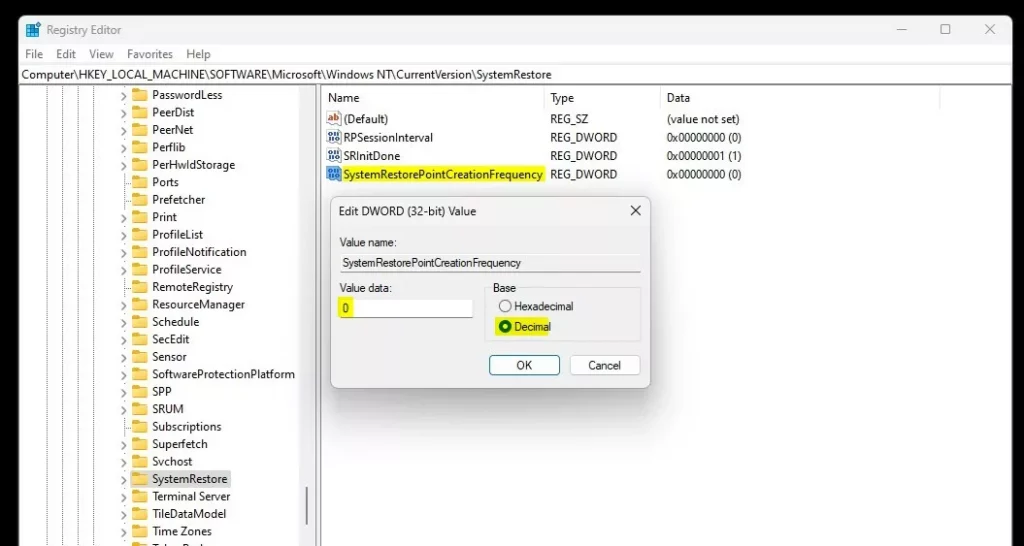
HKEY_LOCAL_MACHINE\SOFTWARE\Microsoft\Windows NT\CurrentVersion\SystemRestore - If the folder is missing, right-click
CurrentVersion, select New, and name itSystemRestore. - Right-click in the empty space, select New > DWORD (32-bit) Value.
- Name it
SystemRestorePointCreationFrequency. - Double-click it and set the value to
0.
Click OK and restart your computer to apply the changes.
Automating restore points with Task Scheduler
You can use Task Scheduler to create a restore point daily. Note: This step requires administrator privileges.
- Search for Task Scheduler in the Start menu.
- Click Create Task on the right sidebar.
- Name it “DailyRestorePoint”.
- Under the Actions tab, click New.
- In Program/script, type:
powershell.exe - In Add arguments, paste:
-ExecutionPolicy Bypass -Command "Checkpoint-Computer -Description 'Daily Restore Point' -RestorePointType 'MODIFY_SETTINGS'" - Click OK.
Storage and performance implications
Creating restore points uses disk space. If you create them too often, your hard drive might fill up. Windows manages this by deleting old points automatically. If you run out of space, you can use vssadmin list shadowstorage in Command Prompt to see how much space is used.
Summary
By default, Windows limits restore points to once every 24 hours. By editing the registry or using Task Scheduler, you can increase this frequency to protect your data better. Always monitor your disk space, as frequent backups will consume more storage over time. For more maintenance tips, check our guide on Windows system protection.
Does increasing restore point frequency slow down my PC?
Generally, no. Creating a restore point is a background process using the Volume Shadow Copy Service. While it may use a small amount of CPU and disk activity for a few seconds, it should not impact your daily performance or cause noticeable lag during normal computer usage.
How do I delete old restore points to free up space?
You can manage space by opening SystemPropertiesProtection.exe, selecting your drive, and clicking Configure. From there, you can adjust the maximum disk space usage or click Delete to remove all existing restore points for that drive. This is the safest way to reclaim storage without breaking system files.
Was this guide helpful?





[…] can also change how frequently a restore point is taken, list all available restore points, or delete all restore points except the latest […]
[…] lets you change how frequently a restore point is taken and list all available restore […]
[…] a restore point if there weren’t any created within 24 hours. Although you can change that so Windows doesn’t skip creating restore points, making a restore point every 24 hours is the […]