How to Enable System Protection in Windows 11

Enabling System Protection in Windows 11 creates restore points, safeguarding your PC from software issues and driver conflicts.
System Protection is a built-in Windows feature that takes snapshots of your system files, settings, and registry. These snapshots, called restore points, let you revert your PC to a previous stable state if a new installation or update causes problems.
Once you enable System Protection, Windows uses the Volume Shadow Copy Service to capture these system snapshots. You’ll need to allocate disk space for these restore points, usually around 5-10% of your hard drive.
Type ‘Create a restore point’ in the Windows search bar and select the result. In the System Properties window, select your drive, click Configure, choose ‘Turn on system protection’, and set the Max Usage slider.
Prerequisites
Note: This process requires administrative privileges. You must be logged into an account with administrator rights to modify these system settings.
How to Enable System Protection
Follow these steps to turn on protection for your drives. You can quickly access the System Properties dialog by typing ‘Create a restore point’ in the Windows search bar.
- Open Settings by pressing Windows key + I.
- Click System, then scroll down and select About.
- Click the System protection link.
windows 11 start settings 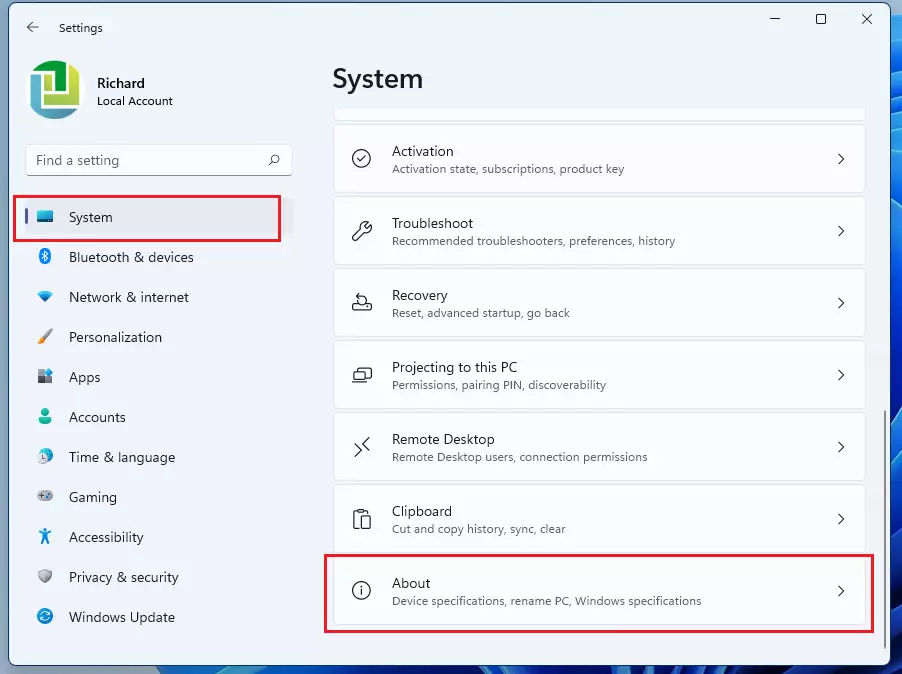
windows 11 about 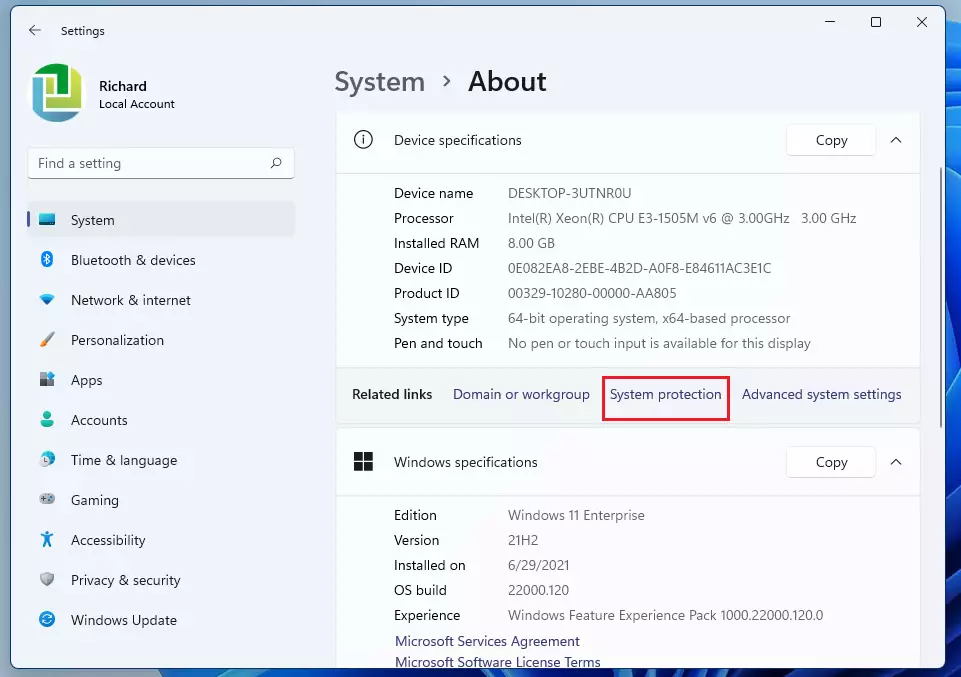
windows 11 system protection link - In the window that appears, select your drive (usually C:) and click Configure.
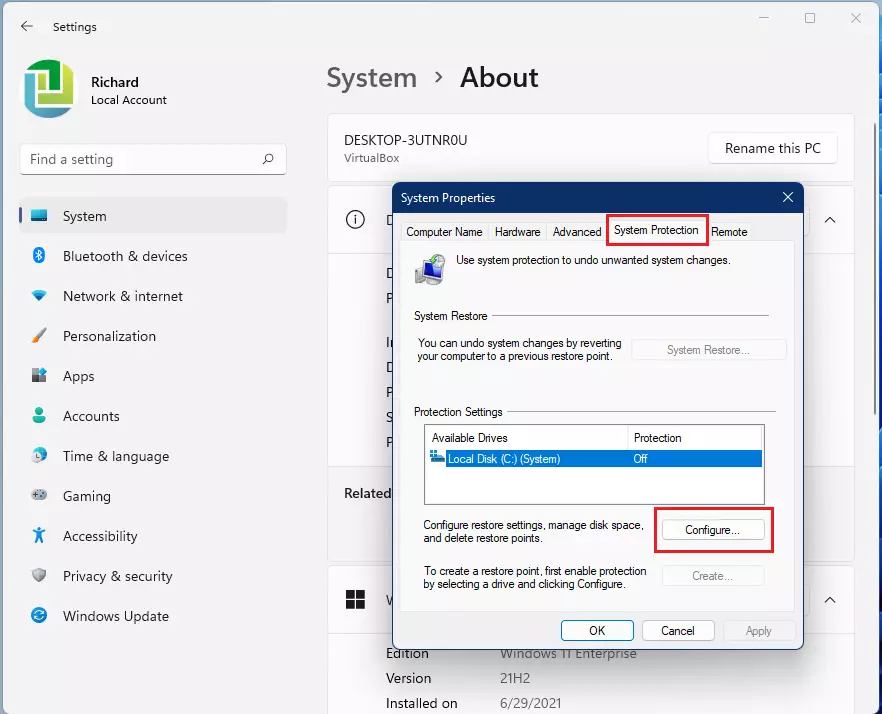
windows 11 restore point configure button - Select Turn on system protection.
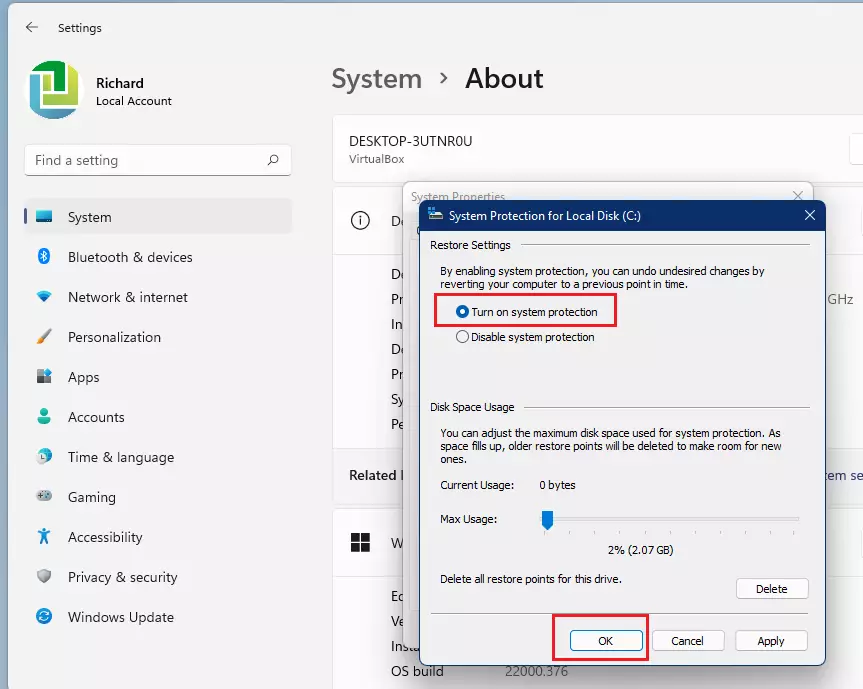
turn on system protection for drive windows 11 - Adjust the Max usage slider to set your disk space limit, then click OK.
Understanding Restore Point Management
Windows creates restore points automatically before major changes like Windows Updates or driver installations. However, you can also create them manually. If you find that restore points are missing, check if the VSS service is running in your services manager. You can verify this by checking the status of the Volume Shadow Copy service in the Services app.
Disk Space Allocation and SSD Lifespan
How much disk space should you allocate? A good rule of thumb is 5% to 10% of your total drive capacity. While System Protection writes data to your drive, it does not significantly impact the lifespan of modern SSDs. The benefit of having a recovery path far outweighs the minimal wear caused by these background snapshots.
Summary
Enabling System Protection is a vital step for any Windows 11 user. It provides a reliable way to recover from software conflicts by using restore points. By managing your disk space and understanding how the Windows Recovery Environment (WinRE) works, you can keep your system stable and secure. Always remember that while System Protection saves your system state, it is not a replacement for a full data backup strategy.
Does System Protection affect my personal files?
No. System Restore only affects system files, installed applications, and registry settings. It does not delete or change your personal documents, photos, or emails. However, it is always best practice to keep a separate backup of your important files on an external drive or cloud storage service.
Why can’t I turn on System Protection?
If the option is grayed out, you may not have administrative privileges. Alternatively, group policy settings managed by an organization might restrict this feature. Ensure you are logged in as an administrator and check that the Volume Shadow Copy service is enabled and running in your system services list.
What is the difference between System Restore and File History?
System Restore is designed to fix system-level issues like broken drivers or corrupt registry keys. File History is a separate tool specifically for backing up your personal files, such as documents and photos. Use System Restore to fix Windows, and File History to recover lost or deleted personal data.
Was this guide helpful?

About the Author
Richard
Tech Writer, IT Professional
Richard, a writer for Geek Rewind, is a tech enthusiast who loves breaking down complex IT topics into simple, easy-to-understand ideas. With years of hands-on experience in system administration and enterprise IT operations, he’s developed a knack for offering practical tips and solutions. Richard aims to make technology more accessible and actionable. He's deeply committed to the Geek Rewind community, always ready to answer questions and engage in discussions.




No comments yet — be the first to share your thoughts!