How to Enable or Disable System Restore in Windows 11

This tutorial shows you how to turn System Restore on or off in Windows 11.
Open System Properties and click Configure to enable or disable System Restore. You can also use the Local Group Policy Editor or Registry Editor for more advanced control. Disabling System Restore does not remove existing restore points.
What is System Restore?
System Restore is a Windows tool that saves copies of your system, called restore points, so you can go back to an earlier time if something goes wrong.
Restore points are created before important changes happen to your system. Each restore point saves all the information needed to bring your computer back to that earlier state.
How Long Are Restore Points Kept?
Windows 11 version 24H2, after the June 2025 update, will keep restore points for a maximum of 60 days, automatically deleting older ones to save space.
System Restore automatically manages the disk space used for restore points. When space runs low, it deletes the oldest restore points to make room for new ones. The amount of disk space used depends on your hard drive size and which version of Windows you have.
What Gets Restored and What Doesn’t?
System Restore can undo recent changes by removing apps, drivers, or updates installed after a restore point was made, but it never touches your personal files like documents or emails.
Important: System Restore does NOT restore your files, documents, email, browsing history, or favorites. Your personal files stay safe. However, any apps, drivers, or updates installed after the restore point was made will be removed.
System Restore works in the Windows Recovery Environment and safe mode too. This makes it easier to fix your computer when problems happen.
Default Setting and Disabling
System Restore is on by default in Windows, but you can turn it off if you prefer, though disabling it won’t delete your existing restore points.
Good to know: Disabling System Restore will NOT delete your existing restore points. You can still use restore points at startup or in PowerShell even after disabling System Restore.
You must be signed in as an administrator to enable or disable System Restore.
Option 1Use Local Group Policy Editor
If you have Windows Pro, Enterprise, or Education, you can disable System Restore by opening the Local Group Policy Editor and going to System > System Restore settings.
- Open the Local Group Policy Editor by typing
gpedit.mscin your search bar and pressing Enter. - In the left pane, navigate to this location:
Computer Configuration > Administrative Templates > System > System Restore - In the right pane, find the policy called
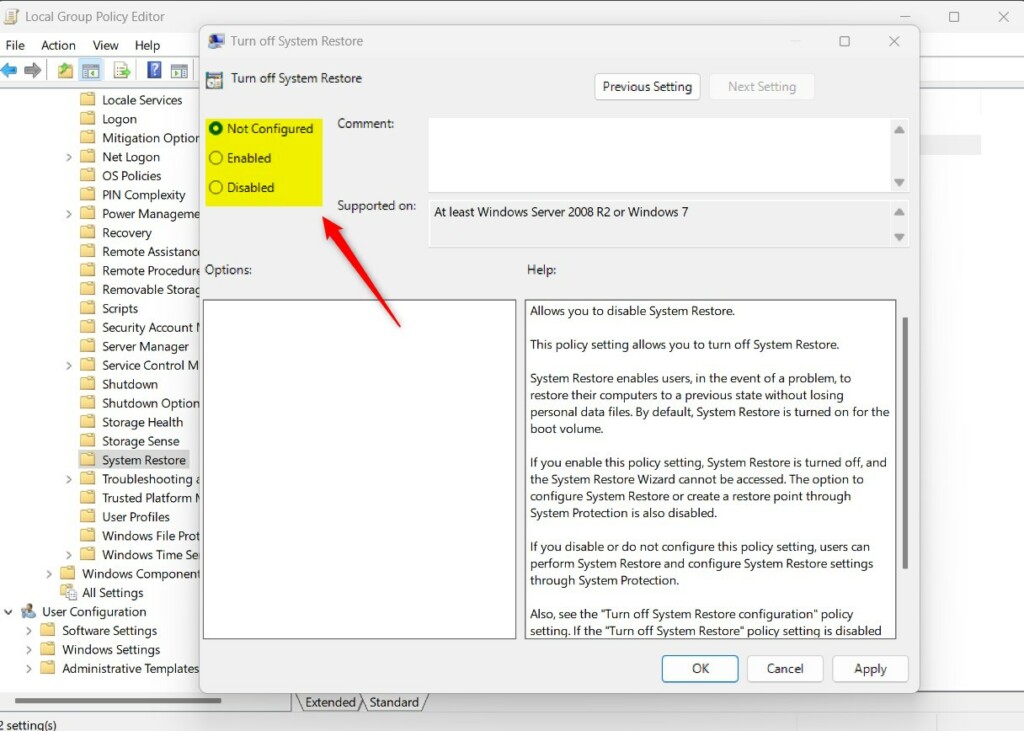
Turn off System Restore. Double-click it to open it. - To Enable System Restore (Default Setting):
- A) Select the dot next to
Not Configured. - B) Click
OK.
- A) Select the dot next to
- To Disable System Restore:
- A) Select the dot next to
Enabled. - B) Click
OK.
- A) Select the dot next to
- [REQUIRES ADMIN] After making your choice, you can close the Local Group Policy Editor.
Option 2Use Registry Editor (Works on All Editions)
You can disable System Restore on any Windows edition, including Home, by opening Windows Terminal as an administrator and running a specific command to modify the registry.
- [REQUIRES ADMIN] Open Windows Terminal as administrator.
- To Enable System Restore (Default Setting):
Run this command:
reg delete "HKLM\SOFTWARE\Policies\Microsoft\Windows NT\SystemRestore" /v DisableSR /f
- To Disable System Restore:
Run this command:
reg add "HKLM\SOFTWARE\Policies\Microsoft\Windows NT\SystemRestore" /v DisableSR /t REG_DWORD /d 1 /f
Summary
System Restore helps you fix problems by saving system snapshots, called restore points, which are kept for 60 days in Windows 11 version 24H2 and don’t affect your personal files.
How do I disable System Restore?
So go ahead and select that. And then there is an option to delete all restore points for this drive select delete select continue close out of here. Select okay. And that's all you have to do.
Can I cancel System Restore in 🪟 Windows 11?
A system restore can also not be canceled/rolled back until it has been completed, and it is important that you do not interrupt the process if it is in progress. Before making any changes to your Windows device, you should make a complete backup to a separate device.
Was this guide helpful?

About the Author
Richard
Tech Writer, IT Professional
Richard, a writer for Geek Rewind, is a tech enthusiast who loves breaking down complex IT topics into simple, easy-to-understand ideas. With years of hands-on experience in system administration and enterprise IT operations, he’s developed a knack for offering practical tips and solutions. Richard aims to make technology more accessible and actionable. He's deeply committed to the Geek Rewind community, always ready to answer questions and engage in discussions.




No comments yet — be the first to share your thoughts!