Enable or Disable New User Profiles in Chrome

You can enable or disable the ability for new users to create profiles in Google Chrome by modifying the Chrome Policies.
Disabling this feature prevents anyone from adding new Chrome profiles, a useful setting for shared computers or maintaining a clean browser environment.
When this policy is disabled, the “Add profile” button vanishes from Chrome’s user menu, effectively blocking new profile creation.
This management is typically handled through the Chrome Enterprise policy editor, allowing you to regain control over who can set up new profiles.
You can control new user profiles in Chrome using the Group Policy Editor or Registry Editor. In Group Policy, navigate to Computer Configuration > Administrative Templates > Google > Google Chrome and find “Enable adding and removing profiles”. In the Registry Editor, create a DWORD value named BrowserAddPersonEnabled at 🗝️HKEY_LOCAL_MACHINE\SOFTWARE\Policies\Google\Chrome and set its value to 0 to disable or 1 to enable.
Introduction
Chrome user profiles let you keep your browsing separate, like having different accounts for different people or tasks on the same computer.
Disallow adding a new person profile in Chrome
You can control this feature using the Windows Registry or the Group Policy Editor. Disclaimer: If your computer is managed by a company or school, these registry edits might be overwritten by domain policies or cloud-based management tools.
Using Group Policy (Recommended for 2026)
You can turn off Chrome user profiles for everyone on a Windows computer using Group Policy, which is the best way if you have Windows Pro or Enterprise.
- Download the Google Chrome ADMX templates from the official Google website.
- Copy the files into your 📁C:\Windows\PolicyDefinitions folder.
- Open the Group Policy Editor (gpedit.msc).
- Go to Computer Configuration > Administrative Templates > Google > Google Chrome.
- Find the setting Enable adding and removing profiles.
- Set it to Disabled to stop new profiles, or Enabled to allow them.
Using the Registry Editor
You can stop people from adding or removing Chrome user profiles by changing settings in the Windows Registry.
Navigate to one of these paths:
- For all users: 🗝️HKEY_LOCAL_MACHINE\SOFTWARE\Policies\Google\Chrome
- For one user: 🗝️HKEY_CURRENT_USER\SOFTWARE\Policies\Google\Chrome
If the folders do not exist, right-click the parent folder, select New > Key, and name it accordingly.
- Right-click inside the Chrome folder.
- Select New > DWORD (32-bit) Value.
- Name it BrowserAddPersonEnabled.
- Double-click it. Set the value to 1 to allow new profiles or 0 to block them.
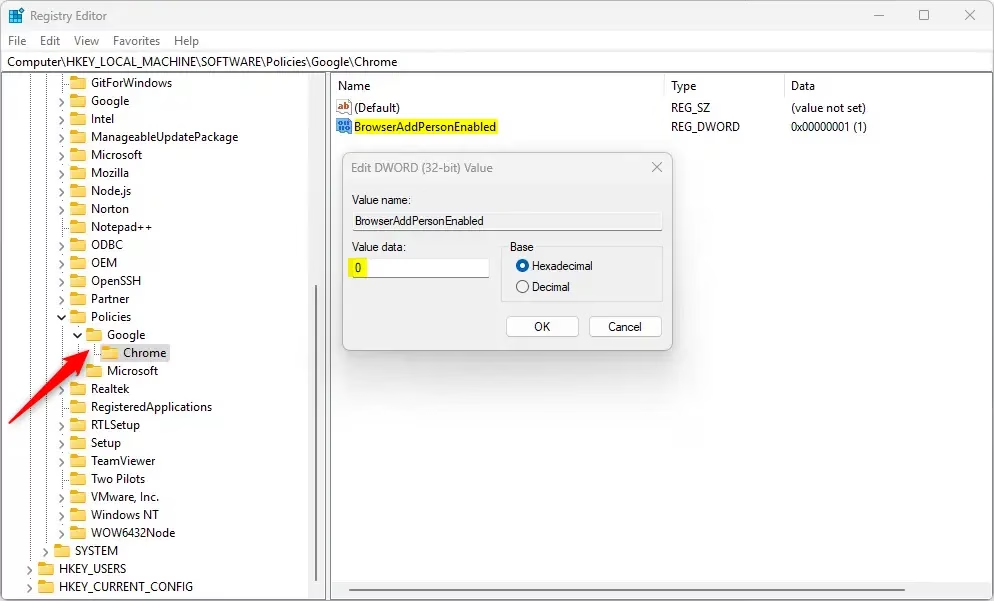
To revert the change, delete the BrowserAddPersonEnabled entry. You may need to restart your computer to see the changes.
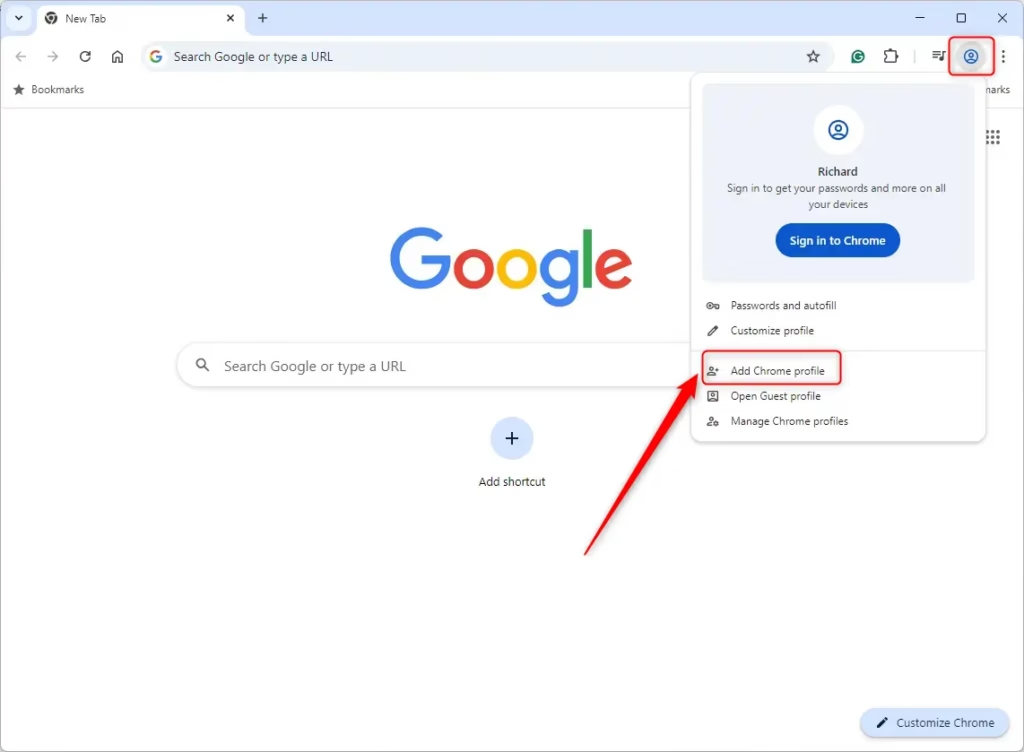
That’s all there is to it!
Reference: Chrome Enterprise Policy
Conclusion
Controlling Chrome profiles is quite manageable with the Registry Editor or Group Policy. Always back up your system before making changes. For more advanced settings, check out the Chrome Enterprise Policy.
Where are Chrome user profiles?
Information for each user's roaming profile is kept in a file named profile.pb. By default, this file is located in 📂%APPDATA%/Google/Chrome. The file can also be stored in 📂%ONEDRIVE%/Google/Chrome by changing the roaming profile location to OneDrive.
What are different Chrome profiles?
With profiles, you can keep all your Chrome info separate, like bookmarks, history, passwords, and other settings. Profiles are ideal when you want to: Share a computer with multiple people. Keep your different accounts, like work and personal, separate.
Was this guide helpful?

About the Author
Richard
Tech Writer, IT Professional
Richard, a writer for Geek Rewind, is a tech enthusiast who loves breaking down complex IT topics into simple, easy-to-understand ideas. With years of hands-on experience in system administration and enterprise IT operations, he’s developed a knack for offering practical tips and solutions. Richard aims to make technology more accessible and actionable. He's deeply committed to the Geek Rewind community, always ready to answer questions and engage in discussions.



No comments yet — be the first to share your thoughts!