How to View Running Processes in Windows 11

You view running processes in Windows 11 using the Task Manager to see active applications and background services.
The Task Manager is a powerful built-in tool that monitors your system’s performance, showing you exactly what is consuming your PC’s resources like CPU, memory, and disk.
This lets you quickly identify resource-hungry programs or applications that have become unresponsive, helping you troubleshoot slowdowns or crashes.
For instance, if your Windows 11 PC suddenly feels sluggish, opening Task Manager can reveal if a specific program is using upwards of 90% of your CPU.
Using Task Manager for Granular Control
The Task Manager is your primary tool for system health. While the Processes tab shows basic info, the Details tab offers deeper insight. Here, you can see the PID (Process Identifier), which helps identify specific instances of an app. You can also right-click a process to set its priority or open its file location.
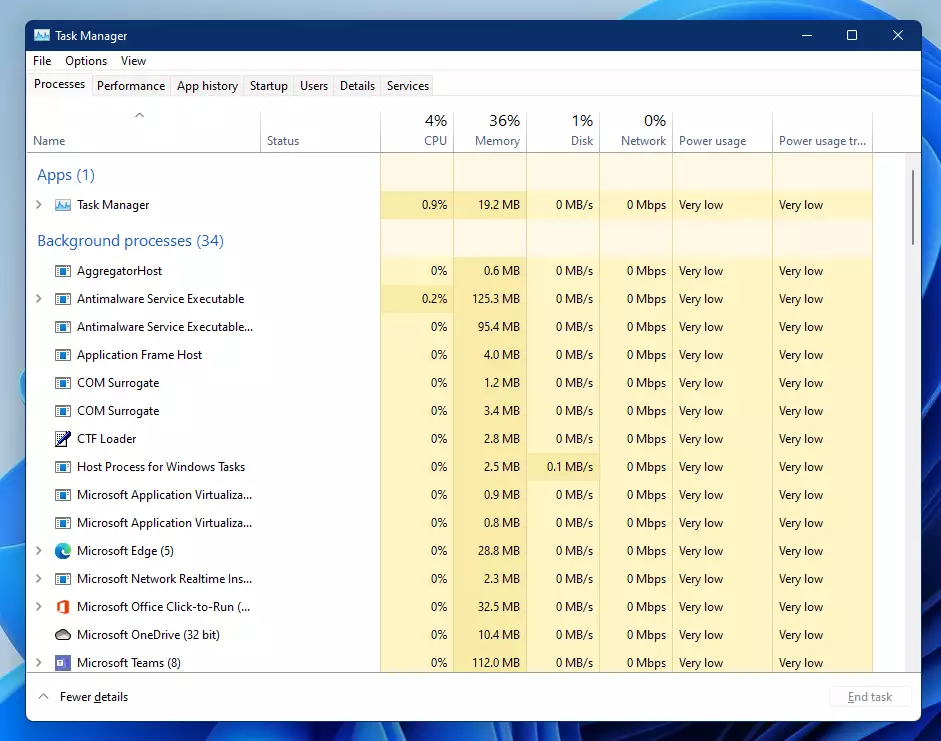
To stop a task, select it and click End Task. Note: Some system tasks require admin privileges to close. If you lack permission, the system will block the action to prevent instability.
Resource Monitor vs. Task Manager
Task Manager provides a quick snapshot, but Resource Monitor offers a deep dive into resource utilization. It shows you exactly which files and DLLs a process is using. This is vital for troubleshooting why a file might be locked or why a disk is at 100% usage.
What is the difference between Task Manager and Resource Monitor?
Task Manager is designed for quick management and ending unresponsive tasks. Resource Monitor is an advanced diagnostic tool that provides real-time data on CPU, memory, disk, and network usage. It allows you to see specific handles and associated modules, making it better for deep troubleshooting and identifying complex system bottlenecks.
Advanced Analysis with Sysinternals Process Explorer
For power users, Microsoft offers Process Explorer. It is a more powerful version of Task Manager. It shows the process tree, allowing you to see which parent process started a specific task. This is the best way to identify malicious processes that try to hide by mimicking system names.
Using Command-Line Tools
If you prefer the command-line interface, you can use the tasklist command or the Get-Process cmdlet in PowerShell. These are great for scripting or exporting data to a text file for later review.
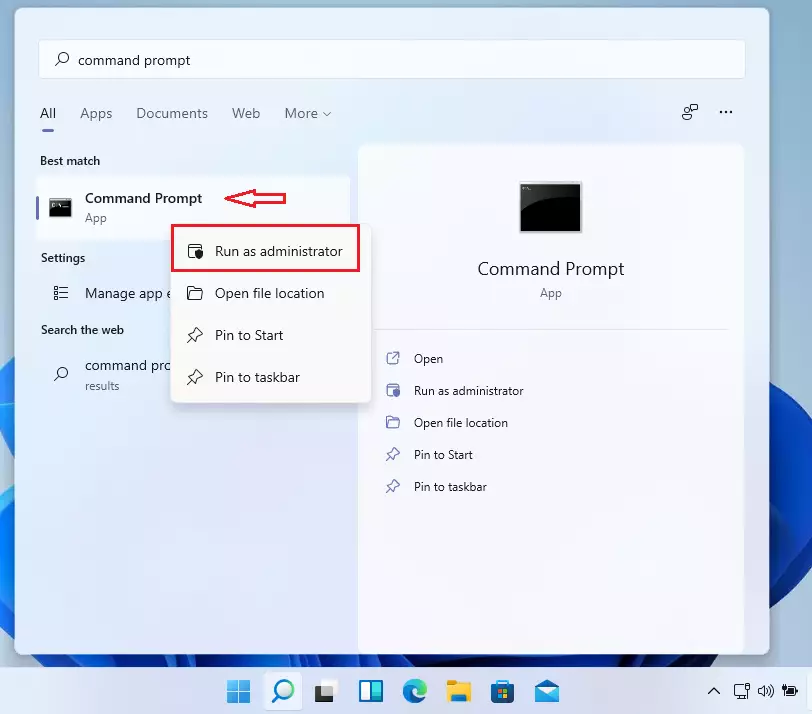
To list all tasks, use this command:
tasklistTo export your process list to a text file, use:
get-processFor a detailed view including the Process ID (PID), use:
wmic process get ProcessId,Description,ParentProcessId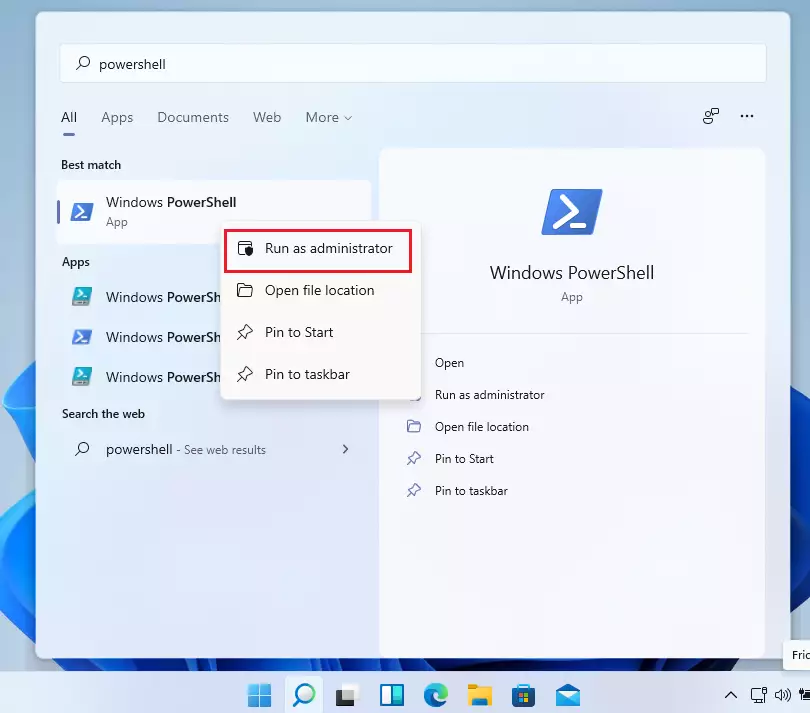
Summary
Monitoring your system processes is key to maintaining a fast PC. By using Task Manager for quick fixes, Resource Monitor for deep diagnostics, and command-line tools for automation, you can effectively manage your CPU usage and background services. What happens when you are done? You will have a cleaner, faster, and more secure Windows 11 experience.
Why are there so many ‘svchost.exe’ processes running?
Svchost.exe is a generic host process name for services that run from dynamic-link libraries (DLLs). Windows groups these services together to save memory. Seeing many instances is normal, as each one manages a different set of background services required for your operating system to function correctly.
How do I identify a malicious process in 🪟 Windows 11?
Look for processes with misspelled names, high resource usage, or those running from unusual folders like 📁C:\Users\GenericUser\AppData. Use Process Explorer to check the digital signature of the file. If a process is unsigned or has no description, it may be malicious and requires a full antivirus scan.
Was this guide helpful?

About the Author
Richard
Tech Writer, IT Professional
Richard, a writer for Geek Rewind, is a tech enthusiast who loves breaking down complex IT topics into simple, easy-to-understand ideas. With years of hands-on experience in system administration and enterprise IT operations, he’s developed a knack for offering practical tips and solutions. Richard aims to make technology more accessible and actionable. He's deeply committed to the Geek Rewind community, always ready to answer questions and engage in discussions.


No comments yet — be the first to share your thoughts!