How to Clean Boot Windows 11


A clean boot in Windows 11 starts your PC with a minimal set of drivers and startup programs to help you troubleshoot software conflicts.
This process isolates problems by disabling all non-essential background applications and services, allowing you to identify what’s causing your system to slow down, crash, or behave unexpectedly.
You’ll use this method when you suspect a recently installed program, like version X of a new game or utility, is interfering with your Windows 11 system’s stability.
Perform a clean boot by disabling all non-Microsoft startup services and startup programs. Open System Configuration (msconfig), go to the Services tab, hide Microsoft services, click Disable all, then disable all startup items in Task Manager. Restart your PC to apply.
Why perform a clean boot?
Sometimes, extra programs you install can conflict with Windows. A clean boot lets you start your PC without those extra programs. It acts like a clean slate for your system. This helps you narrow down what is causing your system issues by isolating startup programs and essential system services.
What happens when done?
Your computer restarts with only essential programs running after a clean boot in Windows 11, helping you find out if a background app is causing problems.
Note: You must be signed in as an administrator to perform these steps.
Step 1Disable Startup Apps
- Press Ctrl+Shift+Esc on your keyboard to open the Task Manager.
- If you see a small window, click More details.
- Click on the Startup tab.
- For every item in the list, right-click it and select Disable.
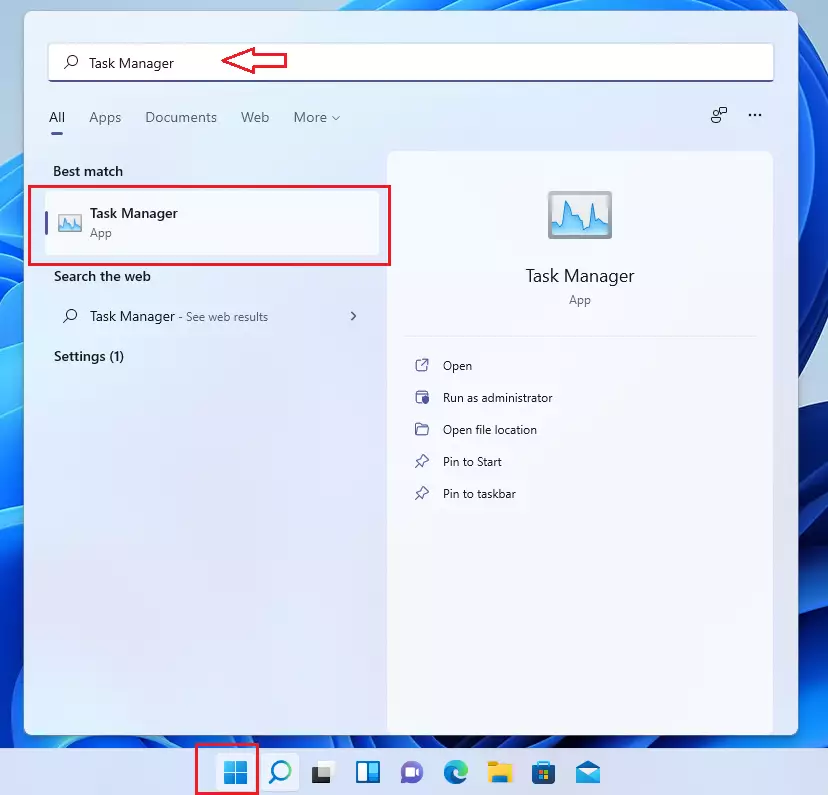
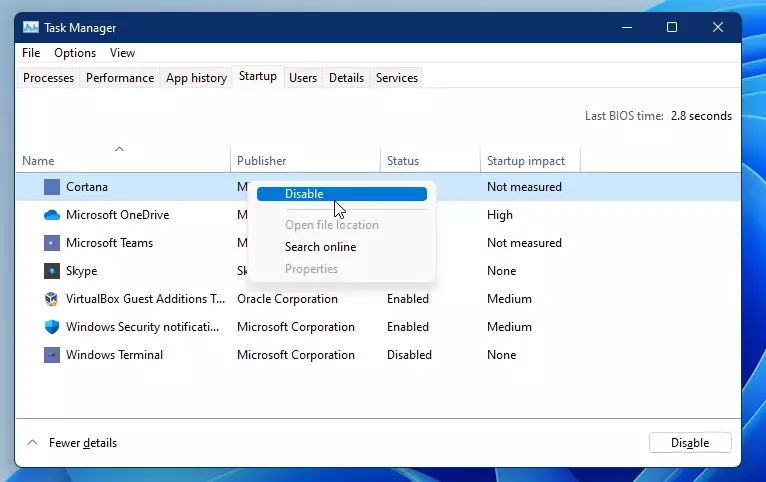
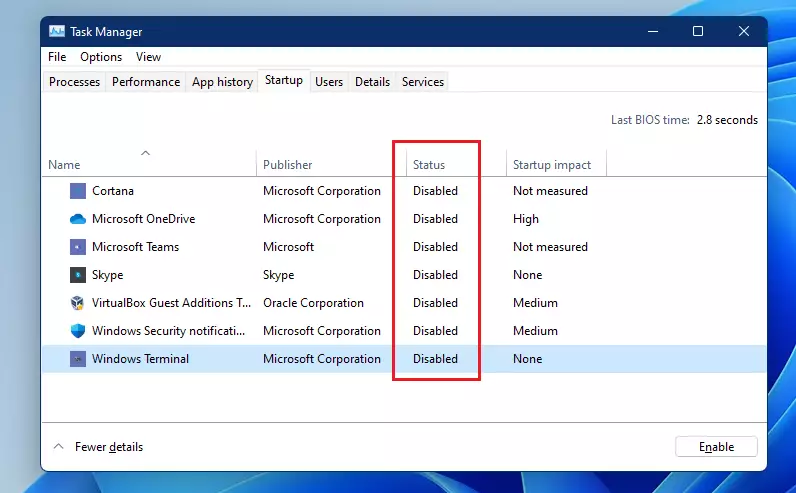
Close the Task Manager when you are finished.
Step 2Disable Background Services
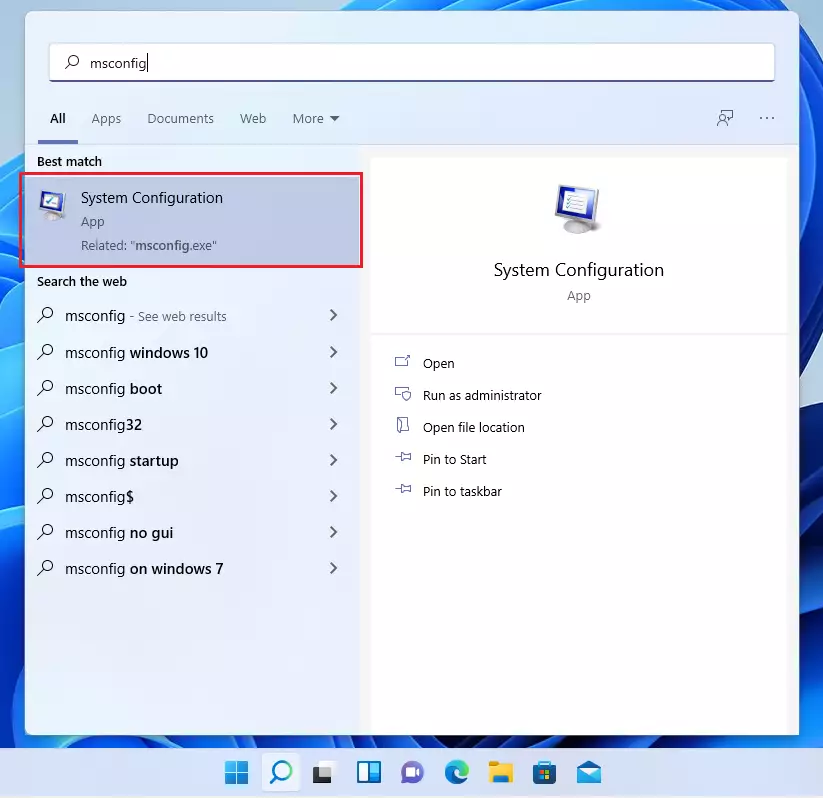
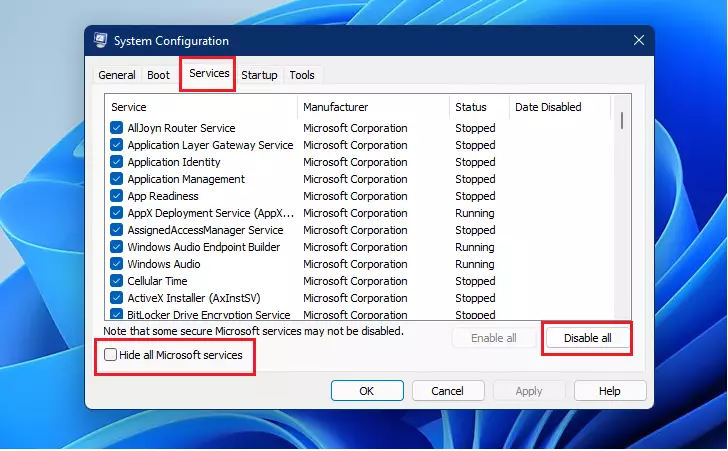
To start a clean boot in Windows 11, you’ll first disable background services by typing ‘msconfig’ into the Start menu and opening System Configuration.- Click the Start button and type
msconfig. - Select System Configuration from the list.
- Click on the Services tab.
- Check the box that says Hide all Microsoft services. This is very important so you do not turn off vital Windows features.
- Click the Disable all button.
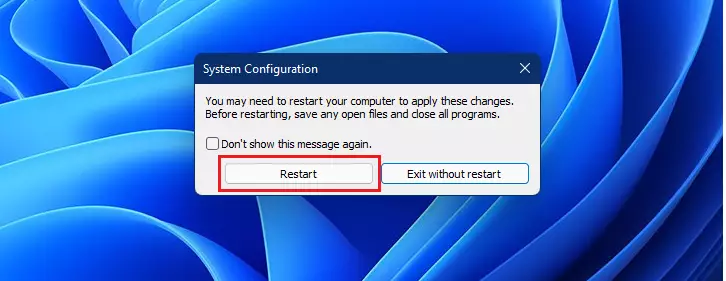
- Click OK and restart your computer.
How to Revert to Normal Boot
After troubleshooting with a clean boot, returning your Windows 11 computer to a normal startup is crucial to get all your programs running again.
- Open System Configuration (msconfig) again.
- On the General tab, select Normal startup.
- Go to the Services tab and uncheck Hide all Microsoft services.
- Click Enable all.
- Restart your computer to apply the changes.
Clean Boot vs. Safe Mode
| Feature | Clean Boot | Safe Mode |
|---|---|---|
| Purpose | Isolate software conflicts | Repair system corruption |
| Drivers | Loads all drivers | Loads minimal drivers |
| Customization | You choose what to disable | Automated limited environment |
Troubleshooting Methodology
The best way to troubleshoot issues found during a clean boot in Windows 11 is to test services in halves, restarting each time to narrow down the exact program causing the problem.
Summary
A clean boot in Windows 11 is a simple yet effective method for finding out exactly which third-party apps or services are causing slowdowns or errors.
Is a clean boot the same as Safe Mode?
No, they are different. Safe Mode loads only the most basic drivers needed to run Windows, often for fixing deep system errors. A clean boot allows you to keep your normal drivers while disabling third-party startup programs, which is better for finding software conflicts.
Will a clean boot delete my personal files?
No, a clean boot will not delete any of your personal files, photos, or documents. It only temporarily changes how Windows starts by preventing certain background programs from launching automatically. Your data remains completely safe and untouched during this entire troubleshooting process.
What should I do if my computer won’t boot after these changes?
If your computer fails to start, you can access the Windows Recovery Environment. Restart your PC three times during the boot process to trigger it. From there, select Troubleshoot, then Advanced Options, and use Startup Repair or System Restore to revert your system to a working state.
Was this guide helpful?

About the Author
Richard
Tech Writer, IT Professional
Richard, a writer for Geek Rewind, is a tech enthusiast who loves breaking down complex IT topics into simple, easy-to-understand ideas. With years of hands-on experience in system administration and enterprise IT operations, he’s developed a knack for offering practical tips and solutions. Richard aims to make technology more accessible and actionable. He's deeply committed to the Geek Rewind community, always ready to answer questions and engage in discussions.



No comments yet — be the first to share your thoughts!