How to Check Graphics Card Details on Windows 11

You check your graphics card details on Windows 11 using tools like Task Manager or the DirectX Diagnostic Tool.
Your graphics card, or GPU (Graphics Processing Unit), is vital for displaying everything on your PC screen, from your desktop to demanding games. Knowing your exact model, such as an NVIDIA GeForce RTX 3070 or an AMD Radeon RX 6800 XT, helps you confirm software compatibility and troubleshoot issues.
This information is essential for knowing if your PC can handle new games or creative applications. It also helps you determine if a driver update could improve performance or if you need to plan a hardware upgrade.
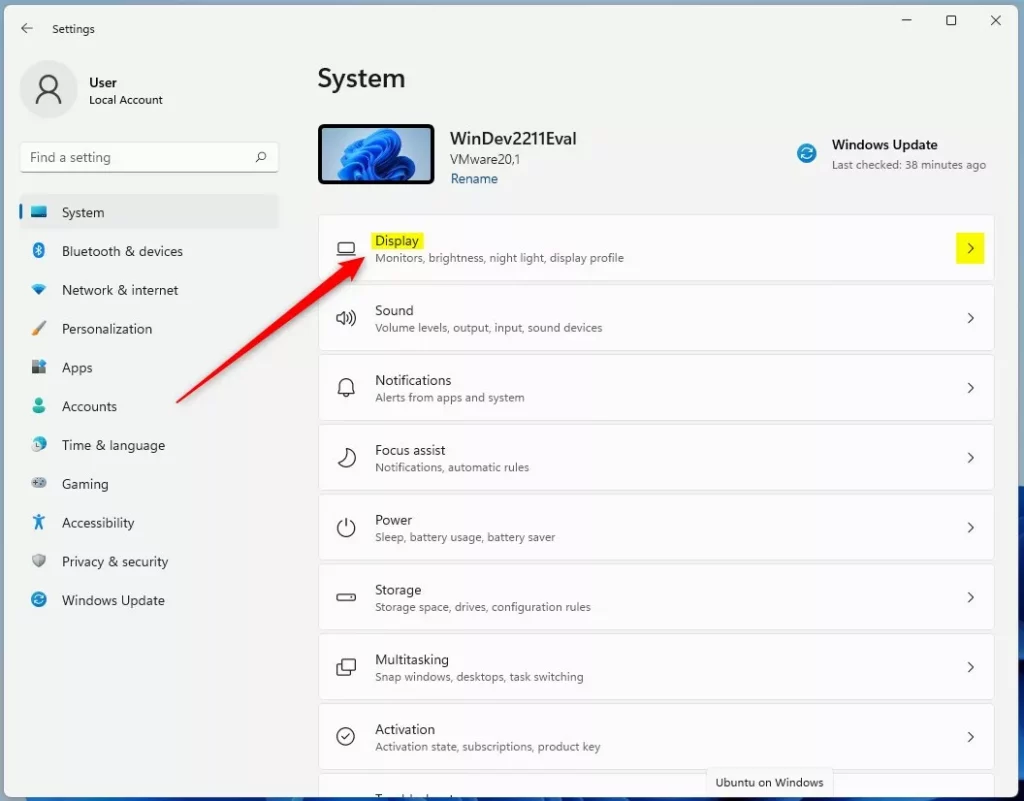
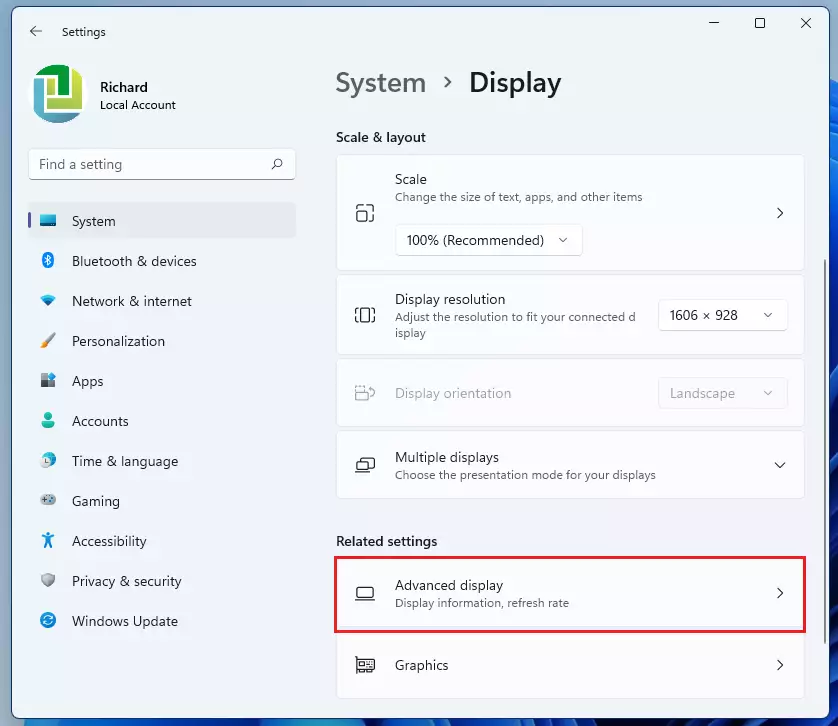
Open Settings, go to System, then Display, and click Advanced display. Select Display adapter properties for Display 1 to see your graphics card name and memory. Alternatively, press Windows key + R, type dxdiag, and press Enter, then click the Display tab.
Methods to check your GPU
Method 1Using Windows Settings
Here’s a way to find your display adapter details.
- Press Windows key + I to open Settings.
- Select System, then click Display.

3. Scroll down and click Advanced display.
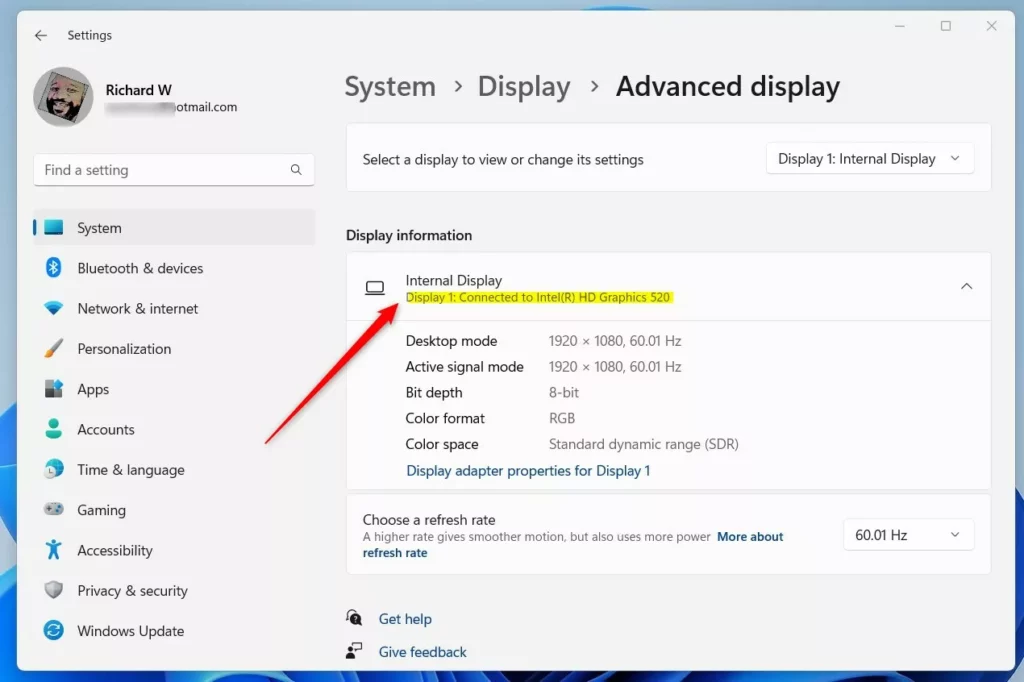
4. Click Display adapter properties for Display 1.
This window will show your adapter type and dedicated video memory.
Pro Tip: Quick Search
You can skip the menus by typing Display adapter properties directly into the Windows Search bar on your taskbar. This opens the info window instantly.
Method 2DirectX Diagnostic Tool (dxdiag)
The DirectX Diagnostic Tool provides a deep look at your graphics driver version and hardware status.
- Press Windows key + R, type dxdiag, and press Enter.
- Click the Display tab at the top.
- You will see your card name, manufacturer, and current driver version.
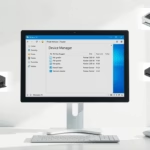
Method 3Device Manager
You can check your graphics card details using the Device Manager, a built-in Windows tool that also shows if your graphics driver is working correctly.
- Right-click the Start button and select Device Manager.
- Expand the Display adapters section.
- Right-click your card and select Properties to see if the device is working properly.
Note: Some advanced driver changes may require admin privileges.
Method 4Command Line
You can even use the command line to quickly check your hardware name, and you won’t need admin privileges for this.
wmic path win32_VideoController get nameDriver Management and Performance
Keeping your graphics card drivers up-to-date is key for good performance and a stable computer.
Summary
Checking your graphics card details in Windows 11 helps you manage your PC’s performance and ensures your games and apps run smoothly.
How do I know if my graphics card is good enough for gaming?
Compare your GPU model and VRAM capacity against the minimum system requirements listed on the game’s store page. If your card is below the recommended specs, you may experience low frame rates or visual lag during gameplay. Checking your hardware ensures your PC can handle the game’s graphical demands.
Why does my computer show two graphics cards?
Your computer might show two graphics cards because many laptops use both a basic chip for everyday tasks and a more powerful one for demanding apps.
Was this guide helpful?

About the Author
Richard
Tech Writer, IT Professional
Richard, a writer for Geek Rewind, is a tech enthusiast who loves breaking down complex IT topics into simple, easy-to-understand ideas. With years of hands-on experience in system administration and enterprise IT operations, he’s developed a knack for offering practical tips and solutions. Richard aims to make technology more accessible and actionable. He's deeply committed to the Geek Rewind community, always ready to answer questions and engage in discussions.


Great site first off but I would suggest moving this article to “Windows” section.
[…] How to check graphics card details in Windows 11. […]
[…] First, find out which video card your computer has. You can learn how here: How to check graphics card details in Windows 11. […]