How to Check Your Computer Specifications in Windows 11

Knowing your hardware configuration helps you understand if your PC can run specific software or games. It is vital for troubleshooting performance issues or planning hardware upgrades like adding more RAM or a faster graphics card. When you are done, you will have a clear snapshot of your system’s health and capabilities.
How to check computer specifications in Windows 11
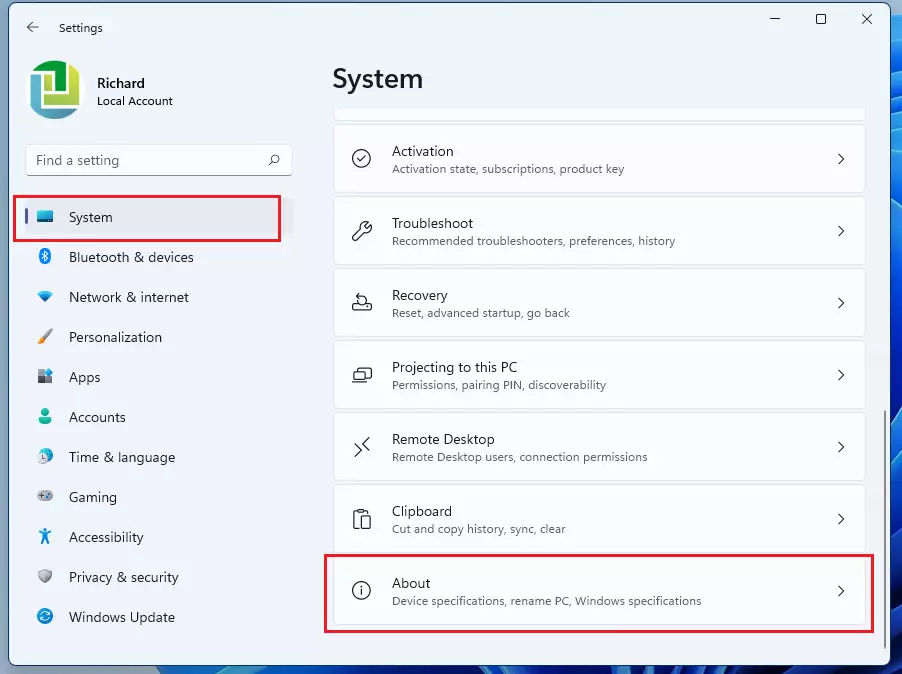
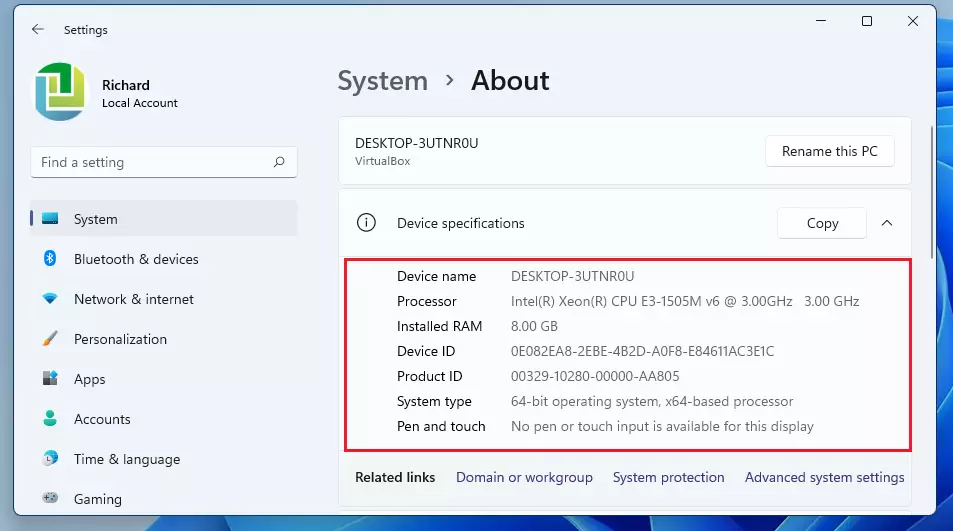
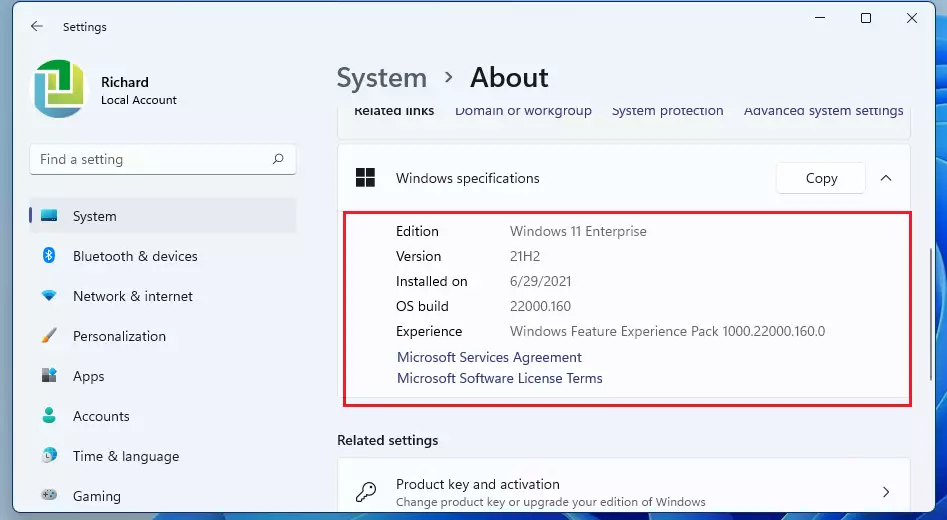
Windows 11 makes it easy to find basic details. Use the Windows key + I shortcut to open Settings. Click on System and then About. Here you will see your processor speed, RAM capacity, and system type.

What is the difference between device specifications and system information?
Device specifications provide a high-level summary of your hardware, such as your CPU and RAM. System information offers a deep dive into your entire hardware configuration, including BIOS versions, driver details, and resource conflicts. Use device specs for quick checks and system information for advanced technical diagnostics.
Using the System Information (msinfo32) tool
For a detailed report, use the System Information tool. Press Win + R, type msinfo32, and press Enter. This window shows everything from your motherboard model to your graphics card model.
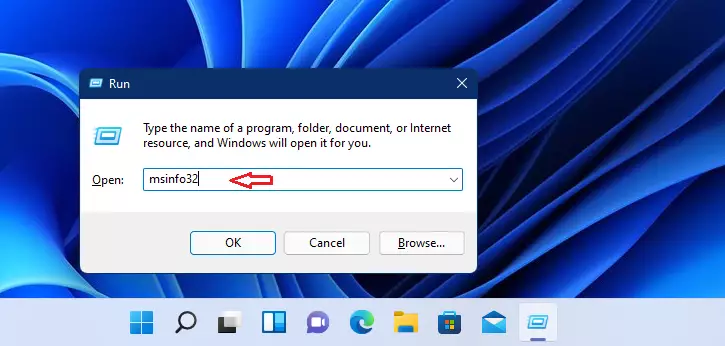
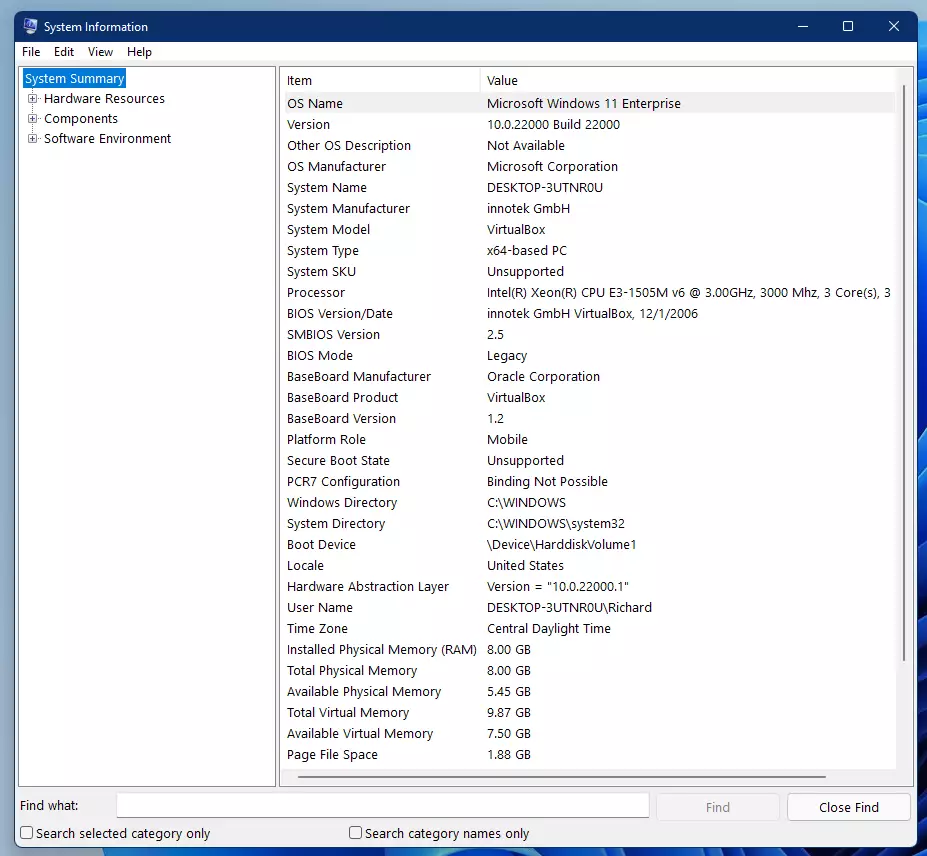
Pro Tip: You can export this data to a text file by clicking File > Export. This is perfect for sharing your specs with tech support.
Advanced diagnostic methods
If you need specific details about your display or audio, use the DirectX Diagnostic Tool. Press Win + R, type dxdiag, and press Enter. This tool is essential for checking your graphics card model and driver version.
Using Command Prompt and PowerShell
For power users, the Command Line Interface (CLI) is faster. Open the Start menu, type cmd, and press Enter. Type the following command to see your system summary:
systeminfo
For more specific hardware IDs, use PowerShell. Open PowerShell as an administrator (requires admin privileges) and run:
Get-CimInstance Win32_Processor | Select-Object Name, NumberOfCores
How to check Windows 11 minimum requirements
To see if your PC is ready for future updates, download the official Microsoft PC Health Check app. It automatically scans your hardware against the official Windows 11 system requirements.
Summary
Checking your computer specifications is a simple process that helps you manage your PC effectively. Whether you use the Settings menu for a quick look, the msinfo32 tool for deep details, or the command line for advanced diagnostics, you now have the tools to identify your processor speed, RAM, and graphics card. Always keep your system information handy for troubleshooting or when seeking technical support.
Was this guide helpful?




[…] and use the Android Nearby app, your Windows computers (i.e., desktops and laptops) must run a 64-bit version and up—ARM devices not currently […]