How to Enable or Disable Text Cursor Indicator in Windows 11

The Windows 11 text cursor indicator is an accessibility feature designed to make the blinking text insertion point easier to see. By adding a colored highlight around the cursor, it helps users with visual impairments or those using high-resolution monitors track their typing position.
Why use it? It reduces eye strain and prevents you from losing your place in long documents.
What happens when done? You will see a persistent, colored pill-shaped highlight around your cursor whenever you are in a text field.
How to enable or disable the text cursor indicator
You can manage this feature through the Accessibility menu in the Windows Settings app.
1. Open the Settings app by pressing Windows Key + I.
2. Select Accessibility from the left sidebar.
3. Click on the Text cursor tile.
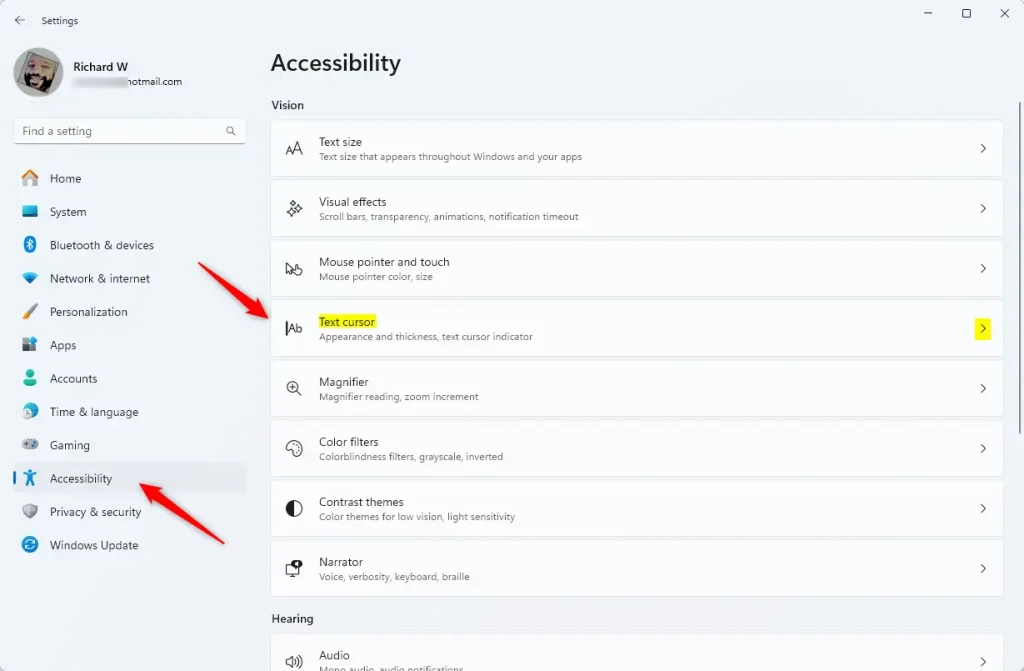
4. Toggle the Text cursor indicator switch to On to enable it, or Off to disable it.
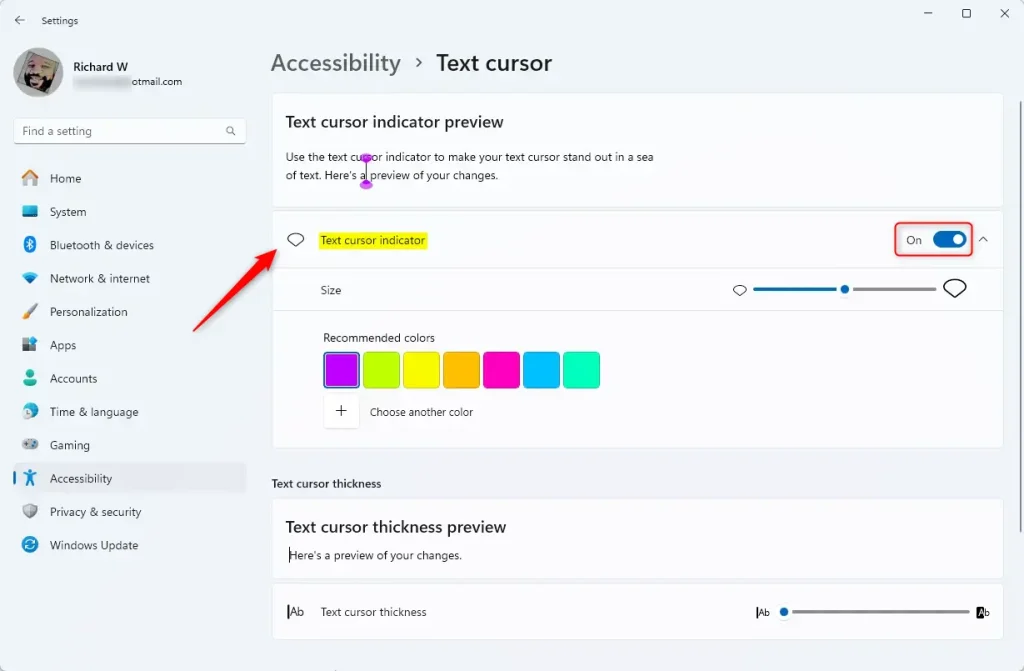
Once enabled, you can immediately see the effect in any text editor.
Customizing size and color
Beyond just turning it on, you can change how it looks to suit your needs. Under the same Accessibility > Text cursor menu, you will find a slider to adjust the Indicator size. You can also select a color from the suggested palette or choose a custom color that stands out against your background.
Advanced: Using Registry Editor
Note: This method requires administrative privileges. Modifying the registry incorrectly can cause system issues.
1. Press Windows Key + R, type regedit, and press Enter.
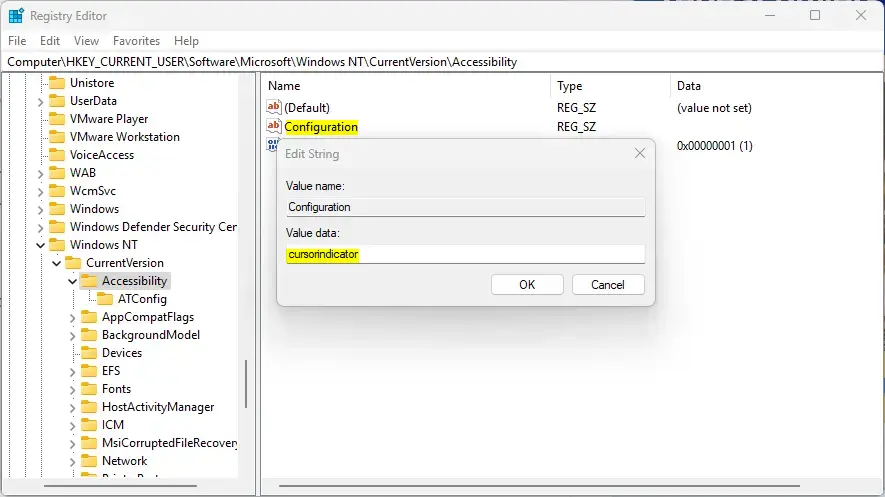
2. Navigate to the following path:
HKEY_CURRENT_USER\Control Panel\Accessibility\CursorIndicator
3. Locate the Configuration value. To enable, set the data to cursorindicator. To disable, clear the value data field.
4. Restart your computer for changes to take effect.
Troubleshooting common issues
If the indicator does not appear, ensure your Windows 11 is fully updated via Windows Update. Sometimes, third-party software or custom mouse themes can conflict with accessibility overlays. Try reverting to the default Windows mouse theme if you experience issues. For more details, visit the official Microsoft Accessibility documentation.
Summary
The Windows 11 text cursor indicator is a vital tool for improving screen visibility and typing accuracy. By navigating to Accessibility > Text cursor, users can easily toggle the feature, adjust its size, and pick a custom color. Whether you are using the Settings app or the Registry Editor, these changes help create a more personalized and accessible computing environment for everyone.
Why won’t the text cursor indicator turn off?
If the indicator remains visible after toggling the switch, try restarting the Windows Explorer process via Task Manager. Alternatively, check if a third-party accessibility tool or a custom mouse cursor theme is overriding your system settings. A quick system restart usually resolves these stuck UI elements.
Does the text cursor indicator affect system performance?
No, the text cursor indicator is a lightweight accessibility feature built into the Windows shell. It does not consume significant CPU or memory resources. You will not notice any impact on your system performance, even on older hardware or devices with limited RAM.
Was this guide helpful?

About the Author
Richard
Tech Writer, IT Professional
Richard, a writer for Geek Rewind, is a tech enthusiast who loves breaking down complex IT topics into simple, easy-to-understand ideas. With years of hands-on experience in system administration and enterprise IT operations, he’s developed a knack for offering practical tips and solutions. Richard aims to make technology more accessible and actionable. He's deeply committed to the Geek Rewind community, always ready to answer questions and engage in discussions.



[…] article explains how to change the color of the Text Cursor Indicator in Windows […]
One thing to note right now is that when this cursor is enabled Windows 11 happily shows the cursor in all your DirectX games.
Not as a text input cursor where you are expected to enter text but as a defect showing on-screen in a fixed position that you cannot get rid of unless you turn off this cursor in Settings again.
[…] Turn On or Off Text Cursor Indicator […]
[…] the slider under Text cursor thickness to make the line wider or thinner. You can also turn on the cursor indicator or change the blink faster or slower to help it stand […]