How to Enable or Disable Screen Savers in Windows 11


You enable or disable screen savers in Windows 11 directly from the Settings app to enhance privacy or add visual flair during PC inactivity.
A screen saver is an animated display that activates after a set period of user inactivity, primarily serving to secure your session or prevent unauthorized access to your computer.
In Windows 11, this setting is easily accessible and can be configured to lock your screen after as little as one minute of idleness, safeguarding your personal data.
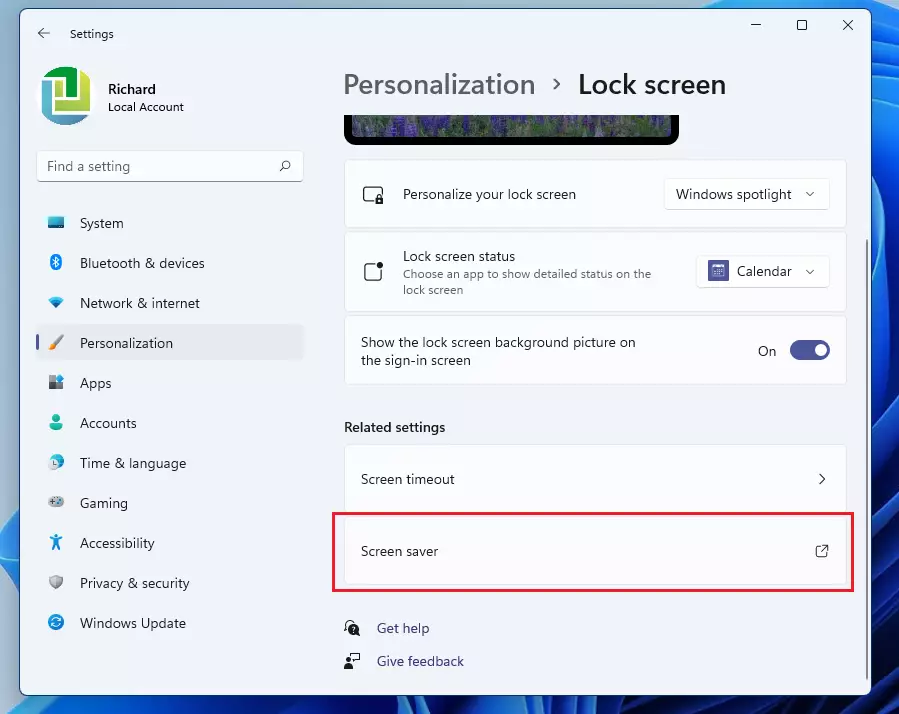
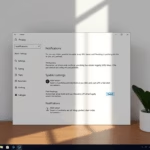
Open Settings, go to Personalization > Lock screen, and click Screen saver. Choose a screen saver, set the wait time, and optionally check “On resume, display logon screen” to lock your PC. Click OK to save.
How to enable screen savers in 🪟 Windows 11
You can easily turn on screen savers in Windows 11 by opening Settings and looking for the screen saver option under the Lock screen menu.
1. Press Windows key + I to open Settings.

2. Click Personalization in the left sidebar, then select Lock screen.
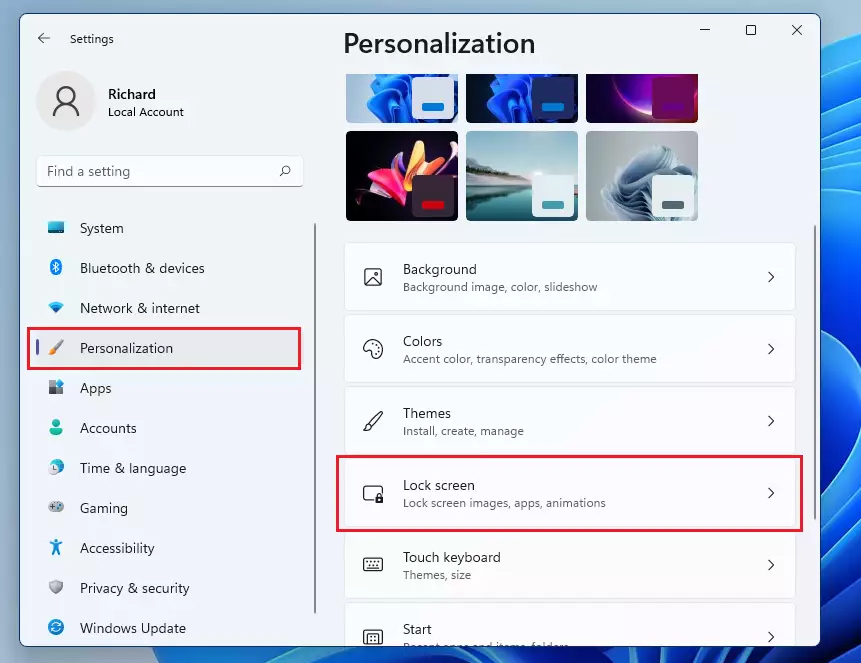
3. Scroll to the bottom and click Screen saver.
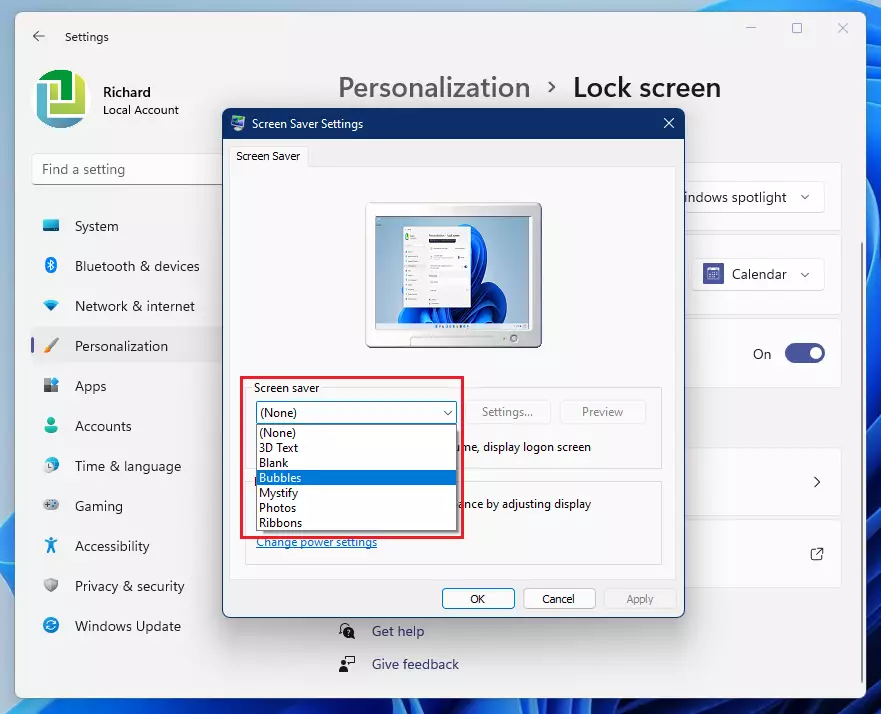
4. A small window will appear. Choose your preferred screen saver from the drop-down menu.
5. Set the Wait time in minutes. This determines how long the computer stays idle before the screen saver starts.
6. Check the box On resume, display logon screen if you want the computer to lock when you return.
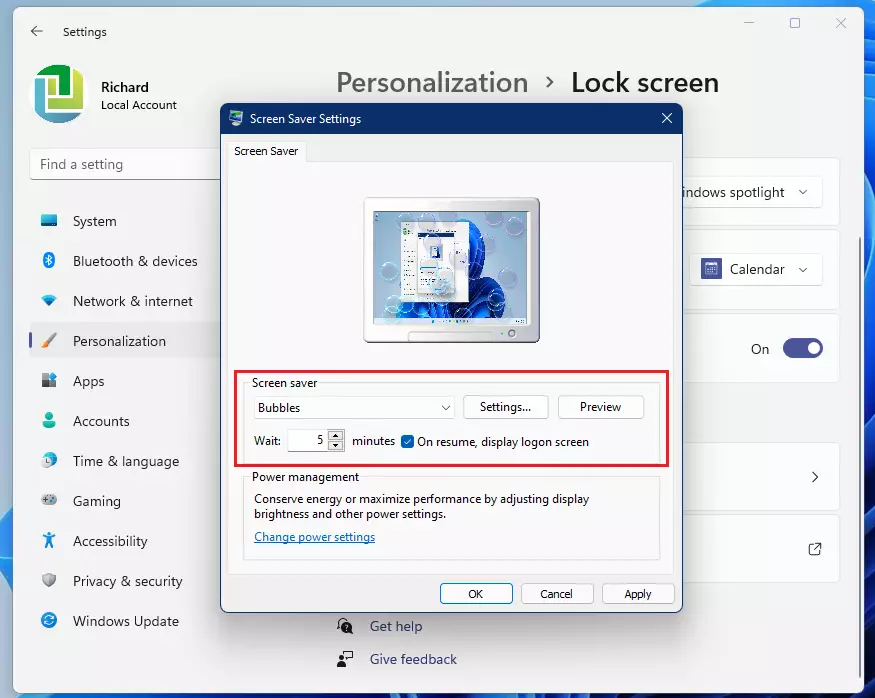
7. Click OK to save your changes.

Advanced Configuration: Registry and GPO
If you’re comfortable with advanced settings, you can change how screen savers work in Windows using the Registry or Group Policy tools.
To adjust screen savers via the Registry, go to 🗝️HKEY_CURRENT_USER\Control Panel\Desktop and you can modify the ScreenSaveActive and ScreenSaveTimeOut keys. In a business setting, administrators often use Group Policy (GPO) to enforce screen saver settings across all company computers. You’ll find this option under User Configuration > Administrative Templates > Control Panel > Personalization.
Troubleshooting: Why is the screen saver missing or not working?
If your screen saver option is missing or not working in Windows 11, it might be turned off by your organization’s policy, or a connected device like a game controller could be keeping your PC awake.
How to set a custom photo as a screen saver
In the Screen Saver Settings dialog, select Photos from the drop-down list. Click Settings to browse your folders. You can choose any folder containing your favorite images. Windows will then cycle through these photos when the screen saver activates.
Summary
Screen savers in Windows 11 are an older feature that can still help lock your screen for security and add a personal touch, even though they aren’t needed for modern computer health.
Why is the screen saver option missing in 🪟 Windows 11 settings?
The screen saver option isn’t actually missing in Windows 11 settings; it’s just hidden in the older Lock screen menu, and your system administrator might have disabled it with a policy.
Does a screen saver save power on modern 🪟 Windows 11 monitors?
No, screen savers do not save power. In fact, they keep your monitor active and consuming electricity. If your goal is to save energy, you should use the ‘Power & Sleep’ settings to turn off the display or put the computer into sleep mode after a period of inactivity.
Was this guide helpful?

About the Author
Richard
Tech Writer, IT Professional
Richard, a writer for Geek Rewind, is a tech enthusiast who loves breaking down complex IT topics into simple, easy-to-understand ideas. With years of hands-on experience in system administration and enterprise IT operations, he’s developed a knack for offering practical tips and solutions. Richard aims to make technology more accessible and actionable. He's deeply committed to the Geek Rewind community, always ready to answer questions and engage in discussions.

No comments yet — be the first to share your thoughts!