How to Change Desktop Icon Size in Windows 11


You can change desktop icon size in Windows 11 using your mouse wheel or through the View menu on the desktop.
Windows 11 doesn’t offer a single global setting for icon size, but its flexibility lets you adjust them for optimal viewing and organization.
For a quick adjustment, simply hold down the Ctrl key and scroll your mouse wheel up to enlarge icons or down to shrink them. This method works directly on your desktop.
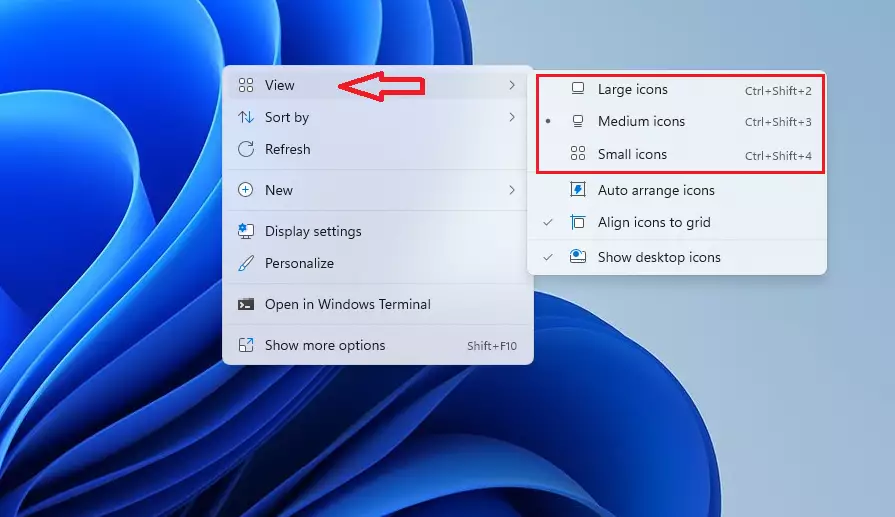
Alternatively, right-click anywhere on your desktop, select “View,” and choose between Large, Medium, or Small icons. This provides a more structured way to set a consistent size across all your desktop icons.
Why Change Icon Sizes?
You might find it hard to see small icons. Making them bigger helps you find things faster. If you have a busy screen, making icons smaller gives you more empty space. You should customize your computer so it feels comfortable for your eyes.
What Happens When Done?
Once you finish these steps, your screen layout will change immediately. Your icons will be easier to click or will leave you more room to work, depending on the size you pick.
How to Resize Desktop Icons
These are the shortcuts on your main background screen.
- Right-click on any empty space on your desktop.
- Click on View.
- Pick Large, Medium, or Small.
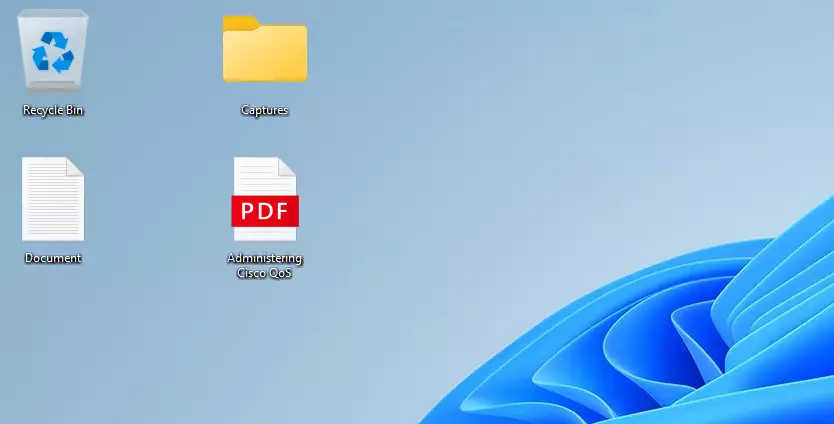
Your icons will change size right away.
How to Resize Folder Icons
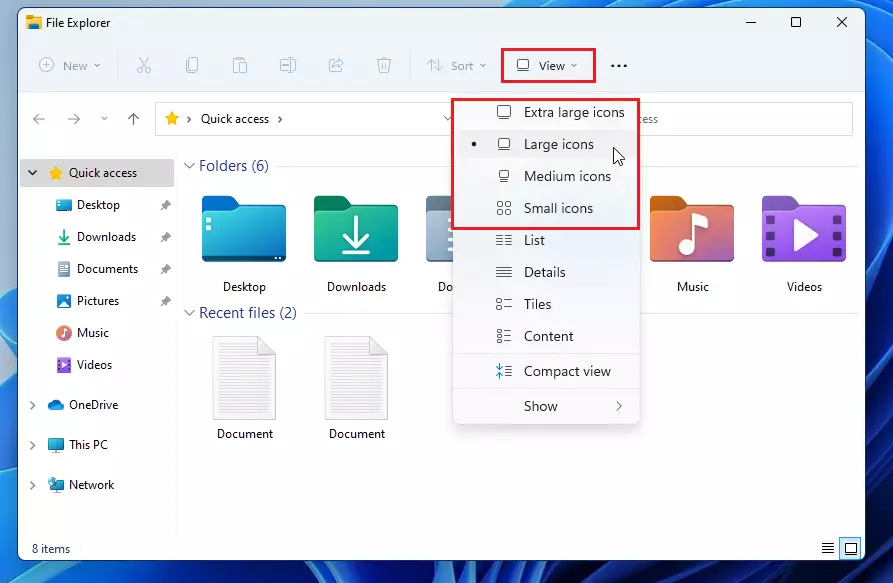
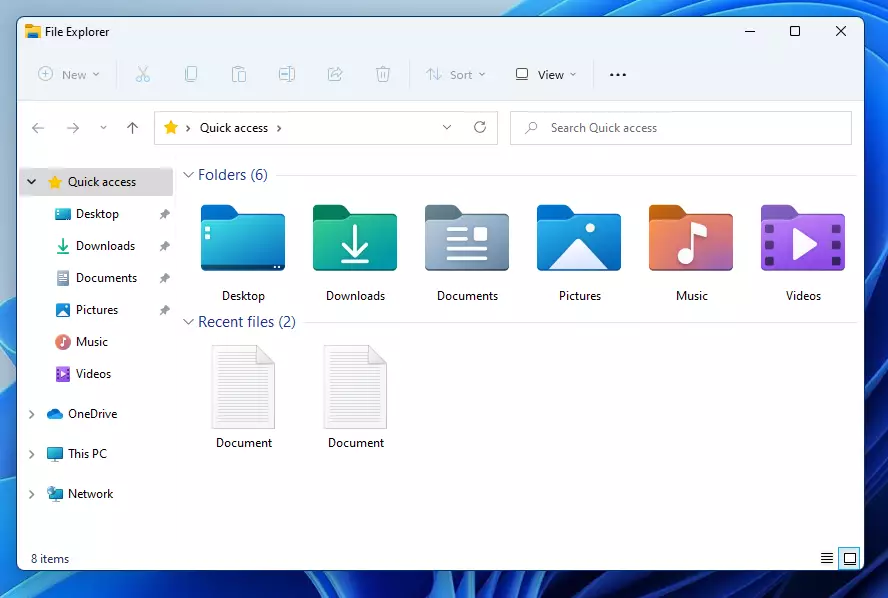
You can also change how your files and folders look inside File Explorer.
- Open File Explorer.
- Click the three dots icon at the top of the window.
- Select your preferred size from the list.
Accessibility and Display Scaling
If you need everything on your screen to be larger, including text and icons, you should use Display Scaling. This is better for accessibility than just resizing icons.
- Right-click your desktop and select Display settings.
- Look for Scale under the Scale & layout section.
- Choose a percentage like 125% or 150%.
For more help with accessibility, visit the official Microsoft accessibility documentation.
How to Resize taskbar-buttons-and-hide-labels-in-windows-11/" class="sal-link" rel="noopener" target="_blank" data-sal-id="36206">Taskbar Icons
Disclaimer: Windows 11 removed the native setting to resize taskbar icons. You must use the Registry Editor to change them.
⚠️ Admin Privileges Required: You must have administrator rights to perform these steps.
- Press the Windows key + R on your keyboard.
- Type
regeditand press Enter.
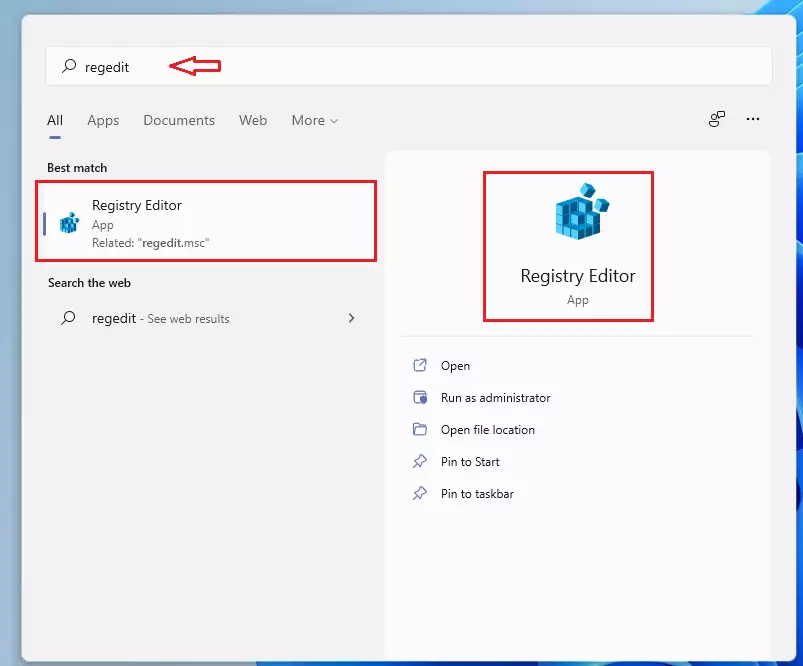
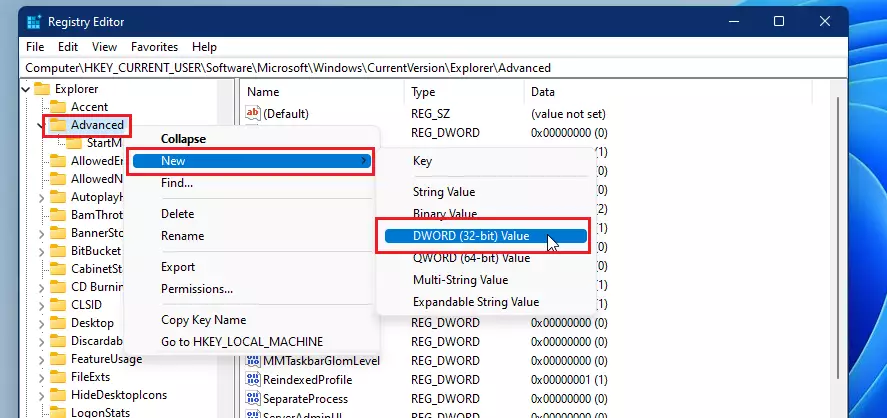
Use the path bar at the top to go to this location:
HKEY_CURRENT_USER\Software\Microsoft\Windows\CurrentVersion\Explorer\Advanced- Right-click on the Advanced folder.
- Select New, then click DWORD (32-bit) Value.
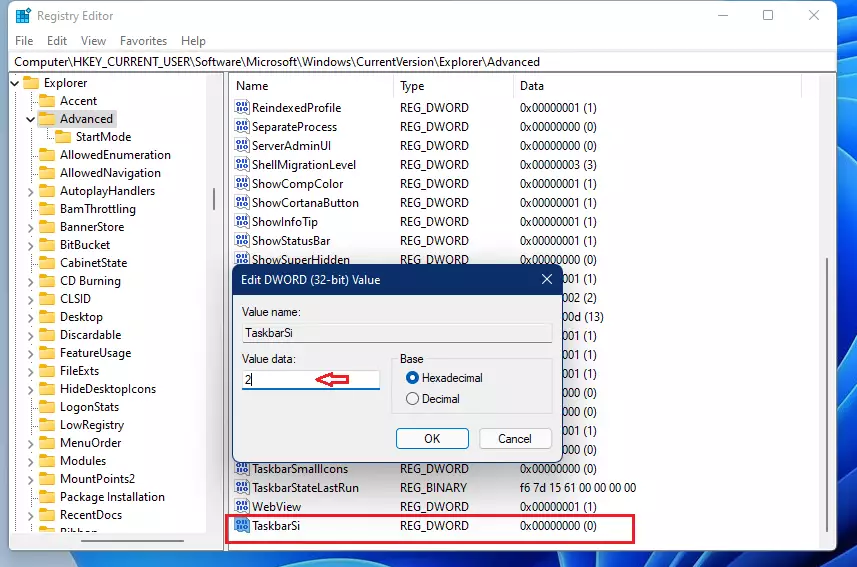
- Name this new value:
TaskbarSi - Double-click it and set the value to 0 (small), 1 (medium), or 2 (large).

Summary
Adjusting icon sizes in Windows 11 lets you customize your workspace for better visibility or more screen space. Desktop and folder icons are easy to change with a right-click or the Ctrl + Mouse Wheel shortcut. The taskbar requires a registry edit, but it is a simple process. These small changes make your computer much easier to navigate every day.
Can I change taskbar icon size in 🪟 Windows 11 without third-party software?
Yes, you can change the taskbar icon size by editing the Windows Registry. By modifying the TaskbarSi value in the registry, you can toggle between small, medium, and large icons. Always be careful when editing the registry, as incorrect changes can affect your system stability.
Why are my desktop icons blurry after resizing?
Icons may appear blurry if your display scaling is set to a non-standard percentage or if the icon resolution does not match the size you selected. Try resetting your display scale to 100% or the recommended setting in your Display settings to see if the clarity improves.
How do I reset desktop icons to default size?
To reset your desktop icons to the default size, right-click on an empty area of your desktop, select View, and then click Medium icons. This is the standard size Windows 11 uses out of the box for most desktop environments and screen resolutions.
Does changing icon size affect font size?
Changing desktop or folder icon sizes using the View menu does not change the system font size. If you want to increase the text size across your entire system, you must adjust the text size settings found under the Accessibility menu in your Windows 11 Settings app.
Was this guide helpful?
Hello good time!
In windows, for example on the desktop, can we resize the icons of some programs?
For example, there are 10 icons on the desktop, can we change the size of 3 icons?
Is this possible in windows?
Instructions on “View” and selecting icon size – DOESN’T WORK !!