How to Mute Windows 11 On-Screen Keyboard Sounds

You mute Windows 11 on-screen keyboard sounds by disabling the “Play key sounds as I type” option within the Touch keyboard settings.
The on-screen keyboard in Windows 11 can emit audible clicks when you tap virtual keys, a feature sometimes enabled by default to provide tactile feedback. Disabling these sounds offers a more peaceful typing environment, especially if you use the keyboard for longer sessions.
For instance, if you rely on the on-screen keyboard for accessibility or during specific tasks, these consistent clicks can quickly become distracting. You can turn them off in just a few clicks.
This simple adjustment ensures you won’t hear those key sounds anymore, making your Windows 11 experience quieter.
To mute Windows 11 on-screen keyboard sounds, open Settings, navigate to Accessibility > Keyboard, and uncheck “Play a sound when I turn Sticky, Filter, or Toggle keys on or off.” For the classic On-Screen Keyboard, click Options on the keyboard interface and uncheck “Use click sound.
How to turn off Touch Keyboard sound
You can turn off the sound that plays when you type on the Windows 11 Touch Keyboard by changing a setting in Accessibility.
- Open Settings by pressing Windows key + I on your keyboard, or click Start and select the Settings icon.

windows 11 start settings - In the menu on the left, click Accessibility.
- Select Keyboard from the list on the right.
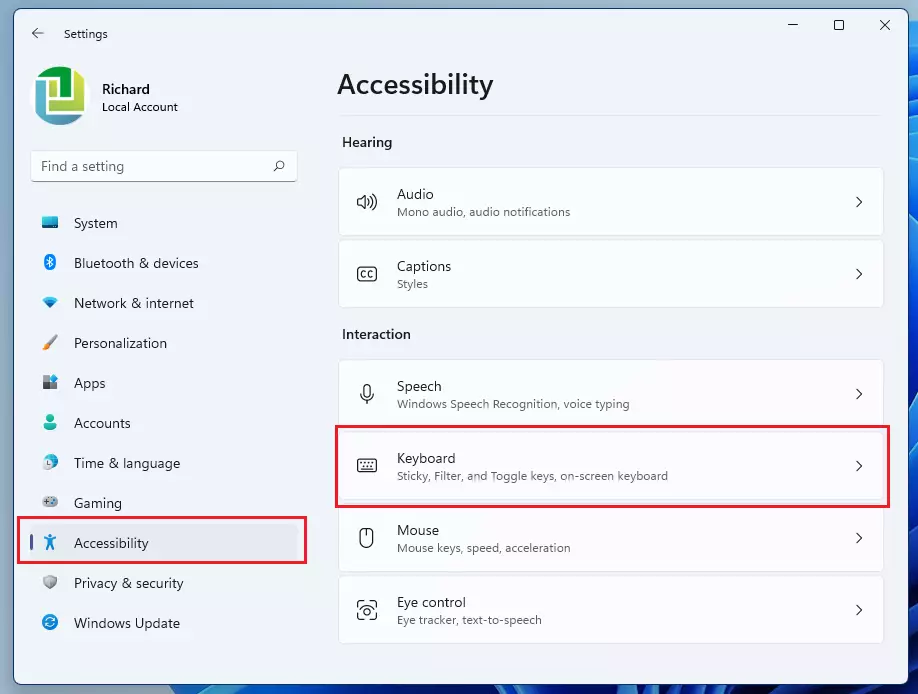
windows 11 accessibility keyboard - Look for the section labeled Notification preferences.
- Uncheck the box that says: “Play a sound when I turn Sticky, Filter, or Toggle keys on or off from the keyboard.”
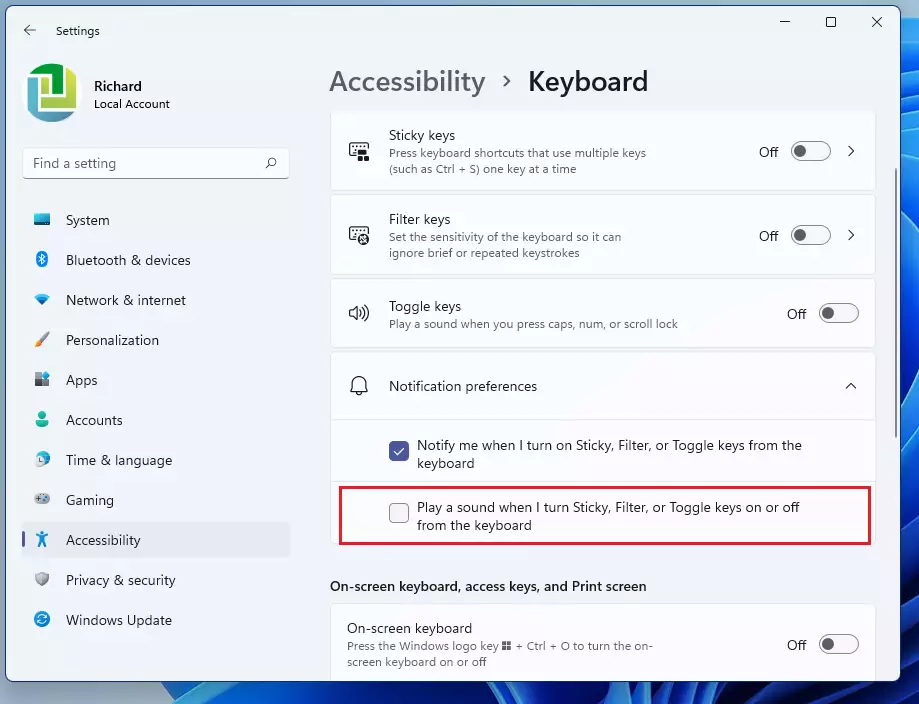
windows 11 onscreen keyboard disable sound 1
How to turn off On-Screen Keyboard sound
If you want to mute the clicking sound from the classic Windows 11 On-Screen Keyboard, you can do it directly through the keyboard’s options menu.
- Ensure your On-Screen Keyboard is open. If it is not, go to Start > Settings > Accessibility and turn on the On-Screen Keyboard switch.
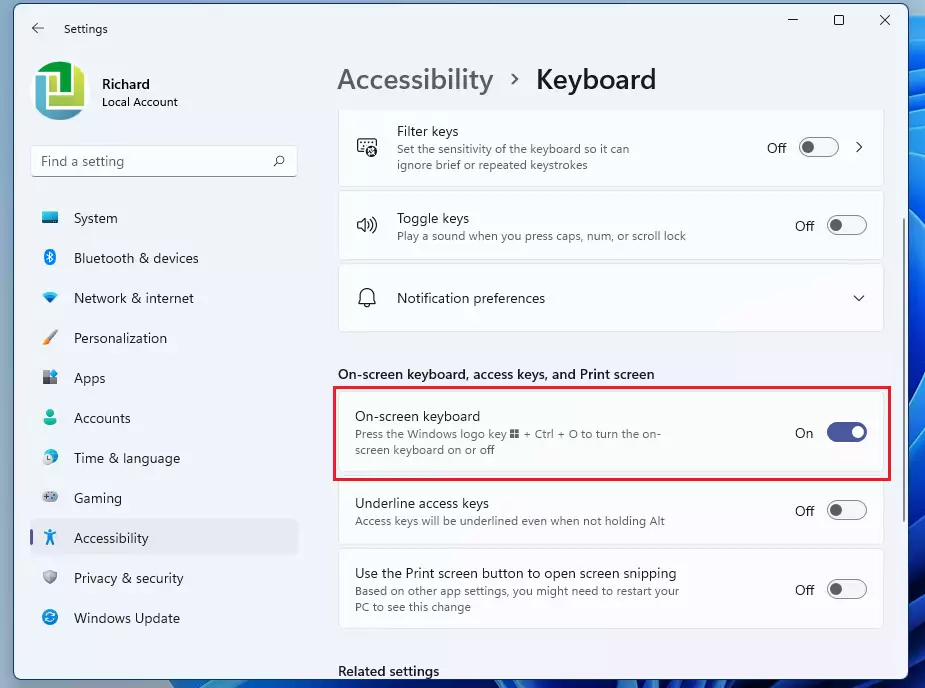
windows 11 onscreen keyboard turn off sound - On the actual keyboard interface, click the Options key.
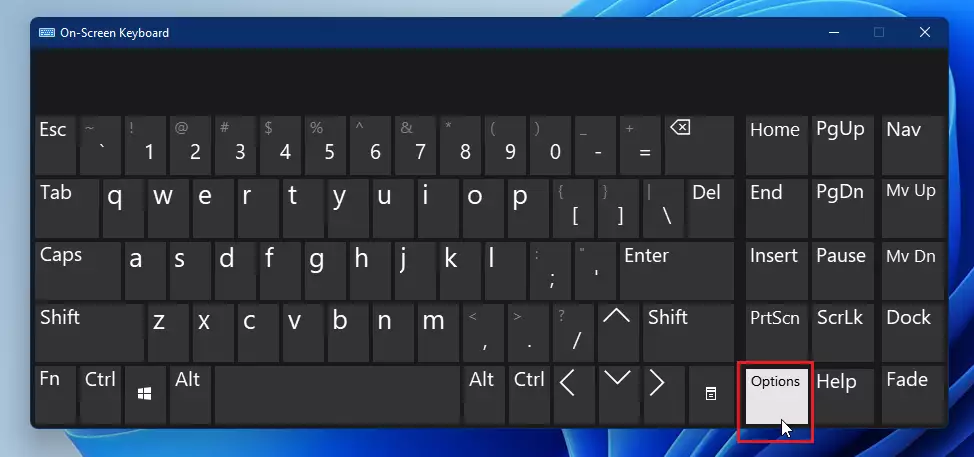
windows 11 onscreen keyboard options - A small window will appear. Simply uncheck the box labeled “Use click sound.”
- Click OK to save your changes.
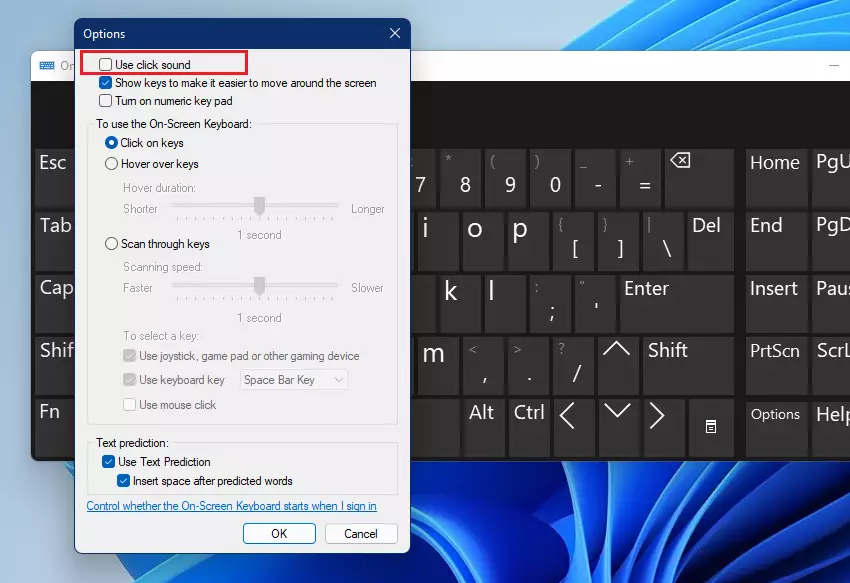
windows 11 disable use click sound
Advanced Configuration Methods
If the regular settings don’t let you mute Windows 11 keyboard sounds, you can use advanced tools like the Registry Editor or PowerShell for more control.
HKEY_CURRENT_USER\Software\Microsoft\TabletTip\1.0
Look for a value named EnableKeyAudioFeedback and set it to 0. You can also use PowerShell to manage accessibility settings, though this is primarily for system administrators.
Summary
You can easily mute Windows 11 keyboard sounds by adjusting the Accessibility settings or the Options menu on the keyboard itself. For advanced users, the Registry Editor offers a deeper way to disable feedback. These changes help you create a quieter, distraction-free environment while you work.
Why do my keyboard sounds persist after changing settings?
If sounds persist, you may have multiple keyboard tools running. Ensure you have disabled audio feedback in both the Touch Keyboard settings and the specific On-Screen Keyboard options menu. Sometimes, a system restart is required to apply registry changes or clear cached audio settings from your user profile.
Does disabling touch keyboard sounds affect physical keyboard clicks?
No. Disabling touch keyboard sounds only affects the virtual interface on your screen. Physical keyboard clicks are mechanical sounds produced by the hardware itself. If your physical keyboard is making digital clicking noises, check your Windows accessibility settings for “Toggle Keys” or “Filter Keys” audio alerts.
Was this guide helpful?

About the Author
Richard
Tech Writer, IT Professional
Richard, a writer for Geek Rewind, is a tech enthusiast who loves breaking down complex IT topics into simple, easy-to-understand ideas. With years of hands-on experience in system administration and enterprise IT operations, he’s developed a knack for offering practical tips and solutions. Richard aims to make technology more accessible and actionable. He's deeply committed to the Geek Rewind community, always ready to answer questions and engage in discussions.


Your method for touch screen keyboard doesn’t work.
This doesn’t work. Keyboard clicks continue. Aargh! Extremely frustrating.