How to Enable or Disable UAC in Windows 11

User Account Control (UAC) is a built-in safety tool in Windows 11. Think of it as a gatekeeper for your User Account Control (UAC) is a built-in security feature in Windows 11. It acts as a gatekeeper for your computer. It ensures that apps do not make changes to your system without your permission. This process is known as UAC elevation.
Why use UAC?
UAC stops malicious software from installing itself or changing system files. It keeps your computer safe from viruses and accidental damage. By requiring an administrator account to approve changes, it prevents unauthorized software from gaining full control over your PC.
What happens when you change it?
If you turn it off, your computer will not ask for your permission when programs try to install or change settings. This makes your system faster to use but much less secure. You lose the primary defense against background threats that try to modify your Windows security settings.
Warning: Disabling UAC lowers your system security significantly. It allows apps to run with full administrative privileges without your knowledge. Only disable it if you have a specific, temporary need, and always turn it back on afterward.
How to Disable UAC in Windows 11
The easiest way to change this setting is through the Control Panel. Note: You must be signed in as an administrator to change these settings.
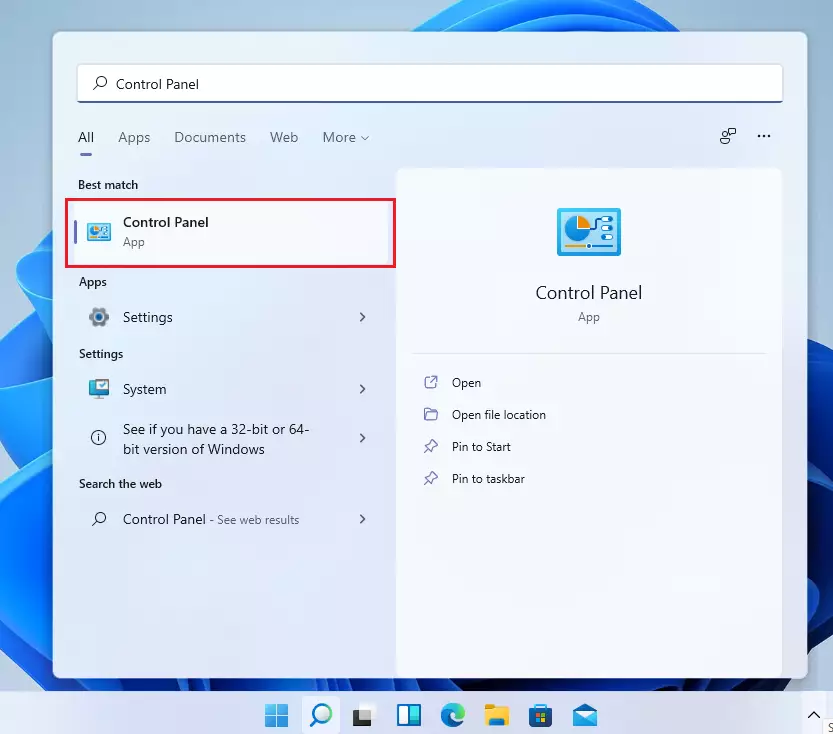
- Click the Start button and type “Control Panel”. Open the app.
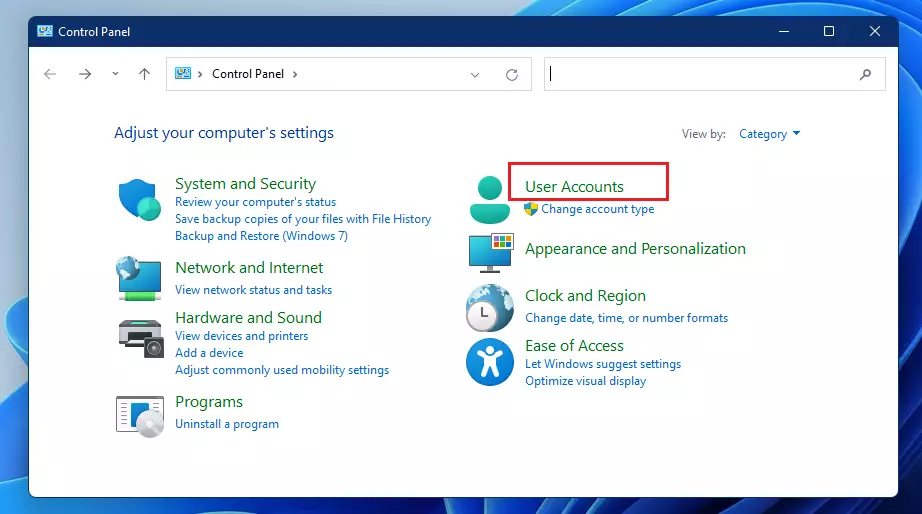
- Click on User Accounts, then click User Accounts again.
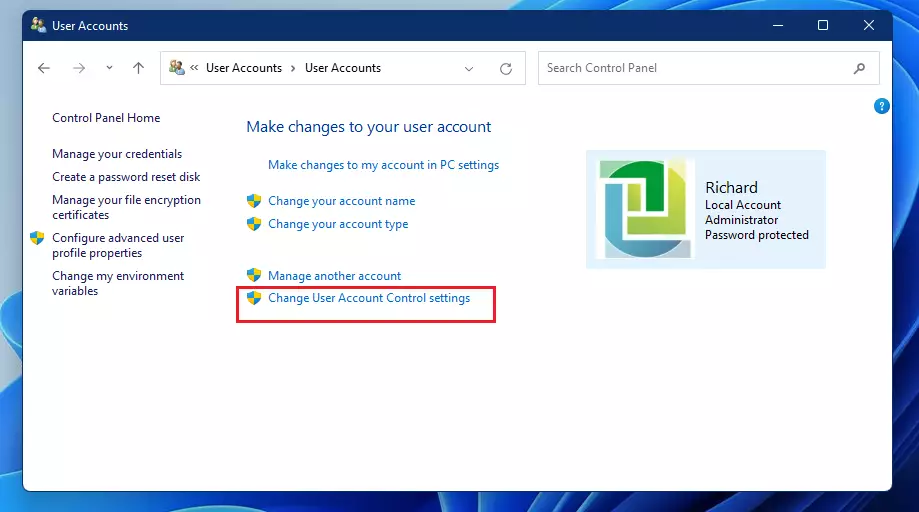
- Click the link that says Change User Account Control settings.
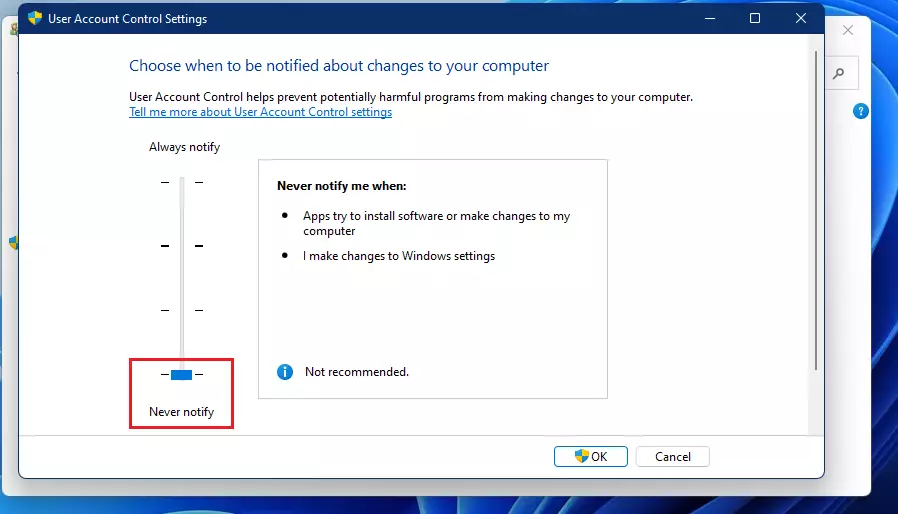
- Move the slider all the way to the bottom to Never notify. Click OK.
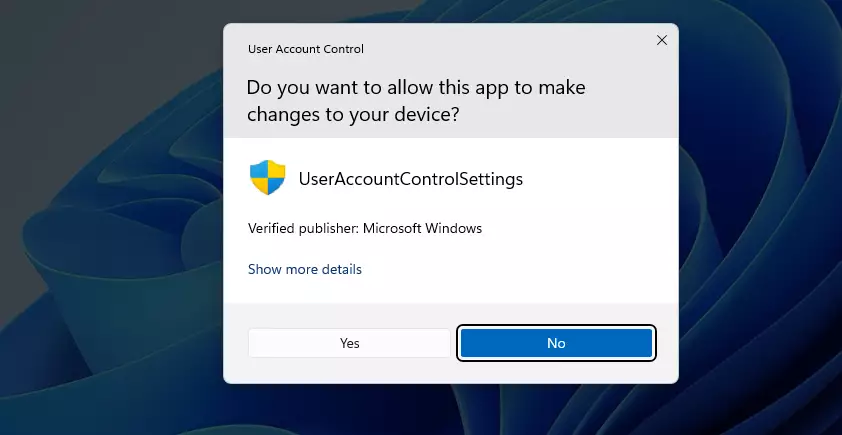
- You will see a final prompt asking for permission. Click Yes.
Advanced Methods: Registry and Group Policy
Advanced users can manage these settings via the registry. Warning: Incorrect changes to the registry can damage your system. Always back up your registry first.
1. Press Win + R, type regedit, and press Enter. (Requires Admin Privileges)
2. Navigate to: HKEY_LOCAL_MACHINE\SOFTWARE\Microsoft\Windows\CurrentVersion\Policies\System
3. Find the EnableLUA key. Set the value to 0 to disable UAC or 1 to enable it.
For enterprise environments, you can use the Local Security Policy editor (secpol.msc) to manage UAC behavior for all users via the Security Options folder.
Troubleshooting UAC Prompts
If UAC keeps asking for permission even after you have disabled it, your user profile may be corrupted or a security policy may be overriding your settings. Ensure your account has the correct Security Identifier (SID) and that you are not part of a restricted group. If you cannot bypass UAC during software installation, try running the installer as an administrator by right-clicking the file and selecting Run as administrator.
Summary
UAC is a vital security tool. While you can turn it off, doing so makes your computer vulnerable to malicious software. For more information, visit the official Microsoft documentation. Only disable it if you have a specific reason, and always turn it back on when you are finished.
Is it safe to disable UAC in Windows 11?
No, it is not safe. Disabling UAC removes a critical layer of protection that prevents unauthorized apps from making system-wide changes. Without it, malware can easily infect your computer, modify system files, or steal your data without triggering any warnings or requiring your explicit approval.
What is the difference between ‘Never notify’ and ‘Always notify’?
‘Always notify’ triggers a prompt for every single change, including Windows settings. ‘Never notify’ turns off UAC entirely, meaning no prompts appear. The default setting is a balance, notifying you only when apps attempt to make changes to your computer, which is the recommended security practice.
Was this guide helpful?





I do these steps but when I restart the PC, it becomes enabled.
I have this issue with windows defender too.
when I disable these two, after restart they are enable again
[…] the ISO mount, and run the setup.exe file to start Windows 11 Setup. On the UAC prompt window, click […]
[…] Why are updates important? Microsoft finds security “holes” in the system and fixes them with updates. If you do not update, hackers can use those holes to sneak in. How to turn on UAC in Windows 11 […]