How to Hide Mobile Device Notification Badges in Windows 11 Start Menu

This article explains how to show or hide mobile device notification badges in the Start menu on Windows 11.
Open the Phone Link app and go to Settings. Select “Start menu personalization,” then toggle the “Badges” button on or off under Notifications to hide or show notification badges. This helps keep your Start menu clean.
What Is Phone Link?
Phone Link is a handy Windows tool that connects your phone to your PC, letting you check your phone’s notifications, messages, and even use some apps right from your computer screen.
Starting with Windows 11 22635.4805 (Beta), you can easily access content on your mobile device directly from the Start menu on your PC. This feature lets you view your device’s battery status and connectivity, access your voice messages and calls, and view your photos.
Why Hide Notification Badges?
A recent Phone Link app update lets you show or hide your device’s notification badges in the Start menu on Windows 11. This helps keep your Start menu clean and less cluttered.
How to Show or Hide Mobile Device Notification Badges in Start Menu
You can easily hide notification badges for your mobile device in the Windows 11 Start menu by changing a simple setting inside the Phone Link app.
- First, open the Phone Link app.
- Click the Settings button (gear icon) at the top right corner of your screen.
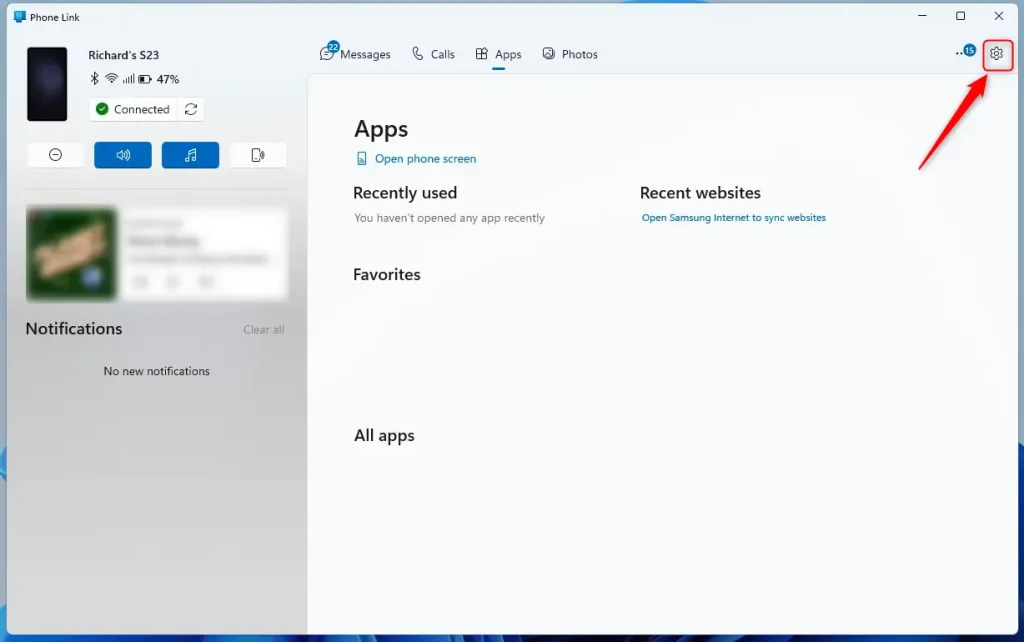
Phone Link app settings button - Select “ Start menu personalization” from the menu.
- Under “Notifications” on the right side, toggle the “Badges” button on or off to display or hide notification badges on the Start menu.
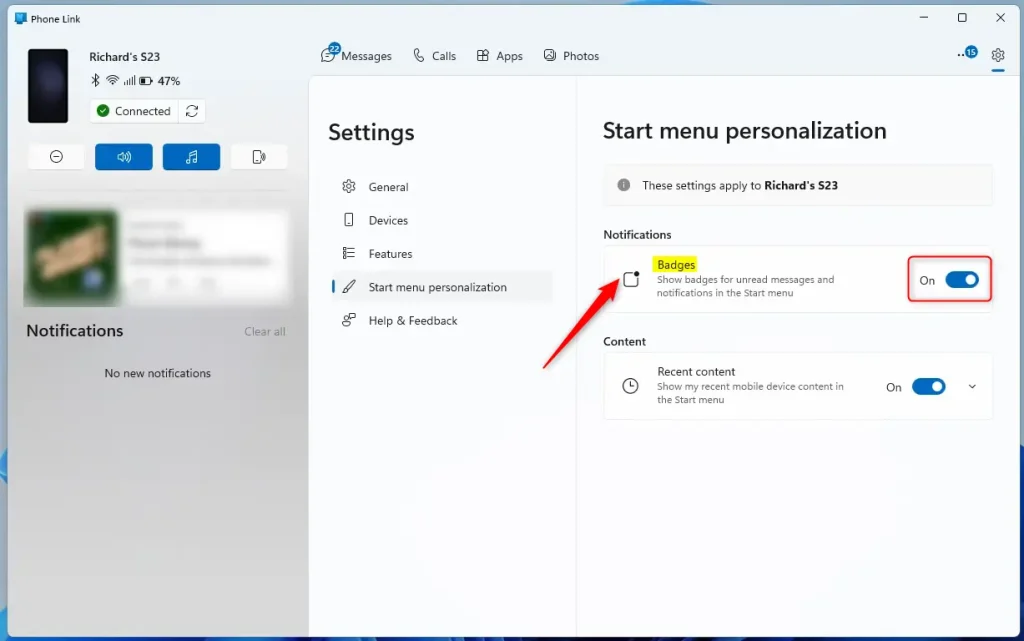
Phone Link notification badges on start menu
That’s all there is to it. Your notification badges will now appear or disappear based on your choice.
Summary
You can keep your Windows 11 Start menu looking clean by easily managing the notification badges from the Phone Link app, which connects your phone to your PC.
- The Phone Link app connects your phone and PC together.
- Recent updates let you control notification badges in the Start menu.
- Open Phone Link, go to Settings, and toggle the Badges option on or off.
- Hiding badges helps keep your Start menu clean and organized.
- You can change this setting anytime to match how you work.
How do I hide notification icons in 🪟 Windows 11?
To hide notification icons in Windows 11, open Settings from the taskbar and go to the Personalization section to manage which icons appear.
How to hide notification badges on home screen?
First open the settings app on your iPhone. Scroll down to apps at the bottom and tap. It on versions of iOS prior to 18 you will see a list of apps. Instead just carry on to the next. Step. Scroll
What is show badges on taskbar in 🪟 Windows 11?
In Windows 11, a badge on a taskbar app icon is a small alert that tells you there’s new activity or something that needs your attention within that application.
Was this guide helpful?

About the Author
Richard
Tech Writer, IT Professional
Richard, a writer for Geek Rewind, is a tech enthusiast who loves breaking down complex IT topics into simple, easy-to-understand ideas. With years of hands-on experience in system administration and enterprise IT operations, he’s developed a knack for offering practical tips and solutions. Richard aims to make technology more accessible and actionable. He's deeply committed to the Geek Rewind community, always ready to answer questions and engage in discussions.


No comments yet — be the first to share your thoughts!