Enable Auto Brightness in Microsoft Teams

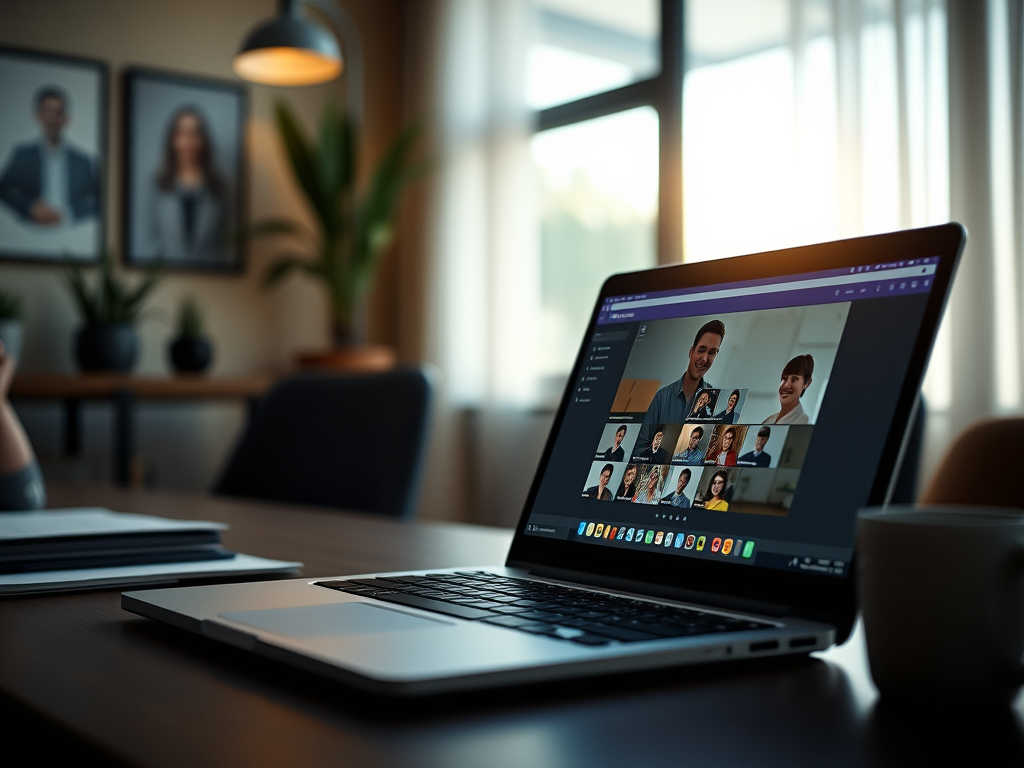
You enable auto brightness in Microsoft Teams to automatically adjust your camera’s exposure for better video quality in low light conditions.
This feature intelligently brightens your video feed, ensuring you appear clear and professional on calls without manual intervention.
Microsoft Teams, a widely used collaboration platform, offers this automatic adjustment to combat grainy or dark video, especially when you’re in dimly lit rooms.
Activating auto brightness ensures your appearance remains consistent and visible to others during meetings, improving the overall communication experience.
Was this guide helpful?

About the Author
Richard
Tech Writer, IT Professional
Richard, a writer for Geek Rewind, is a tech enthusiast who loves breaking down complex IT topics into simple, easy-to-understand ideas. With years of hands-on experience in system administration and enterprise IT operations, he’s developed a knack for offering practical tips and solutions. Richard aims to make technology more accessible and actionable. He's deeply committed to the Geek Rewind community, always ready to answer questions and engage in discussions.


No comments yet — be the first to share your thoughts!