Disable Chrome Default Browser Prompt in Windows 11


You can disable the Google Chrome default browser prompt in Windows 11 to stop it from asking you to make Chrome your default. This notification appears because Windows 11 sets Microsoft Edge as the default browser, and Chrome frequently checks if you’d prefer it.
Stopping this prompt prevents Chrome from constantly asking you to change your default browser. Once disabled, Chrome will no longer display the “Set as default” button within its settings. This ensures you won’t see the reminder on every Chrome startup.
Open the Windows Registry Editor as administrator and navigate to the Chrome policies key. Double-click “DefaultBrowserSettingEnabled” and set its value to 0 to disable the prompt.
Prevent Google Chrome from asking to be the default browser
As mentioned, users can prevent Google Chrome from asking to be the default browser in Windows 11.
Here’s how to do it.
First, open the Registry Editor (this is a powerful tool for making changes to Windows settings) as an administrator.
Then, navigate to the following registry key:
ComputerHKEY_CURRENT_USERSoftwarePoliciesGoogleChrome
Next, double-click the DefaultBrowserSettingEnabled (a DWORD value that stores data as a number) entry in the right-hand pane of the Chrome key to open it.
Then, type 0 to stop Google Chrome from asking you to make it your default browser for your user account.
If you don’t see ‘DefaultBrowserSettingEnabled‘ listed, right-click on an empty space and choose ‘New’, then select ‘DWORD (32-bit) Value’.
Then, type the name “DefaultBrowserSettingEnabled” and enter 0 to disable the feature for the current user.
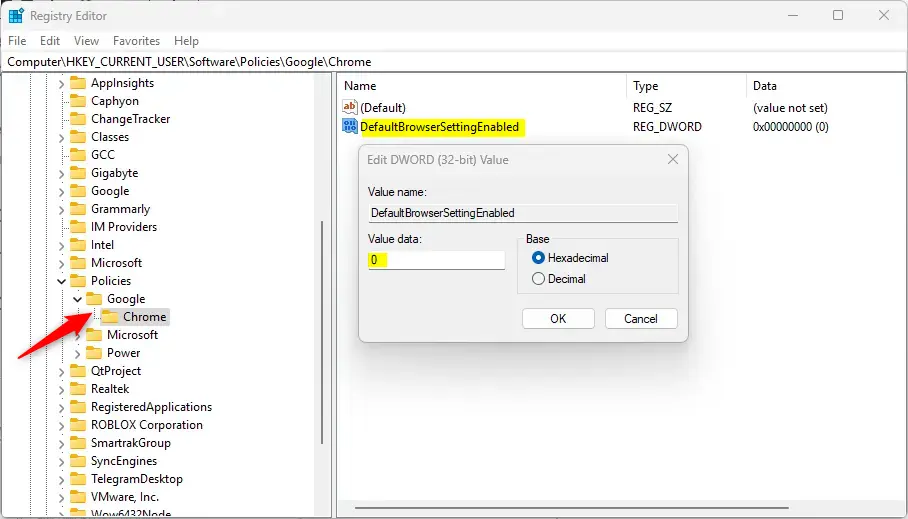
If you want to go back to how things were and have Google Chrome ask again about being your default browser, just delete the ‘DefaultBrowserSettingEnabled‘ item you created.
If you want to apply this policy to all computer users, use the Registry key below.
ComputerHKEY_LOCAL_MACHINESOFTWAREPoliciesGoogleChrome
You may have to reboot your computer to apply the changes.
That should do it!
Reference:
Conclusion:
- Disabling Google Chrome’s “Set as default” prompt prevents it from checking if it’s the default browser
- To disable the prompt, use the Windows Registry Editor to navigate to the corresponding registry key and set the value to 0
- To revert to the default behavior, delete the “DefaultBrowserSettingEnabled” item created
- The policy can be applied to all computer users via the 🗝️HKEY_LOCAL_MACHINESOFTWAREPoliciesGoogleChrome Registry key
- Rebooting the computer may be necessary to apply the changes
Was this guide helpful?

About the Author
Richard
Tech Writer, IT Professional
Richard, a writer for Geek Rewind, is a tech enthusiast who loves breaking down complex IT topics into simple, easy-to-understand ideas. With years of hands-on experience in system administration and enterprise IT operations, he’s developed a knack for offering practical tips and solutions. Richard aims to make technology more accessible and actionable. He's deeply committed to the Geek Rewind community, always ready to answer questions and engage in discussions.




No comments yet — be the first to share your thoughts!