How to Change BitLocker Encryption in Windows 11


BitLocker helps keep your computer data safe. Only people you allow can see your files. New files you create on a protected drive stay safe too.
You can protect your main drive, regular storage drives, and removable drives like USB sticks. When you turn on BitLocker for your main drive, external.
BitLocker uses XTS-AES 128-bit encryption by default. But you can make it stronger. You can use a 256-bit encryption key instead. This works for your main drive, storage drives, and removable drives.
Why Change Your BitLocker Settings?
A stronger encryption code makes your data harder for others to crack. If you work with very sensitive information, using 256-bit encryption gives you extra protection.
What Happens When You Change These Settings?
Your files stay protected with the new, stronger encryption. New files you create will use the new settings right away. Your computer may need to restart for the changes to work.
Method 1: Use Group Policy Editor
This method works best if you understand your computer settings.
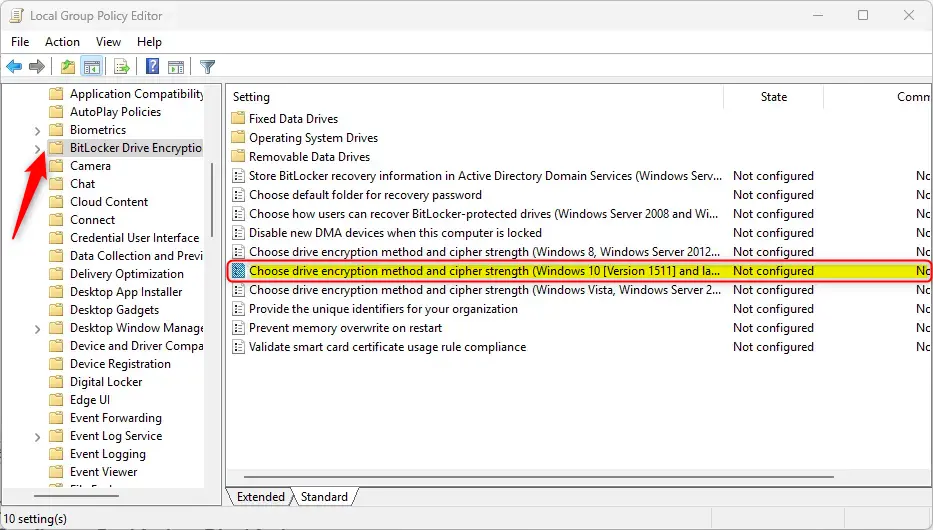
- Open the Local Group Policy Editor. Search for “Edit group policy” on your Start menu.
- Follow these folders in order:
- Computer Configuration
- Administrative Templates
- Windows Components
- BitLocker Drive Encryption
- On the right side, find “Choose drive encryption method and cipher strength (Windows 10 (Version 1511) and later)”. Double-click it.
- A window opens. You have three choices:
- Not Configured (this is the default) – BitLocker uses its standard settings
- Enabled – you pick the encryption type yourself
- Disabled – BitLocker uses AES with 128-bit or 256-bit strength
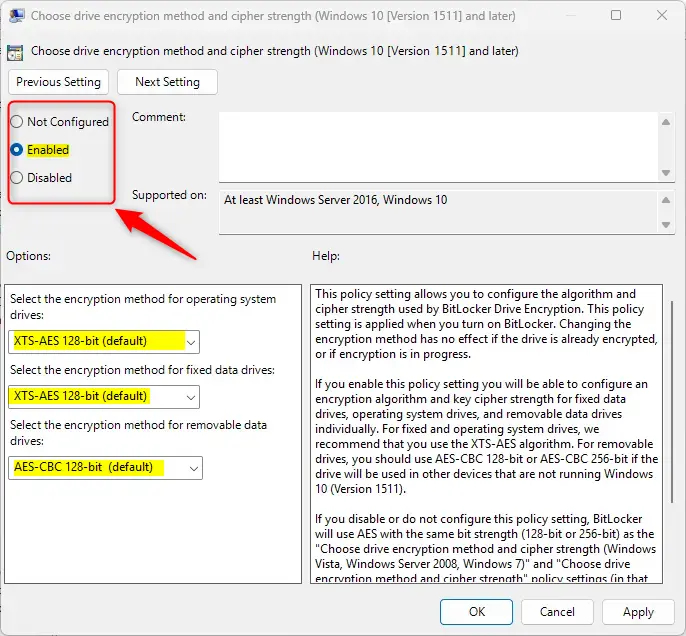
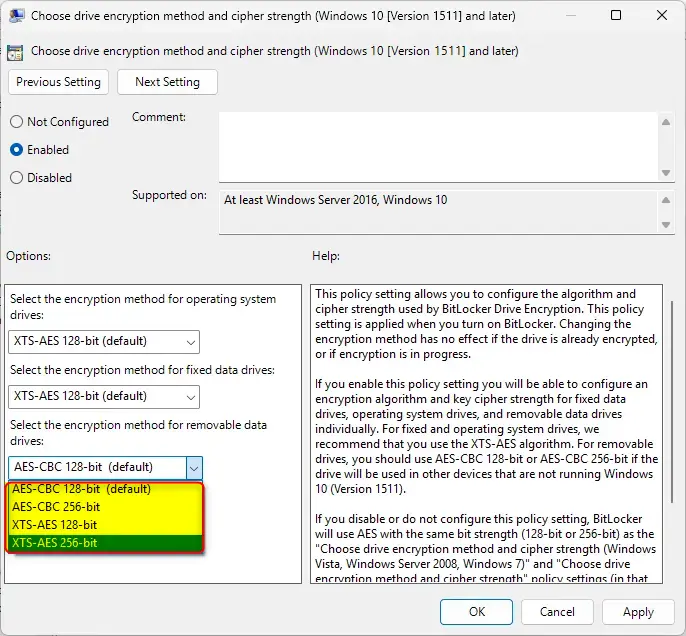
- If you pick Enabled, use the dropdown menu under Options. Choose your encryption method for:
- Operating system drives (your main drive)
- Fixed data drives (regular storage)
- Removable data drives (USB sticks)
- Click OK to save. You may need to restart your computer.
Method 2: Use Registry Editor
⚠️ Admin Required – You need administrator access for this method.
The Registry Editor is where Windows stores all its settings. Changing the wrong thing can cause problems. Be careful with this method.
- Open the Windows Registry Editor. Search for “regedit” on your Start menu.
- Find this path in the left panel:
HKEY_LOCAL_MACHINE\SOFTWARE\Policies\Microsoft\FVE - Look at the right side. You should see three items with these names:
EncryptionMethodWithXtsOs
EncryptionMethodWithXtsFdvEncryptionMethodWithXtsRdv- Double-click each one and change its value:
- Enter
4to useAES-CBC 256-bitencryption
- Enter
- Enter
7to useXTS-AES 256-bitencryption
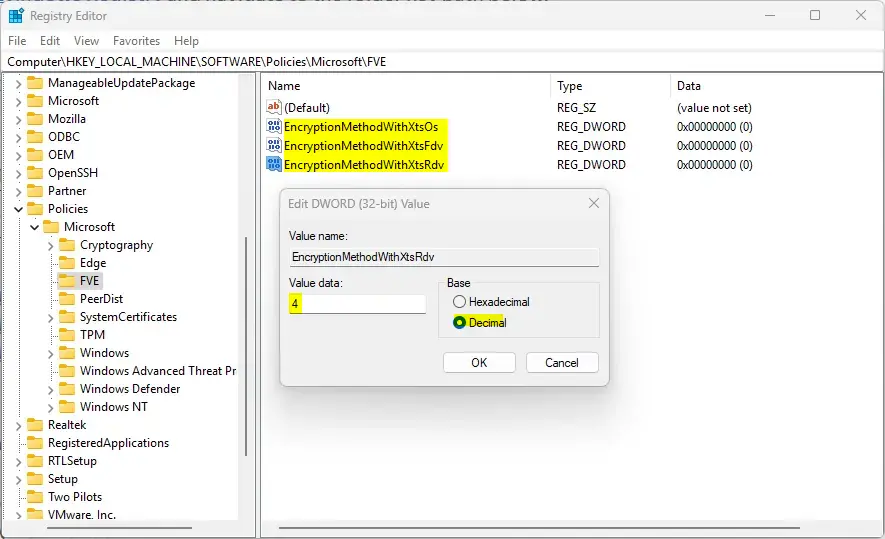
- Don’t see these items? Right-click a blank area on the right side. Pick “New” and then “DWORD (32-bit) Value”. Create all three items if they’re missing, then enter the values above.
- To go back to the default
XTS-AES 128-bitencryption, delete all three items you created or changed. - Save your changes and restart your computer.
Summary
BitLocker protects your files with encryption. By default, it uses XTS-AES 128-bit encryption. You can make it stronger by switching to 256-bit encryption.
You have two ways to change this:
- Group Policy Editor – easier and safer for most people
- Registry Editor – more advanced, requires admin access
You can change encryption for your main drive, storage drives, and removable drives. Always restart your computer after making changes. This lets Windows use the new encryption settings.
Stronger encryption takes a bit more computer power but keeps your data much safer.
Frequently Asked Questions
What is BitLocker encryption in Windows 11?
How can I change the BitLocker encryption method in Windows 11?
What are the default encryption settings for BitLocker?
Can I change BitLocker settings using the Windows Registry?
Do I need to restart my computer after changing BitLocker settings?
Was this guide helpful?
No comments yet — be the first to share your thoughts!