How to Change Windows Terminal Themes


You change Windows Terminal themes to customize its appearance and improve your workflow.
Windows Terminal is a modern command-line application that supports multiple shells like Command Prompt, PowerShell, and WSL. You can personalize its look, including colors and fonts, to make it more comfortable and visually appealing.
For instance, selecting a dark theme can significantly reduce eye strain during late-night coding sessions. Distinct themes also help you quickly differentiate between multiple Terminal windows, boosting your efficiency.
After you apply a new theme, Windows Terminal immediately adopts the new look. Choosing “Use Windows theme” ensures your Terminal automatically syncs with your overall Windows 11 system theme settings.
How to change your Terminal theme
Follow these steps to update your look:
- Open the Windows Terminal app. You can do this by clicking the Start menu, typing “Terminal,” and selecting the app.

- Click the down arrow in the top bar of the Terminal window. Select Settings (or press Ctrl + , on your keyboard).

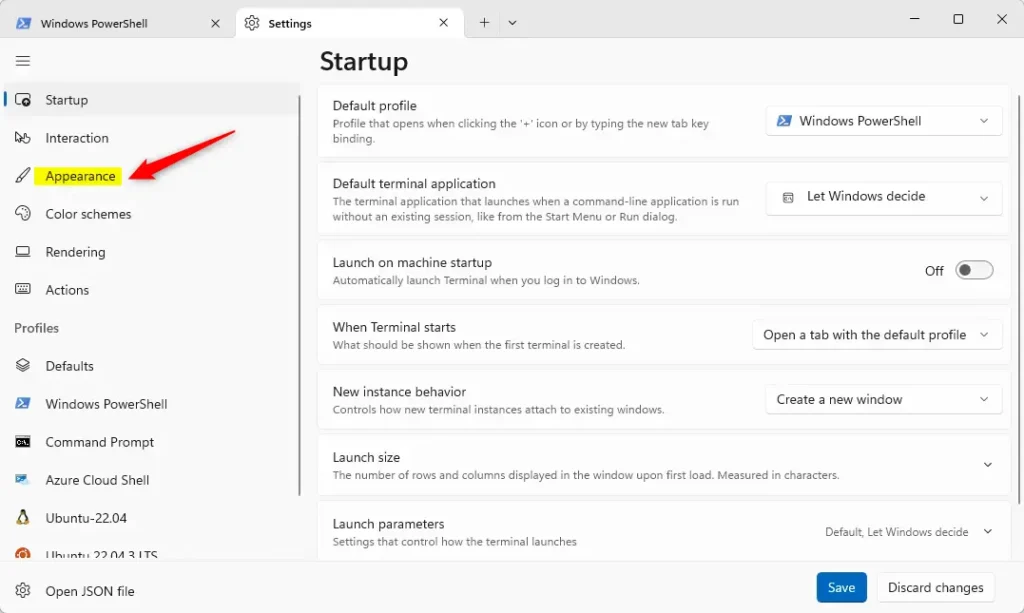
- On the left side of the screen, click the Appearance tab.
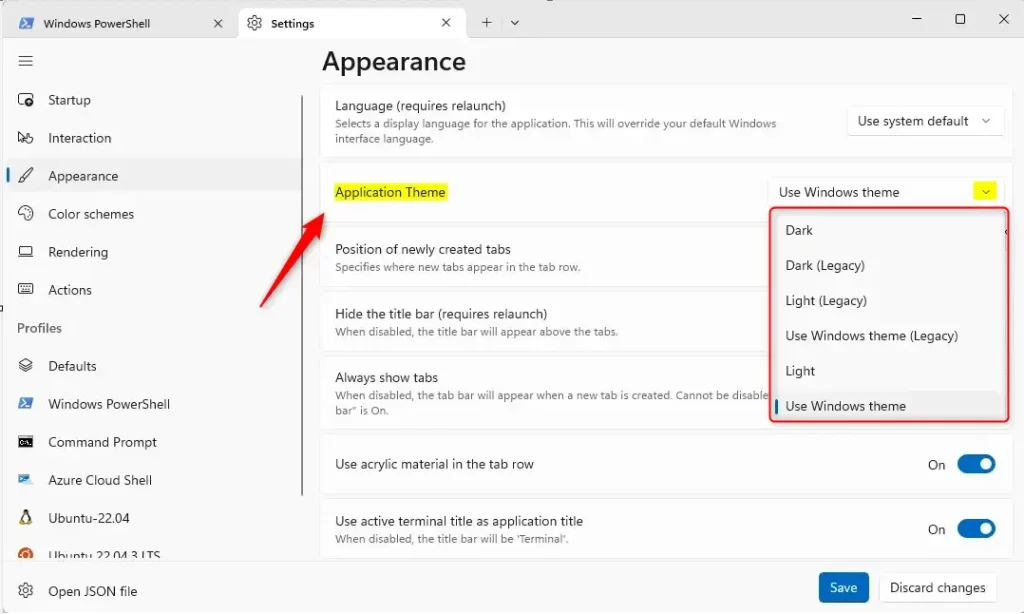
- On the right side, find the Application Theme box. Use the menu to pick Dark, Light, or Use Windows theme.
- Click the Save button at the bottom to finish.
Note: These settings are specific to your user profile. You do not need admin privileges to change these appearance settings.
Summary
- Terminal themes allow you to switch between Light and Dark modes.
- Using a dark theme can help reduce eye strain in low-light rooms.
- Custom themes make it easier to manage multiple open tabs or windows.
- The “Use Windows theme” setting keeps your app consistent with your system settings.
How do I change the theme in Windows Terminal?
What themes are available in Windows Terminal?
Can I use a custom theme in Windows Terminal?
Why should I change the theme in Windows Terminal?
Does the Windows theme affect Windows Terminal appearance?
Was this guide helpful?
No comments yet — be the first to share your thoughts!