How to use the Dark Theme in Microsoft Edge


You can enable the dark theme in Microsoft Edge to reduce eye strain and improve your browsing experience, especially in low-light conditions.
Microsoft Edge’s dark theme transforms bright white interface elements into darker shades, offering a more comfortable visual experience.
This browser theme setting is independent of your Windows 10 or Windows 11 system theme. This means you can set Edge to dark mode even if your operating system remains in light mode.
By default, Edge mirrors your Windows theme. Enabling dark mode in Edge, available on all recent versions, can significantly reduce screen glare and eye fatigue.
Open Microsoft Edge, click the three dots menu, select Settings, then Appearance. Choose “Dark” from the Theme dropdown menu to enable the dark theme. You can also force dark mode for websites by toggling the “Dark mode for web content” option.
Use the dark theme in Microsoft Edge
You can easily switch Microsoft Edge to its dark theme by changing a simple setting in the browser itself.
- Open Microsoft Edge.
- Click the Settings and more menu (the three dots icon) in the top right corner.
- Select Settings from the list.

- On the left side of your screen, click Appearance.
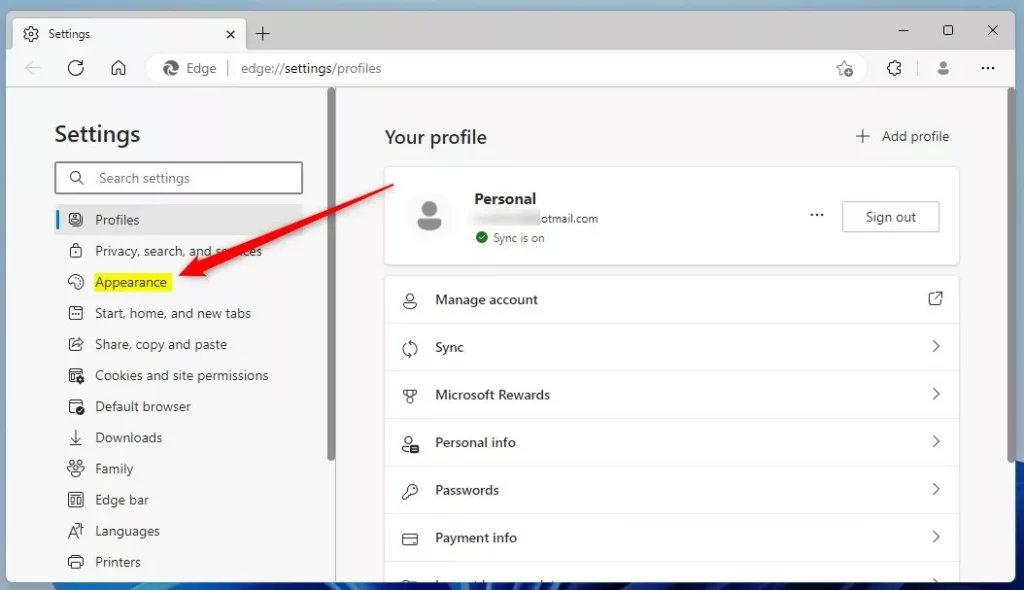
- Look for the Theme dropdown menu under the “Overall appearance” section.
- Select Dark to force the dark theme. You can also select System default to match your Windows schedule.
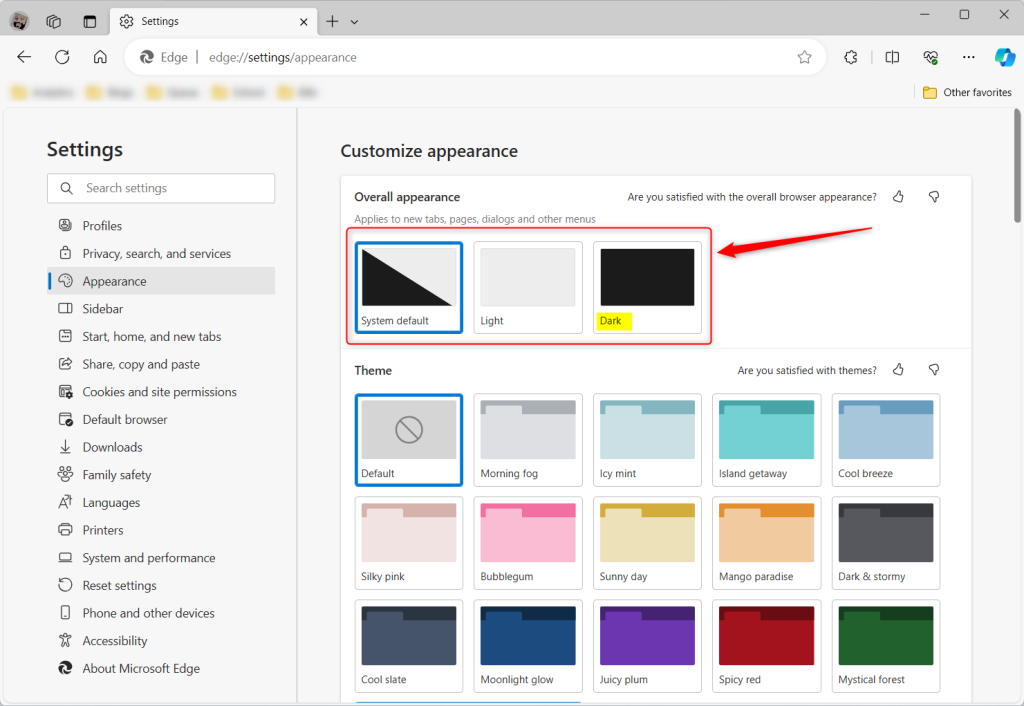
Dark mode for web content
If websites don’t automatically switch to dark mode, you can often force them to appear dark using a setting within Microsoft Edge.
If you want even more control, you can use experimental features:
- Type
edge://flagsin your address bar and press Enter. - Search for “Auto Dark Mode for Web Contents.”
- Change the setting from “Default” to “Enabled.”
- Click the Restart button at the bottom of the screen.
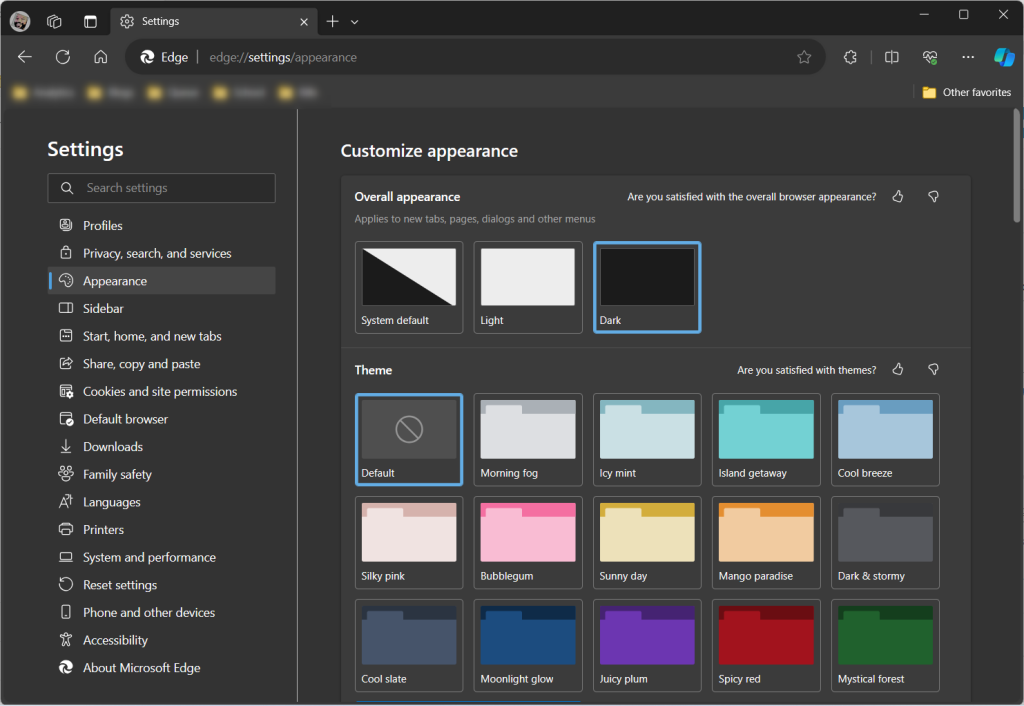
That is all you need to do! Your browser will now show a dark interface across all your tabs and menus.
Reference:
Conclusion:
Switching to a dark theme makes browsing more comfortable for your eyes. By following these steps, you can customize your browser to match your needs and your room’s lighting. With your settings updated, you can now enjoy a more modern and relaxing web experience.
Is Microsoft dark mode better for your eyes?
Using dark mode is helpful in that it's easier on the eyes than a stark, bright white screen. However, using a dark screen requires your pupils to dilate, which could make it harder to focus on the screen.
Was this guide helpful?

About the Author
Richard
Tech Writer, IT Professional
Richard, a writer for Geek Rewind, is a tech enthusiast who loves breaking down complex IT topics into simple, easy-to-understand ideas. With years of hands-on experience in system administration and enterprise IT operations, he’s developed a knack for offering practical tips and solutions. Richard aims to make technology more accessible and actionable. He's deeply committed to the Geek Rewind community, always ready to answer questions and engage in discussions.



No comments yet — be the first to share your thoughts!