How to Change File Explorer Layout in Windows 11


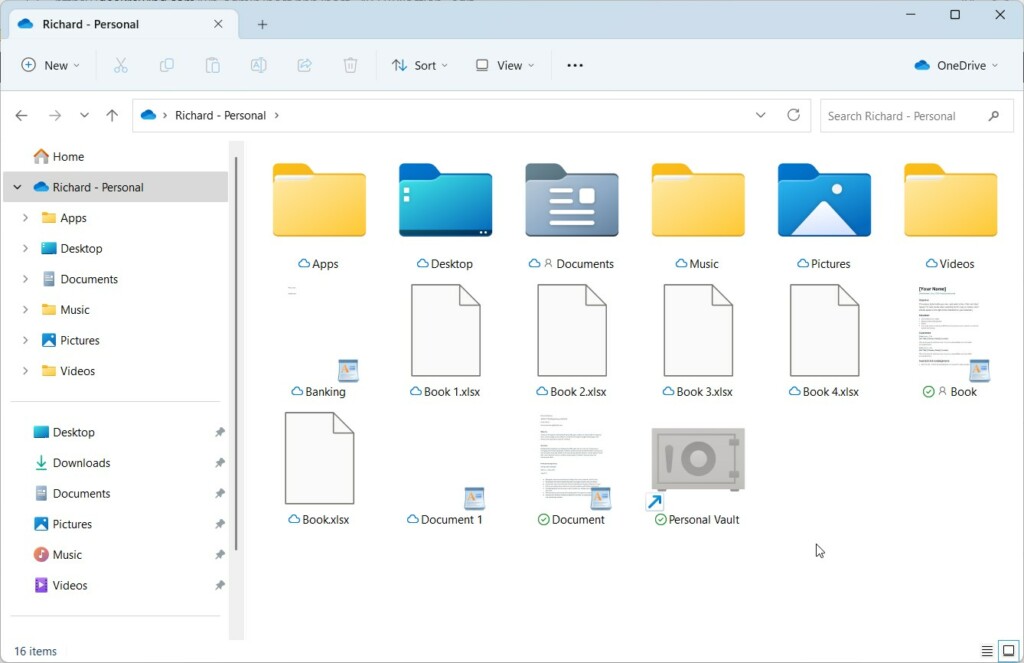
File Explorer is the primary tool for managing your files and folders. Learning how to change File Explorer layout allows you to optimize your workspace for better productivity. Whether you need to see image thumbnails or detailed file metadata, customizing your view is essential.
Why change the view?
You change the view to match the content of your folders. For example, a folder full of photos is easier to manage with Large Icons, while a folder of documents is best viewed in Details mode to see file sizes and modification dates.
What happens when done?
When you apply a layout, Windows saves your preference for that specific folder. This ensures that your chosen folder optimization remains consistent every time you return to that location.
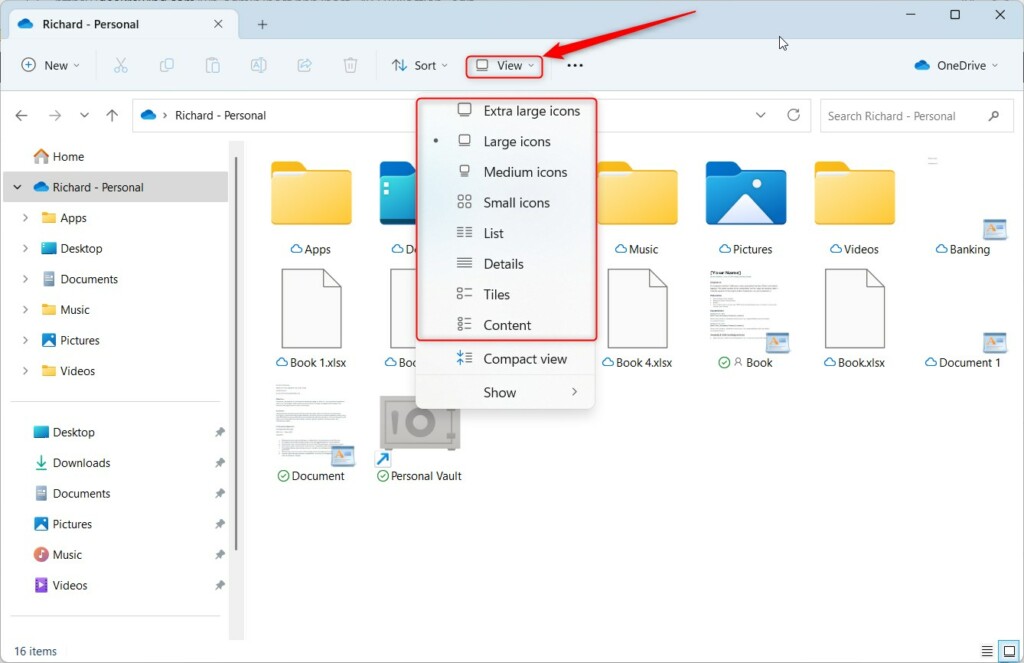
Comparison of File Explorer Layouts
| Layout Type | Best For |
|---|---|
| Extra Large/Large Icons | Photos and Videos |
| Medium Icons | General file browsing |
| List | Quick scanning of many files |
| Details | Sorting by date, size, or type |
| Tiles | Seeing file info with larger icons |
| Content | Detailed file metadata view |
Using the View Menu and Apply to Folders
To make a specific layout the default for all folders of a certain type, use the Apply to Folders feature.
- Open File Explorer and set your preferred view (e.g., Details).
- Click the View menu in the top command bar.
- Select Options at the bottom of the menu.
- In the Folder Options window, click the View tab.
- Click Apply to Folders.
Pro Tip: This feature forces Windows to adopt your current view settings for all folders that share the same template, effectively solving issues where Windows resets your view preferences.
Troubleshooting: Why Windows Resets Folder Views
Windows sometimes forgets your settings because the BagMRU registry keys have reached their limit. To fix this, you may need to reset your folder views.
How to Reset Folder Views
- Open Folder Options via the View menu.
- Go to the View tab.
- Click Reset Folders.
Advanced Customization via Registry Editor
Note: This step requires admin privileges. You can manually clear view settings by editing the registry.
1. Press WIN + R, type regedit, and hit Enter.
2. Navigate to: HKEY_CURRENT_USER\Software\Classes\Local Settings\Software\Microsoft\Windows\Shell
3. Delete the BagMRU and Bags keys to reset all custom folder views to the system default.
Summary
Customizing your File Explorer layout is a simple way to improve your file management efficiency. By using the View menu, keyboard shortcuts, or the Apply to Folders feature, you can ensure your folders always look exactly how you want them. If you encounter issues with settings not saving, use the Reset Folders tool or the registry steps provided to clear out old configurations.
Why does Windows 11 keep resetting my folder view?
Windows 11 often resets views when the internal cache for folder settings, known as BagMRU, becomes corrupted or full. Resetting your folder views through the Folder Options menu or clearing the registry cache can resolve these persistent view persistence issues and restore your custom layout preferences.
Was this guide helpful?




Leave a Reply