How to Enable or Disable Bing Chat and Web Search in Windows 11


You can enable or disable Bing Chat and web search integration in Windows 11 to control Microsoft Copilot’s presence.
Microsoft Copilot, formerly known as Bing Chat, is an AI assistant integrated into Windows 11, offering features like document summarization and quick information retrieval directly from your taskbar.
Deciding whether to keep this AI integration active helps you streamline your workflow or declutter your Windows experience.
For example, the Windows 11 version 23H2 update brought more advanced Copilot features to the operating system.
When you manage these settings, you decide if you want the AI assistant for productivity boosts or prefer a search experience focused solely on your local files and applications.
System Requirements and Updates
To access the latest features, your system must be up to date. Microsoft frequently releases improvements through Windows Update. Specifically, updates like KB5022913 and newer versions are required to ensure the taskbar integration works correctly. If you do not see the Copilot icon, check your settings in the Windows Update menu to ensure your system is current.
How to Enable or Disable Copilot and Web Search
If you prefer a cleaner interface, you can disable these features. Note: This process requires admin privileges.
Method 1Using the Registry Editor
- Open the Registry Editor by typing
regeditin the Start menu. - Navigate to:
HKEY_CURRENT_USER\Software\Microsoft\Windows\CurrentVersion\Search - If the
Searchfolder is missing, right-clickCurrentVersion, select New, and create a Key namedSearch.
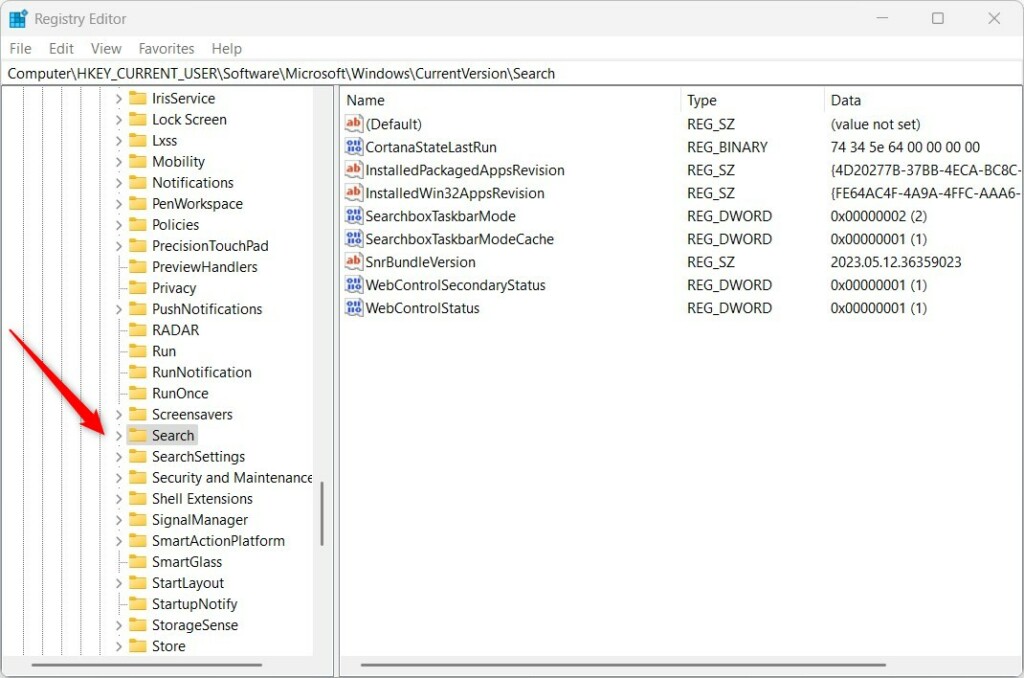
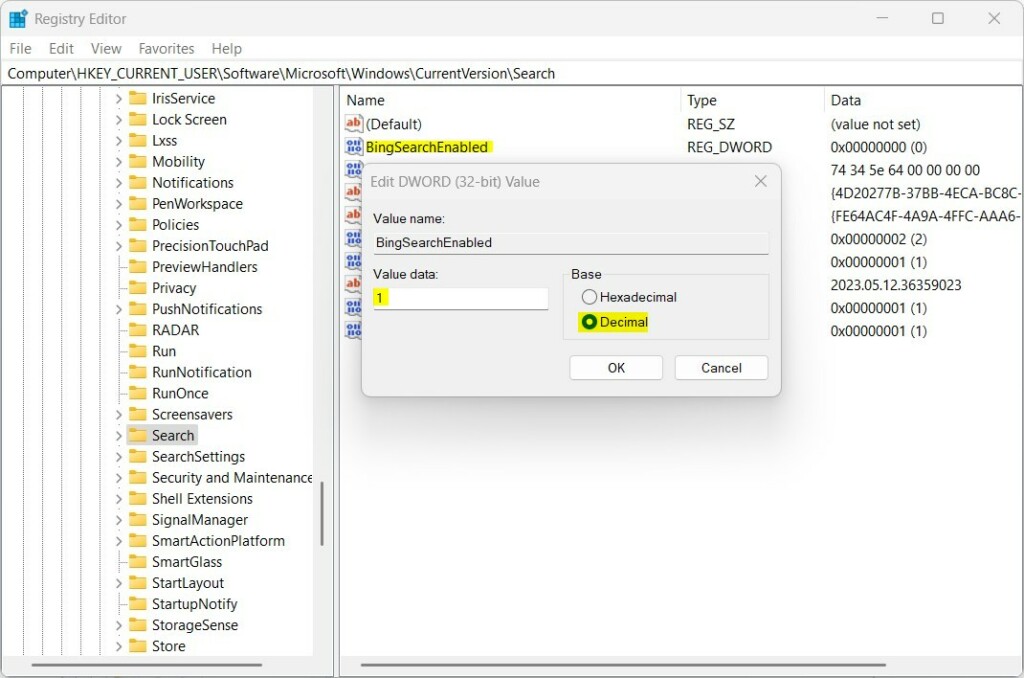
- Right-click in the empty space, select New, then DWORD (32-bit) Value.
- Name it
BingSearchEnabled. - Double-click it and set the value to
0to disable web search or1to enable it .
Method 2Using Group Policy (For Advanced Users)
You can also control these features via the Explorer policy. Note: This process requires admin privileges.
- Navigate to:
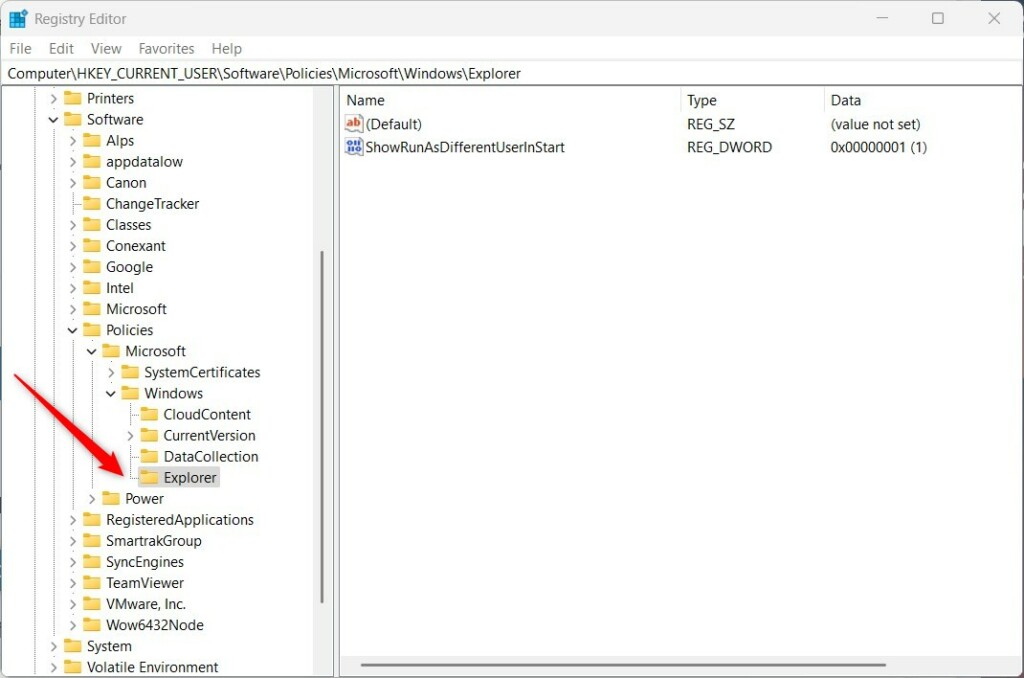
HKEY_CURRENT_USER\Software\Policies\Microsoft\Windows\Explorer - If the
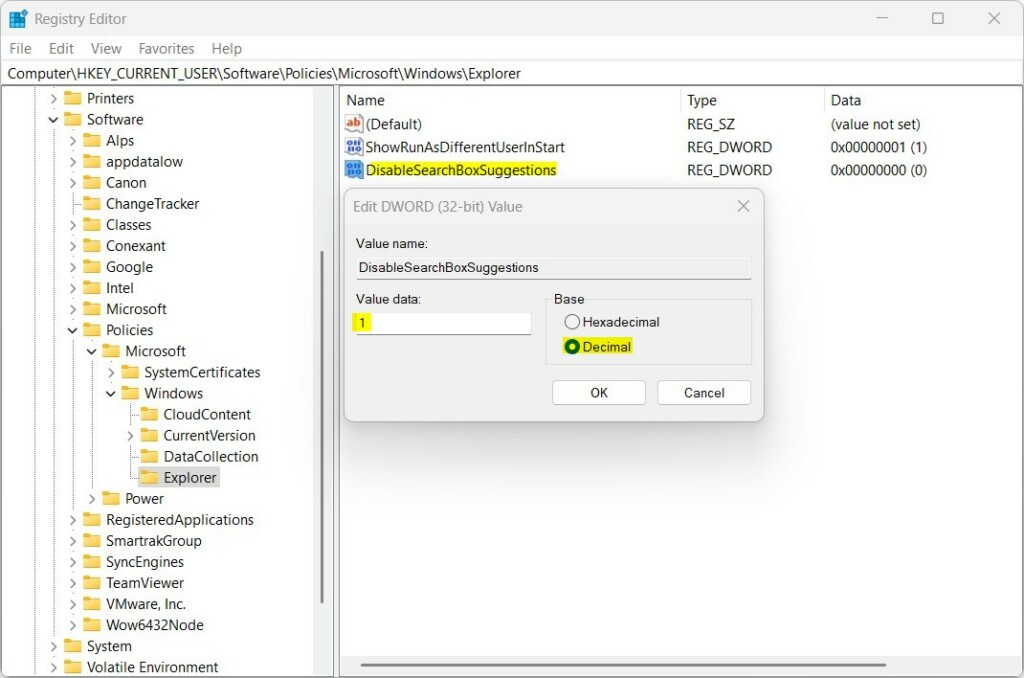
Explorerkey is missing, create it under theWindowsfolder. - Create a new DWORD value named
DisableSearchBoxSuggestionsand set it to1to turn off suggestions.
Restart your computer or the Windows Explorer process to apply these changes.
Summary
This guide explained how to manage the AI-powered search features in Windows 11. Whether you want to use Microsoft Copilot for productivity or prefer a traditional local search, you now have the tools to customize your experience. Remember to keep your system updated to ensure your Windows 11 environment remains stable and secure.” }
Is Bing Chat in 🪟 Windows 11 free to use?
Yes, Microsoft Copilot and the integrated Bing Chat features in Windows 11 are free to use for all users with a Microsoft account. While there are premium tiers for advanced enterprise features, the standard AI-powered search and chat capabilities are included as part of the Windows 11 operating system updates.
What is the difference between Bing Chat and Copilot in 🪟 Windows 11?
Bing Chat was the initial branding for Microsoft’s AI search interface. Microsoft has rebranded this experience to Microsoft Copilot. They are essentially the same underlying AI technology, but Copilot is more deeply integrated into the Windows 11 shell, allowing it to control system settings and interact with open applications.
Can I remove the Bing Chat button from my taskbar?
Yes, you can easily remove the Copilot or Bing Chat button. Right-click on an empty space on your taskbar, select Taskbar settings, and toggle the switch for Copilot to the Off position. This is the safest way to hide the icon without modifying system registry files.
Was this guide helpful?

About the Author
Richard
Tech Writer, IT Professional
Richard, a writer for Geek Rewind, is a tech enthusiast who loves breaking down complex IT topics into simple, easy-to-understand ideas. With years of hands-on experience in system administration and enterprise IT operations, he’s developed a knack for offering practical tips and solutions. Richard aims to make technology more accessible and actionable. He's deeply committed to the Geek Rewind community, always ready to answer questions and engage in discussions.

No comments yet — be the first to share your thoughts!