How to Use Access Keys in Windows 11 File Explorer


Access keys in Windows 11 File Explorer are keyboard shortcuts that help you navigate and control menus without touching your mouse. You activate these shortcuts by pressing the Alt key, which then reveals underlined letters on menu items and buttons.
Pressing the Alt key followed by the underlined letter allows you to instantly select and activate commands, much like pressing Alt+F to open the File menu. This feature significantly speeds up your workflow in File Explorer, especially for common tasks like opening, saving, or copying files.
For instance, you can press Alt+H to access the Home tab or Alt+V to manage your View options. Mastering these keys can make managing your files feel much more efficient.
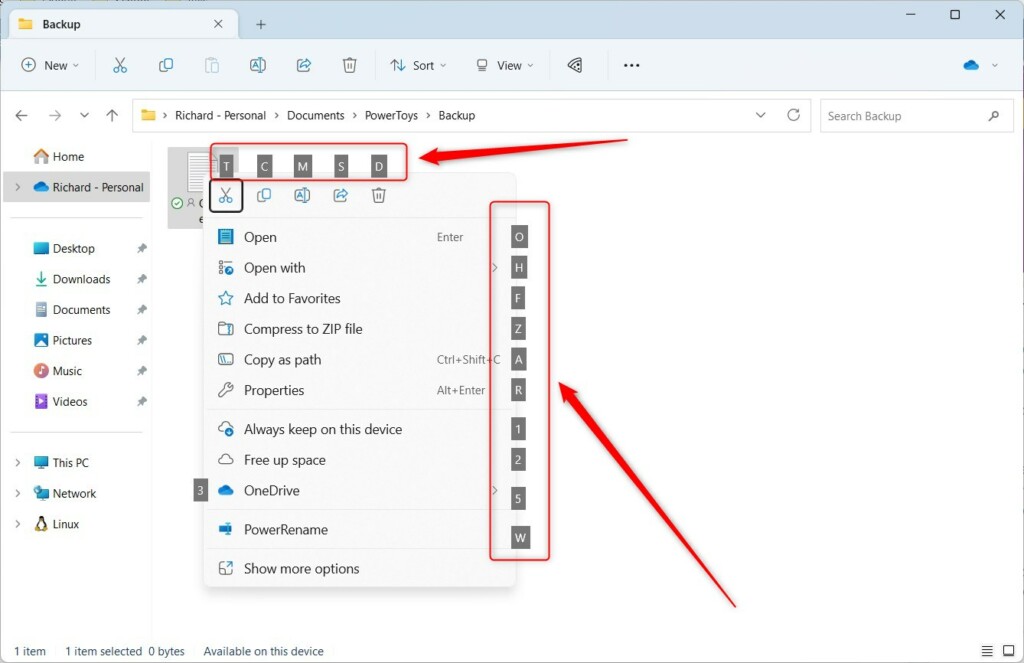
Press the Alt key to reveal underlined access keys in File Explorer menus. Type the underlined letter to activate the command. You can enable or disable visibility of these keys in Settings > Accessibility > Keyboard.
Why use Access Keys?
Mousing around can feel slow sometimes. Access Keys let you use your keyboard to pick menu options instantly, saving you time and keeping your hands on the keys. They’re especially helpful if you prefer keyboard navigation or use assistive technology like Narrator.
What happens when done?
After you finish these steps, you’ll notice small letters appear next to menu items. Typing those letters will trigger the command without needing to click. You’ll navigate File Explorer faster and more efficiently.
How to Revert to the Legacy Context Menu
If you miss the classic access keys from the old right-click menu, you can bring it back in Windows 11.
Warning: This step requires admin privileges and modifying the registry. Be careful.
- Press ⊞ Win+R, type regedit, and press Enter.
- Navigate to 🗝️HKEY_CURRENT_USER\Software\Classes\CLSID.
- Right-click CLSID, select New > Key, and name it {86ca1aa0-34aa-4e8b-a509-50c905bae2a2}.
- Inside that key, create another key named InprocServer32.
- Double-click the (Default) value and leave it empty. Click OK.
- Restart Windows Explorer via Task Manager.
Accessibility and Narrator Integration
Access Keys work hand-in-hand with screen readers like Narrator, making Windows 11 easier to use for people with vision impairments.
Summary
Access Keys in Windows 11 File Explorer let you use your keyboard to jump through menus quickly, and you can even bring back the old menu style if you prefer.- Access Keys allow you to use your keyboard to navigate menus faster.
- Enable underlined keys in Accessibility settings for better visibility.
- Access Keys are distinct from standard Ctrl-based shortcuts.
- You can revert to the legacy context menu using a registry edit to restore classic access key behavior.
- Always use caution when editing the registry as it requires admin privileges.
Why don’t access keys appear in the new 🪟 Windows 11 context menu?
The new Windows 11 context menu has a different design that doesn’t always support the old underlined access keys. Microsoft is slowly adding this support through updates. If you do not see them, the menu is likely using the modern interface which prioritizes a cleaner look over legacy keyboard indicators.
How do I enable underlined access keys in 🪟 Windows 11?
To make these keys easier to see, head to Settings > Accessibility > Keyboard. Find the option called ‘Underline access keys when available’ and turn it on. This will ensure the specific letter for a command is always underlined, making it much clearer which one to press.
Was this guide helpful?

About the Author
Richard
Tech Writer, IT Professional
Richard, a writer for Geek Rewind, is a tech enthusiast who loves breaking down complex IT topics into simple, easy-to-understand ideas. With years of hands-on experience in system administration and enterprise IT operations, he’s developed a knack for offering practical tips and solutions. Richard aims to make technology more accessible and actionable. He's deeply committed to the Geek Rewind community, always ready to answer questions and engage in discussions.



No comments yet — be the first to share your thoughts!