How to Enable or Disable Closing Warnings in Windows Terminal


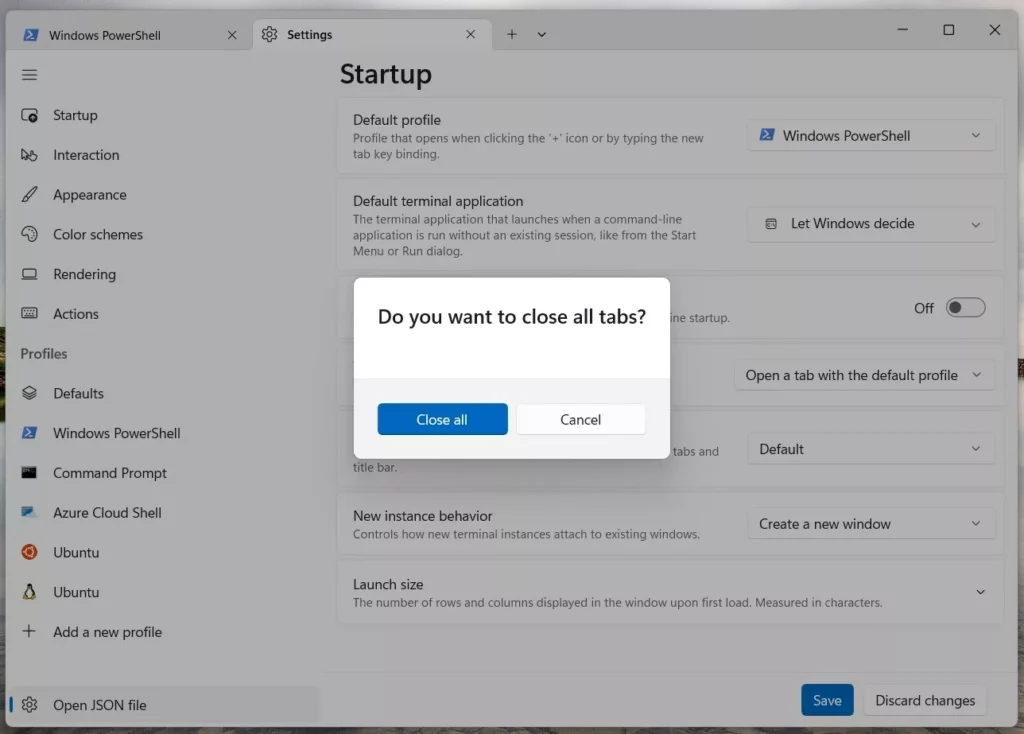
You can enable or disable closing warnings in Windows Terminal to control confirmation prompts when closing multiple tabs.
Windows Terminal, a modern host application for command-line tools like Command Prompt and PowerShell, offers features such as tabs and customization. The closing warning is a built-in safety feature designed to prevent you from accidentally losing your work.
By default, Windows Terminal version 1.19 displays a warning if you attempt to close a window with more than one tab open. You might disable this for quicker exits, or keep it enabled to safeguard your active sessions.
Once you adjust this setting, Windows Terminal will either immediately close without asking or prompt you for confirmation before shutting down with multiple tabs active.
To control closing warnings in Windows Terminal, go to Settings, then Interaction, and toggle “Warn when closing more than one tab.” You can also edit the settings.json file and change “confirmCloseAllTabs” to true or false.
Single-Tab vs. Multi-Tab Warning Distinction
Windows Terminal doesn’t show a warning when you close just one tab. The confirmCloseAllTabs setting only works when you try to close a window with multiple tabs open.
Method 1Using the Settings Menu
You can easily turn the closing warning on or off for multiple tabs right in the Windows Terminal settings menu. Just open the app, click the down arrow, go to Settings, and then choose the Interaction tab.Method 2Using the JSON Configuration File
You can change your Windows Terminal closing warning setting by directly editing its settings file, which is a good option if you’re comfortable with simple code.
- Open the Windows Terminal settings.
- Click the Open JSON file button in the bottom left corner.
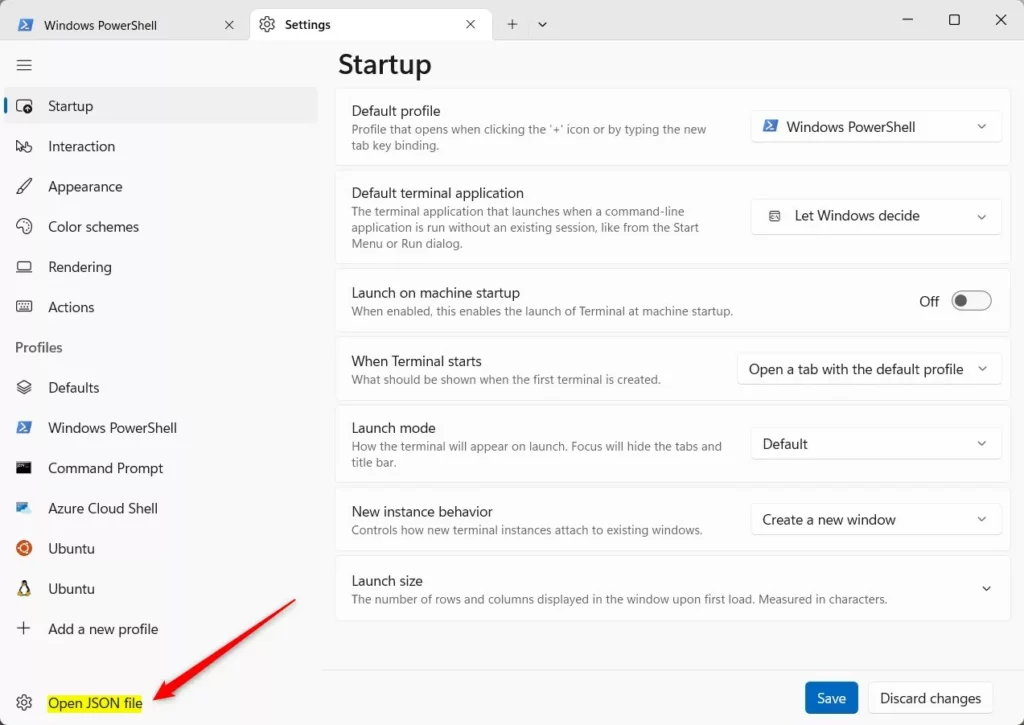
- Locate the
"confirmCloseAllTabs"property within the file.
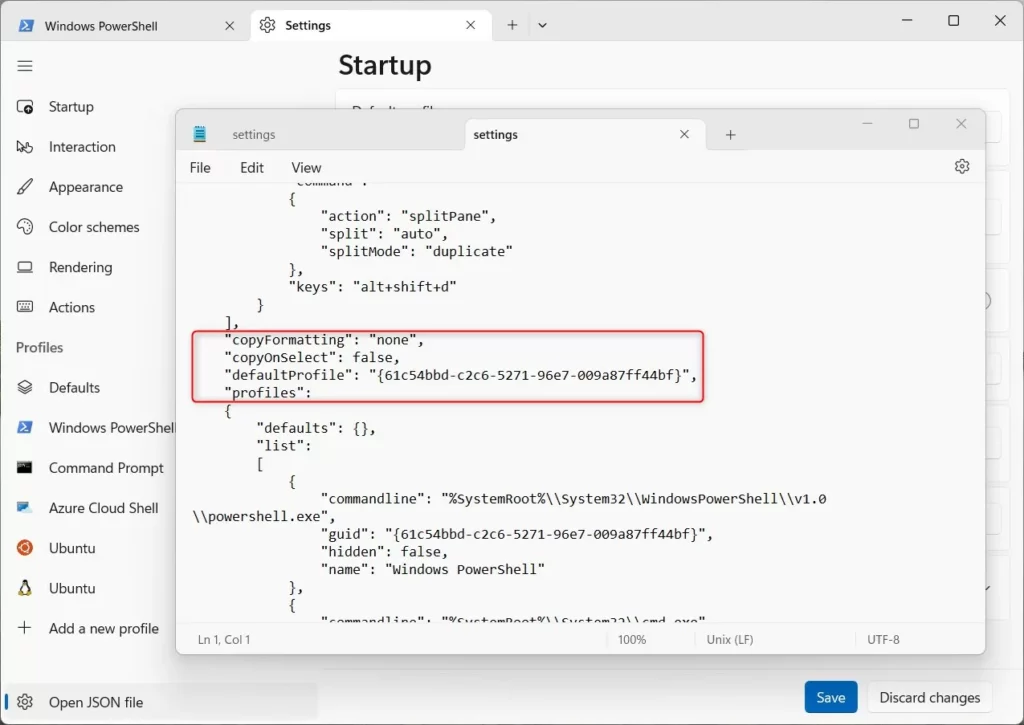
"confirmCloseAllTabs": true
- To disable the warning, set the value to
false. To enable it , set it totrue. - Save the file to apply your changes.
Troubleshooting and Configuration Context
If your Windows Terminal closing warning settings aren’t sticking, first check that you have the newest version of the app installed.
For further technical documentation, visit the official Microsoft Windows Terminal documentation or check the GitHub repository for known issues.
Summary
You can control the closing warning for multiple tabs in Windows Terminal using either the settings menu or the JSON file. While there’s no warning for a single tab, these methods help prevent accidental closures of your important sessions.
Why does Windows Terminal not warn me when closing one tab?
Windows Terminal doesn’t warn you when closing a single tab because it’s designed to be efficient. The warning is only for multiple tabs to prevent losing several sessions at once, assuming closing one tab is usually an intentional action.
Does the warning apply to all profiles?
Yes, the confirmCloseAllTabs setting is a global configuration. It applies to all profiles, including PowerShell, Command Prompt, and WSL. When enabled, it triggers a confirmation prompt regardless of which shell or SSH session is currently active in the tabs being closed.
Was this guide helpful?

About the Author
Richard
Tech Writer, IT Professional
Richard, a writer for Geek Rewind, is a tech enthusiast who loves breaking down complex IT topics into simple, easy-to-understand ideas. With years of hands-on experience in system administration and enterprise IT operations, he’s developed a knack for offering practical tips and solutions. Richard aims to make technology more accessible and actionable. He's deeply committed to the Geek Rewind community, always ready to answer questions and engage in discussions.




No comments yet — be the first to share your thoughts!