How to Disable Security Questions in Windows 11


Windows 11 often asks you to set up security questions when you create a local account. These questions act as a backup for your account recovery options. They help you regain access to your computer if you forget your password.
Why use them? They provide a simple way to verify your identity without needing external tools.
What happens when you disable them? You remove this safety net, making password recovery much harder if you lose access to your account.
Windows 11 Home vs. Pro: What You Need to Know
The method you use depends on your version of Windows. Windows 11 Pro includes the Group Policy Editor, which makes changes easy. Windows 11 Home does not have this tool by default. If you use the Home edition, you must use the registry-in-windows-11/" class="sal-link" rel="noopener" target="_blank" data-sal-id="25069">Registry Editor or PowerShell to disable security questions. Both versions support these changes, but the steps vary significantly.
Important Disclaimer: Back Up Your Registry
Warning: Editing the Windows Registry can cause system instability if done incorrectly. Before you proceed, always create a System Restore point or back up your registry. This ensures you can revert changes if something goes wrong during the system administration process.
Method 1: Using the Group Policy Editor (Pro/Enterprise Only)
Note: This method requires admin privileges.
- Click the Start button and type “Edit group policy.”
- Select the Edit group policy result.

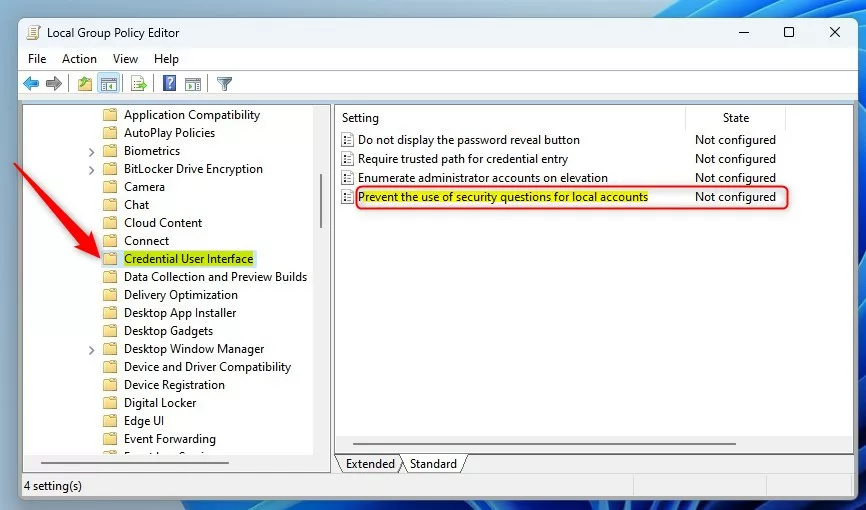
Follow this path in the left menu:
Computer Configuration > Administrative Templates > Windows Components > Credential User Interface
On the right side, double-click Prevent the use of security questions for local accounts.
Choose your setting:
- Enabled: This turns off (disables) the security questions.
- Not Configured / Disabled: This keeps the security questions turned on.
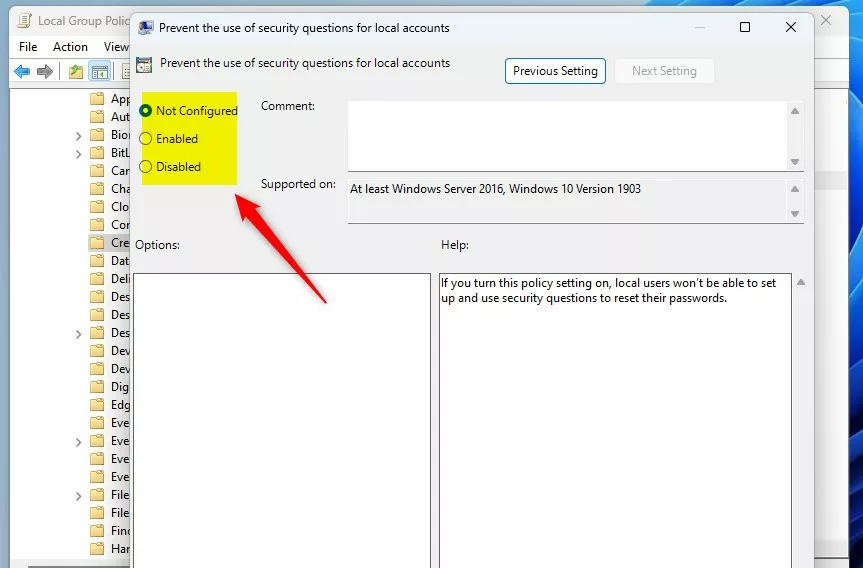
Click OK and restart your computer to apply the changes.
Method 2: Using the Registry Editor (All Versions)
Note: This method requires admin privileges.
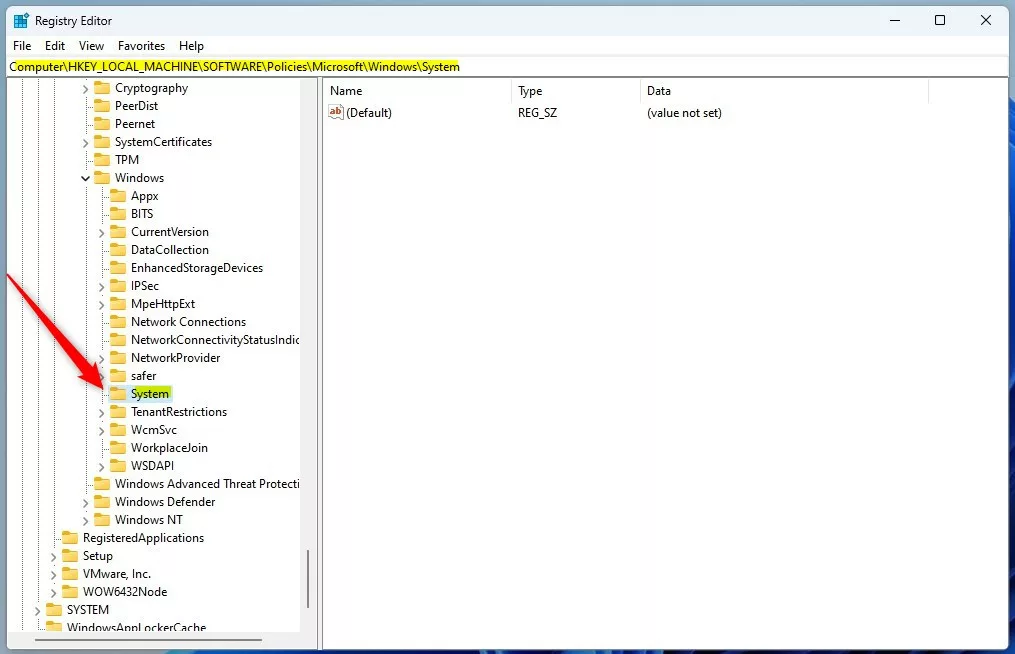
Open the Registry Editor by typing “regedit” in the Start menu. Navigate to this path:
HKEY_LOCAL_MACHINE\SOFTWARE\Policies\Microsoft\Windows\System
If the System folder is missing, right-click the Windows folder, select New, and create a key named System.
- Right-click in the empty space on the right side.
- Select New > DWORD (32-bit) Value.
- Name this value
NoLocalPasswordResetQuestions. - Double-click it and set the Value data to
1.
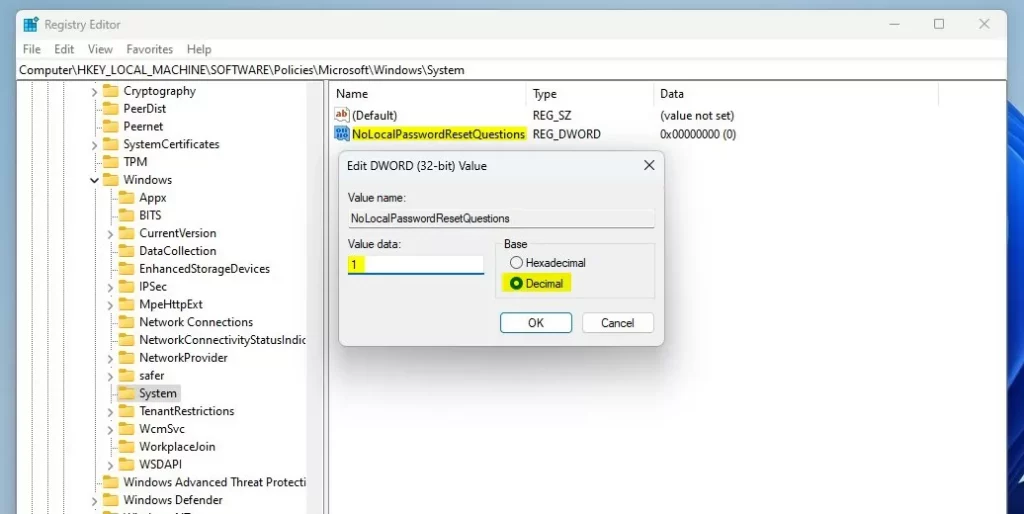
Restart your computer to finish.
Method 3: PowerShell Automation
Note: This method requires admin privileges.
You can automate this process using PowerShell. Open PowerShell as an administrator and run the following command:
New-ItemProperty -Path "HKLM:\SOFTWARE\Policies\Microsoft\Windows\System" -Name "NoLocalPasswordResetQuestions" -Value 1 -PropertyType DWORD -Force
This command creates the registry key automatically, bypassing the manual steps above.
Summary
Security questions are a helpful safety net for local Windows accounts. You can manage these settings using the Group Policy Editor, the Registry Editor, or PowerShell. Remember that disabling them removes your easiest path to password recovery. Always ensure you have an alternative recovery method, like a password reset disk, before making these changes.
Can I disable security questions on Windows 11 Home edition?
Yes. While Windows 11 Home lacks the Group Policy Editor, you can still disable security questions by using the Registry Editor or by running a PowerShell script as an administrator. These methods achieve the same result as the policy editor by modifying the system registry directly.
What are the risks of disabling security questions?
The primary risk is losing access to your local account. If you forget your password and have disabled security questions, you will not be able to use the built-in reset feature. You would then need to use advanced recovery tools, such as a password reset disk or a bootable USB drive.
Does this apply to Microsoft Accounts or only Local Accounts?
These settings specifically apply to local accounts. Microsoft Accounts use a different recovery process managed through the Microsoft website. If you use a Microsoft Account, you must reset your password online rather than relying on local security questions.
Was this guide helpful?

About the Author
Richard
Tech Writer, IT Professional
Richard, a writer for Geek Rewind, is a tech enthusiast who loves breaking down complex IT topics into simple, easy-to-understand ideas. With years of hands-on experience in system administration and enterprise IT operations, he’s developed a knack for offering practical tips and solutions. Richard aims to make technology more accessible and actionable. He's deeply committed to the Geek Rewind community, always ready to answer questions and engage in discussions.




No comments yet — be the first to share your thoughts!