How to Enable or Disable Website Typo Protection in Microsoft Edge


Website typo protection in Microsoft Edge stops you from accidentally visiting fake websites when you misspell a URL.
This security feature acts like a digital spell-checker for web addresses, automatically redirecting you to the correct site if you make a common typing error.
For instance, if you type “gooogle.com” instead of “google.com,” Edge’s typo protection intervenes to guide you to the legitimate page.
This is essential because attackers use slightly altered URLs, a tactic called typosquatting, to lure you to malicious sites and steal your data. Microsoft Edge includes this protection enabled by default for most users, offering a proactive defense.
To enable or disable website typo protection in Microsoft Edge, go to Settings, then Privacy, search, and services, and toggle the “Website typo protection” option in the Security section. This feature redirects you from mistyped URLs to legitimate websites, protecting against phishing.
How to Enable or Disable Website Typo Protection
You can easily turn website typo protection on or off in Microsoft Edge through its settings menu to help prevent accidental visits to fake websites.
- Open Microsoft Edge.
- Click the Settings and more button. These are the three dots in the top right corner. You can also press Alt+F on your keyboard.
- Select Settings from the menu.

- On the left side of the screen, click Privacy, search, and services.
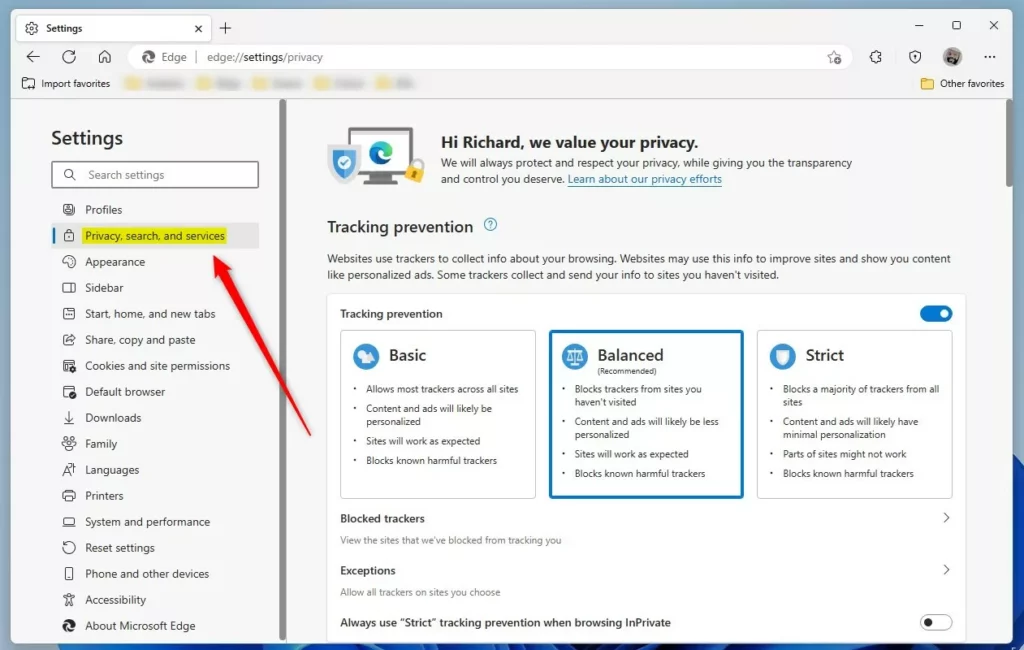
- Scroll down to the Security section.
- Find the option labeled Website typo protection.
- Click the toggle switch to turn it On or Off.
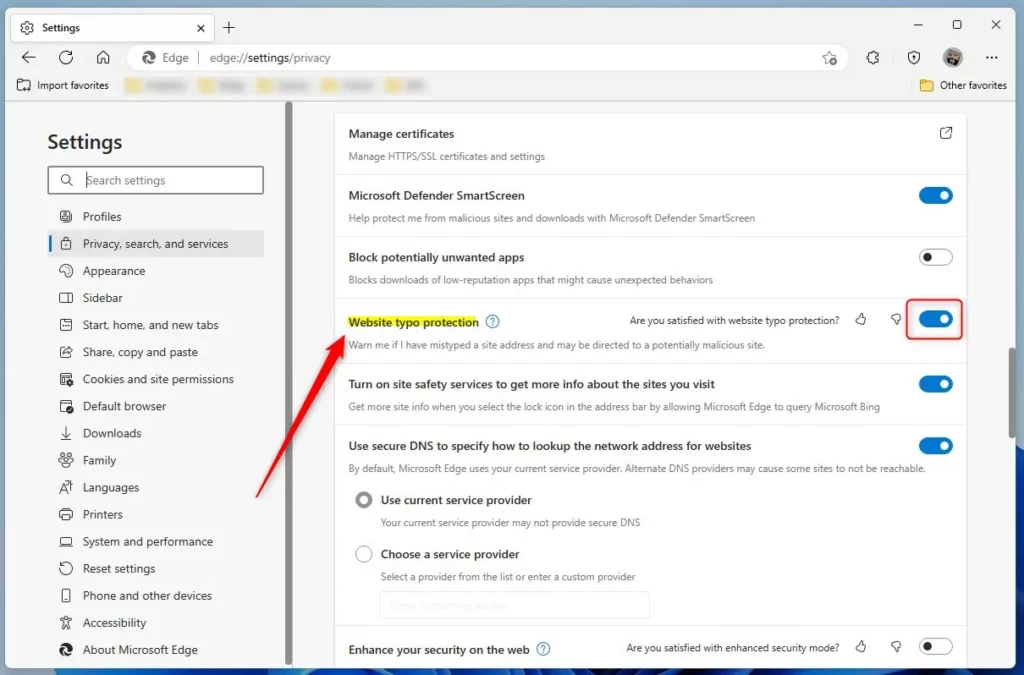
Click the toggle switch to turn it On or Off. With this feature On, Edge shields you from fake websites. When it’s Off, you lose this security layer.
Advanced Method: Using the Windows Registry
If you’re comfortable with advanced computer settings, you can also control website typo protection in Microsoft Edge using the Windows Registry.
⚠️ Admin Privileges Required
- Open the Windows Registry on your computer.
- Go to this folder path:
HKEY_LOCAL_MACHINE\SOFTWARE\Policies\Microsoft\Edge
If you do not see an Edge folder, right-click on the Microsoft folder and create a new folder named Edge.
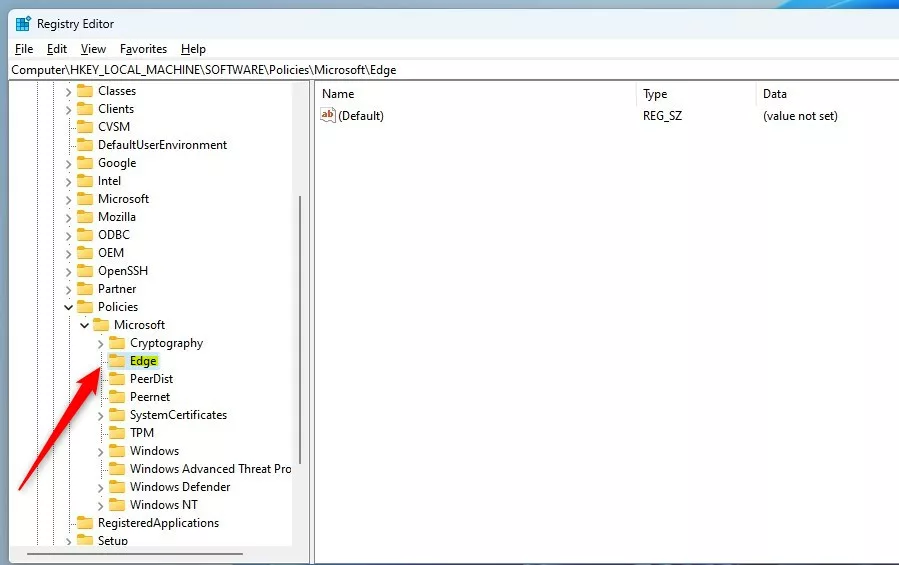
- Right-click in the empty space on the right side of the Edge folder.
- Select New and then DWORD (32-bit) Value.
- Name this new key:
TyposquattingCheckerEnabled
- Double-click on the new key you just created.
- In the Value data field, enter:
Enter ‘1’ to enable Website typo protection. Enter ‘0’ to disable it.
- Click OK to save your changes.
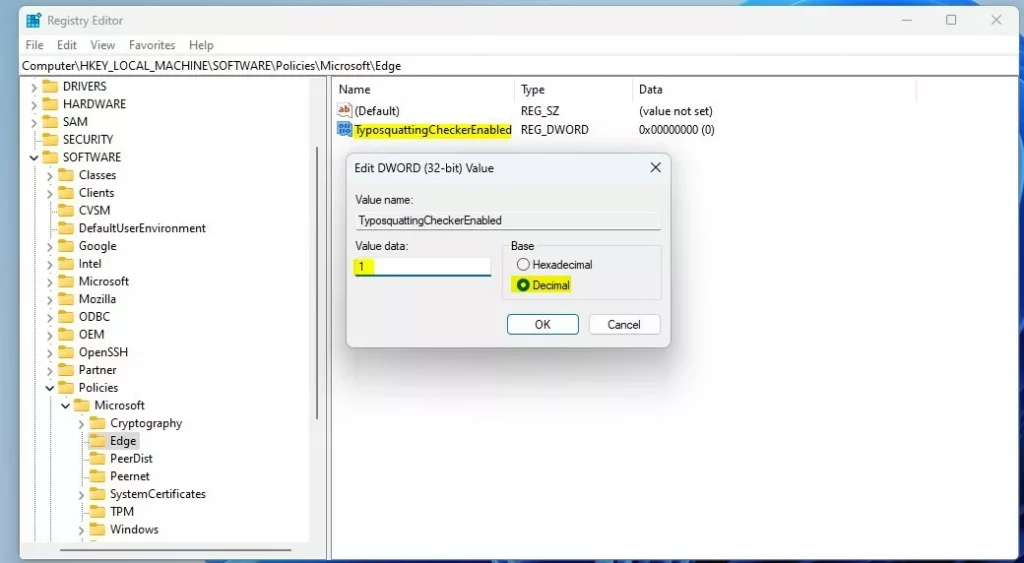
Your changes will start working immediately.
Summary
Website typo protection in Microsoft Edge is a helpful security feature that stops you from going to fake websites if you mistype an address.
Reference: Microsoft.com
Was this guide helpful?

About the Author
Richard
Tech Writer, IT Professional
Richard, a writer for Geek Rewind, is a tech enthusiast who loves breaking down complex IT topics into simple, easy-to-understand ideas. With years of hands-on experience in system administration and enterprise IT operations, he’s developed a knack for offering practical tips and solutions. Richard aims to make technology more accessible and actionable. He's deeply committed to the Geek Rewind community, always ready to answer questions and engage in discussions.




[…] article explains how to enable or disable the Microsoft Edge browser’s Website Typo Protection Override […]