How to Change Foreground Flash Count for Windows 11 Taskbar Apps


You change the foreground flash count in Windows 11 to control how many times an app icon blinks on the taskbar when it needs your attention.
The foreground flash count is a Windows Registry setting that dictates the visual alert level for applications requesting focus. By default, Windows 11 flashes an app icon 7 times when it requires your interaction.
Adjusting this number, even to 0 for an indefinite flash, helps you tailor notification intensity to your preferences. This ensures you don’t miss critical alerts without being overwhelmed by constant blinking.
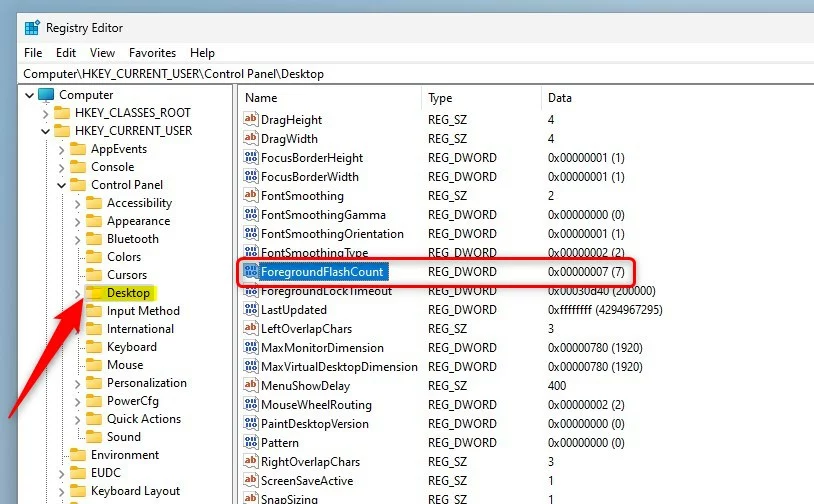
Edit the ForegroundFlashCount value in the Registry Editor. Open regedit, navigate to 🗝️HKEY_CURRENT_USER\Control Panel\Desktop, and change the DWORD value to your desired number of flashes. Restart your PC for the changes to take effect.
How to Change the Taskbar Flash Count via Registry Editor
You can change how many times an app on your Windows 11 taskbar flashes to get your attention by adjusting the ForegroundFlashCount setting using the Registry Editor.
- Press
Win + R, typeregedit, and press Enter to open the Registry Editor. - Navigate to the following path:
HKEY_CURRENT_USER\Control Panel\Desktop - Locate the
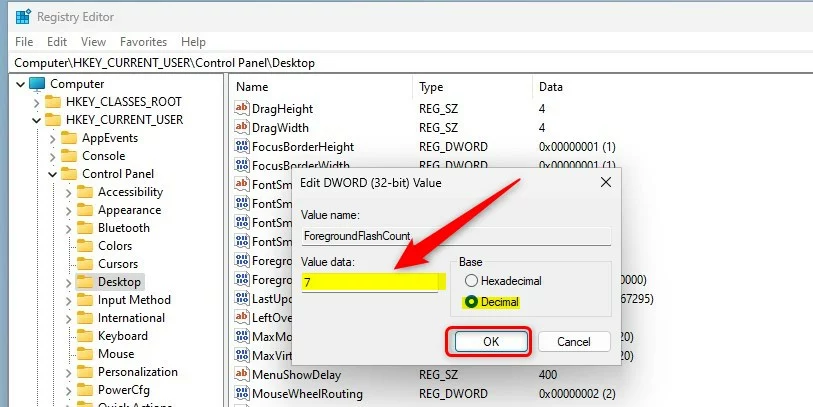
ForegroundFlashCountDWORD value on the right side. - Double-click it, select Decimal, and enter your preferred number.
- Click OK and restart your computer or sign out to apply the changes.
Advanced Configuration: Group Policy and Win32 API
If you’re in a business setting, IT admins can control the taskbar flash count for many computers using Group Policy, or developers can use special code called the Win32 API to make apps flash.
C# Implementation Example
Developers can trigger a window flash using the following code snippet:
using System.Runtime.InteropServices;
[DllImport("user32.dll")]
static extern bool FlashWindowEx(ref FLASHWINFO pwfi);
// Implementation logic goes here
Summary
Changing the ForegroundFlashCount in Windows 11 lets you decide how often apps flash on your taskbar to get your attention, like setting it to zero for constant flashing.
Does changing ForegroundFlashCount require a system restart?
Yes, while some registry changes take effect immediately, modifying the ForegroundFlashCount usually requires a full system restart or signing out and back into your Windows user account to ensure the shell process correctly reloads the new parameter from the registry hive.
How do I disable taskbar flashing entirely in 🪟 Windows 11?
To disable taskbar flashing, you can set the ForegroundFlashCount value to 1 in the registry. Alternatively, you can modify the ForegroundLockTimeout to prevent windows from stealing focus, which often stops the associated taskbar notification behavior from triggering repeatedly.
Was this guide helpful?

About the Author
Richard
Tech Writer, IT Professional
Richard, a writer for Geek Rewind, is a tech enthusiast who loves breaking down complex IT topics into simple, easy-to-understand ideas. With years of hands-on experience in system administration and enterprise IT operations, he’s developed a knack for offering practical tips and solutions. Richard aims to make technology more accessible and actionable. He's deeply committed to the Geek Rewind community, always ready to answer questions and engage in discussions.



No comments yet — be the first to share your thoughts!