How to Change Account Types in Ubuntu Linux


You can change an account type in Ubuntu Linux from Standard to Administrator, or vice versa, within the system’s settings.
Ubuntu Linux allows multiple users on a single machine, each with their own profile and permissions. Account types determine the level of access and control a user has over the system.
There are two primary account types: Standard and Administrator. A Standard account has limited privileges, suitable for daily tasks, while an Administrator account possesses full system control.
By default, new accounts are created as Standard. This protects your system by preventing accidental changes that could affect all users.
You might want to upgrade a Standard account to Administrator to grant it full access or downgrade an Administrator account for security reasons.
How to switch account type in Ubuntu Linux
As mentioned above, Ubuntu Linux is a multi-user operating system. Therefore, multiple users can use the same computer with separate and unique accounts and profiles.
Below is how to change the account type in Ubuntu Linux.
Ubuntu Linux has a centralized location for the majority of its settings. From system configurations to creating new users and updating, all can be done from the System Settings panel.

Alternatively, click on the System menu at the top-right corner of the top bar on your desktop.
On the System menu, select Settings, as highlighted below.

Click on the Users tile to open the panel in the Settings app.
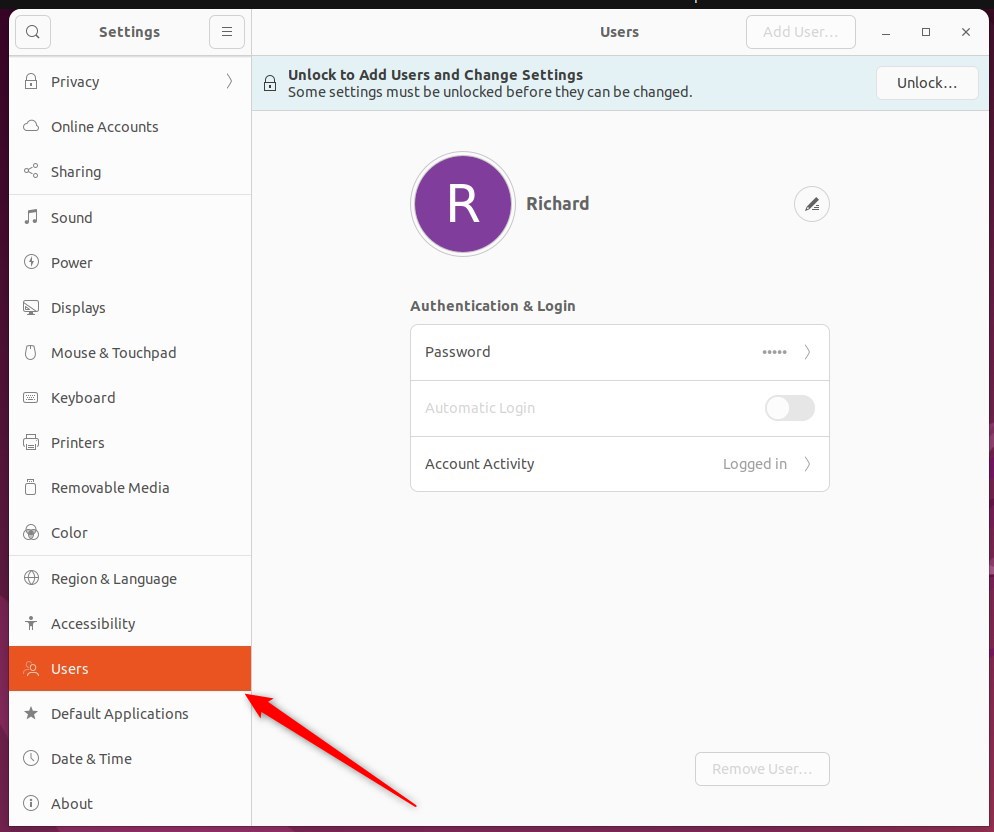
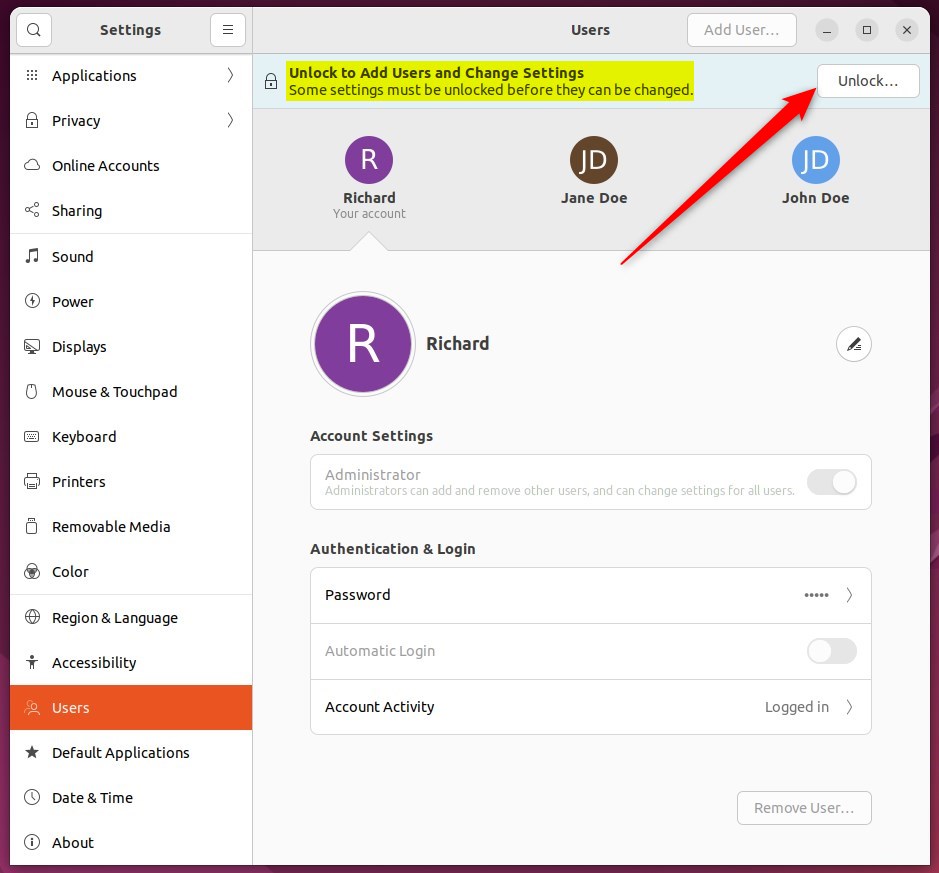
In the System Settings -> Users settings panel, press Unlock in the top right corner and type in your password when prompted.
Next, select the user whose privileges you want to change. Then, under Account Settings, toggle the Administrator button and switch to On to make the account an administrator.
To remove administrator rights, toggle the button to Off.
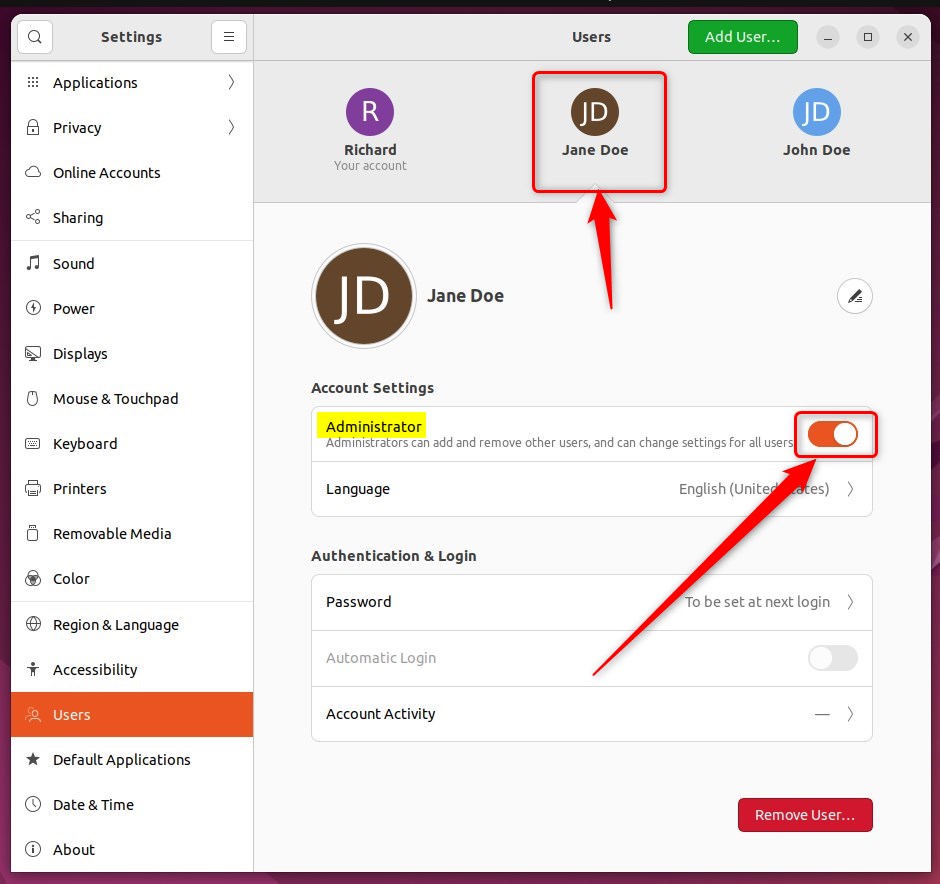
The user’s privileges will be changed when they log in again. That should do it!
You can now close the Settings app.
Conclusion:
- Ubuntu Linux offers the flexibility of multi-user functionality, allowing separate and unique accounts and profiles on the same device.
- Users can easily switch between Standard and Administrator account types through the System Settings panel.
- Users can effectively manage account privileges and access to Ubuntu Linux by following the steps provided.
Frequently Asked Questions
How do I change my account type in Ubuntu Linux?
What is the difference between a Standard and Administrator account in Ubuntu?
Can I switch back to a Standard account after being an Administrator?
Do I need to log out to apply changes after changing account types in Ubuntu?
Is it safe to have multiple Administrator accounts in Ubuntu?
Was this guide helpful?

About the Author
Richard
Tech Writer, IT Professional
Richard, a writer for Geek Rewind, is a tech enthusiast who loves breaking down complex IT topics into simple, easy-to-understand ideas. With years of hands-on experience in system administration and enterprise IT operations, he’s developed a knack for offering practical tips and solutions. Richard aims to make technology more accessible and actionable. He's deeply committed to the Geek Rewind community, always ready to answer questions and engage in discussions.




[…] you forget your Password, any user with administrator privileges can change it for you. You cannot change your Password if you can’t log […]
[…] You need to be signed in as an administrator on your PC to change these settings. Check your account type […]