Change Region and Format in Ubuntu Linux


You change the region and format settings in Ubuntu Linux to adapt how your system displays dates, times, numbers, and currency to match local conventions.
These settings, collectively known as locale, tell Ubuntu how to present information based on your chosen geographical area. This is crucial for accurate interpretation and display of data.
For example, setting your locale to “en_US.UTF-8” displays dates as MM/DD/YYYY, while “en_GB.UTF-8” uses DD/MM/YYYY. This also affects currency symbols like $ or £, decimal separators (comma vs. period), and even measurement units.
You typically access these options within Ubuntu’s “Region & Language” settings, allowing you to personalize your desktop experience for your specific needs.
Adjust your date, time, number, and currency display by opening Settings, clicking Region & Language, and selecting your desired region under Formats. Restart or log out for changes to take effect.
How to choose regions and formats in Ubuntu Linux
You can easily change how Ubuntu Linux shows dates, times, numbers, and money to match the way things are done in your specific region.
These settings are based on the country and region you configured in Ubuntu Linux.
Prerequisite for changing region and format in Ubuntu Linux
Before you change your region and format, make sure to read and follow these posts:
After you’ve followed those steps, let’s dive into changing your device’s region and formats.
Most of Ubuntu’s settings are in one place. You can manage everything from system configurations to creating users and updating from the System Settings panel.
To get to System Settings, open the Activities overview and start typing Settings.

Alternatively, click on the System menu at the top-right corner of the top bar on your desktop.
On the System menu, select Settings, as highlighted below.

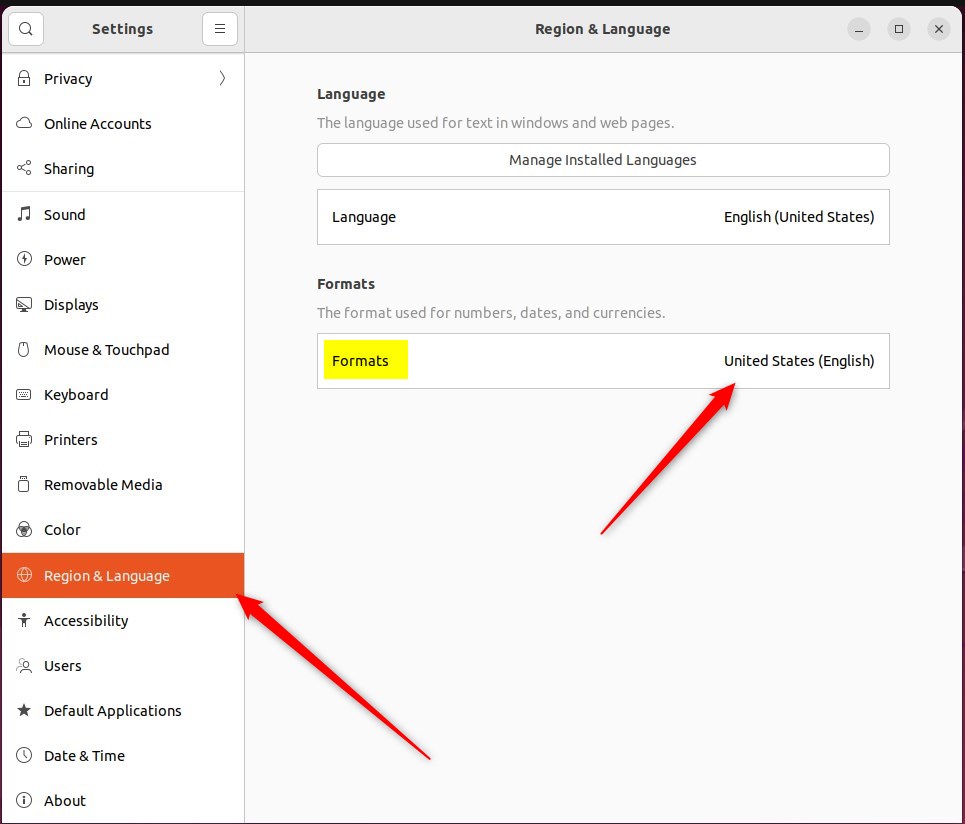
Click on the Region & Language tile in the Settings app to open the penal.
In the System Settings -> Region & Language settings pane, click on Formats to open the panel.
Under Common Formats, select the region and language that most closely matches the formats you want to use.
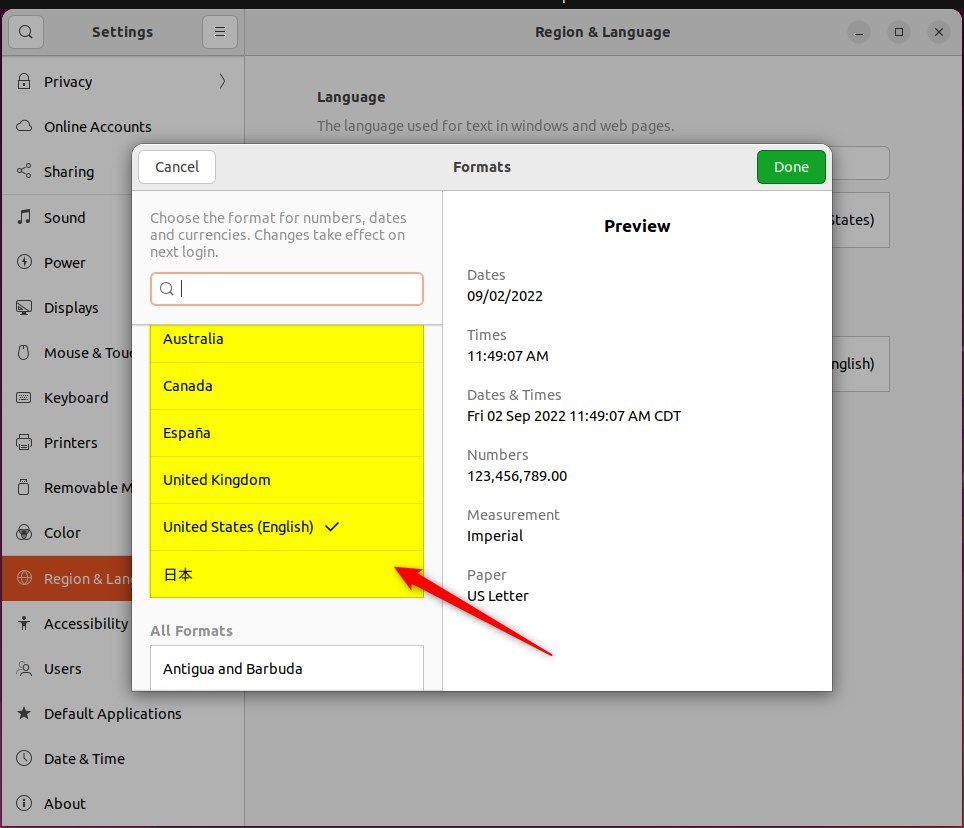
After selecting a region, the area to the right of the list shows various examples of how dates and other values are shown.
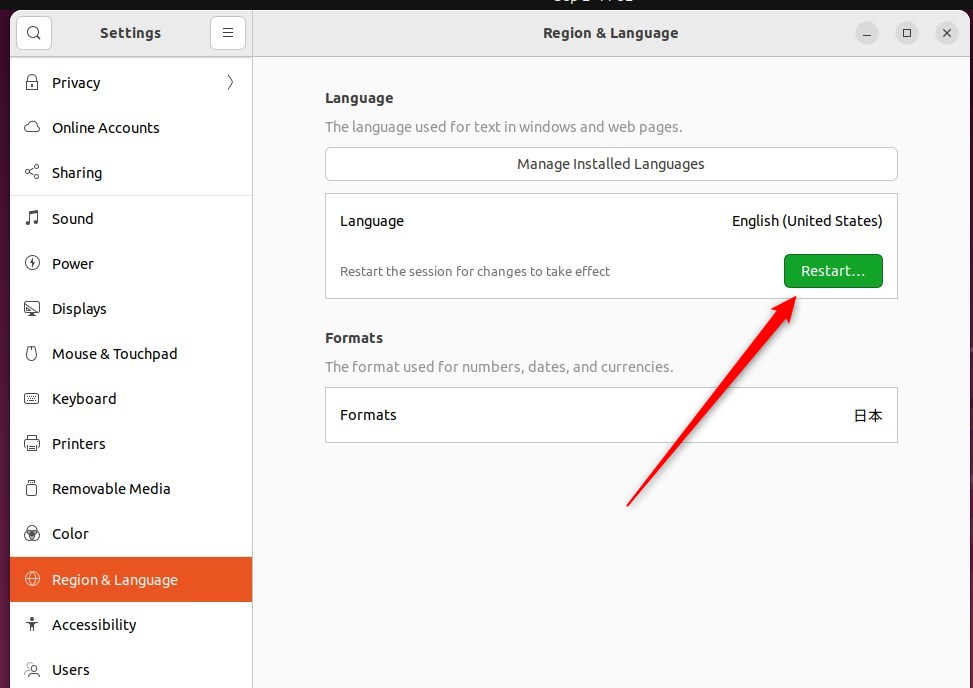
Restart or log out and back in to apply the changes.
That should do it! You can now close the Settings app.
Conclusion:
- Ubuntu Linux provides comprehensive support for configuring regions and formats to match the local customs and languages.
- Users can easily change their device’s region and formats by accessing the System Settings panel according to their preferences.
- Following selecting a region and language, it is important to restart or log out and back in to apply the changes successfully.
How do I change the region in Ubuntu?
Here. You can select a different time zone. Say that I wanted to make mine Anchorage. United States i'll click on Anchorage. United States.
How to change region in Linux?
Changing your region in Linux is simple using environment variables in the Terminal to set your preferred language and location for just your current session.
How do I change the location on Ubuntu?
And if I write here PWD. So this is now inside home and Adam. So here this is now Adam.
Was this guide helpful?

About the Author
Richard
Tech Writer, IT Professional
Richard, a writer for Geek Rewind, is a tech enthusiast who loves breaking down complex IT topics into simple, easy-to-understand ideas. With years of hands-on experience in system administration and enterprise IT operations, he’s developed a knack for offering practical tips and solutions. Richard aims to make technology more accessible and actionable. He's deeply committed to the Geek Rewind community, always ready to answer questions and engage in discussions.




[…] time zone is a geographic region where the same standard time is used. Your device’s time and dates will be set based on your […]
[…] That said, Ubuntu Linux allows users to manually manage their system’s time zone. But, of course, when you manually change the system’s time zone, you must do it every time you change your region. […]